









My watch says too many passcode attempts resent the Apple Watch but when I go to the Apple Watch app on my phone it will not allow me to reset please help."
—— From the Apple Community

Why is my Apple Watch saying too many passcode attempts?
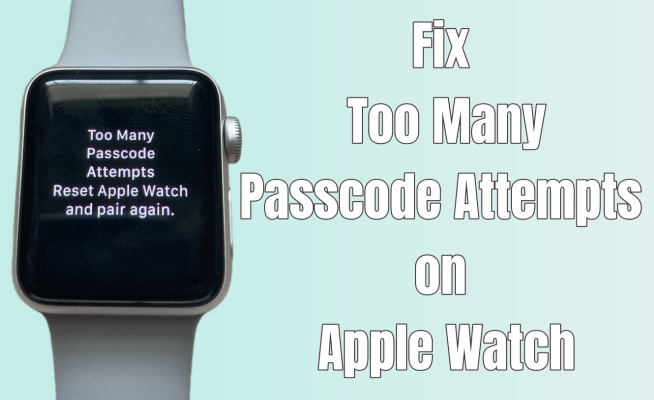
The Too Many Passcode Attempts message appears when you've entered the wrong passcode too many times in a row. Apple Watch, like other Apple devices, has built-in security to prevent unauthorized access. After several incorrect tries, it locks itself as a security measure. Once this happens, you must reset your Apple Watch to regain access.
If you're locked out of your Apple Watch after entering the wrong passcode too many times, don't panic—this guide is here to help. We will get you through how to fix too many passcode attempts reset Apple Watch and pair again, how to re-pair after the reset, and how to prevent “Too Many Passcode Attempts” message on Apple Watch.
- Part 1. How to Reset Apple Watch after Too Many Passcode Attempts
- Part 2. How to Repair and Restore Apple Watch after Reset
- Part 3. How to Prevent Apple Watch from Accidentally Locking
- Part 4. FAQs about Apple Watch Too Many Passcode Attempts
- Part 5. Conclusion
Part 1. How to Reset Apple Watch after Too Many Passcode Attempts
When you encounter the Too Many Passcode Attempts error on your Apple Watch, it's important to reset it to regain access. This process ensures that your watch is unlocked, but it might erase all data, so always remember to back up your device when possible. The following are two primary methods to reset your Apple Watch when you see the message.
Option 1. Reset Apple Watch Using the Button
Resetting your Apple Watch manually using its physical button is your best bet. This method doesn't require any additional devices, and it can be done directly on the watch. Once you complete the resetting steps, your Apple Watch will be wiped clean and restored to factory settings. Here's how to.
Note:
Put your Apple Watch on the charger during the whole process.
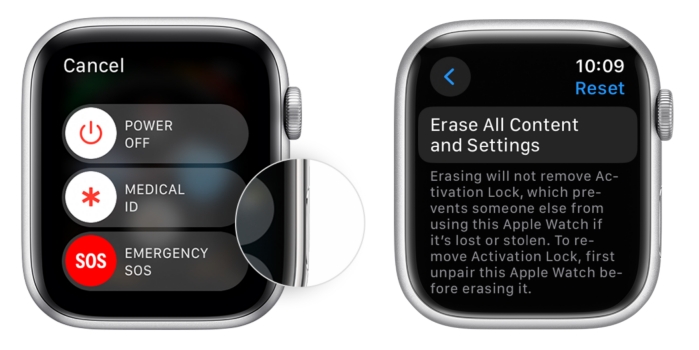
Step 1. Push the side button to enter the power-off slider screen.
Step 2. Push the Digital Crown until the option Erase All Content and Settings appears.
Step 3. Tap on it and confirm by pressing Reset. Once finished, your watch will be restored, and the screen passcode will be removed.
Option 2. Reset Apple Watch Using a Paired iPhone
Another way to reset your Apple Watch after too many passcode attempts is through a paired iPhone. This method requires that your Apple Watch is still connected to your iPhone, so if the connection is intact, this is a quick and efficient way to resolve the issue. You can initiate the reset directly from the Apple Watch app on your iPhone.
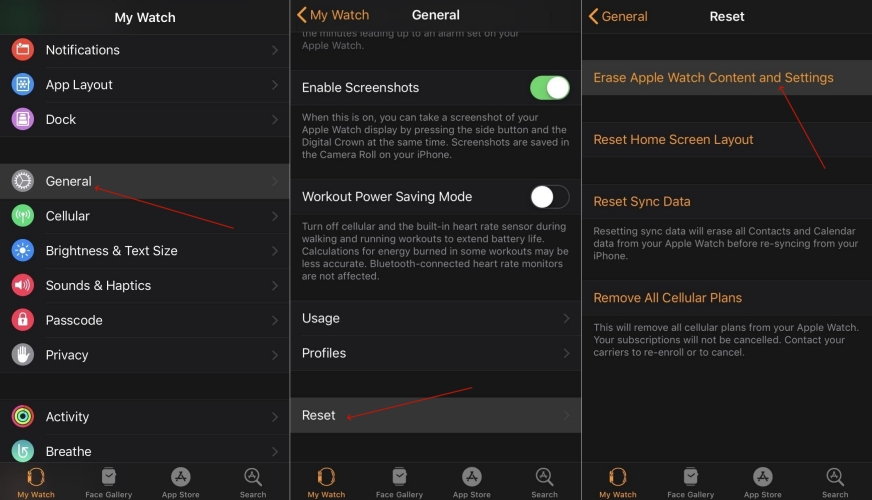
Step 1. Place your Apple Watch close to your paired iPhone and open the Watch app.
Step 2. Head to My Watch and tap General. Then swipe up to select the Reset section.
Step 3. Tap Erase Apple Watch Content and Settings and enter the iPhone passcode to confirm. If you are using an Apple Watch with cellular, you need to choose to keep or remove the cellular plan.
Note:
To successfully clear the watch, the phone will prompt you to enter your Apple ID password to disable Activation Lock on the watch. If you forget the screen passcode or your Apple Account credentials to clear the phone-side prompt, MagFone iPhone Unlocker can be introduced as a practical tool that removes several types of iOS locks, including screen locks and Activation Lock. This can be especially helpful for users who need to regain access to their device and continue restoring or pairing their Apple Watch without unnecessary delays.
Part 2. How to Repair and Restore Apple Watch after Reset
Once you've successfully reset your Apple Watch, the next step is to pair it with your iPhone again. This is crucial because, after a reset, your Apple Watch will be in its factory state, requiring you to go through the initial setup process. Pairing your Apple Watch with your iPhone is typically straightforward as follows.
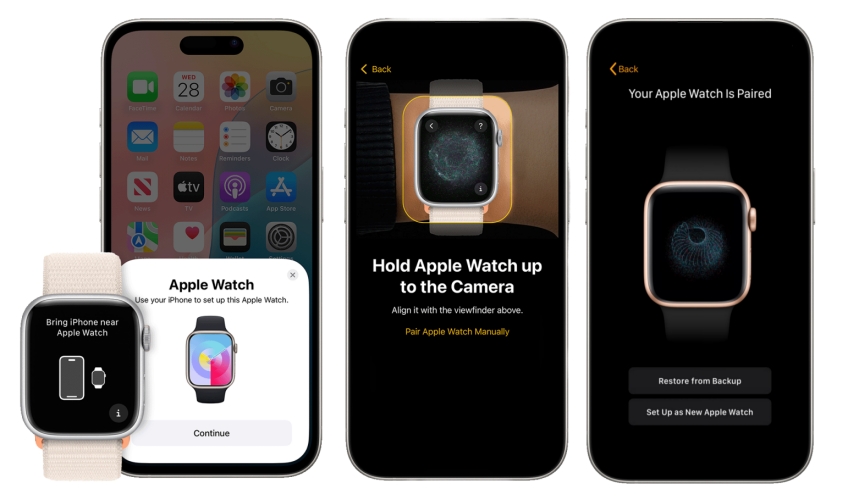
Step 1. Put the Apple Watch close to your iPhone and hit Continue once the pairing screen appears.
Step 2. Continue to tap Set Up for Myself to set up the Apple Watch for your own use.
Step 3. Move your iPhone so that the Apple Watch can be seen in the camera frame of the Watch app to start the pairing process automatically.
Step 4. On the net page, pick the Restore from Backup option and pick the most recent backup to restore your Apple Watch. If no backup is available, select Set Up as New Apple Watch.
Step 5. Next, follow the instructions on the screen to finish setting up the Apple Watch.
Part 3. How to Prevent Apple Watch from Accidentally Locking
If your Apple Watch keeps getting locked and eventually shows the Too Many Passcode Attempts message, there are a few simple ways to avoid the problem in the future.
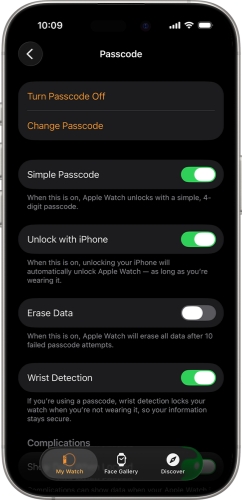
Enable Wrist Detection for Auto Lock
With Wrist Detection enabled, you can unlock the Apple Watch without needing to enter the passcode when you wear it. Go to the Watch app on your iPhone, tap My Watch > Passcode, and enable Wrist Detection.
Enable Unlock with iPhone
If you want to make everyday use more convenient, you can allow your iPhone to unlock your Apple Watch when you unlock your paired iPhone. So you don't need to enter the passcode manually, and it reduces the chance of incorrect passcode attempts. Just go to the Watch app on iPhone, tap My Watch > Passcode, and enable Unlock with iPhone.
Turn Off Passcode If Possible
For users who don't use Apple Pay on Apple Watch, they can consider turning off the passcode so the Too Many Passcode Attempts will not appear anymore.
Part 4. FAQs about Apple Watch Too Many Passcode Attempts
-
How to reset Apple Watch without paired iPhone and password?
If you don't have access to your paired iPhone or your passcode, you can reset the Apple Watch using the physical buttons on the device. You'll need to follow the steps to erase all data and settings on the watch. However, remember that you'll lose any unsynced data, so try to back up your information if possible before proceeding with the reset.
-
How to pair Apple Watch to new phone without resetting?
Pairing your Apple Watch with a new iPhone without resetting it is possible, but you'll need to ensure that your Apple Watch is unpaired from the old device. Once unpaired, you can simply follow the pairing process using Bluetooth and the Apple Watch app on your new phone. If you've backed up your Apple Watch to iCloud, you can restore your previous settings, apps, and data once the new phone is set up.
Part 5. Conclusion
Facing the issue of too many passcode attempts on your Apple Watch can be daunting, but with the right solutions, you can regain control of your device. Whether you choose to reset your Apple Watch using the physical buttons or through a paired iPhone, the process is relatively simple and effective. Additionally, if you encounter similar issues on your iPhone or iPad, our tips will help you resolve them as well.

Dylan Jones
Editor in chief





