








Deleting an Apple ID is a major step because it can affect your iCloud data, subscriptions, purchases, device access, and other Apple services. Before permanently deleting your account, it's important to understand what happens afterward and what to do beforehand. This guide explains how to delete an Apple ID permanently and fix situations where a deleted account still appears on an iPhone.
- Part 1. Things You Must Know Before Deleting Apple ID
- Part 2. How to Delete Apple ID Permanently (Step-by-Step)
- Part 3. How to Fix Apple ID Deleted But Still on iPhone
- Part 4. FAQs about Deleting an Apple Account
- Part 5. Conclusion
Part 1. Things You Must Know Before Deleting Apple ID
You can delete your Apple Account from Apple at any time and for any reason. But before deciding, you should be well-informed about what happens if you delete your Apple Account and what to do before the deletion.
📝Delete Account vs. Deactivate Account vs. Remove Account
Before deleting your Apple ID, take time to understand the difference between Apple ID deletion, deactivation, and removal. If you change your mind, you can consider temporarily deactivating it or removing it from your device.
| Operation | Delete | Deactivate | Remove |
|---|---|---|---|
| Meaning | Permanently closes the Apple Account | Temporarily suspends the account | Signs the Apple Account out of one device |
| Effect on Data | All data linked to the Apple ID will be deleted | All data linked to the Apple ID is not accessible until you reactivate the Apple ID | All data linked to the Apple ID is accessible |
| Effect on Account | Account access is ended permanently after Apple processes the request | Account access is paused rather than permanently ended | The Apple Account remains active |
| Further Apple ID Use? | No | Usually yes, after reactivation | Yes, on the same or another device |
What Happens After Deleting an Apple Account?
Once an Apple Account is deleted, the Apple ID is permanently disabled; you are unable to sign in with this account anymore, and you will lose access to iCloud data, Apple services, purchases, subscriptions, backups, and other content linked to the account. All data associated with this Apple Account will be deleted from Apple servers as well.
What Should You Do Before Deleting Your Apple Account?
If you have decided to delete your Apple Account, check the list below before you submit an Apple ID deletion:
- Make sure your important data is safely stored. You can make a local backup of your device or request a copy of your data on the Apple Data & Privacy page.
- Sign out of your Apple Account on all devices and web browsers.
- Spend the balance in Apple Wallet or contact your card's customer service for a refund.
Part 2. How to Delete Apple ID Permanently (Step-by-Step)
When requesting an Apple Account deletion, you will be informed about the terms and conditions. Read these items carefully, then confirm your operation. If you are paused during the process, you can stop the request at any time. Below is a step-by-step guide to deleting an Apple ID.
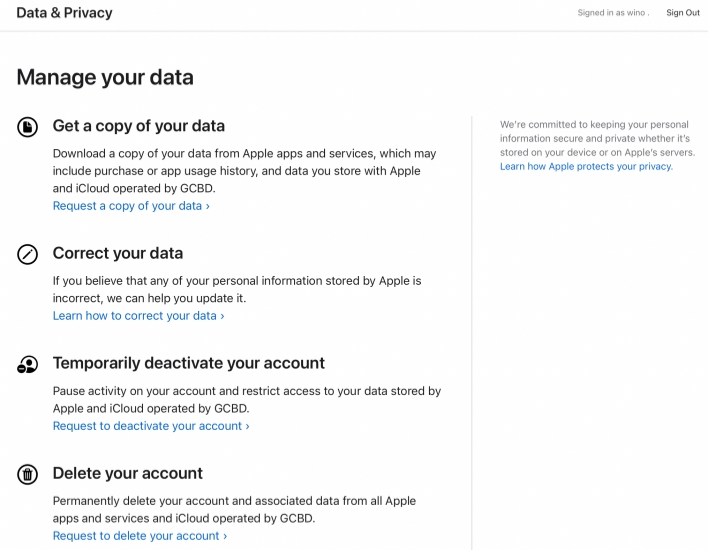
Step 1. Go to the Apple Privacy page and log in with the Apple ID you want to delete.
Step 2. Click Request to delete your account under Delete your account.
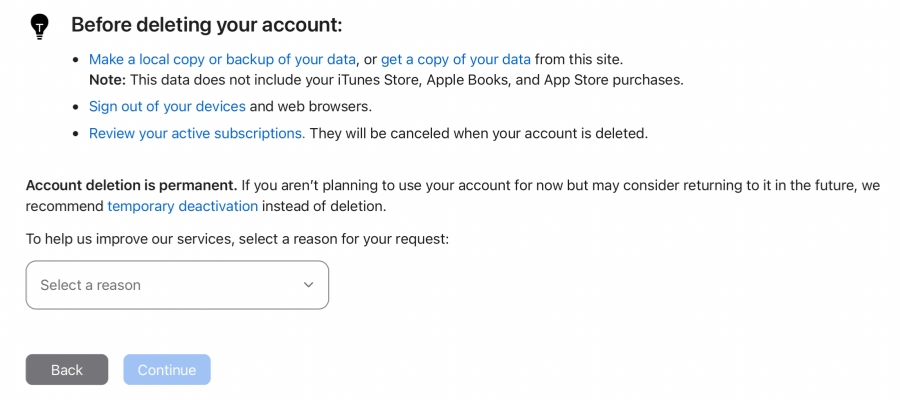
Step 3. Select a reason for deleting your Apple Account and click Continue.
Step 4. Read things you must know before deleting your Apple ID and click Continue.
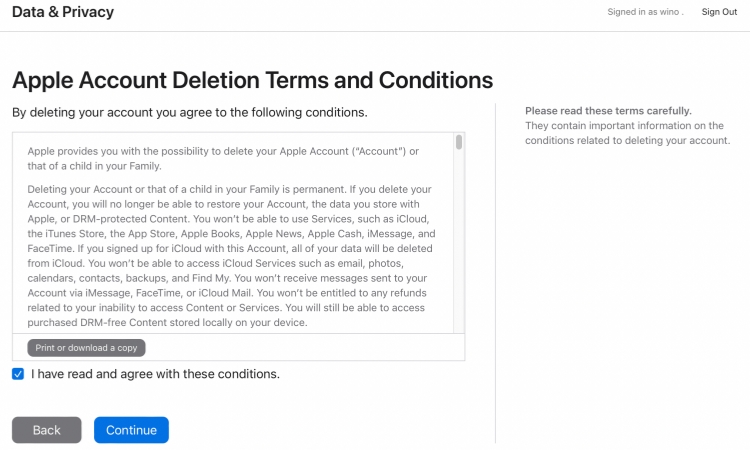
Step 5. Read Apple ID deletion terms and conditions, and click Continue.
Step 6. Choose how to get Apple ID deletion status and click Continue.
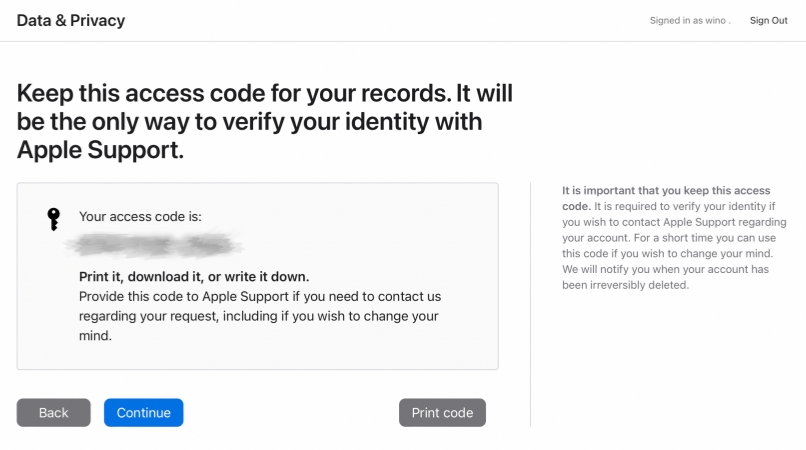
Step 7. Remember the access code and click Continue.
Step 8. Enter the access code and click Continue. After verifying your identity, Apple will deal with your Apple Account deletion request.
Part 3. How to Fix Apple ID Deleted But Still on iPhone
If you don't sign out of your Apple ID on all linked devices before deleting it, you can't sign out of it, and you will see the "Can't Find This Person" message when you enter the Apple ID password. So you are not able to use the device anymore. If you want to delete the old Apple ID from your iPhone, MagFone Apple ID Password Remover can help you. It allows you to remove an Apple ID from an iPhone without a password when the Apple ID is deleted, invalid, unsupported, or locked. In addition, it also supports removing other passcodes on an iPhone, including the lock screen passcode, Screen Time passcode, iCloud Activation password, and MDM password.

MagFone iPhone Unlocker
Fix Apple ID issues and remove Apple ID on iPhone and iPad without password.
To get full access to your iPhone signed in with the deleted Apple ID, follow the steps below.
Step 1 Install MagFone iPhone Unlocker on Computer
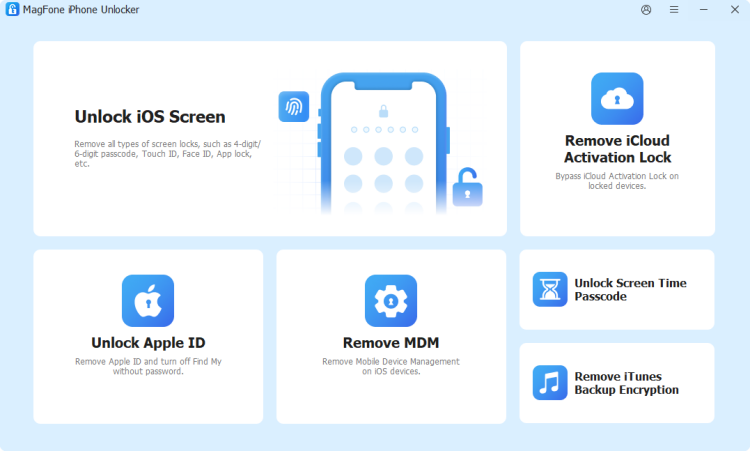
First, download and install MagFone iPhone Unlocker on a computer. Use a data cable to connect the iPhone to the computer. Then launch this tool and click Unlock Apple ID.
Step 2 Check Lock Screen and 2FA Settings on iPhone
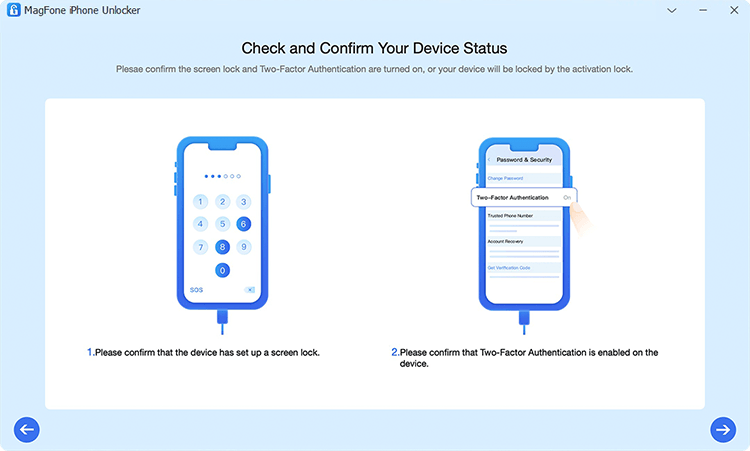
Click Start. Then follow the on-screen instructions to check the lock screen and 2FA settings on the iPhone. If done, click Yes or Next to proceed. If Find My is disabled on the iPhone, MagFone will directly remove the Apple ID from your device.
Step 3 Download Firmware Package

Check the device information on the screen, then click Download to download the firmware package for your iPhone.
Step 2 Remove Deleted Apple ID from iPhone
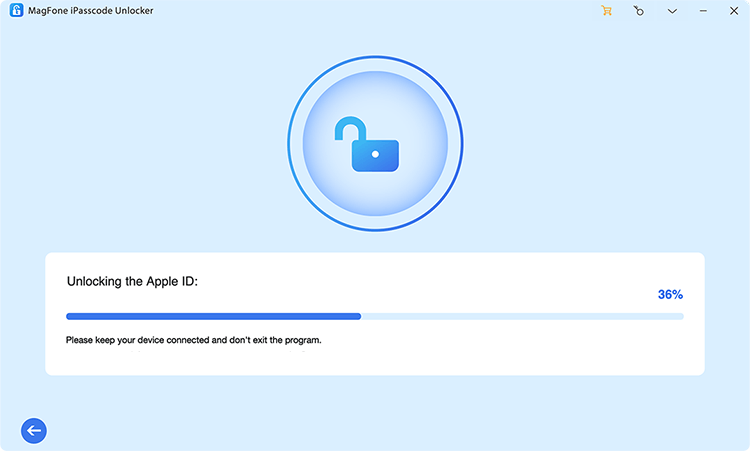
After verifying the firmware package, click Unlock to remove the old and deleted Apple ID from your iPhone.
Part 4. FAQs about Deleting an Apple Account
How long does it take to delete an Apple ID?
Apple doesn't give a specific time for when you request Apple ID deletion. But it usually takes up to 7 days to delete an Apple Account.
How to cancel Apple ID deletion?
If the Apple ID deletion request is in progress, you can contact Apple Support and provide the access code to cancel the deletion. If the Apple ID has been deleted from Apple, there's no way to recover it.
Can I delete my Apple ID and make a new one with the same email?
No. You can't create a new Apple Account using the same email after deleting the old Apple Account.
Part 5. Conclusion
After reading this guide, you should have a clear understanding of Apple Account deletion. If you have decided to delete your Apple Account, you can follow the steps in this guide to permanently delete it. If you are hesitant, you can choose to deactivate your Apple Account temporarily. If you find that you haven't signed out of your Apple ID after deleting the account, MagFone iPhone Unlocker helps you remove the Apple ID and allows you to use your device smoothly.

Teresa Miller
Editor in chief





