








Factory resetting an iPhone is often seen as a quick way to fix iPhone issues, erase personal data, or prepare the device for a new owner. However, there are users who find that their iPhone asks for a passcode after the reset, which is quite strange and confusing. In this guide, we will explain why your iPhone requires passcode after factory reset, several ways to remove passcode on iPhone after a factory reset, and what you can do to avoid this issue in the future.
- Part 1. Why Is iPhone Asking for Passcode After Factory Reset?
- Part 2. How to Remove Passcode from iPhone After Factory Reset
- Part 3. How to Unlock iPhone After Reset without Passcode [All Scenarios]
- Part 4. How to Avoid iPhone Requiring Passcode after Factory Reset
- Part 5. Conclusion
Part 1. Why Is iPhone Asking for Passcode After Factory Reset?
A factory reset is supposed to wipe everything, including your passcode. So it's understandable to feel confused when your iPhone still requires one on the setup screen. The good news is that this isn't random. You can recall if you meet the following scenarios:

Incomplete factory reset
An incomplete reset may leave certain settings, meaning your iPhone may still recognize the previous passcode protection even after everything else has been erased. This can happen if the reset was interrupted by a low battery, a connection drop, or a software hiccup mid-process.
Incomplete setup after factory reset:
One of the most likely reasons is that when you went through the initial setup after the Hello screen, you set a new passcode, but you failed to finish the setup. This may mislead you to consider iPhone requires a passcode after a factory reset.
iOS glitch
Occasionally, glitches in the iOS system may prevent you from accessing your iPhone after a reset, causing the device to display a passcode prompt that shouldn't be there.
Part 2. How to Remove Passcode from iPhone After Factory Reset
In most cases, the culprit is either an incomplete reset or a passcode entry during setup. And you don't need to worry that you can no longer use the device. The methods below will walk through each solution.
Method 1. Try Possible Passcode
According to successful experience shared by users on Reddit, when you are required to enter a passcode after a factory reset, you can consider the following possible passcode:
- Previous iPhone passcode
- 6-digit passcode like 000000, 123456, 888888
- 4-digit passcode like 0000, 1234, 8888
Method 2. Remove iPhone Passcode from Lock Screen
If the possible passcode doesn't work, you can still remove the iPhone passcode from the lock screen. This only works when the Find My iPhone is still enabled on the iPhone, and when there is a network connection on the iPhone.
iOS 17 and newer versions:
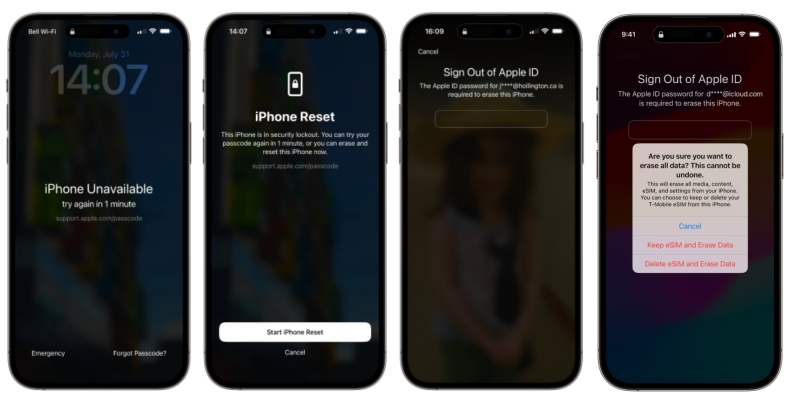
Step 1. Enter the wrong passcode until the iPhone Unavailable screen appears.
Step 2. Tap Forgot Passcode? and Start iPhone Reset.
Step 3. Enter the Apple ID password to sign out and let Apple erase your iPhone.
From iOS 15.2 to iOS 16:
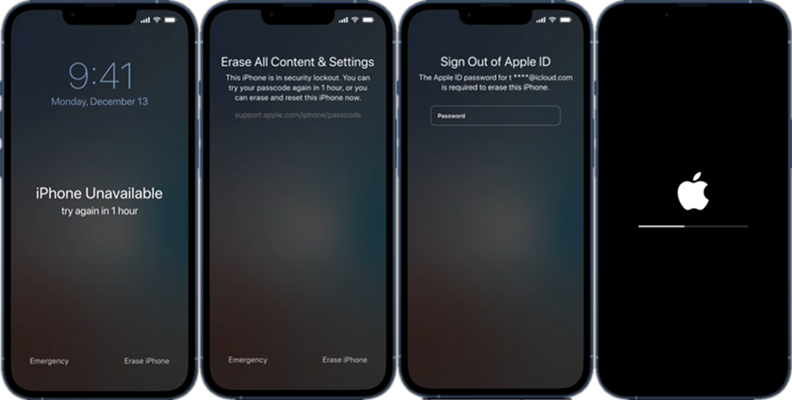
Step 1. Enter the wrong passcode until you see the Erase iPhone option on screen.
Step 2. Tap Erase iPhone and enter the required Apple ID password to sign out of Apple ID.
Step 3. Tap Erase iPhone again to complete the erase.
Method 3. Remove iPhone Passcode on iCloud Website
If the iPhone is a second-hand device, or if you want to sell it, the Apple ID owner can use the iCloud website to erase it remotely, provided that Find My is still enabled. In that situation, you can contact the Apple ID owner and ask them to erase the device.
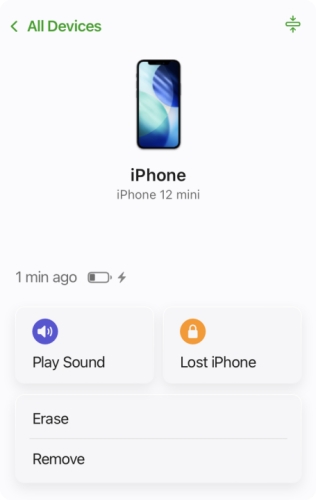
Step 1. Open Find My on the iCloud website and log in to your Apple ID.
Step 2. Access the target iPhone and choose Erase.
Step 3. Choose whether to provide a phone number, then enter the Apple ID password to proceed with the operation.
Method 4. Remove iPhone Passcode in Find My App
If Find My iPhone is still enabled on the device, the Find My app can also be used to erase the iPhone remotely and remove the passcode. So, if you bought an iPhone that still requires a passcode, you can contact the seller and ask them to erase the device remotely.
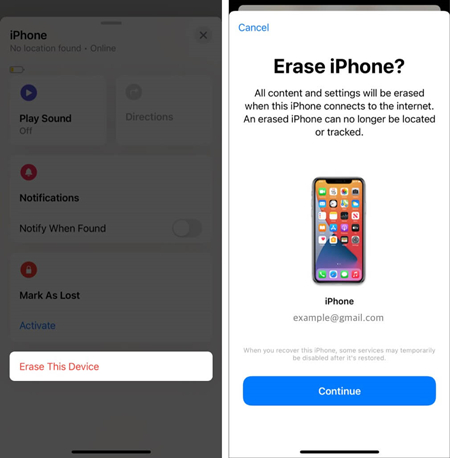
Step 1. Open the Find My app on the Apple device that is linked to the same Apple ID.
Step 2. Tap Devices at the bottom and access the target iPhone device.
Step 3. Tap Erase > Continue, then enter the required phone number and Apple ID password to forward.
Step 4. Enter an optional phone number and the Apple ID password to wipe the iPhone.
Part 3. How to Unlock iPhone After Reset without Passcode [All Scenarios]
It's quite tricky if the Apple ID linked to the device is not yours. For a quicker and more convenient solution, you can use MagFone iPhone Unlocker to remove the screen lock and regain access to the device without entering the passcode. Since it doesn't require the Apple ID password, it can be a practical option when contacting the previous owner is not available. In addition, MagFone can also address if you encounter the issue that the iPhone is locked to the owner after a factory reset without a password. To regain access to the iPhone quickly, just follow the simple steps below:

MagFone iPhone Unlocker
Unlock various locks on iOS devices, including screen locks, MDM, Apple ID, and Activation Lock without needing a password.
Step 1 Open MagFone iPhone Unlocker

Download and install MagFone iPhone Unlocker on your computer and link your iPhone to a computer using the data cable.
Step 2 Get iPhone into Recovery Mode
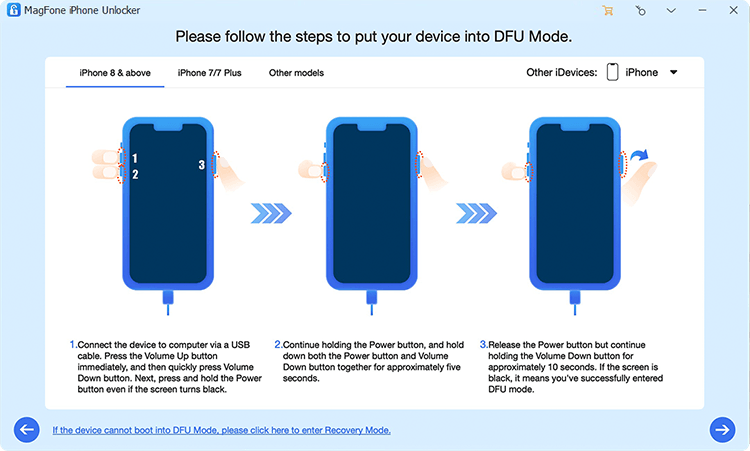
Click Unlock iOS Screen from the interface. Click Start and follow the on-screen instructions to get your iPhone into recovery mode.
Step 3 Download A Firmware Package
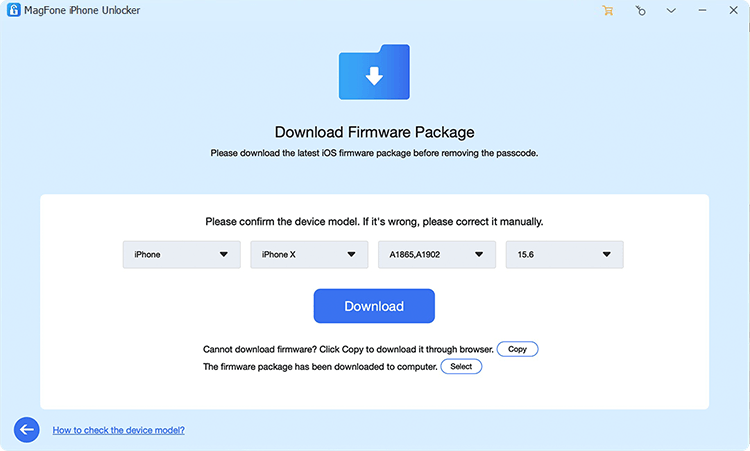
Click the next icon when your iPhone enters recovery mode, and check the information on the screen. Then click Download to download the compatible firmware for your iPhone.
Step 4 Unlock iPhone After Reset without Passcode

After downloading and verifying the firmware package on your iPhone, click Unlock on the screen to remove the passcode on your iPhone.
Part 4. How to Avoid iPhone Requiring Passcode After Factory Reset
Most passcode issues after a factory reset are preventable. Next time you need to factory reset your iPhone for sale, check the following aspects, and this will save you a lot of trouble.
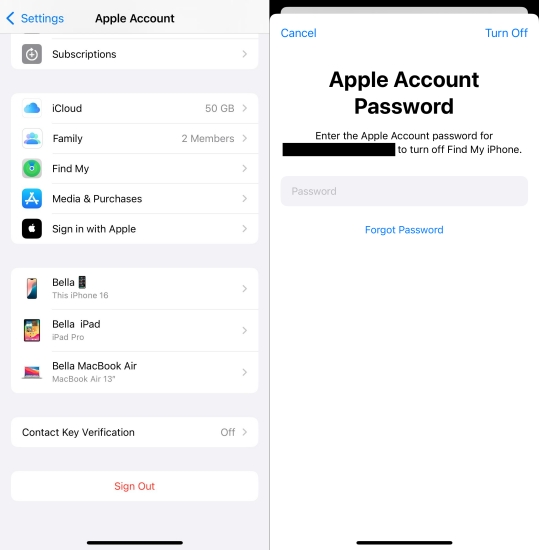
Turn Off Find My on iPhone Manually:
Manually disabling Find My iPhone ensures that the Activation Lock will not be triggered after the reset.
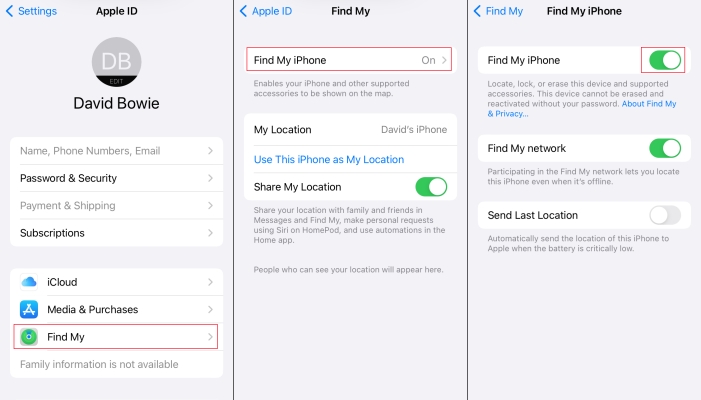
Step 1. Go to iPhone Settings and tap your Apple ID.
Step 2. Tap iCloud > Find My iPhone.
Step 3. Turn off Find My iPhone and enter the Apple ID password to forward.
Sign out of your Apple ID before resetting:
Signing out of iCloud before resetting can keep your Apple ID credentials secure. To do this, go to Settings > Apple ID name > Sign Out.
Ensure a Complete Factory Reset:
Ensure you don't interrupt the factory reset progress on your iPhone to avoid any glitches and bugs that can cause the device to retain passcode settings.
Part 5. Conclusion
In conclusion, it is not unusual for an iPhone to ask for a passcode even after a factory reset, as this is often caused by Apple's security protections. The good news is that there are several ways to deal with the issue, whether by entering the correct passcode, using iCloud, relying on the Find My app, or trying a dedicated unlocking tool like MagFone iPhone Unlocker when appropriate. By choosing the right method, you can regain access to the device more smoothly.

Teresa Miller
Editor in chief





