








Locked out of your iPhone and worried about losing your existing data? Can you unlock the iPhone without passcode and without resetting? There is only one case where you can unlock iPhone passcode without resetting. In other cases, you need to reset the iPhone to unlock it without a passcode. This guide will have you covered, whether you want to unlock iPhone without passcode without resetting, or you don't mind wiping your device clean to start fresh. Also, we will show you how to restore your data so you don't lose a thing.
- Part 1. How to Unlock iPhone without Passcode without Resetting
- Part 2. How to Unlock iPhone without Passcode with Resetting
- Part 3. How to Restore iPhone Data After Resetting
- Part 4. Conclusion
Part 1. How to Unlock iPhone without Passcode without Resetting
There is only one case you can unlock iPhone passcode without resetting, which is that you have just changed the iPhone passcode in the past 72 hours and you forgot it. In this case, you can unlock your iPhone with the previous passcode without resetting it and losing data.
📝Requirements:
Find My iPhone is disabled.
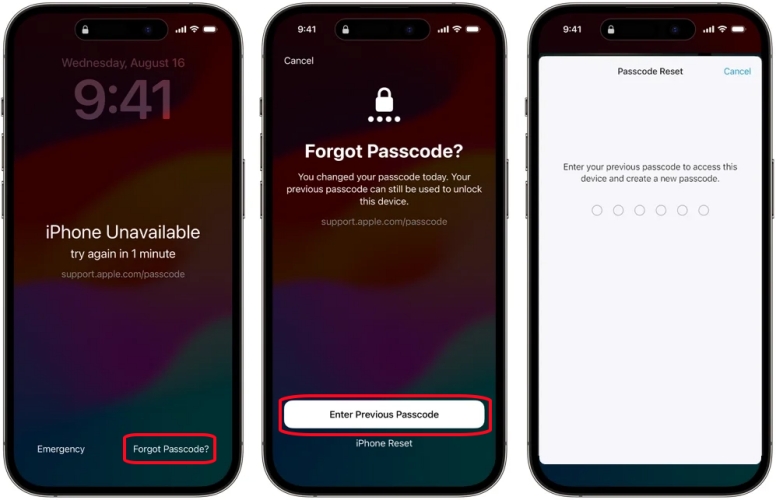
Step 1. Enter a wrong passcode until you see the iPhone Unavailable screen.
Step 2. Tap Forgot Passcode? > Enter Previous Passcode.
Step 3. Enter the previous passcode on your device and create a new passcode. Then you can unlock the iPhone with the new passcode.
Part 2. How to Unlock iPhone without Passcode by Resetting
If you are not in the case in Part 1, there is no other way to unlock an iPhone without passcode and without resetting. You can only reset the device to factory settings to remove the passcode. However, you can restore an available backup to your iPhone after resetting. In this way, you can keep as much data as possible.
Option 1. Unlock iPhone Passcode on Lockout Screen
Apple allows users to erase their iPhone after several failed passcode attempts. If you forgot the iPhone passcode, you can perform a reset to unlock the iPhone passcode.
📝Requirements:
Find My is enabled on the iPhone.
iPhone is connected to a network.
iPhone software is iOS 15 or later.
On iOS 17 and higher:
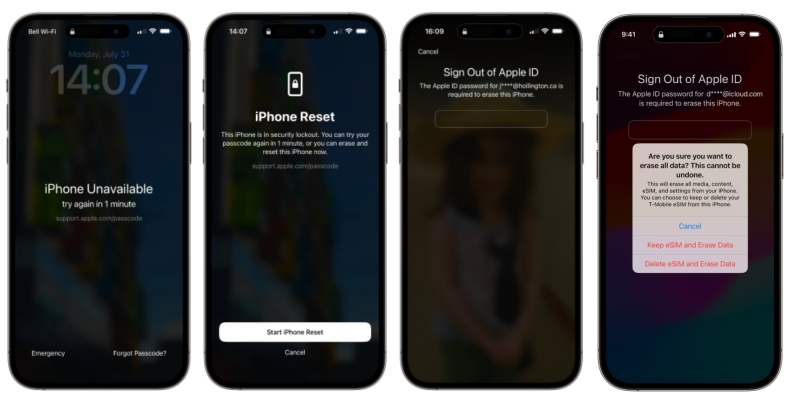
Step 1. Tap Forgot Passcode? on the iPhone Unavailable screen.
Step 2. Tap Start iPhone Reset, and enter the linked Apple ID password to sign out.
Step 3. Tap Erase iPhone to confirm erasing all media, content, and settings.
On iOS 15.2 and iOS 16:
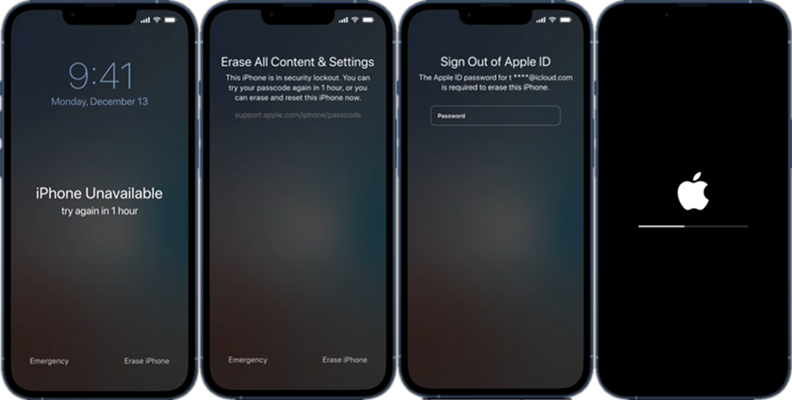
Step 1. Tap Erase iPhone on the iPhone lockout screen.
Step 2. Tap Erase iPhone twice, then enter the linked Apple ID password to sign out and erase all content and settings on the iPhone.
Option 2. Unlock iPhone Passcode with MagFone
Unlocking iPhone passcode from the lockout screen is the most direct way to get into the locked iPhone. If you are unable to erase iPhone from the lockout screen, we recommend MagFone iPhone Unlocker to you. It's a comprehensive iOS unlocking tool, which is available for removing various screen passcodes, Screen Time passcodes, MDM passwords, Apple ID passwords, and iTunes encryption passwords. With MagFone iPhone Unlocker, you can unlock iPhone without the passcode and Apple ID password.

MagFone iPhone Unlocker
Unlock various locks on iOS devices, including screen locks, MDM, Apple ID, and Activation Lock without needing a password.
Step 1 Open MagFone iPhone Unlocker
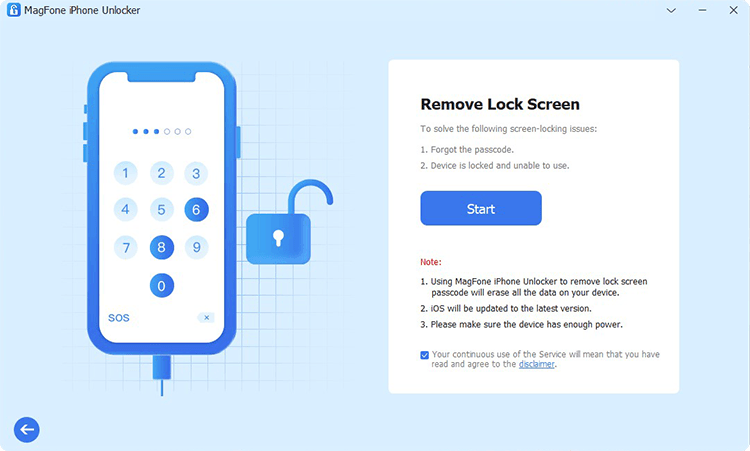
Click to download the MagFone iPhone Unlocker package on your computer. Then install it and open it to start the unlocking process.
Step 2 Put iPhone into Recovery Mode
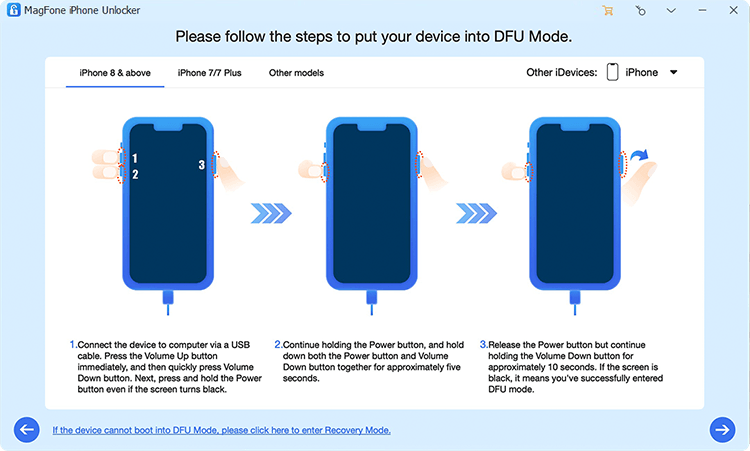
Use a data cable to connect the iPhone to the computer and choose Unlock iOS Screen from the main interface. Click Start and follow the onscreen instructions to put the iPhone into recovery mode.
Step 3 Download the Firmware Package

When the iPhone enters recovery mode, click the Next icon. Now check your device information and click Download to download the firmware package.
Step 4 Unlock iPhone without Passcode
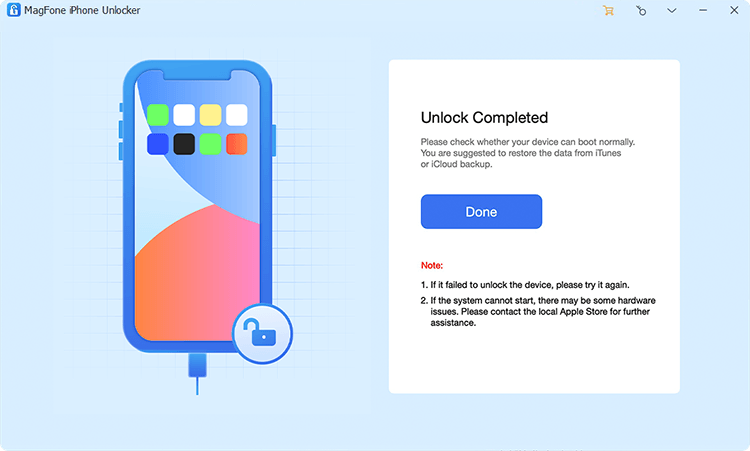
After downloading and verifying the firmware package, click Unlock to remove the passcode from the iPhone. After resetting, you can follow the steps in part 3 to restore data.
Option 3. Unlock iPhone Passcode with iTunes/Finder
You can also use iTunes or Finder to reset the iPhone passcode in recovery mode. During the process, the latest and compatible software version will be installed on your iPhone, and all data will be removed.
📝Requirements:
Find My iPhone is disabled.
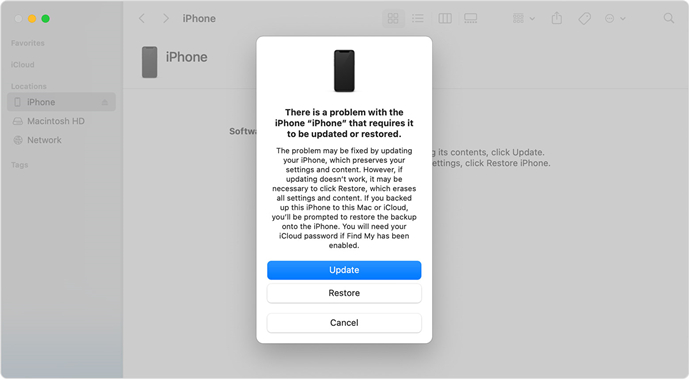
Step 1. Use a data cable to link the iPhone to a computer and open iTunes or Finder on the computer.
Step 2. Put the iPhone into recovery mode.
- iPhone 8 or later: Press the Volume Up button and the Volume Down button in sequence, then keep holding the Power button until the computer logo appears.
- iPhone 7 series: Keep holding the Power button and the Volume Up button at the same time until the computer image appears.
- iPhone 6s or earlier: Keep holding the Home button and the Power button at the same time until the computer logo appears.
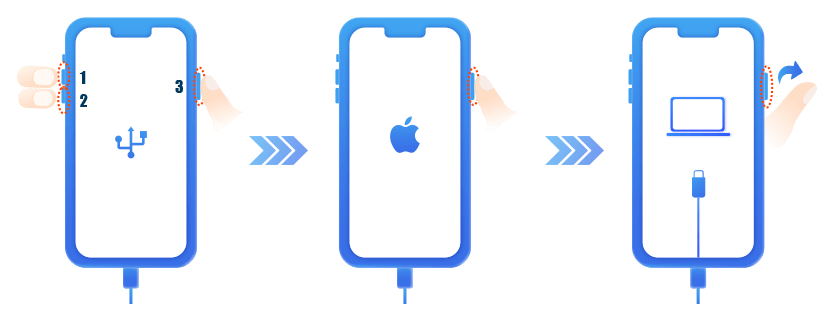

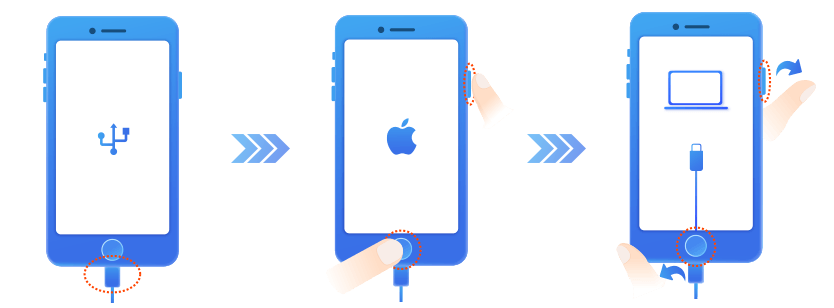
Step 3. After the iPhone enters recovery mode and is detected by the computer, click Restore to restore the iPhone to factory settings.
Option 4. Unlock iPhone Passcode with Find My App
If Find My is enabled on the iPhone, you can use the Find My feature to manage the iPhone, including erasing all content and settings on the device, or removing the device from your Apple ID. Follow the steps below to erase the iPhone in the Find My app.
📝Requirements:
Find My iPhone is enabled.
iPhone is connected to a network.
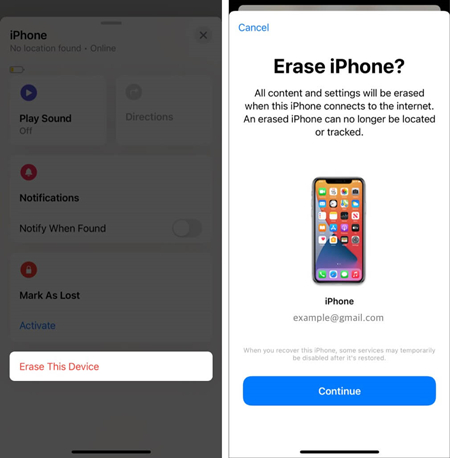
Step 1. Open the Find My app and tap Devices at the bottom.
Step 2. Choose the locked iPhone, then tap the triple-dot icon.
Step 3. Scroll down and tap Erase > Continue > Erase.
Step 4. Enter the Apple ID password and tap Erase to erase it.
Option 5. Unlock iPhone Passcode on iCloud Find Website
If Find My is enabled on the iPhone, you can also manage the device on the iCloud website. When you choose to erase your iPhone on the iCloud website, your iPhone will be erased once it's online and connected to a network.
📝Requirements:
Find My iPhone is enabled.
iPhone is connected to a network.
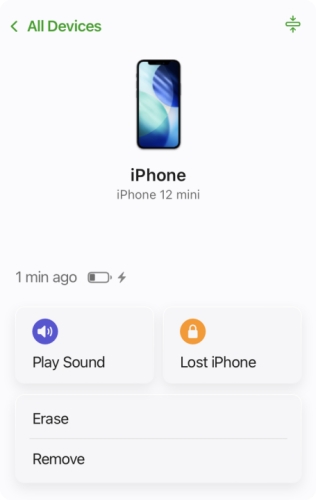
Step 1. Log in to your Apple ID on the iCloud website.
Step 2. Choose the locked iPhone and choose Erase.
Step 3. Click Next > Erase.
Step 4. Enter the Apple ID password, and maybe an Apple ID verification code to confirm the erase.
Part 3. How to Restore iPhone Data After Resetting
After resetting your iPhone and erasing all content and settings, you can restore your data by recovering a backup. Simply choose a recent iCloud or iTunes/Finder backup during setup to recover as much of your iPhone data as possible.
Restore Backup from iCloud:
Step 1. Unlock iPhone from the Hello screen and follow the screen prompts to set up the iPhone.
Step 2. When you see the Transfer or Reset iPhone screen, choose Restore from iCloud.
Step 3. Log in to the Apple ID you used to back up the iPhone.
Step 4. Choose a suitable iCloud backup to restore to the iPhone.
Step 5. After restoring, finish the setup steps.
Restore Backup from iTunes:
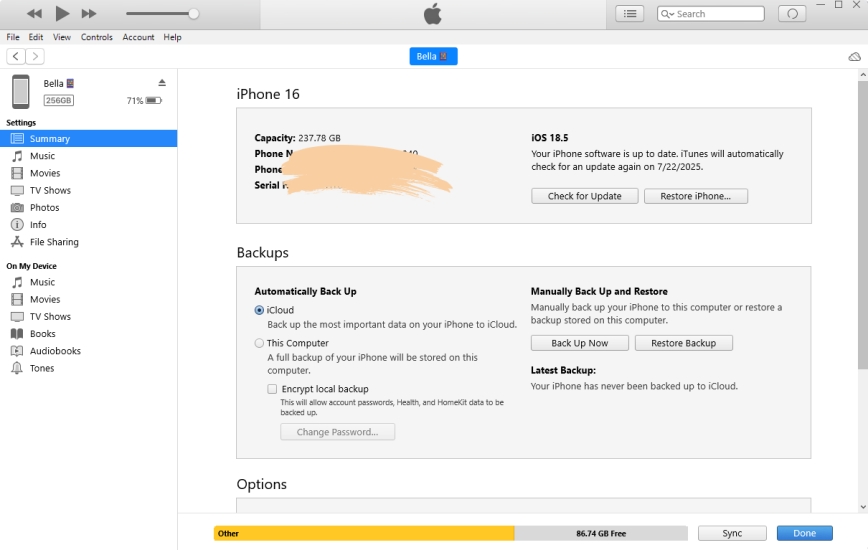
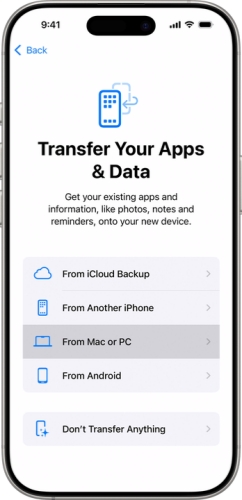
Step 1. Open the iPhone from the Hello screen and follow the prompts to set it up.
Step 2. When you reach the Transfer Your Apps & Data screen, choose Restore from Mac or PC.
Step 3. Use a data cable to connect your iPhone to the computer where you have the backup.
Step 4. Click the device icon and click General or Summary.
Step 5. Click Restore Backup and choose the iTunes backup you want to restore.
Step 6. Finish the setup steps after restoring the backup.
Part 4. Conclusion
Regaining access to your iPhone is not complicated if you forgot the passcode. With the right approach, you can unlock your device, whether or not you remember the passcode and regardless of whether you're comfortable resetting it. By following the methods outlined above, you'll find solutions for every situation, including ways to recover your important data if a reset is necessary. No matter which option you choose, you can confidently get back to using your iPhone and keep your information secure.

Teresa Miller
Editor in chief





