








My kid has set Guided Access o iPad, can't remember the code.. I have tried to connect it to a MacBook to reset it, but can't because Find service is active on the device. Any advise how to reset/unlock/factory set the iPad? The iPad is set up with a kids account through parent control."
——From Reddit
Being stuck in Guided Access is a common frustration for many Apple users. Since you can't exit Guided Access without the correct passcode, forgetting it can make your device feel completely locked. If you forgot Guided Access passcode, don't worry. This guide will walk you through six possible methods to bypass Guided Access and regain control of your device.
- Part 1. What to Do If You Forgot Guided Access Passcode [No Data Loss]
- Part 2. How to Turn Off Guided Access on iPhone without Passcode [Data Loss]
- Part 3. FAQs about Guided Access Passcode
- Part 4. Conclusion
Part 1. What to Do If You Forgot Guided Access Passcode [No Data Loss]
If you're stuck on the Guided Access screen, there are two methods you can try to bypass Guided Access without losing any data.
Method 1. Use Face ID / Touch ID
If you previously allowed Face ID or Touch ID to be used with Guided Access, you may be able to exit without entering the passcode. Simply try authenticating with Face ID or Touch ID on the lock screen while Guided Access is active to see if it lets you bypass the Guided Access passcode.
Method 2. Force Restart iPhone
If you're stuck in Guided Access and don't remember the passcode, performing a force restart can sometimes help. After the device restarts, Guided Access may be disabled, allowing you to use your iPhone normally again. However, this does not work for everyone. Some users report that their device returns directly to Guided Access once it powers back on.
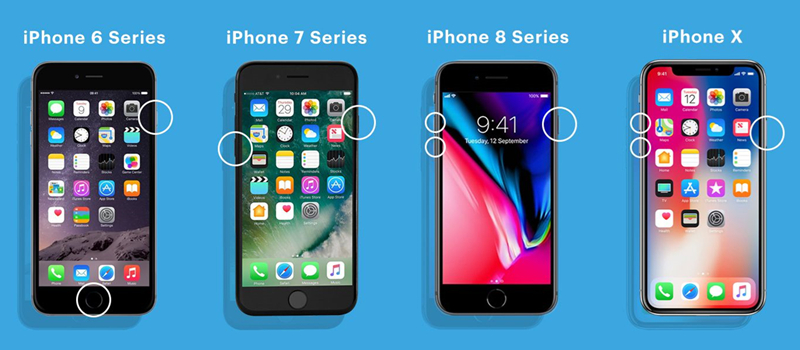
Models after iPhone 7: Press the volume up button, the volume down button. Long-press the power button and release until you see the Apple logo.
iPhone 7: Long-press the power button and the volume down button at the same time, release them until the iPhone restarts.
iPhone 6s and iPhone SE (1st): Long-press the power button and the home button at the same time, release them until the Apple logo appears.
Part 2. How to Turn Off Guided Access on iPhone without Passcode [Data Loss]
If Face ID, Touch ID, or a force restart didn't help you exit Guided Access, you still have options. Even if you've forgotten the Guided Access passcode and are completely stuck on the screen, there are several methods you can use to turn off Guided Access, though they will erase the data on your device. Read on to see the available solutions and how each one works.
Method 1. Disable Guided Access on iPhone Using Unlocking Tool
One of the most recommended methods is to use an unlocking tool. As a versatile unlocking tool for Apple devices, MagFone iPhone Unlocker is designed to help you bypass different types of locks on Apple devices, such as the lock screen passcode, Screen Time passcode, MDM restrictions, and the Guided Access passcode. Keep in mind that this method involves removing iPhone data, so you'll need to set it up again and restore from a backup if you want your data back.

MagFone iPhone Unlocker
Unlock various locks on iOS devices, including screen locks, MDM, Apple ID, and Activation Lock without needing a password.
Step 1 Launch MagFone iPhone Unlocker

Download and install MagFone iPhone Unlocker on your computer. Connect your iPhone to the computer with a data cable. Then launch MagFone to start disabling Guided Access.
Step 2 Put the iPhone into Recovery Mode
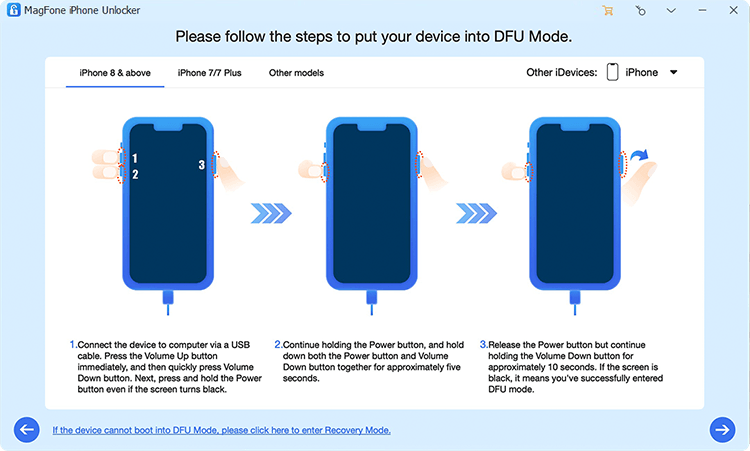
Click Unlock iOS Screen > Start. Then follow the on-screen instructions to put your iPhone into recovery mode.
Step 3 Download the Firmware Package

Check your iPhone information on the next screen. Then click Download to download a compatible firmware package.
Step 4 Bypass Forgotten Guided Access Passcode

Once the firmware is downloaded and verified, click Unlock to remove the Guided Access passcode on your iPhone.
Method 2. Disable Guided Access on iPhone via iTunes
If your iPhone has previously trusted a computer with iTunes installed, you can use that computer to restore the device. Restoring through iTunes reinstalls the iOS system and erases all data and settings on your iPhone, including the Guided Access passcode.
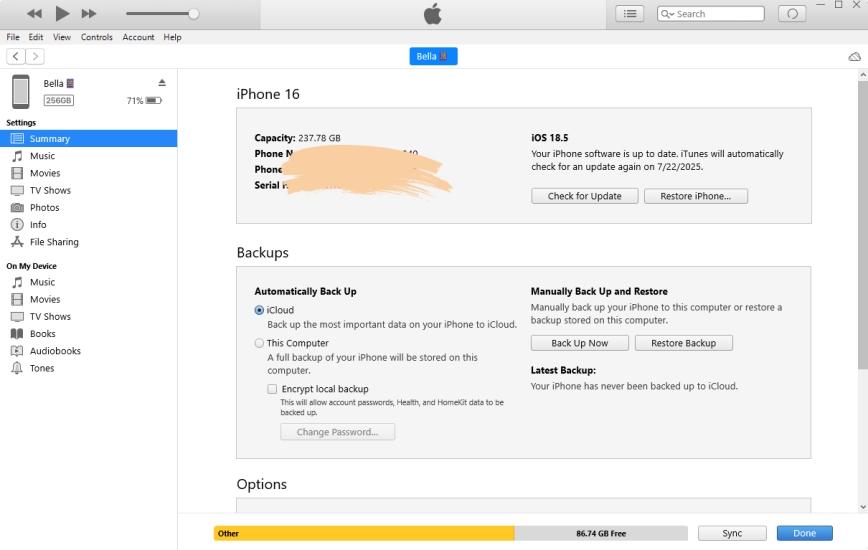
Step 1. Connect your iPhone to a computer using a data cable.
Step 2. Launch iTunes and click the device icon.
Step 3. Click Summary in the left directory. Click Restore iPhone and click Restore to confirm.
Method 3. Disable Guided Access on iPhone at iCloud.com
If your iPhone is signed in with your Apple ID and Find My iPhone is enabled, you can use iCloud.com to erase it remotely. This feature lets you manage your devices from any browser, and it works even if your iPhone is lost, disabled, or stuck in Guided Access. Erasing the device from the iCloud website removes all data and settings, including the Guided Access passcode, so you can set it up again as new or restore from a backup.
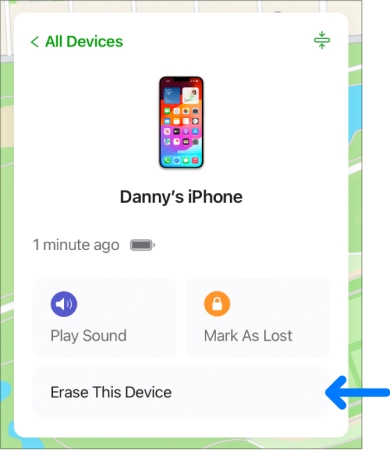
Step 1. Sign in to your Apple account at iCloud.com.
Step 2. Click Find My and access your device from the list.
Step 3. Click Erase > Next and enter the Apple ID password to wipe all data, including the Guided Access passcode on iPhone.
Method 4. Disable Guided Access on iPhone in Find My App
If you have more than one Apple device signed in with the same Apple ID, you can also disable Guided Access on your iPhone using the Find My app on another Apple device. By remotely erasing the iPhone from the Find My app, you remove all data and settings, including the Guided Access passcode.
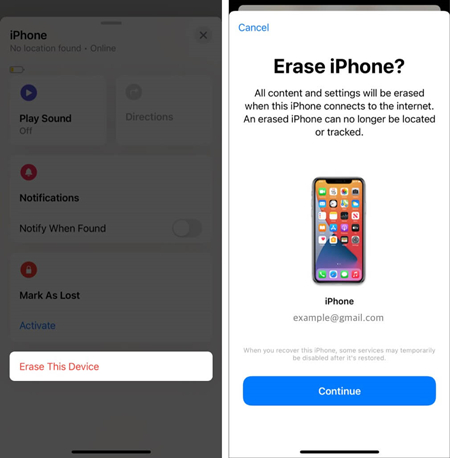
Step 1. Open the Find My app on another Apple device.
Step 2. Tap Devices at the bottom and access your device.
Step 3. Tap Erase This Device > Continue and enter a phone number to remove all data from the iPhone.
Part 3. FAQs about Guided Access Passcode
How to change Guided Access Passcode?
To change the Guided Access passcode, just:
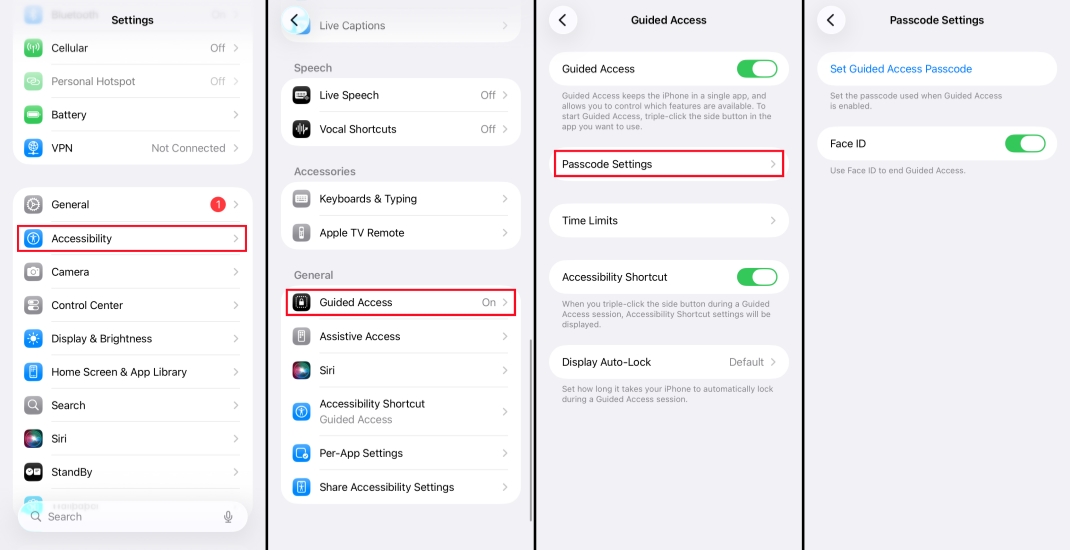
Step 1. Go to iPhone Settings > Accessibility.
Step 2. Scroll down to find Guided Access, then tap Passcode Settings > Set Guided Access Passcode to change the Guided Access passcode.
How to fix the Guided Access passcode not working?
If your Guided Access passcode isn't working, first make sure you're entering the correct code. Otherwise, you'll need to use one of the alternative methods in this guide, such as a force restart, use MagFone iPhone Unlocker, iTunes, iCloud.com, or the Find My app to remove the Guided Access lock and regain access to your device.
How to fix the Guided Access passcode zoomed in?
When you want to enter the passcode to exit Guided Access on your iPhone, the keyboard may zoom in sometimes. In this case, you can try force restarting your device or use MagFone iOS System Recovery to bypass Guided Access screen.
Part 4. Conclusion
Being stuck in Guided Access is very upsetting. You can only stay on the set app and can't exit unless you enter the passcode. You don't need to worry if you forgot the Guided Access passcode. We have introduced 6 possible methods to turn off Guided Access on iPhone without passcode. When you get stuck, you can check this guide to regain access to your iPhone or iPad successfully.

Dylan Jones
Editor in chief





