








Cannot Erase Old iPhone13 "Verification Failed": I got a new phone a couple weeks ago, and finally went to go erase the old one before turning back into the T-mobile store. This error message keeps popping up at every step. T-mobile employees hadn't seen it before, and attempting to delete the old phone off Find My didn't help (it says it will take a month to actually delete anyway)."
——From Reddit
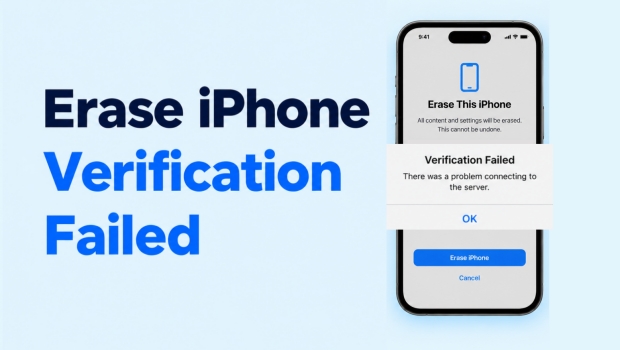
When you want to erase an iPhone, iPhone won't let you erase, and you get a Verification Failed error? This issue is often related to Apple server problems, an unstable network connection, a temporary iOS glitch, or Apple ID verification errors. In this guide, we will explain why your iPhone won't erase and walk you through several fixes to erase your iPhone successfully.
- Part 1. Reasons Why iPhone Won't Erase Verification Failed
- Part 2. How to Fix Erase iPhone Verification Failed
- Part 3. How to Erase iPhone Without Apple ID Verification
- Part 4. Conclusion
Part 1. Reasons Why iPhone Won't Erase Verification Failed
Here are the common reasons your iPhone may show Verification Failed when you erase your iPhone in Settings.
- Apple server outage or maintenance
- Weak or unstable internet connection
- Temporary iOS software glitch
- Locked, inactive, or deleted Apple ID
- Outdated iOS version
Part 2. How to Fix Erase iPhone Verification Failed
If your iPhone won't erase because verification failed, follow these practical methods to fix the error.
Method 1. Check Apple System Status
Apple's servers may be temporarily unavailable and under maintenance. This will prevent Apple ID verification when erasing the iPhone. Go to Apple's System Status page and check whether the Apple ID service is working normally.
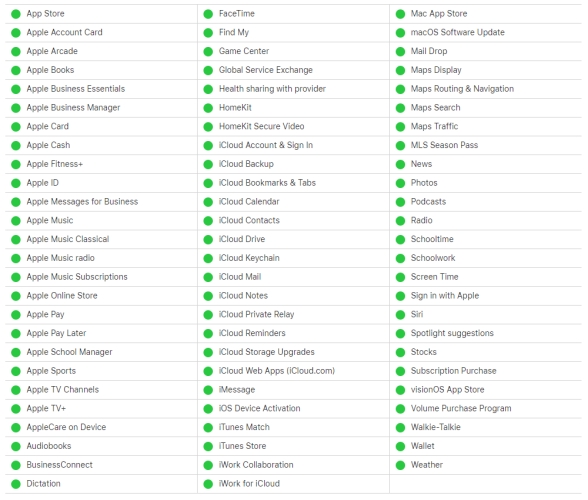
Step 1. Load the Apple System Status page on your iPhone.
Step 2. Check if Apple ID is green and available. If not, wait for it to be fixed and try erasing later.
Method 2. Change Network Connection
A weak or unstable network connection can disturb Apple ID verification. You can switch the WiFi network and try erasing the iPhone again.
Method 3. Force Restart Your iPhone
Temporary software bugs may cause erase iPhone verification failed error. Force restarting your iPhone can clear minor errors that affect the reset process and refresh the system.
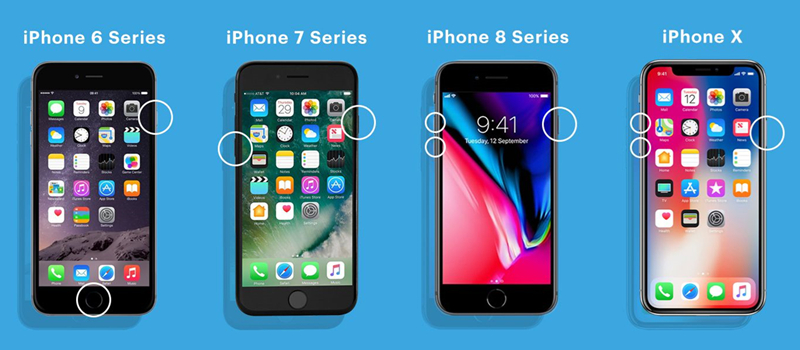
- iPhone 8 and later: Press the Volume Up button, press the Volume Down button, then hold the Power button until the Apple logo appears.
- iPhone 7 series: Press and hold the Volume Up button and the Power button simultaneously until the Apple logo appears.
- iPhone 6 and earlier: Press and hold the Power button and the Home button simultaneously until the Apple logo appears.
Method 4. Update iPhone System
Outdated iOS versions may also prevent the iPhone from erasing. Make sure your iPhone is running the latest and compatible iOS version, then try erasing the iPhone.
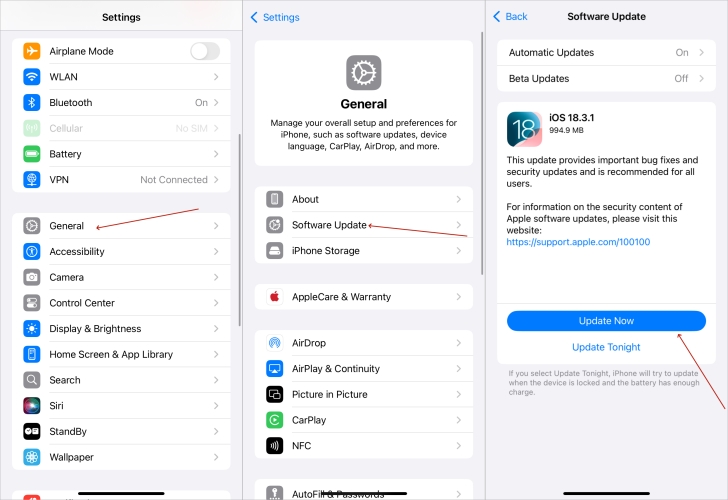
Step 1. Go to iPhone Settings > General > Software Update.
Step 2. Wait for the update check. If there is a newer iOS version, tap Download Now or Install Now to update.
Method 5. Sign Out of Apple ID and Erase
If verification continues to fail, you can consider signing out of your Apple ID before erasing the iPhone. When signing out of Apple ID, choose to erase the data as well. Then your iPhone will be erased.
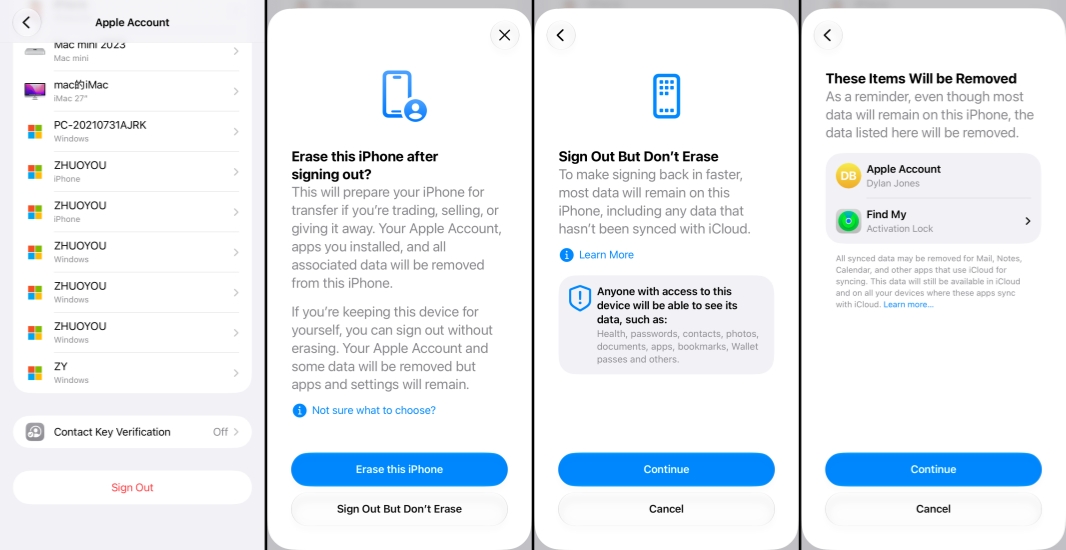
Step 1. Go to iPhone Settings and tap your Apple ID.
Step 2. Scroll down and tap Sign Out.
Step 3. Tap Erase this iPhone, and choose to back up or not.
Step 4. Enter the iPhone passcode and Apple ID password to confirm.
Method 6. Erase iPhone with iTunes/Finder
If you can't erase your iPhone directly because verification keeps failing, iTunes may offer another way to erase all content and settings on the iPhone.
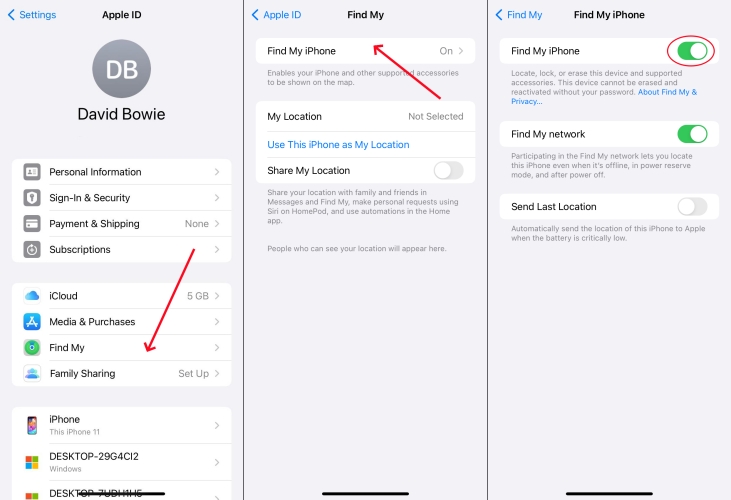
💡Note:
Before restoring the iPhone with iTunes, turn off Find My on the iPhone first. Go to iPhone Settings > Apple ID > Find My > Find My iPhone, disable Find My iPhone, and enter the Apple ID password to confirm.
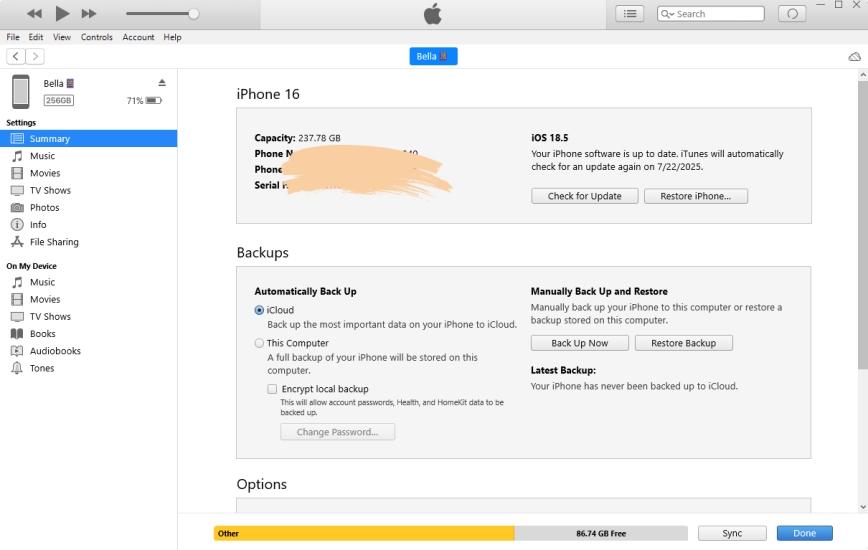
Step 1. Use a data cable to connect the iPhone to a computer and open iTunes.
Step 2. Trust the computer and iPhone, then click the device icon.
Step 3. Click Restore iPhone to erase all content and settings on the iPhone.
Part 3. How to Erase iPhone Without Apple ID Verification
If the Apple ID Verification Failed error keeps popping up when erasing the iPhone, you may need to remove the Apple ID before resetting the device. However, signing out through Settings may not work when the account is locked, disabled, or otherwise inaccessible. In this situation, MagFone iPhone Unlocker provides an alternative solution for removing Apple ID. It can also help remove a forgotten lock screen passcode, Screen Time passcode, or MDM password. Now you can follow the steps below to remove Apple ID from iPhone, then fix erase iPhone verification failed error.

MagFone iPhone Unlocker
Factory reset iPhone without Apple ID password and network.
Step 1 Install MagFone iPhone Unlocker
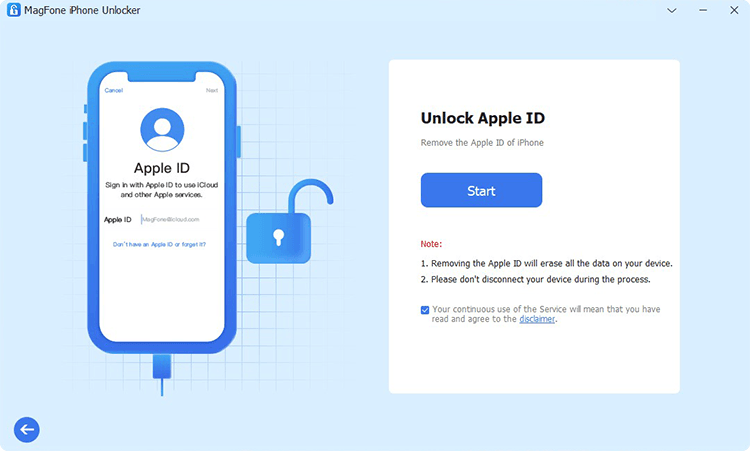
First, download and install MagFone iPhone Unlocker on your computer. Afterwards, use a data cable to connect your iPhone to the computer and launch the MagFone tool.
Step 2 Check Screen Lock and 2FA Status
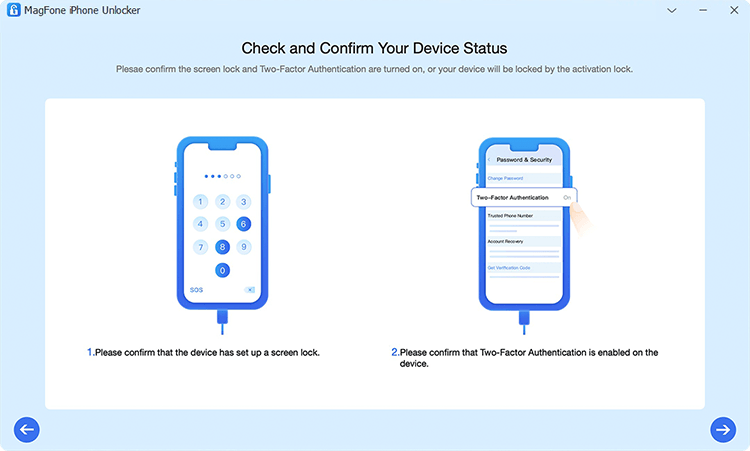
Choose Remove Apple ID from MagFone's interface and click Start. Make sure you have set a screen passcode and that 2FA is enabled on the iPhone. Then click Yes twice and proceed to the next step
Step 3 Download Firmware Package

Check your iPhone information on the screen, and click Download to download the firmware package.
Step 4 Remove Apple ID from iPhone
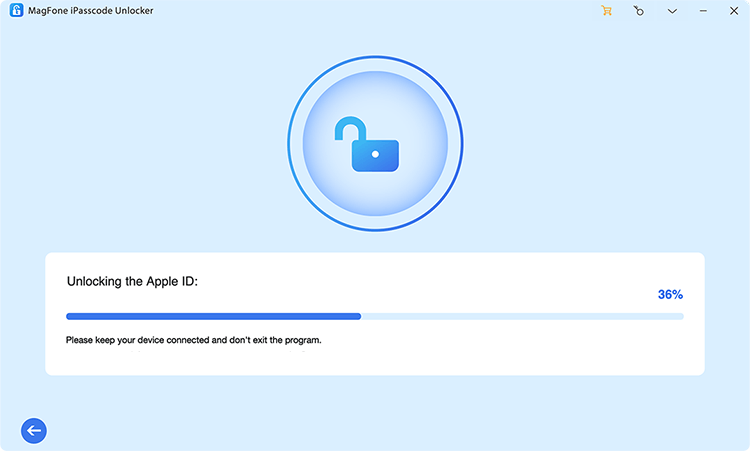
When the download is completed and verified, click Unlock to remove the Apple ID from your iPhone.
Part 4. Conclusion
The erase iPhone Verification Failed error can usually be resolved by switching the network. If you still can't erase your iPhone because of Apple ID problems, unlocking tools like MagFone iPhone Unlocker may offer you an alternative solution. Always keep in mind to back up your data before erasing it.

Dylan Jones
Editor in chief




