








To date, Apple has launched a series of iPhones, from iPhone 4 to iPhone 17. iPhone 5, iPhone 5S, and iPhone 5 are the old models, but many folks are still using them in their daily lives. As the iPhone 5 runs on dying hardware, some users want to refresh it for better performance by factory resetting it. Actually, a factory reset is a useful option when you have a problem with your iPhone. How do you reset an iPhone 5 to factory settings? Follow our guide on how to factory reset iPhone 5/5S/5C with or without a passcode.
- Part 1. How Do I Factory Reset an iPhone 5?
- Part 2. How to Factory Reset iPhone 5 in Settings
- Part 3. How to Factory Reset iPhone 5 without Passcode
- Method 1. Restore iPhone 5 to Factory Settings Using a Third-party ToolHOT
- Method 2. Restore iPhone 5 to Factory Settings on iCloud.com
- Method 3. Restore iPhone 5 to Factory Settings in Find My App
- Method 4. Restore iPhone 5 to Factory Settings through iTunes
- Method 5. Restore iPhone 5 to Factory Settings in Recovery Mode
- Part 4. Issues You May Encounter After Factory Resetting iPhone 5
- Part 5. FAQs about Factory Resetting iPhone 5
- Part 6. Conclusion
Part 1. How Do I Factory Reset an iPhone 5?
A factory reset restores your iPhone 5 to its original settings, erasing all personal data, apps, and settings. You may need to reset your iPhone for different reasons. And there are several methods suitable for different situations. The following is a preview of each method, and you can check each requirement to choose the suitable method.
| Method | iPhone Passcode | Screen Time Passcode | Apple ID Password | Network on iPhone | Computer |
|---|---|---|---|---|---|
| Settings | Required if set | Required if set | Required if Find My is enabled | Required | No |
| MagFone iPhone Unlocker | ❌ | ❌ | ❌ | ❌ | ✔️ |
| iCloud.com | ❌ | ❌ | ✔️ | ✔️ | / |
| Find My App | ❌ | ❌ | ✔️ | ✔️ | / |
| iTunes | ❌ | ❌ | Required if Find My is enabled | ❌ | ✔️ |
| Recovery Mode | ❌ | ❌ | ❌, but may trigger activation lock if Find My is enabled | ❌ | ✔️ |
Part 2. How to Factory Reset iPhone 5 in Settings
The easiest way to reset an iPhone 5 is to start with the Settings app. With the screen lock passcode, Screen Time passcode, and Apple ID password, you can directly do a factory reset on your iPhone.
Before iPhone 5 factory reset:
To avoid data loss, it's suggested that you back up the iPhone before the factory reset so you can restore a backup when the factory reset doesn't work as expected.
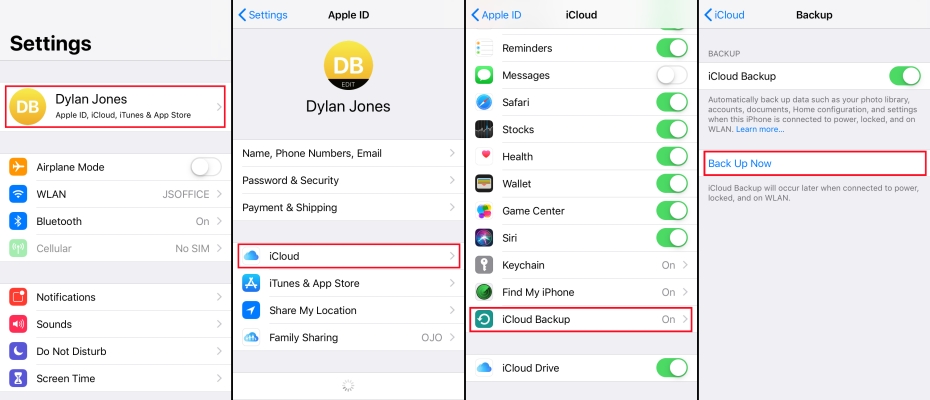
Step 1. Just go to Settings > Apple ID > iCloud > iCloud Backup.
Step 2. Tap Back Up Now to back up the iPhone to iCloud. Then follow the steps below to factory reset the iPhone 5 in Settings.
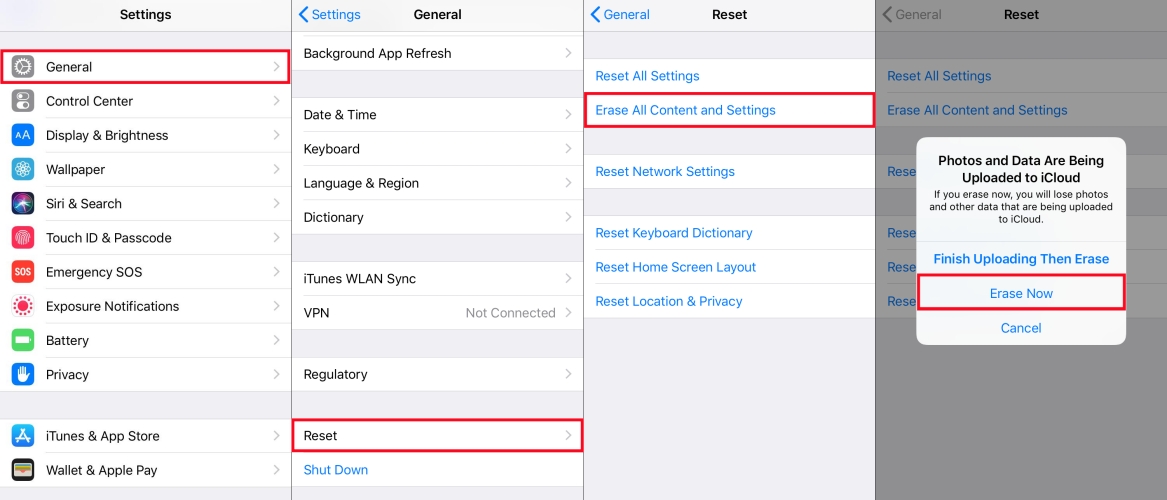
Step 1. From the home screen, open the Settings app and select General.
Step 2. Scroll down to tap Reset, then select Erase All Contents and Settings.
Step 3. Tap Erase Now and enter your screen lock passcode.
Step 4. Tap Erase iPhone twice and enter the Apple ID password to clear all the data and information on the device.
Part 3. How to Factory Reset iPhone 5 without Passcode
If you forgot either the lock screen passcode, Screen Time passcode, or Apple ID password, you can't factory reset the iPhone directly in Settings. Fortunately, there are still 5 methods that can help restore an iPhone 5 to factory settings.
Method 1. Restore iPhone 5 to Factory Settings Using a Third-party Tool
If you can remember your screen passcode, then you can restore your iPhone to its original factory settings with the Settings app. However, some users got an old iPhone 5 without knowing the required passcodes. In this case, the most effective solution is to use an iPhone unlocker to factory reset it. Here, MagFone iPhone Unlocker is a great option if you want to reset an iPhone 5 to factory settings without a passcode, iTunes, Apple ID password, or network.
MagFone iPhone Unlocker presents several features, including unlocking screen passcode, removing Apple ID, and getting rid of Screen Time and MDM. When you want to perform a simple factory reset on your iPhone 5, MagFone iPhone Unlocker can quickly complete this task. Learn how to factory reset iPhone 5/5S/5C without a passcode using MagFone software now.

MagFone iPhone Unlocker
Unlock various locks on iOS devices, including screen locks, MDM, Apple ID, and Activation Lock without needing a password.
Step 1 Connect iPhone 5 and Run MagFone iPhone Unlocker

The first step is to connect your iPhone 5 to a computer where you install MagFone iPhone Unlocker. Then open MagFone software and select the Unlock iOS Screen button. Continue to click the Start button.
Step 2 Go to Put iPhone 5 into Recovery Mode or DFU Mode
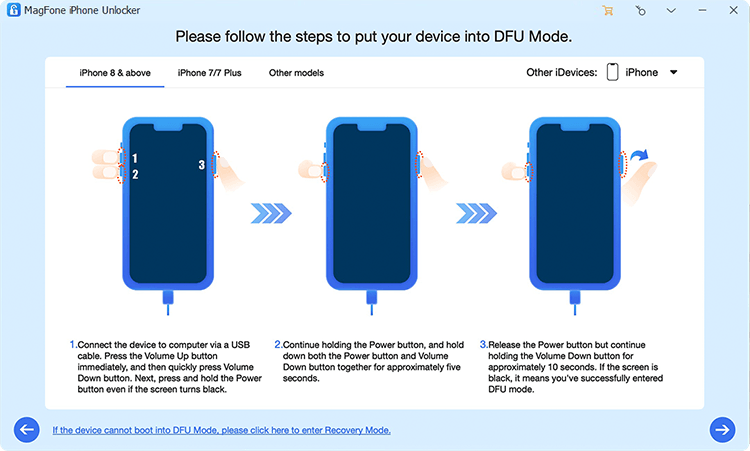
The second step is to follow the onscreen instructions to boot your device into recovery mode. If you can get your device into recovery mode, you can click the link shown on the software. After successful setup, you can click on the Next button.
Step 3 Download the Matching Firmware Package for iPhone

The third step is to check the device information. If there is something wrong, you can manually correct it. Then you can click the Download button to download the firmware package for iPhone.
Step 4 Start to Factory Reset iPhone 5 without Passcode

The final step is to click the Unlock button, which lets MagFone iPhone Unlocker reset your iPhone to factory settings. Wait for a while, and MagFone iPhone Unlocker will clear all the data and settings on your iPhone.
Method 2. Restore iPhone 5 to Factory Settings on iCloud.com
iCloud is an online platform where you can find all Apple devices that are linked with the same Apple ID. If Find My is enabled on the iPhone 5, you can log in to iCloud to remove it from the Apple ID and factory reset the device remotely.
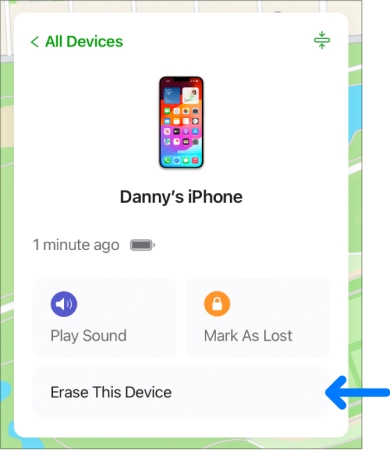
Step 1. Visit iCloud.com on a device and sign in with your Apple ID details.
Step 2. Select your iPhone 5 from the device list and click the Erase button in the pop-up window.
Step 3. Click Next, enter a phone number, then input the Apple ID password to confirm that you want to factory reset your device.
Method 3. Restore iPhone 5 to Factory Settings in Find My App
The Find My app is a great app for managing all of your Apple devices. By using this app, you can also restore your iPhone to its original status once Find My is enabled on the iPhone 5.
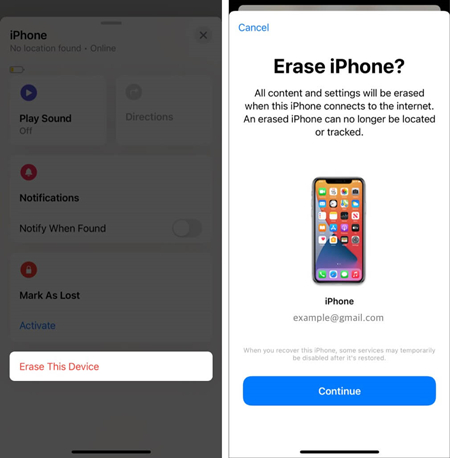
Step 1. Open the Find My app on your other Apple device where you use the same Apple ID.
Step 2. Tap the Devices button, then find and select your iPhone 5.
Step 3. Scroll down to tap the Erase This Device or Erase button and tap the Continue button.
Step 4. Enter a phone number and the Apple ID password, then tap the Erase button.
Method 4. Restore iPhone 5 to Factory Settings through iTunes
Using iTunes is another option to help you factory reset your iPhone 5 if you have ever connected it to your computer. Here's how to reset iPhone 5 to factory settings through iTunes.
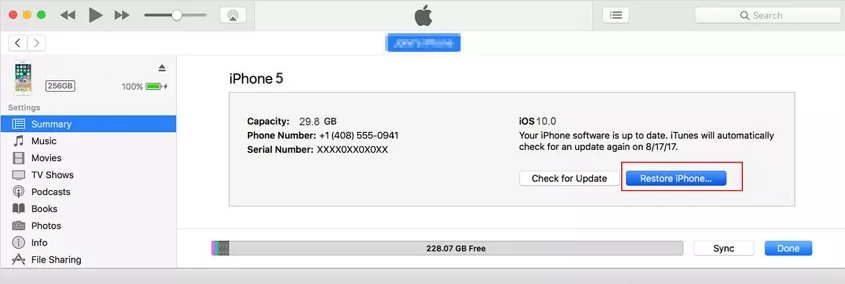
Step 1. Make sure that your iPhone is connected to a trusted computer.
Step 2. Open iTunes, click your device icon, and go to the Summary tab.
Step 3. Click the Restore iPhone button, then click the Restore button again.
Method 5. Restore iPhone 5 to Factory Settings in Recovery Mode
In addition to the above methods, you can use recovery mode to factory reset your iPhone 5. It can be used when iTunes can't detect your iPhone 5 or the iPhone 5 is disabled. In recovery mode, you can restore your iPhone 5 and set it up again.

Step 1. Connect your iPhone 5 to your computer with a USB cable.
Step 2. Power off your device and put it into recovery mode.
- Press and hold both the Home and the power buttons at the same time.
- Keep holding them until you see the Connect to computer screen.
Get an iPad, iPhone, or iPod touch into recovery mode with one click for free.
Step 3. Open the Finder or iTunes, then click the Restore button on the pop-up window.
Step 4. After the Restore completes, set up your device.
Part 4. Issues You May Encounter After Factory Resetting iPhone 5
If successful, you can factory reset the iPhone 5 in settings and use it normally. However, there may be some unexpected issues after a factory reset. Here are two main issues you may encounter according to some iPhone users:
iPhone locked to owner after factory reset
If the iPhone 5 is restored to factory settings in recovery mode with Find My enabled, the activation lock will be triggered, and you will see the iPhone Locked to Owner screen. In this case, you can enter the correct Apple ID and password to unlock the iPhone 5.
iPhone requires passcode after factory reset
Some users are reporting that their iPhone asks for a passcode they don't know after factory resetting the iPhone in Settings. When your iPhone 5 requires a passcode after reset, you can input 6-digit passcode like 000000, 123456, 888888 or 4-digit passcode like 0000, 1234, 8888 to unlock it. If these passcodes not working, then consider using MagFone iPhone Unlocker to remove the passcode and do a successful factory reset.
Part 5. FAQs about Factory Resetting iPhone 5
How to factory reset iPhone 5 without network?
When an iPhone has no network, you can't turn off Find My iPhone before factory resetting an iPhone 5. If you are unable to connect to a network, you can use MagFone iPhone Unlocker to factory reset it and regain full access to the iPhone.
How to factory reset iPhone 5 without iTunes or passcode?
If you want to reset iPhone to factory settings without passcode or iTunes, using iCloud and the Find My app is a good option.
How to factory reset iPhone 5 without Apple ID password?
Without the Apple ID password, you can't disable Find My during the factory reset and utilize iCloud web or the Find My app to erase the device. In this case, you can consider using MagFone iPhone Unlocker to do this for you without any passcode or password.
How do you factory reset a locked iPhone 5?
When your iPhone 5 is locked, you can use an iPhone unlocker like MagFone iPhone Unlocker to reset it. Or you can connect your iPhone 5 to iTunes for a factory reset.
Part 6. Conclusion
And that's a wrap, folks. After reading this article, you will know how to factory reset an iPhone 5 with or without a passcode. The most direct way to reset an iPhone 5 with a passcode is in Settings. While the most direct way for resetting an iPhone 5 without a passcode is to use MagFone iPhone Unlocker. MagFone deserves a try if you have found an iPhone 5 and want to get into it.

Teresa Miller
Editor in chief





