








Hello house, I did factory reset on my iPhone 11. But after it turned on, I found out that all my data and apps I downloaded was still there. Please what can I do?"
—— From Facebook
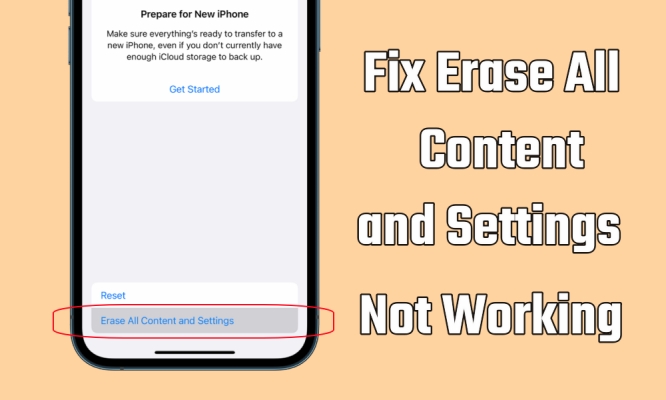
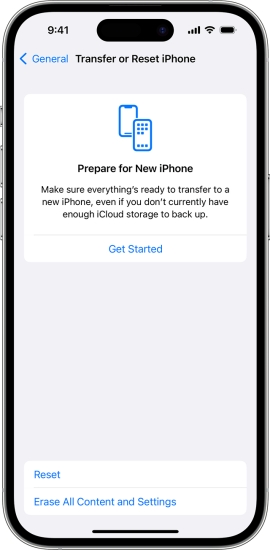
Before you sell your iPhone or give it to someone else, you can reset it by tapping Erase All Content and Settings. Or if you have a problem you cannot fix, a factory reset of your iPhone could be the ideal solution. Whatever the purpose, it's pretty easy to factory reset an iPhone by tapping Erase All Content and Settings. When you are done, you will have what amounts to a brand new iPhone.
However, lots of users have encountered some issues iPhone Erase All Content and Settings not working or iPhone Erase All Content and Settings greyed out. What to do if Erase All Content and Settings does not work on the iPhone? Fortunately, in this article, we will explain how to fix iPhone Erase All Content and Settings not working. Let's dive into the details.
Quick-Check: Match Your Error to the Solution
If you are in a hurry, use this table to find your specific symptom and the corresponding fix detailed below.
| If you see this | The most likely cause is | Primary Solution |
|---|---|---|
| Grayed-out Reset button | Screen Time or MDM Profile | Disable Restrictions |
| "Verification Failed" error | Network or Apple ID glitch | Sign out of Apple ID manually |
| Stuck on a spinning wheel | System process crash | Force Restart |
| "Unable to Erase" message | Find My iPhone is still active | Disable Find My in Settings |
- Part 1. Why My iPhone Won't Let Me Erase All Content and Settings?
- Part 2. How to Fix iPhone Erase All Content and Settings Not Working
- Part 3. Alternative Ways to iPhone Won't Erase All Content and Settings
- Part 4. FAQs about Erase All Content and Settings on iPhone
- Part 5. Conclusion
Part 1. Why My iPhone Won't Let Me Erase All Content and Settings?
Most iPhone users have been confused about those questions, "why is Erase All Content and Settings greyed out on iPhone?" and "why is Erase All Content and Settings not working on iPhone?". The problem of Erase All Content and Settings not working can be caused by various underlying features, from software glitches to hardware limitations.
When your iPhone isn't connected to a good WiFi network or has poor cellular data, it would fail to get it done. Entering the incorrect passcode or the iPhone unlock passcode not working is an equally important factor that causes Erase All Content and Settings not to work. If you don't insert any SIM card into your iPhone, you won't be able to reset your device sometimes. No matter what the reason, you can try the following solutions to fix the issue.

Reason 1. Screen Time Restrictions are Active
This is the most frequent culprit. If you have Screen Time enabled, it can "gray out" or block the reset option to prevent unauthorized users from wiping the device.
Reason 2. "Find My iPhone" is Blocking the Reset
To prevent theft, Apple requires you to verify your Apple ID before erasing. If your phone can't communicate with Apple's servers to turn off "Find My," the reset will fail.
Reason 3. Management Profiles
If your iPhone was issued by a company or school, it likely has a Mobile Device Management profile. These profiles can remotely disable the factory reset feature for security.
Reason 4. Low Battery or No Power
iOS will often block a factory reset if your battery is below 50% because a power failure during a wipe can "brick" the phone.
Reason 5. iCloud is Still Signing Out
Sometimes the iPhone gets stuck in a loop trying to sign out of iCloud services like Keychain or Photos before the final erase command.
Part 2. How to Fix iPhone Erase All Content and Settings Not Working
It is not uncommon for the process of Erase All Content and Settings to fail, leaving you with a grayed-out button or a "Verification Failed" error. When the feature of Erase All Content and Settings is not working on your iPhone, you can fix the issue with the following methods as soon as possible. No need for technical skills, and you can take it step by step.
Step 1: Perform the Preliminary Checks
Before diving into technical fixes, ensure the basic environment for a factory reset is met. Apple's security protocols require specific conditions to allow a full wipe.
Check Battery Levels: Your iPhone will often refuse to erase if the battery is below 50%. Plug your device into a charger before performing a factory reset.
Verify Internet Stability: The iPhone must "talk" to Apple's servers to de-register your Apple ID. Ensure you are on a stable Wi-Fi network rather than a weak cellular signal.
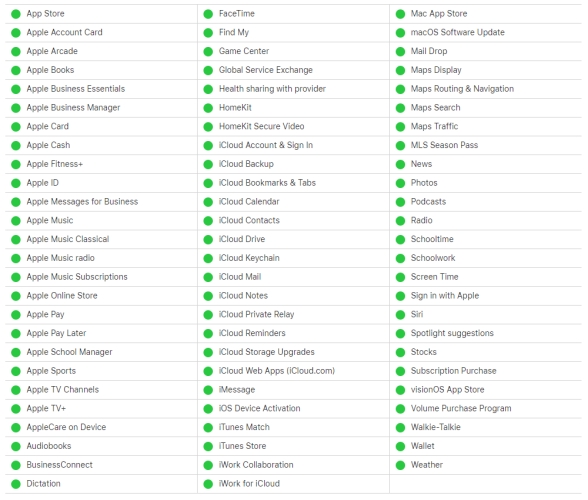
Check Apple System Status: Occasionally, Apple's activation servers go down. Visit the official Apple System Status page to ensure "iCloud Account & Sign In" is showing a green light.
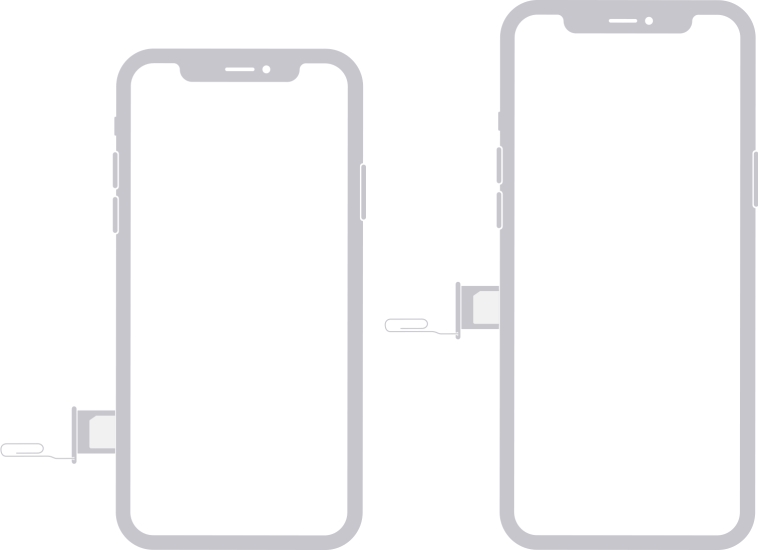
Insert an SIM Card: Alternatively, provided that you got an iPhone from a carrier, then you need to erase your iPhone when inserting your SIM card into the slot.
Step 2: Remove Security Barriers
Most "grayed out" reset buttons are caused by active security features like Screen Time and Management profiles designed to prevent unauthorized users from wiping the phone.
01Disable Screen Time Restrictions
Screen Time isn't just for monitoring app usage, and it also acts a "parental control" that can lock system changes, including using the Erase All Content and Settings feature.
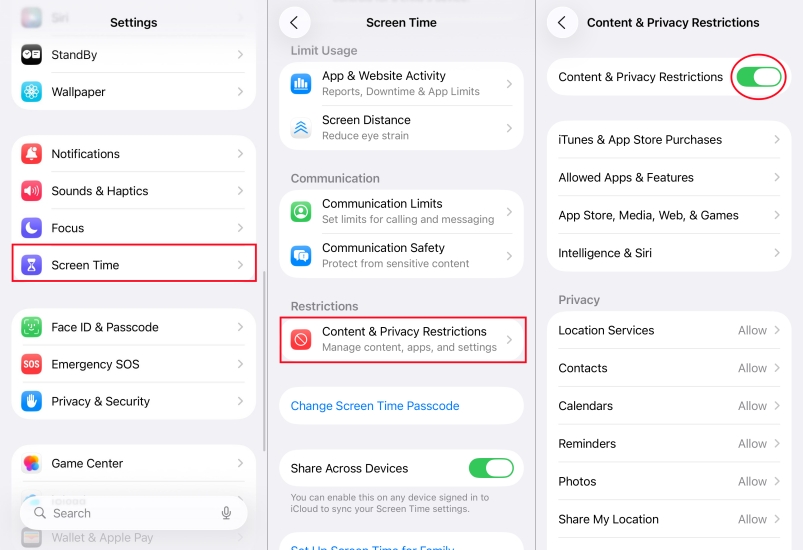
1) Go to Settings > Screen Time and tap Content & Privacy Restrictions.
2) Turn off Content & Privacy Restrictions.
02Remove Management Profiles
If your iPhone was provided by a workplace or school, it likely has a Mobile Device Management profile. These profiles can remotely disable the ability to factory reset the device.
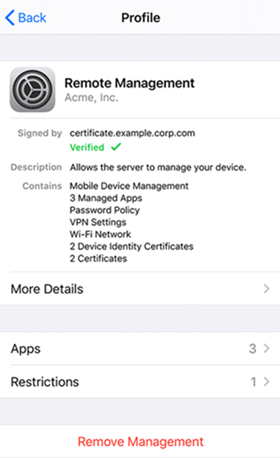
1) Fire up the Settings app and tap General > VPN & Device Management.
2) Find any installed profiles and tap Remove Management.
3) Enter the removal password to remove it from your device.
Step 3: Avoid the Server Error
The reset process often hangs while your iPhone is trying to "handshake" with Apple's servers to sign out of Find My and remove the Activation Lock.
01Set Date & Time to Automatic
If your phone's internal clock doesn't match Apple's servers, the security certificate will fail. Ensure the date and time on your iPhone is correct and synced automatically.
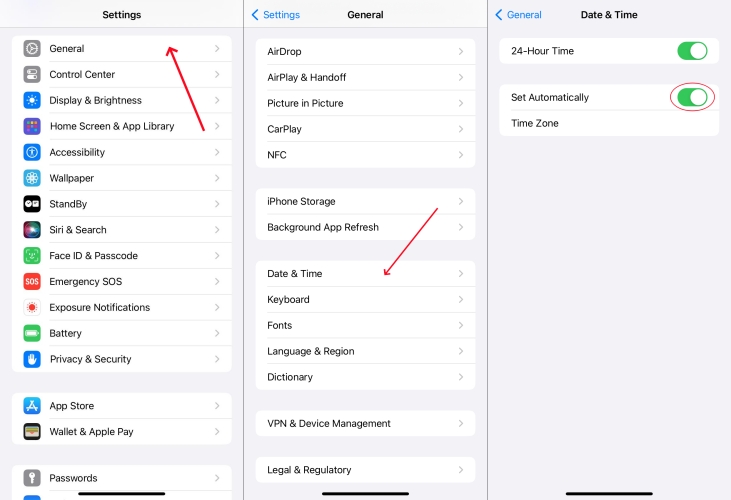
1) In the Settings, tap General > Date & Time.
2) Toggle Set Automatically to ON.
02Reset Network Settings on iPhone
If you are seeing "Verification Failed", your network cache might be corrupted. Resetting network settings lets you delete the current network settings and connect to a new network.
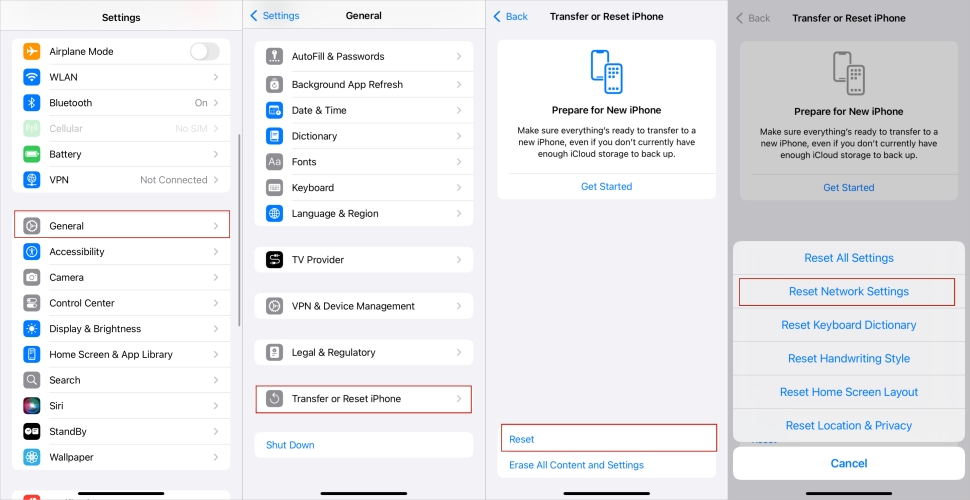
1) In the Settings app, tap General and scroll down to tap Erase or Transfer iPhone.
2) Tap Reset and select Reset Network Settings, then enter the unlock passcode.
03Turn Off Find My iPhone
The Find My feature is available for locating the iPhone when losing it. However, sometimes, turning this feature on can cause a hindrance in tapping Erase All Content and Settings.
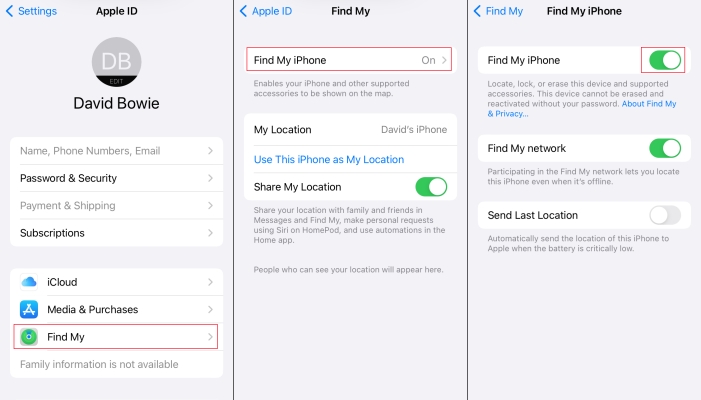
1) Open the Settings app on your iPhone, then tap your name > Find My.
2) Tap Find My iPhone, then tap to turn it off with entering your Apple ID password.
3) Tap Turn Off to completely disable Find My on your device.
04Sign out of iCloud Account on iPhone
Sometimes, you are required to enter your Apple ID password when trying to reset your iPhone to the default settings. You can sign out of iCloud in advance, then you can avoid this issue.
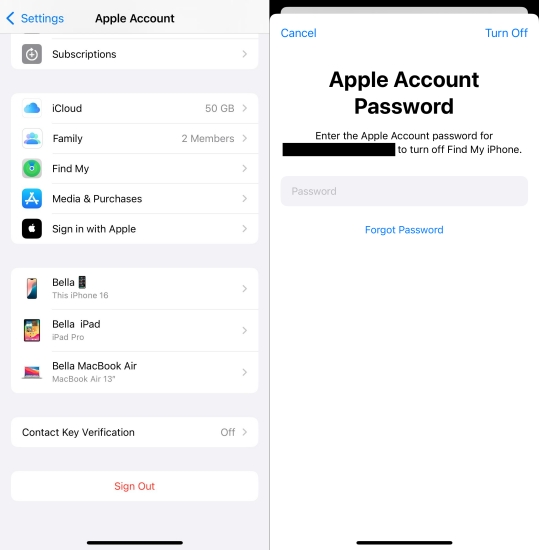
1) Go to Settings on your iPhone and tap your name.
2) Tap Sign Out at the bottom and enter your Apple ID password.
3) Tap Turn Off > Sign Out, then tap Sign Out again to confirm.
Step 4: Refresh the System Software
If the settings app is crashing or the reset button simply won't respond to your touch, a system refresh on the iPhone is necessary to Erase All Content and Settings not working.
01Force Restart iPhone
When tapping Erase All Content and Settings is completely unresponsive, a force restart clears the temporary cache and "unsticks" background processes without deleting your data.
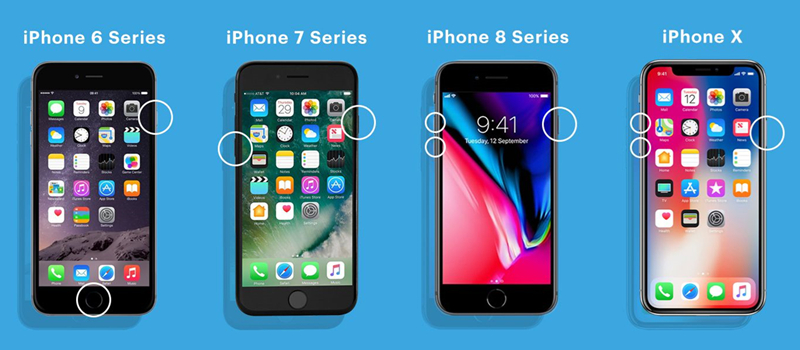
For iPhone 8 and Later: Press and quickly release the Volume up button. Then do the same action on the Volume down button. Press and hold the power button until the Apple logo shows up.
For iPhone 7: Press and hold the the Volume down button and the Power button at the same time. When the Apple logo appears, release both buttons.
For iPhone 6 and Earlier: Press and hold both the Power button and the Home button at the same time. When the Apple logo appears, release both buttons.
02Update the iOS on iPhone
When your iPhone is not updated to the latest iOS version, there will be some system-related issues like Erase All Content and Settings not working.

1) Locate Settings on your iPhone and tap General > Software Update.
2) When there is a software update option, tap Install Now.
3) After downloading the update, enter the passcode, then tap Install Now.
Part 3. Alternative Ways to iPhone Won't Erase All Content and Settings
As you can see, there are several ways to go about fixing Erase All Content and Settings not working. The process of each method is not complex, but there are still lots of iPhone users who cannot fix this issue. If the on-device settings are completely non-responsive, you can use a computer to force a restoration of the firmware. Here we will lay out two methods for you.
Method 1. Erase iPhone Data with iTunes/Finder
iTunes is officially launched by Apple, aiming to help users back up all the data and settings from iPhones. In addition to making a backup of the iPhone, iTunes can allow you to return the iPhone to factory settings. If you have a Mac or PC, here you can use iTunes to restore your iPhone to factory settings. Make sure that the Find My iPhone is disabled, then follow the steps below.

Step 1. Connect your iPhone to your computer with a USB cable, then tap Trust This Computer.
Step 2. Open iTunes on a PC or launch the Finder on a Mac, then select your device.
Step 3. Click the Restore iPhone button, then click the Restore button again to confirm.
Step 4. After your device restores to factory settings, it restarts.
Method 2. Erase iPhone Data with MagFone iOS System Recovery
MagFone iOS System Recovery is another ideal option for you when Erase All Content and Settings is not working on the iPhone. As a multifunctional tool, MagFone iOS System Recovery is famous on the internet for its easy-to-use interface and great features. With MagFone iOS System Recovery, you can erase an iPhone in two modes, including Standard Reset and Factory Reset.
Here you can use MagFone software to reset your iPhone with one click. The following are the main features of MagFone iOS System Recovery. Then perform the steps below to factory reset iPhone when Erase All Content and Settings not working.

MagFone iOS System Recovery
Fix various iOS and iPadOS system issues, such as black screen, boot loop, frozen screen, or stuck on Apple logo, without data loss.
Step 1 Connect iPhone to Computer

First up, get your iPhone connected to a computer by using a USB cable, then open MagFone iOS System Recovery on the computer. There are four options for you to choose from, and simply click Reset Device on the main interface of the software.
Step 2 Select a Reset Mode for iPhone
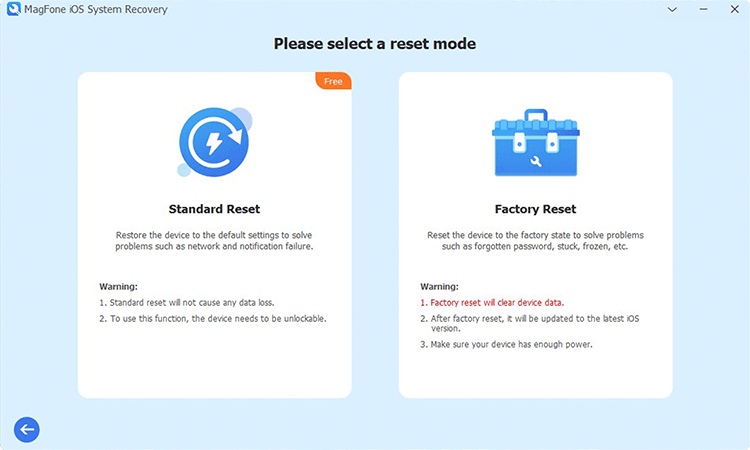
As you want to reset your iPhone to the factory state, then you can choose Factory Mode. Now you have to check the device information shown on the screen and click the Download button to download the firmware package for your device.
Step 3 Start to Factory Reset iPhone
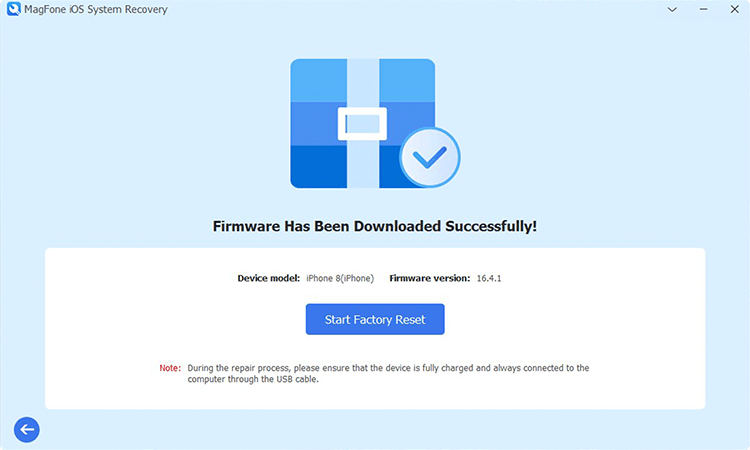
After successfully downloading the firmware package, you can click the Start Factory Reset button to begin resetting your device to the factory state. During the whole process, ensure your device is always connected to the computer with a USB cable.
Part 4. FAQs about Erase All Content and Settings on iPhone
How to erase all content and settings on iPhone?
To erase all content and settings on the iPhone, you can use the Erase All Content and Settings feature in the Settings app. Simply tap Settings > General > Reset or Transfer iPhone. Then tap Erase All Content and Settings > Continue and enter the screen lock passcode. Finally, tap Reset again to confirm the erasing of your device.
Does Erase All Content and Settings delete everything on iPhone?
Yes, the Erase All Content and Settings feature will delete everything on the iPhone. If you don't want to delete photos, contacts, and other important files, you can backup them to iCloud or a computer in advance. After that, you can perform a factory reset.
Can you restore iPhone after erase all content and settings?
Yes, you can restore iPhone after erase all content and settings if you have any iTunes or iCloud backup. When you set up your iPhone, you will be asked whether to restore data and settings from iTunes or iCloud.
What does Erase All Content and Settings on iPhone mean?
Erase All Content and Settings means that all the information and settings on your iPhone will be erased. This includes removing any apps that were installed with your Apple ID account.
Does Erase All Content and Settings remove Find My iPhone?
No, Erase All Content and Settings cannot remove Find My iPhone. If your iPhone has Find My enabled, you need to turn off Find My iPhone first, then proceed to wipe the device.
Part 5. Conclusion
Hopefully, you followed our guide on how to fix Erase All Content and Settings not working on iPhone so you can completely reset your iPhone to factory settings. All the methods listed in this guide can help you resolve the Erase All Content and Settings button not working. But you can try using iTunes or MagFone iOS System to assist you factory reset iPhone when failing to fix Erase All Content and Settings.

Teresa Miller
Editor in chief





