








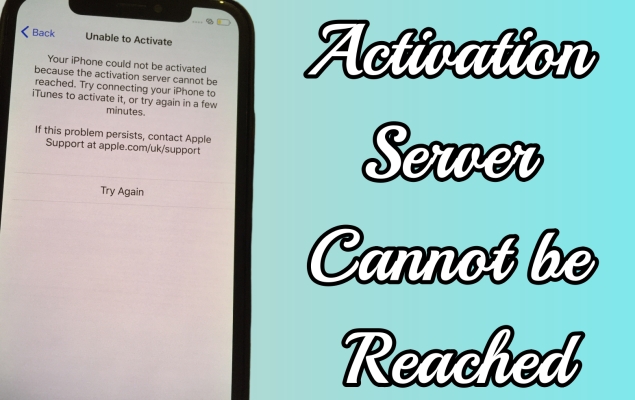
Once you get a new iPhone or iPad, you need to activate it first. However, if you see prompts like "The activation server cannot be reached" or "The activation server is temporarily unavailable" when you try activating a new iPhone or iPad, it means you're currently unable to access the Apple activation system currently. So, what else can you do to fix this activation failure? This article aims to show you seven ways to assist you in activating your devices when the activation service is deactivated. Come and quickly activate them for use.
- Part 1. Common Reasons for Unable to Activate Errors
- Part 2. How to Fix Activation Server Cannot Be Reached
- Part 3. How to Bypass Activation Lock on iPhone/iPad with Ease
- Part 4. FAQs about Unable to Activate iPhone/iPad
- Part 5. Conclusion
Part 1. Common Reasons for Unable to Activate Errors
When you activate your iPhone or iPad, you may see an error occur on the screen saying Unable to Activate or Could Not Activate. It means there's something wrong during the activation process, it may be a lack of network, an Apple ID issue, or a paralyzed activation system status. Under Unable to Activate, you can see the corresponding causes.
Error 1. Activation Server Cannot Be Reached
Your iPhone/iPad could not be activated because the activation server cannot be reached. It aims to tell you the Apple activation server is under repair at the moment and you can't activate any Apple devices until it's finished. You can directly check the repair process on the official system website.
Error 2. An Update Is Required to Activate
An update is required to activate your iPhone/iPad. Activating an Apple device requires an update, as the activation process typically requires the latest iOS version to ensure compatibility with Apple servers for accessing the latest security features. Therefore, you should update your device first if you see this alert.
Error 3. Can't Be Activated without Internet Connection
This iPhone/iPad cannot be activated without an internet connection. If you see such a notification, you probably missed the Wi-Fi setting. Go back to the original step and then repeat the steps to set up Wi-Fi for activation. If you've connected to Wi-Fi before, switch to another one or use iTunes to activate your device.
Part 2. How to Fix Activation Server Cannot Be Reached
If your iPhone or iPad displays an "activation server cannot be reached" error, the problem may be related to Apple's servers, your internet connection, or the device's SIM card and software. Follow the methods below to troubleshoot and resolve the issue.
Method 1. Check System Status
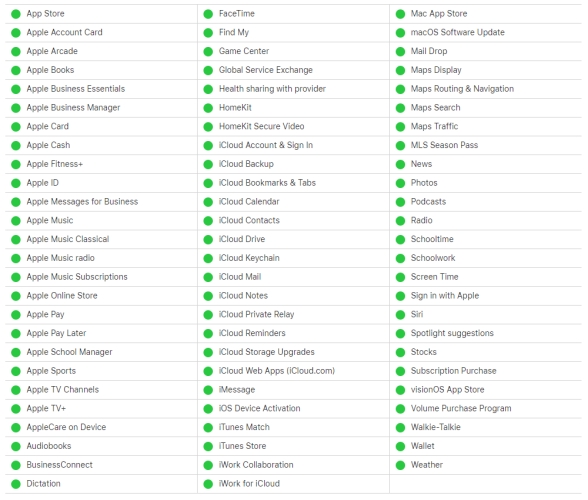
If you receive a notification the activation server can't be reached, you can switch to the Apple system official website and check if the activation server is in repair now. Green means available and the yellow and red icons represent an outage.
Method 2. Try Again Later
Sometimes, Apple's activation servers may be temporarily busy or unavailable because of maintenance or high traffic. Wait for a while and try activating your iPhone or iPad again. If the issue is server-related, the device may activate normally after the service is restored.
Method 3. Force Restart iPhone
If you are stuck in an activation interface and unable to proceed to the next step, you can force restart your device to refresh the activation server connection. The restart process varies by model; check the details below.
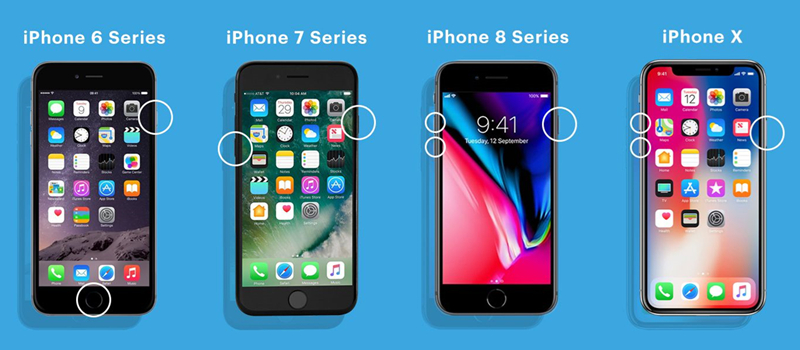
For iPhone 8 and Later: Hit the volume up key swiftly, then the volume down key. Keep holding the side key and release it when you see an Apple logo.
For iPhone 7 Series: Hit the volume down key and the Sleep key. When the iPhone restarts, release these keys.
For iPhone 6 and Earlier: Hold the Power and the Home keys at once. Let them go if you see the Apple logo displayed on your iPhone.
Method 4. Switch Network Connection
Your device will not be activated if there is no network connection or a weak network connection. You may see options on the screen like Try Using WLAN or Try Again Over Cellular. You can tap the available option or go back to the Choose A Wi-Fi Network screen to switch from Wi-Fi to cellular data or connect to another Wi-Fi network.
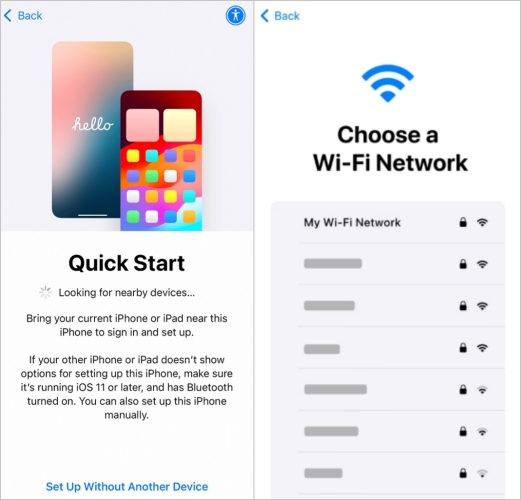
Step 1. Power on your device, then choose your language and region.
Step 2. After a quick start, you'll be asked to select a Wi-Fi network. Connect to a stable WiFi or cellular network.
Step 3. Next, you can follow the onscreen guide to activate your device.
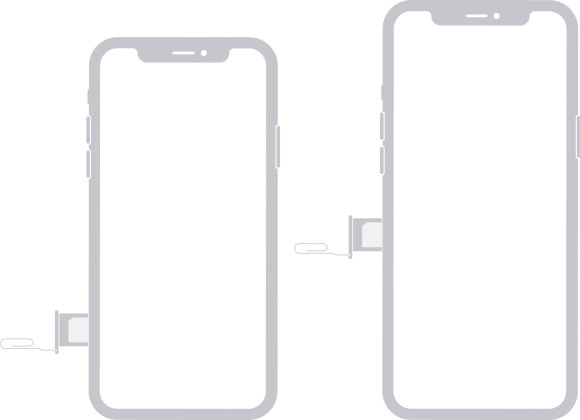
Method 5. Reinsert SIM Card
Some iPhone or iPad activation also requires inserting a SIM card. If the SIM card is loose and not in the slot, the iPhone will not recognize it and prevent you from activating the device. You can remove the SIM card. Otherwise, you should contact the carrier to replace it with a new one.
Method 6. Activate iPhone through iTunes
If you can't finish the activation process on your iPhone or iPad, you can try completing the process with iTunes on a computer. After connecting your device to a computer, you can follow the following steps to activate your device now.
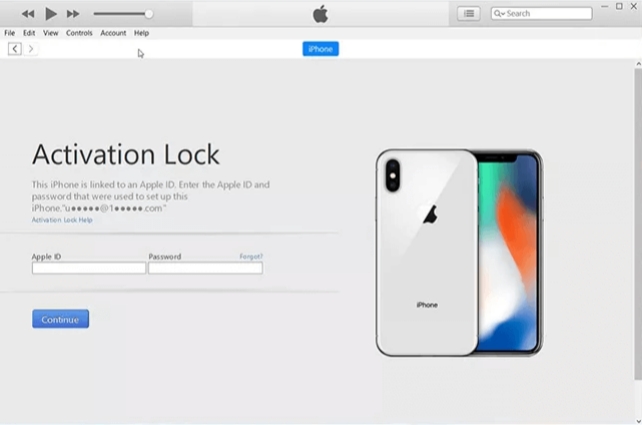
Step 1. Fire up the latest iTunes on a computer and then link your device to the computer.
Step 2. After trusting the computer, enter your Apple ID credentials to start activating your device.
Step 3. Wait for a while until you see a screen displaying Set up as New or Restore from Backup.
Method 7. Contact Apple Support
Some devices prompt that the activation server cannot be reached, but the website does not have any abnormalities. If you encounter such a case, you can directly contact Apple to diagnose the reason why your iPhone cannot be activated. The newly purchased Apple device comes with a one-year warranty, and you can contact Apple within one year to handle various device issues.
Part 3. How to Bypass Activation Lock on iPhone/iPad with Ease
Unable to unlock iPhone, iPad, or iPod touch due to the Activation Lock page? Take it easy. You can bypass the Activation Lock screen at any time by using MagFone iPhone Unlocker. It is a comprehensive and effective Activation Lock removal software that supports all models of devices and provides clear guidance in just two steps. MagFone iPhone Unlocker can help you easily turn off the activation lock on your device without requiring any Apple ID password. Now, let's start the Activation Lock bypass.

MagFone iPhone Unlocker
Bypass iCloud Activation Lock on iPhone, iPad, and iPod touch without the original Apple ID or password.
Step 1 Run MagFone iPhone Unlocker
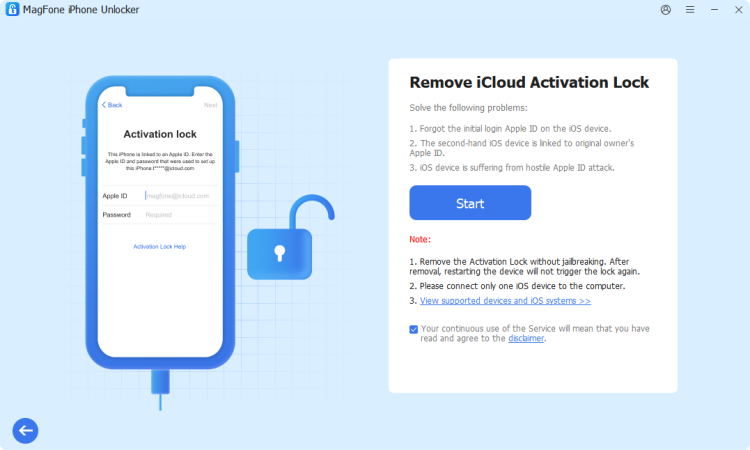
Fire up the MagFone iPhone Unlocker after linking your iPhone to a computer. On the main interface of MagFone, you should select the Remove iCloud Activation Lock button.
Step 2 Bypass the iCloud Activation Lock
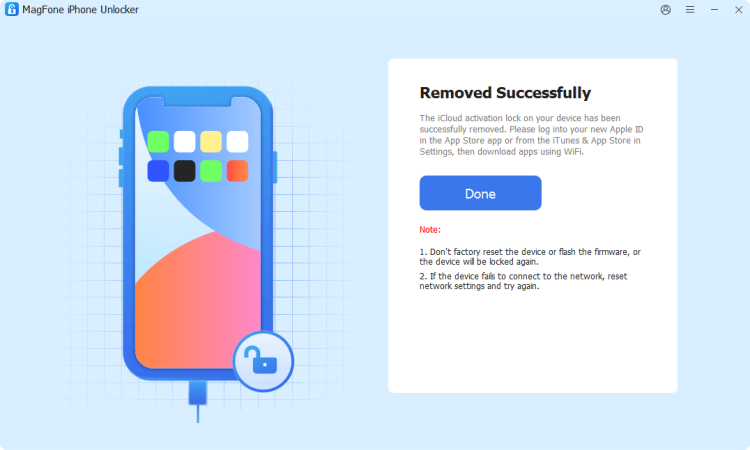
Click Start and MagFone iPhone Unlocker will automatically remove the iCloud Activation Lock on your device. Ensure the device stays connected during the entire process.
Part 4. FAQs about Unable to Activate iPhone/iPad
-
How to fix unable to activate iPhone after factory reset?
If you're unable to activate your iPhone after a factory reset, first check the network and system status, and then you can force restart the iPhone to fix this issue. Also, you can contact Apple for support.
-
How to fix the iPhone unable to activate after restore?
The iPhone may not be activated after restoring from iTunes. Ensure your iPhone is running the latest iOS version, or you need to update your iPhone to the latest iOS version with iTunes. Besides, you can try activating your iPhone directly in iTunes.
-
How to fix the iPad unable to activate without network?
To fix the iPad can't be activated, check the router and link a Wi-Fi network first on your iPad again. What's more, you can also ask for help from Apple Support and the carrier.
Part 5. Conclusion
Unable to activate the device is a common issue when you purchase a new device to activate it, or after resetting the device. You need to activate it before accessing it, and you may encounter errors during this process. This article provides seven feasible ways to resolve this problem. For users who don't remember their Apple ID password, we recommend using MagFone Activation Unlocker to quickly bypass the activation lock and get out of trouble.

Dylan Jones
Editor in chief





