








Forgotten passwords, locked screens, or carrier restrictions can quickly limit your Alcatel phone experience. Whether you need to remove a screen lock to regain access to your device or bypass a carrier lock to switch networks freely, knowing how to unlock an Alcatel phone is essential. In this guide, we will explore effective ways to unlock Alcatel phone to restore access and maximize your device's flexibility.
- Part 1. How to Unlock Alcatel Phone Carrier Lock
- Part 2. How to Unlock Alcatel Phone Screen Lock Without Password
- Part 3. FAQs about Unlocking Alcatel Phone
- Part 4. Conclusion
Part 1. How to Unlock Alcatel Phone Carrier Lock
A carrier-locked Alcatel phone will only accept SIM cards from the network that sold it to you, which becomes a problem the moment you want to switch providers or use a local SIM abroad. Below is the most common route to remove that restriction.
Step 1. Confirm your device is eligible. (This usually means the contract has ended, the phone is fully paid off, and it has been active on the network for the minimum required period.)
Step 2. Reach out to your carrier's customer support team, either by phone, live chat, or through their account portal, and normally request an unlock code for your device.
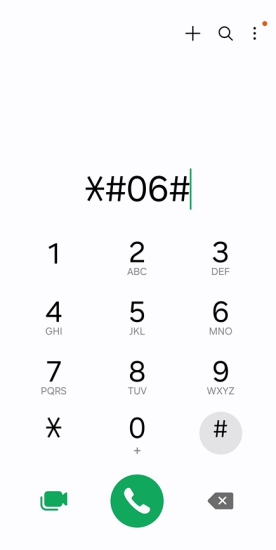
Step 3. Provide the IMEI number of your Alcatel phone when asked. To find this information, dial #06# or open your device settings and check the About Phone section.
Step 4. Wait for your mobile provider to finalize the request. This can take anywhere from a day to about a week depending on the provider.
Step 5. Once you receive the unlock code, power off your phone, swap in a SIM from a different network, then power it back on. When prompted, enter the code to complete the unlock.
Note:
Requesting an unlock code from your network provider is the safest option, but it may require meeting certain eligibility criteria. If your phone does not qualify, some third-party unlocking services online may seem convenient. However, not all platforms are reliable, and successful unlocking is not guaranteed.
Part 2. How to Unlock Alcatel Phone Screen Lock Without Password
Forgetting your screen lock, whether it's a PIN, pattern, or password, doesn't have to mean losing access to your device. Below are several tested approaches, from dedicated unlocking software to built-in Android features, so you can pick the one that fits your situation.
Method 1. Unlock Alcatel Phone Screen Lock with MagFone Android Unlocker
Have you ever found yourself completely locked out and forgotten your password? That's exactly the situation MagFone Android Unlocker was built for. It strips away the lock screen directly, without needing you to remember anything. This program supports both Windows PC and macOS, and is compatible with multiple Android brands, including Alcatel phones. Follow the steps below to remove your screen lock safely and regain access to your device in minutes.

MagFone Android Unlocker
Remove multiple kinds of screen locks on over 5000 Android devices and delete Google FRP lock without a password.
Step 1 Select Remove Screen Lock
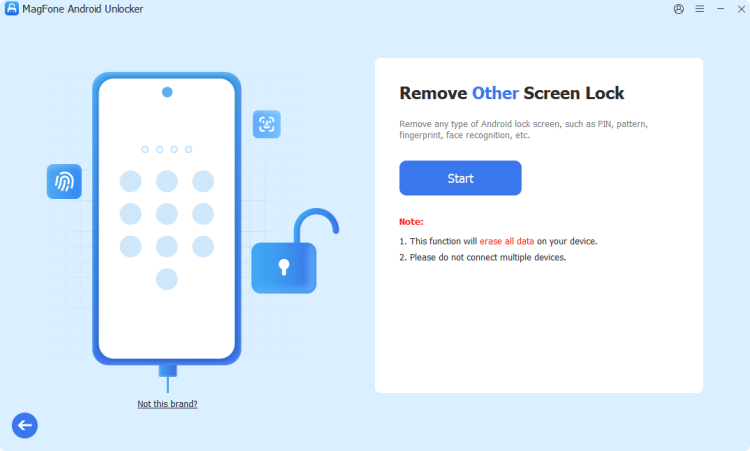
Download and install MagFone Android Unlocker on your computer, then open the program. Plug in your Alcatel phone using a USB cable. On the main screen, tap Remove Screen Lock, then select Other, and tap Continue to proceed with setup.
Step 2 Begin Removing the Screen Lock
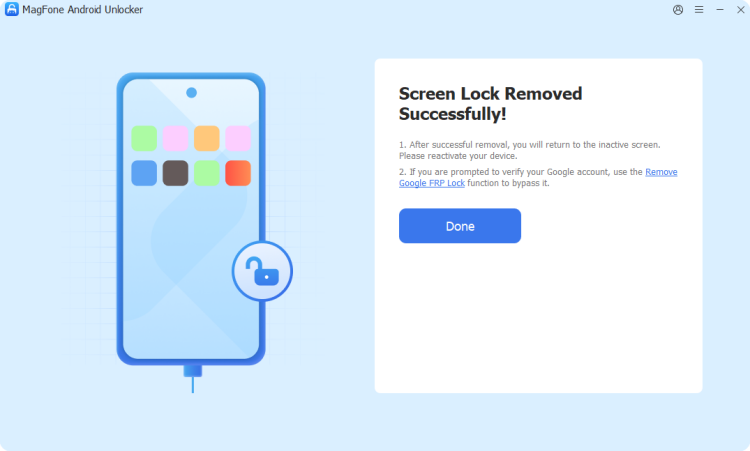
Follow the on-screen prompts to put your Alcatel phone into recovery mode. Once it's in recovery mode, click Next, then Continue to confirm. Leave the phone plugged in while the software strips away the lock screen and finishes the unlocking process.
Method 2. Unlock Alcatel Phone Screen Lock via Factory Reset
A factory reset serves as the final option, bringing the device back to its out-of-box condition and removing the lock screen at the cost of losing saved data. It's a last-resort option best suited for situations where you don't mind starting fresh or have a recent backup ready.

Step 1. Power off your Alcatel phone completely.
Step 2. Press and hold the Volume Up and Power buttons simultaneously until the recovery mode screen appears.
Step 3. Use the Volume buttons to navigate to "Wipe data/factory reset", then press the Power button to select and proceed with the reset.
Step 4. When a confirmation message appears, choose "Yes" to begin erasing the device data.
Step 5. Once the reset process is complete, select "Reboot system now" to restart your phone and apply the changes.
Step 6. Set up your Alcatel phone as new, without any prior lock screen restrictions.
Method 3. Unlock Alcatel Phone Screen Lock Using Emergency Call
This lesser-known trick exploits a loophole in the emergency dialer to access your phone's settings menu without entering a password. It doesn't work on every Alcatel model or Android version, but it's worth trying before resorting to a full reset.
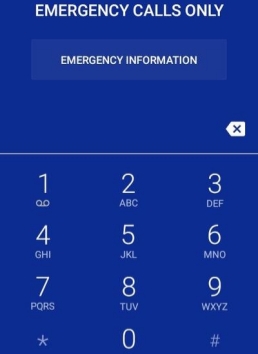
Step 1. From the lock screen, select the "Emergency Call" option.
Step 2. Enter a long string of characters or numbers (such as repeated asterisks) into the dial pad.
Step 3. Copy the entered text, then paste it repeatedly until the field is overloaded.
Step 4. This may cause the phone's interface to crash briefly, momentarily granting access to the home screen or settings.
Step 5. Quickly navigate to Settings > Security and disable the screen lock before the device re-locks.
Method 4. Unlock Alcatel Phone Screen Lock in Safe Mode
If a downloaded app is the culprit behind your locked screen, rebooting into Safe Mode can bypass it without wiping your data. Safe Mode temporarily disables all third-party applications, which often restores normal swipe-to-unlock access so you can remove the offending app.
Step 1. Hold down the Power button for two to three seconds until the power-off menu appears.
Step 2. Press and hold the Power Off option on that menu until a prompt to reboot into Safe Mode shows up.
Step 3. Confirm by tapping OK when the "Reboot to Safe Mode" message appears.
Step 4. Wait for the phone to restart. After the process finishes, a "Safe Mode" indicator will appear in the lower-left corner of the screen.
Step 5. Check if the lock screen is working properly again. If everything returns to normal, find the app responsible for the issue and remove it.
Step 6. Restart your Alcatel phone one more time to exit Safe Mode and return to normal operation.
Part 3. FAQs about Unlocking Alcatel Phone
How to unlock Alcatel Phone without SIM Card?
You can still request and enter a carrier unlock code even without a SIM inserted, since the phone only needs to be powered on to accept the code. Simply dial the manufacturer's unlock sequence (where supported) or enter the code your carrier provided when prompted, and the network restriction will be lifted regardless of whether a SIM card is present at that moment.
How to unlock Alcatel Phone for free?
The free route is going directly through your carrier, since most providers won't charge for an unlock code once your account meets their eligibility criteria, such as a completed contract or a fully paid-off device. Paid third-party services exist too, but they're rarely necessary if you simply qualify for your carrier's standard unlock policy.
How to unlock Alcatel Phone without code?
If you don't have an unlock code and can't obtain one from your carrier, some online unlocking services can be useful. However, not all of them are safe or reliable, so it's best to read reviews first before giving one a try.
Part 4. Conclusion
Whether your Alcatel phone is restricted by a carrier or locked behind a forgotten passcode, there's a practical fix for nearly every situation. From contacting your provider to trying Safe Mode or a dedicated tool like MagFone Android Unlocker, you now have several reliable paths to get your device working freely again.

Dylan Jones
Editor in chief




