








I used the built-in App Encryption/App Lock feature and set a 6-digit PIN for some of my apps. Unfortunately, I have forgotten the 6-digit PIN. Any guidance on where to ask or what approaches might exist would be greatly appreciated!
——From Reddit
Can't remember the PIN you set for Vivo App Encryption? One Reddit user set a 6-digit PIN through Vivo's built-in App Encryption feature to protect private apps, then forgot it completely, and now asks where to turn for help. It happens more often than you'd think. The good news is that you have options, from official reset routes to dedicated unlocking software. This guide walks you through unlocking Privacy and App Encryption in Vivo quickly.
- Part 1. What Is Privacy and App Encryption?
- Part 2. How to Reset Vivo Privacy and App Encryption Password
- Part 3. How to Unlock Privacy and App Encryption in Vivo Easily
- Part 4. Conclusion
Part 1. What Is Privacy and App Encryption?
Privacy and app encryption adds a second layer of protection beyond your phone's lock screen. It keeps selected apps, files, photos, and notifications private from anyone who accesses your device. Once enabled, you set a privacy password that must be entered before opening protected apps. Depending on your device, this can be a 4- or 6-digit PIN, pattern, alphanumeric password, or biometric verification such as a fingerprint or face scan.
This feature is not limited to Vivo. Many Android brands ship their own version under different names, such as App Lock, App Lock Pro, Private Safe, or Hide Apps. Vivo's version, found in Funtouch OS and OriginOS, appears as "Privacy and App Encryption." Because Android itself has no single universal app lock, each manufacturer builds its own, so the menu names and recovery options vary from brand to brand.
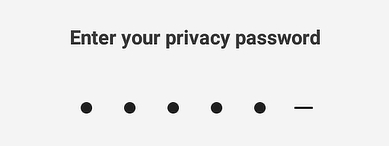
Forgetting your password is easier than it sounds. You may set it once and rarely use it, change your PIN in a hurry, or get a second-hand phone with App Encryption already enabled. Whatever the reason, seeing "Enter your privacy password" can be frustrating. Fortunately, this guide shows you two ways to unlock it even if you've forgotten your password.
| Comparison | Reset Password | MagFone Android Unlocker |
|---|---|---|
| How It Works | Uses the "Forgot password?" link inside Privacy and App Encryption | Uses a computer and unlocking software to remove the lock |
| Requirements | Your vivo account password or security question answer | A computer and a USB cable |
| Best for | Users who still remember their account details | Users who have lost both the password and the recovery info |
| Time Needed | About 2–3 minutes | About 10–15 minutes |
Part 2. How to Reset Vivo Privacy and App Encryption Password
If you remember your vivo account details or the answer to your security question, resetting the privacy password is usually painless and costs nothing. The exact menu names vary slightly between Funtouch OS and OriginOS versions, but the overall flow stays the same. Try the official method below first before moving on to anything more drastic.
Step 1. Open Settings on your Vivo phone and go to Fingerprints, Face & Password (on some models, Security).
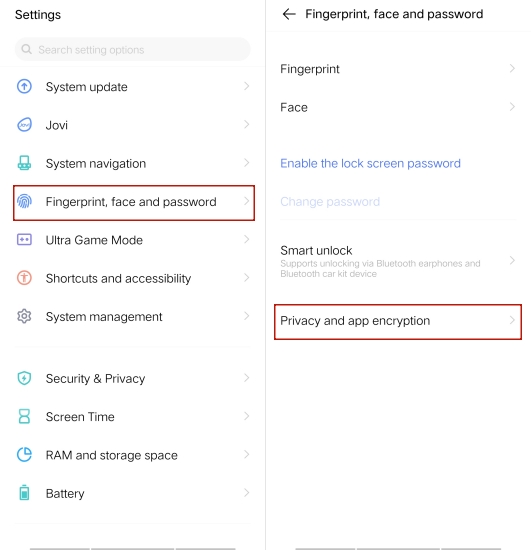
Step 2. Tap Privacy and App Encryption. When the screen asks you to enter your privacy password, look for the Forgot password? link below the input field.
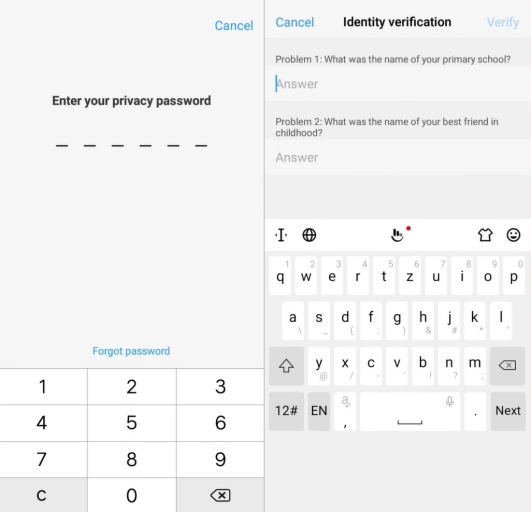
Step 3. Answer the security question you created earlier and create a new privacy password.
Step 4. Return to the main menu and test your new password by opening one of the protected apps.
Part 3. How to Unlock Privacy and App Encryption in Vivo Easily
When official recovery fails, MagFone Android Unlocker is a dependable fallback. It works through a computer, guides you with on-screen prompts, and needs no technical background. Support covers many Vivo models along with other major brands, and the process is short enough to finish in minutes. Instead of guessing PINs endlessly, you can remove the lock.
Beyond screen and app locks, MagFone Android Unlocker can also bypass Factory Reset Protection (FRP) on many Android phones from different manufacturers. If you bought a second-hand device or forgot the Google account linked to it, the software can typically help you get past the verification screen after a reset.

MagFone Android Unlocker
Remove multiple kinds of screen locks on over 5000 Android devices and delete Google FRP lock without a password.
Step 1 Choose the Screen Lock Removal Tab
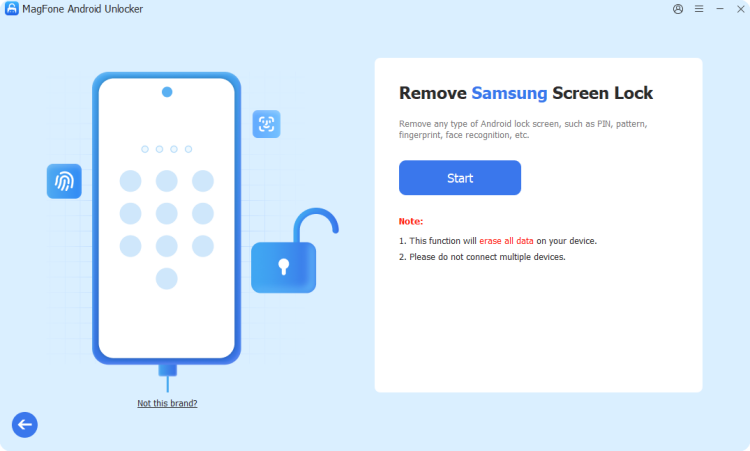
Install MagFone Android Unlocker on your computer and launch it. Plug in your locked Vivo phone with a suitable USB cable. On the home screen, pick the screen lock removal option, then select your phone's brand and model from the list and continue.
Step 2 Put the Phone into Recovery Mode
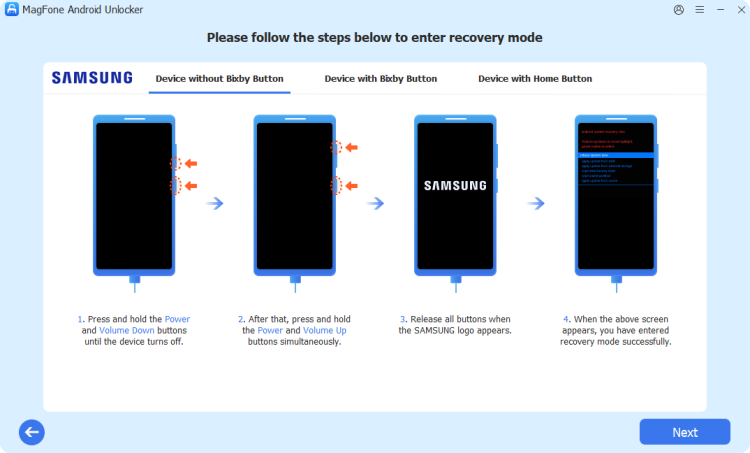
Once the program detects your device, press Start. Read the on-screen notices carefully, especially the warning that removing a lock may erase data. The software then shows model-specific instructions for booting your phone into Recovery Mode, so follow them closely.
Step 3 Finish Bypassing the App Locks on Vivo
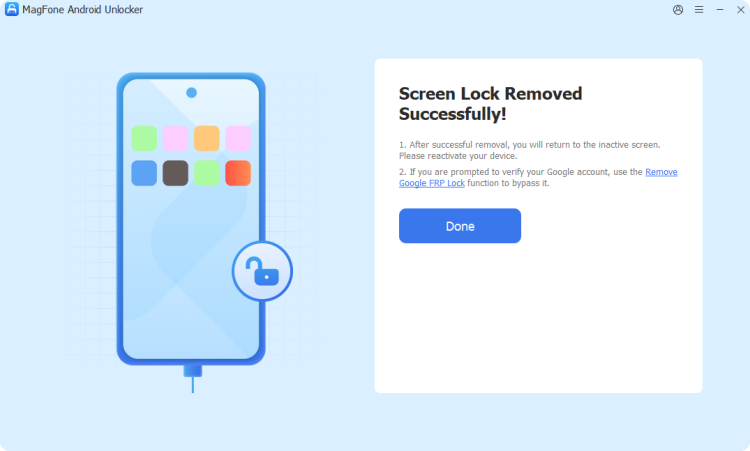
With the phone in the correct mode, complete the remaining prompts that MagFone displays and click Next. Let the program run until it reports success. Then reboot your phone and work through the initial setup screens. Your app locks should now be gone.
Part 4. Conclusion
Forgetting a privacy password on Vivo is frustrating, but it rarely means permanent lockout. Start with the built-in reset using your Vivo account or security question, and set a memorable answer afterward. If that route fails, MagFone Android Unlocker offers a straightforward computer-based alternative, even for FRP situations. Back up important data regularly and store passwords safely so you never face this problem again.

Teresa Miller
Editor in chief




