








Unlocking your OnePlus phone can mean three completely different things: freeing the bootloader for custom ROMs, breaking a carrier's grip on your SIM slot, or simply regaining access to a phone whose pattern or password you've forgotten. This guide covers all three, laying out clear, practical steps for each scenario so you can pick the fix that actually matches your situation. Let's learn more details about how to unlock OnePlus phone.
- Part 1. How to Unlock Bootloader on OnePlus Phones
- Part 2. How to Unlock OnePlus Phone SIM Restrictions
- Part 3. How to Unlock OnePlus Phone If Forgot Pattern/PIN/Password
- Part 4. Conclusion
Part 1. How to Unlock Bootloader on OnePlus Phones
The bootloader is the low-level program that decides what software your phone is allowed to boot into. On OnePlus devices, it ships locked by default as a security measure, preventing unauthorized system modifications.
However, many enthusiasts choose to unlock it so they can install custom recovery images, flash alternative ROMs, gain root access, or tinker with the Android system at a deeper level. Below is a walkthrough of the process using ADB and Fastboot tools on a computer.
📝Requirements:
A computer with Android SDK Platform Tools installed
Correct OnePlus USB drivers installed on that computer
A USB cable to connect phone to computer
Phone charged to at least 50%
Step 1. Back up everything important on your phone, since the unlocking process will erase all local data.
Step 2. On your computer, download and set up the Android SDK Platform Tools so you have access to the adb and fastboot commands.
Step 3. Install the correct OnePlus USB drivers so your PC can properly recognize the device when connected.
Step 4. Charge your phone to at least 50% to avoid it shutting down partway through the process.
Step 5. On your phone, open Settings, scroll to About Phone > Version, and tap the Version number entry seven times to reveal Developer Options.
Step 6. Go back to Settings and tap System & update. Then enter Developer Options, and switch on both USB Debugging and OEM Unlocking.
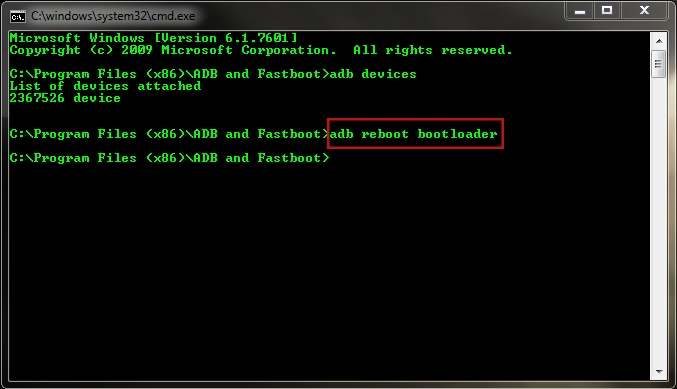
Step 7. Plug your phone into the computer with a USB cable, open a Command Prompt window inside the platform-tools folder, and type adb reboot bootloader to drop the device into Fastboot mode.
Step 8. Confirm the connection by running fastboot devices. If a serial number appears next to the word "fastboot," your phone is properly recognized.
Step 9. Type fastboot oem unlock (or on newer models, fastboot flashing unlock) and press Enter. This command triggers the unlock and will erase your device's storage.
Step 10. Your phone will display an on-screen confirmation prompt. Use the volume buttons to highlight the unlock option, then press the power button to confirm.
Step 11. Once the phone reboots, use fastboot reboot if it doesn't do so automatically, the bootloader will be unlocked. Expect the first boot to take longer than usual, and you'll need to set the device up again from scratch.
Part 2. How to Unlock OnePlus Phone SIM Restrictions
A SIM lock, often called a carrier lock, ties your phone to a single mobile network, blocking you from inserting SIM cards from other providers. Carriers typically apply this restriction when a phone is sold under a contract or installment plan, and it stays in place until the lock is officially removed.
Freeing your device from this restriction lets you switch carriers freely, use local SIM cards while traveling abroad, and avoid pricey international roaming charges. Here's a general path to getting your OnePlus phone carrier-unlocked.
📝Requirements:
Confirmation from your carrier that the device is actually eligible
Your phone's IMEI number
A SIM card from a different carrier
Step 1. Confirm with your current carrier that your device actually qualifies for unlocking—some contracts or outstanding balances can disqualify a phone.
Step 2. If your carrier isn't cooperative or you'd rather skip the wait, consider a trusted third-party unlocking service that specializes in mobile devices.
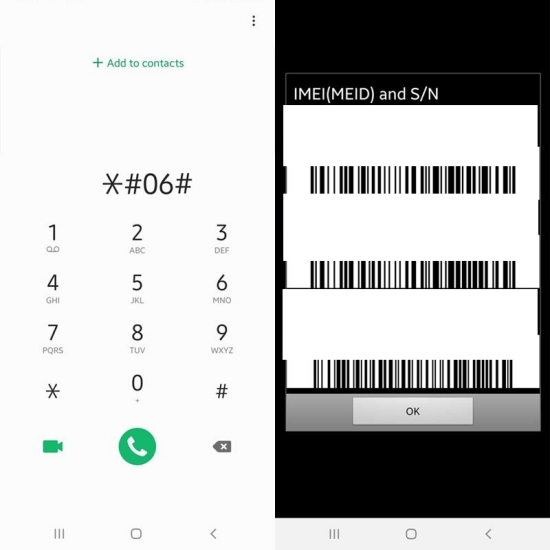
Step 3. Gather the details the service will need, including your phone's IMEI number (dial *#06# to find it), your current carrier, and your exact phone model.
Step 4. Submit this information along with the required payment, then wait for the service to generate and email you an unlock code.
Step 5. Power off your phone, insert a SIM card from a different carrier, and turn the device back on.
Step 6. When prompted, enter the unlock code you received to lift the SIM restriction.
Step 7. From this point on, your OnePlus phone should accept SIM cards from virtually any carrier, domestically or internationally.
Part 3. How to Unlock OnePlus Phone If Forgot Pattern/PIN/Password
Getting locked out of your own screen happens more often than you'd think: maybe you changed your pattern and forgot the new one, a child played with your phone and reset it, or you picked up a second-hand device still protected by its previous owner's lock. Whatever the cause, there are two realistic paths forward, and you can follow the instructions below to do so.
Option 1. Unlock OnePlus Screen Lock via Format Data
If you don't mind losing your data, performing a factory reset through the device's recovery menu is the most direct way to regain access to a locked OnePlus phone. This method uses the phone's built-in recovery environment rather than any external software, and it works even without a computer. Here's how to do it.
📝Requirements:
Willingness to lose all data
A verification code
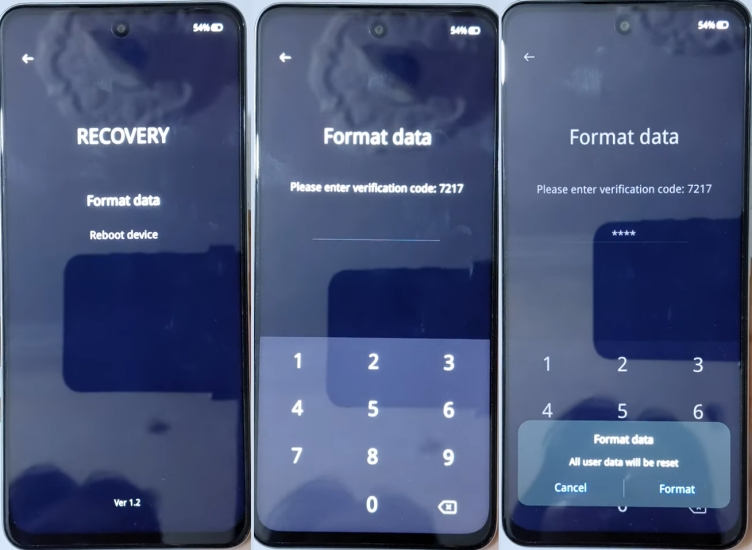
Step 1. With the phone powered off, press and hold the Volume Down button and the Power button together until the language selection screen appears.
Step 2. Select English as the language, then choose the Format Data option from the Recovery menu.
Step 3. Enter the verification code shown on the screen, then press Format to confirm your selection.
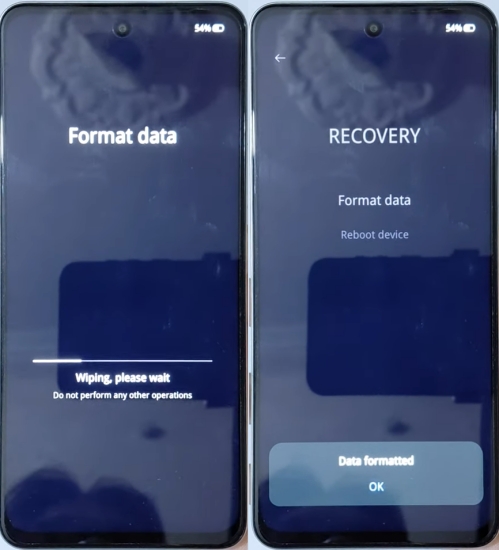
Step 4. Wait for the data to be erased. Your OnePlus phone will then restart without any screen lock, letting you set it up as new.
Option 2. Unlock OnePlus Screen Lock via MagFone Android Unlocker
MagFone Android Unlocker offers a dependable alternative to bypass the screen lock. Running from your computer, it's built to strip away pattern, PIN, password, and fingerprint locks on OnePlus phones in just a few clicks. Beyond screen unlocking, it also handles FRP (Factory Reset Protection) removal if that lock surfaces after your device resets during setup. The tool is designed to work across a wide range of Android manufacturers. Here's how to.
📝Requirements:
A computer to run the software
A USB connection between phone and computer

MagFone Android Unlocker
Remove multiple kinds of screen locks on over 5000 Android devices and delete Google FRP lock without a password.
Step 1 Select the Screen Unlock Option
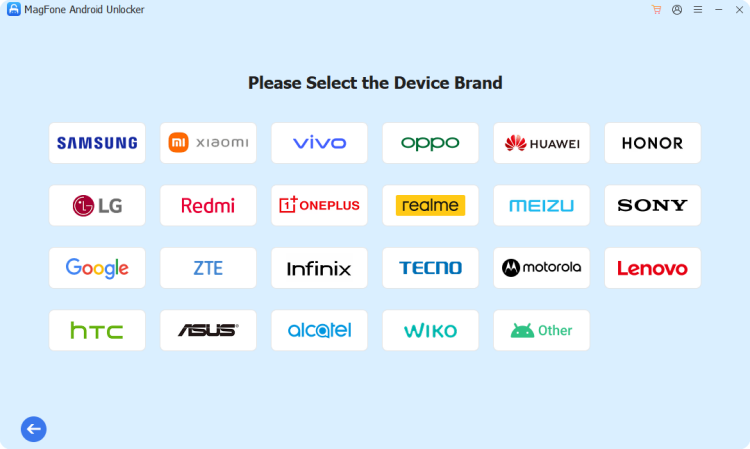
After downloading and opening MagFone Android Unlocker on your PC, plug your OnePlus phone in with a USB cable. From the tool's home screen, click on the screen-unlocking feature, choose the OnePlus brand category, and hit Continue to move into the setup process.
Step 2 Complete the Unlocking Process
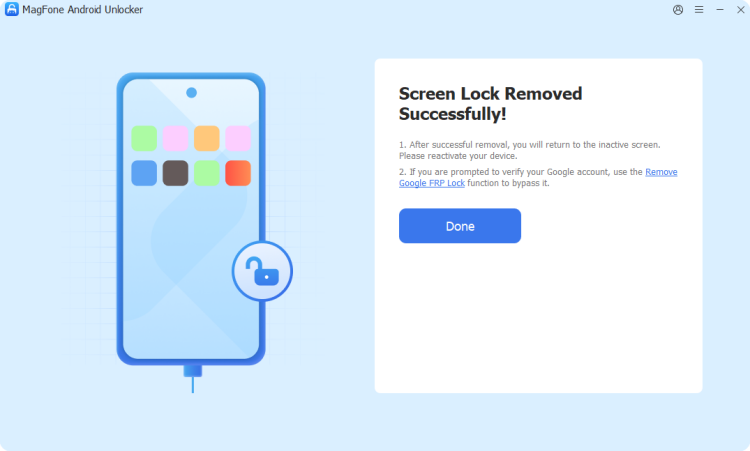
The software will walk you through putting your OnePlus phone into recovery mode—just follow the prompts shown on your screen. Once you're in recovery mode, click Next and then Continue to let the tool take over. Keep the USB connection steady while it strips away the lock, and your phone will be accessible again once it finishes.
Part 4. Conclusion
Whether you're chasing custom ROM freedom, breaking free from a single carrier, or simply locked out of your own device, OnePlus phones offer several realistic paths back to full access. Choose the bootloader unlock for development flexibility, a carrier-unlocking service for SIM freedom, or a data wipe or tool like MagFone Android Unlocker when you're stuck at the lock screen.

Dylan Jones
Editor in chief





