






Few things feel worse than picking up your Maxwest tablet and seeing a lock screen that refuses to open. Maybe you forgot the PIN, mixed up the pattern, or the device is stuck on a Google verification page after a reset. Either way, the tablet becomes an expensive paperweight. In this guide, we walk you through three practical ways to unlock Maxwest tablet, with clear step-by-step instructions for each.
- Part 1. How to Unlock Maxwest Tablet Lock Screen
- Part 2. How to Unlock Maxwest Tablet FRP Lock
- Part 3. Bonus Tip: How to Unlock Android Screen or FRP Lock Easily
- Part 4. Conclusion
Part 1. How to Unlock Maxwest Tablet Lock Screen
When the PIN, password, or pattern slips your mind, the lock screen can shut you out of everything stored on your tablet. Luckily, you don't need a technician to fix it. Two built-in options can help you get back in: the hardware Recovery Mode and Google's remote tools. Each suits a different situation, so pick the one that matches your tablet's current state.
Option 1. Use Recovery Mode
Recovery Mode is a hidden system menu that lets you reset the tablet with physical buttons, even when the screen is locked. It works without internet or an account, which makes it a dependable fallback. Keep in mind that it erases all data on the tablet, so use it when other options aren't available.
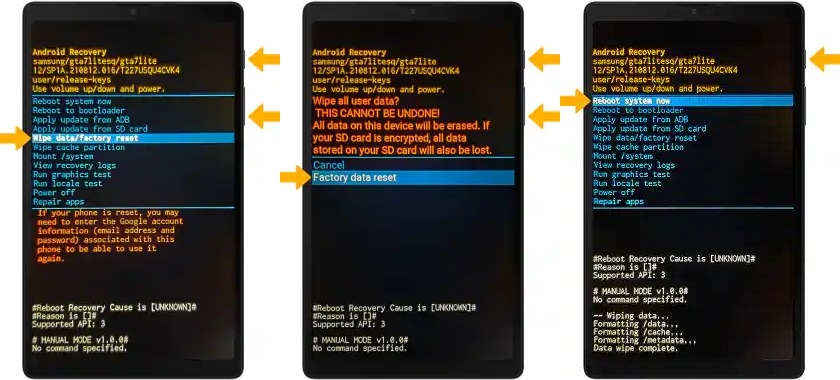
Step 1. Hold the Power button and tap Power Off. If the screen won't respond, hold the button for about ten seconds until the tablet shuts down.
Step 2. Press and hold the Volume Up and Power buttons together until the Maxwest logo appears, then release them to enter the Recovery Mode menu.
Step 3. Use the Volume Up and Volume Down buttons to move through the options. Highlight "Wipe data/factory reset" and press the Power button to select it.
Step 4. When it finishes, highlight "Reboot system now" and press Power. The tablet restarts without the old lock screen.
Option 2. Use Google Find Hub
Google Find Hub (formerly Find My Device) lets you manage a lost or locked Android device remotely. It can lock the tablet with a new temporary password, though it can't remove the old PIN directly. For this to work, a few requirements must be met in advance, and if they aren't, use Recovery Mode instead.
Note:
Before you start, make sure the tablet:
- is powered on and connected to Wi-Fi or mobile data.
- has location services turned on.
- is signed in to the Google account you'll use on the web.
- has Find Hub (Find My Device) enabled in Settings.
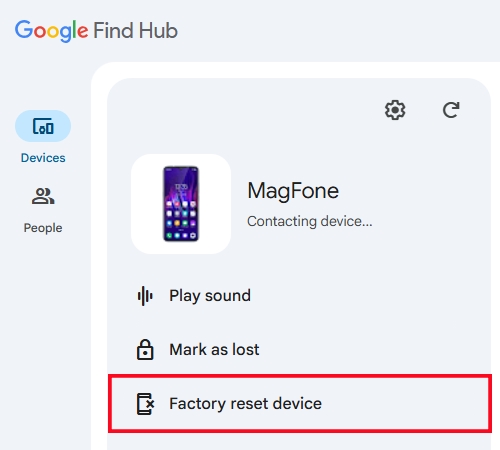
Step 1. On a computer or another phone, open a web browser and go to Google's Find Hub page.
Step 2. Sign in with the same Google account that is linked to your Maxwest tablet.
Step 3. Pick your tablet from the device list and wait while Google tries to locate it.
Step 4. Select "Factory reset" and confirm. Then you can enter your Maxwest tablet without password.
Part 2. How to Unlock Maxwest Tablet FRP Lock
After a factory reset, Android's Factory Reset Protection (FRP) asks for the Google account that was previously used on the tablet. If you've forgotten the email or password, the tablet stays stuck on the "Verify your account" screen. The best solution is to recover the account first. If you own the tablet and can't, the keyboard method below may help on some older software versions.
Step 1. Enter the Hi there page on your locked Maxwest Tablet. Tap START.
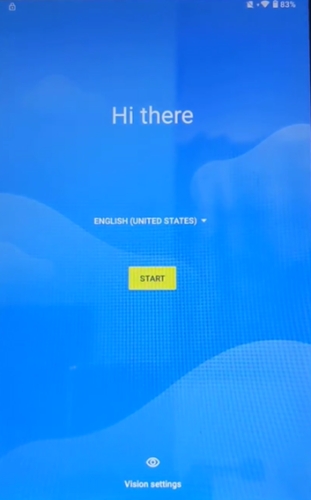
Step 2. Then select Don't copy > Use my Google account instead.
Step 3. Press the back icon when you see the Google Verify Account page. Keep going back until you reach the Wi-Fi page.
Step 4. Tap See all Wi-Fi networks > Add new account. Here, tap the microphone icon on the page.
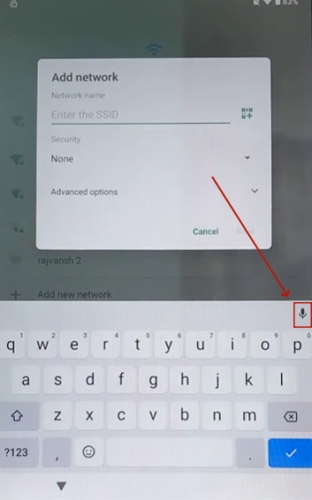
Step 5. After that, select DENY or DENY & DON'T ASK AGAIN until you see a note. Then tap ALLOW.
Step 6. You will then enter the Gboard page. Select the Permissions option and tap the search icon at the top of the screen.
Step 7. Search for Settings and enter the Settings app info page. Then choose OPEN.
Step 8. Navigate to Apps & notifications > App info > Android Setup, then force stop this app.
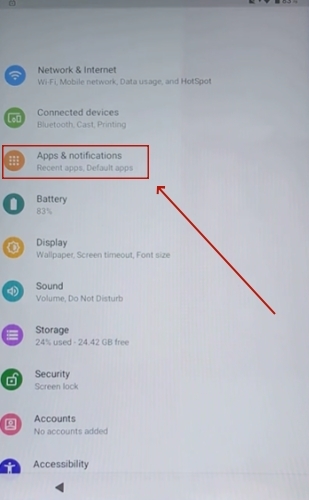
Step 9. Go back and find the Google Play services section to DISABLE it.
Step 10. Go back and tap the Accessibility option. Select Accessibility Menu and toggle the service on.
Step 11. Now, go back to the Hi there screen. You should see an Accessibility Menu icon here.
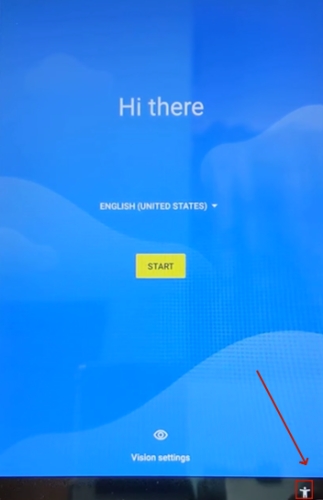
Step 12. Tap it and select ASSISTANT. Then select Settings and ENABLE.
Step 13. Press START again, then go back to the Wi-Fi connection page and choose Set up offline.
Step 14. Continue by tapping Continue > More > Accept. Then tap Skip > Skip anyway.
Step 15. Finish the remaining setup steps. You should now be able to access the main screen without entering a Google account or password.
Part 3. Bonus Tip: How to Unlock Android Screen or FRP Lock Easily
If you're locked out of your device or stuck on an FRP lock and manual methods don't work, MagFone Android Unlocker can help. This desktop tool helps remove screen locks, including PINs, patterns, and passwords, as well as Google verification in just a few clicks. No technical expertise is required. It also supports a wide range of Android brands and versions. Check the full compatibility list before getting started.

MagFone Android Unlocker
Remove multiple kinds of screen locks on over 5000 Android devices and delete Google FRP lock without a password.
Step 1 Choose the Screen Unlock Tab
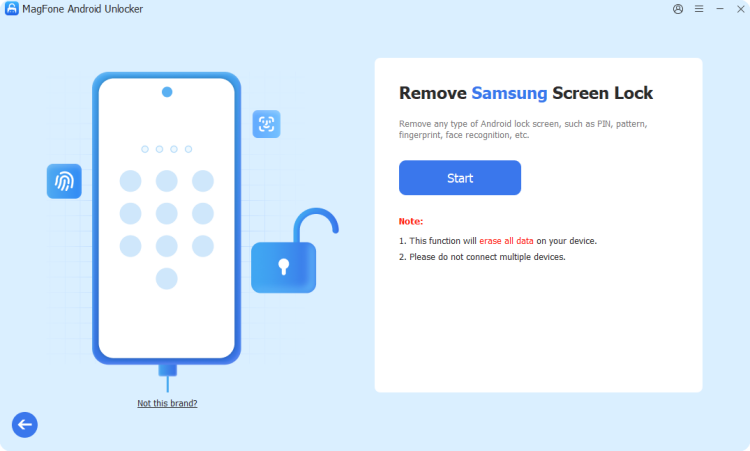
Install and open MagFone Android Unlocker on your computer, then connect your Android device with a USB cable. On the home screen, pick the screen unlock option, select your device's brand and model, and click Continue.
Step 2 Continue to Enter Recovery Mode
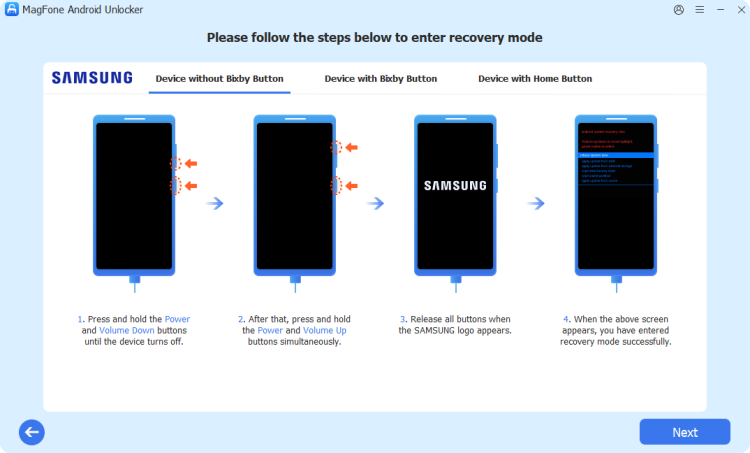
Once your device information is confirmed, click Start. A warning will say some data may be deleted, so accept it to go on. Then follow the on-screen guide, using the right button combination, to put your device into Recovery Mode.
Step 3 Override the Lock Screen on Android
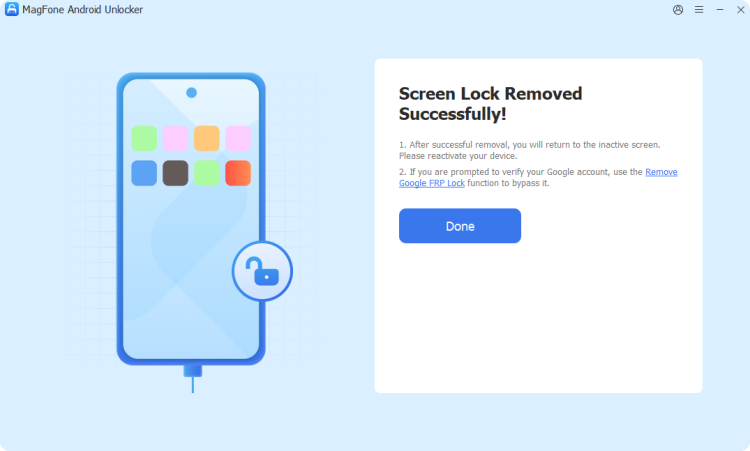
Keep following the prompts to complete the device setup, then click Next and let the program work automatically. When it finishes, the old lock screen is gone, and you can use your home screen again.
Part 4. Conclusion
A locked Maxwest tablet is frustrating, but it's rarely permanent. Recovery Mode resets the tablet with buttons, Google Find Hub can set a temporary password remotely, and the keyboard trick may get you past FRP on older software. Back up your data whenever possible. If those methods fail, MagFone Android Unlocker offers a simpler, guided way to regain access.

Dylan Jones
Editor in chief




