








Too many failed attempts can leave your Android phone locked, with no clear way to get back in. Your Google account may help you regain access, but the steps depend on your Android version and device settings. You may just need a new screen lock, or a full reset and fresh setup. This guide shows you how to unlock Android phone with Google account and what to do if you can't remember your Google login.
- Part 1. Can I Unlock Android Phone with Google Account?
- Part 2. How to Unlock Android Phone with Google Account [Android 4.4 and Earlier]
- Part 3. How to Unlock Android Phone with Google Account [Android 5.0 and Later]
- Part 4. How to Unlock Android Phone Without Google Account
- Part 5. Conclusion
Part 1. Can I Unlock Android Phone with Google Account?
Yes, provided that the phone was linked to a Google account before it became locked. The method depends on your Android version. Older systems let you prove your identity with your Gmail login and set a new lock right on the screen. Newer systems use your account differently: you sign in to Google's device management service on another device and send a remote erase command.
Part 2. How to Unlock Android Phone with Google Account [Android 4.4 and Earlier]
Android 4.4 and earlier versions include a handy shortcut that newer versions removed. After several failed unlock attempts, the screen offers a "Forgot pattern" or "Forgot password" link. Tapping it lets you verify yourself with the Gmail address and password synced to the phone. Once Google confirms it's really you, you can set up a new lock on the spot, and your data usually stays untouched.
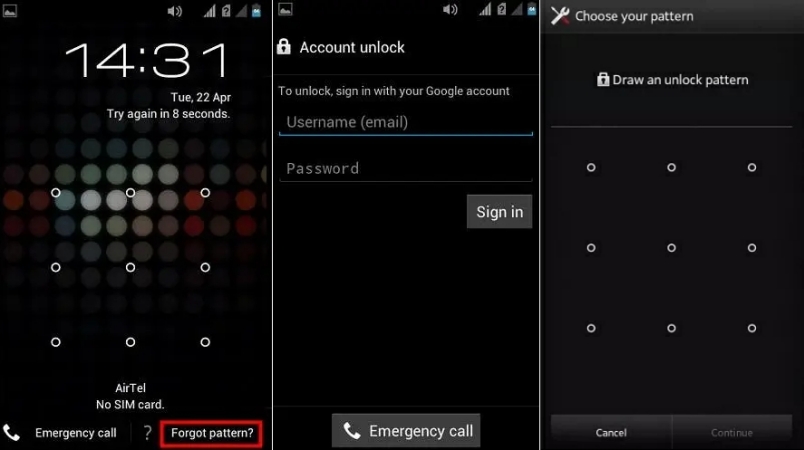
Step 1. Enter a wrong pattern, PIN, or password repeatedly, usually five times, until the screen shows a short lockout message and a Forgot pattern (or Forgot password) option.
Step 2. Tap that option. If you see more than one choice, select the one that lets you enter your Google account details.
Step 3. Connect the phone to Wi-Fi or mobile data if it prompts you to, since the sign-in needs to reach Google's servers.
Step 4. Type the Gmail address and password of the account that was synced to the phone, then tap Sign in.
Step 5. When the screen asks for it, draw a new pattern or enter a new PIN or password, confirm it, and save. You'll get back into your phone and no data loss.
Note:
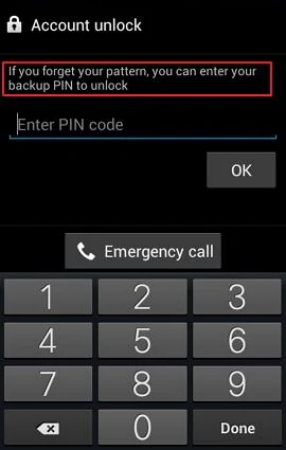
This only works on old versions. You also need a working internet connection and the correct Google credentials. On some versions, you can also unlock the screen with a backup PIN if you set one beforehand.
Part 3. How to Unlock Android Phone with Google Account [Android 5.0 and Later]
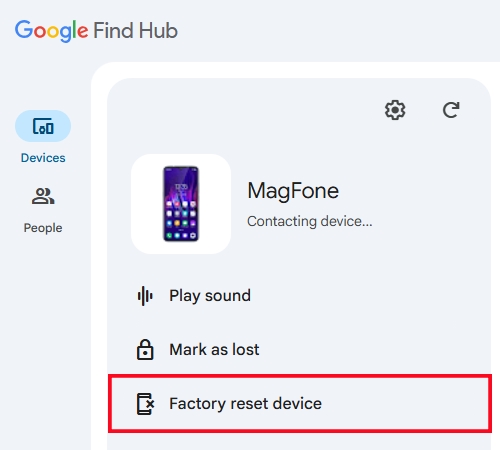
On Android 5.0 and newer, the on-screen "Forgot pattern" shortcut no longer exists. Your Google account still helps, but through Google's Find Hub (formerly Find My Device). You log in from a computer or a second phone, find your locked handset in the device list, and tell it to erase itself. Once the wipe finishes, the lock is gone, and signing in with your account completes setup.
Step 1. Take a computer, tablet, or another phone and open a browser. Go to Google's Find Hub page.
Step 2. Sign in with the Google account that's linked to your locked phone. If prompted for two-step verification, approve it with a trusted device or enter the code sent to you.
Step 3. Wait for your account's device list to load, then tap your locked Android phone.
Step 4. Choose the option labeled Factory reset device. Read the warning on the prompt and confirm.
Step 5. Re-enter your Google account password when asked to factory reset your Android device.
Note:
Before you start, make sure the locked phone has internet access, location turned on, and Find My Hub enabled. It's noted that this method erases everything stored on the phone, including apps, photos, and files that weren't backed up.
Part 4. How to Unlock Android Phone Without Google Account
Sometimes the Google route simply isn't open to you. You may have bought a used phone and can't reach the previous owner, forgotten both the account email and password, or never turned on Find Hub. In these situations, you need a method that doesn't depend on your login. Below are two practical options: hardware buttons and a dedicated unlocking program.
Option 1. Unlock Android Phone with Buttons
Recovery mode is a built-in maintenance menu that loads before Android itself starts. You can then perform a factory reset or erase the device using its physical buttons, clearing the existing PIN, pattern, or password without needing to sign in to an account. It takes a few minutes and erases your data, but it works even when the screen is locked and the phone has no connection. Here's how to.
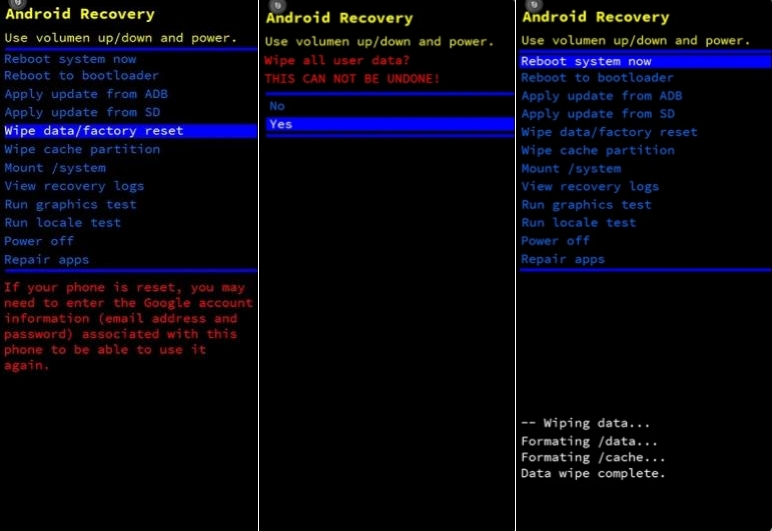
Common button combinations:
- Volume Up + Power: Samsung Galaxy S20 and newer, Note10, Note20, Z Fold, Z Flip, Xiaomi, Redmi, POCO, vivo, iQOO, Huawei, Honor, and some Nokia/HMD models.
- Volume Down + Power: OPPO, realme, Motorola, Google Pixel, and some OnePlus models.
- Volume Up + Power + Home: Older Samsung models with a physical Home button.
- Volume Up + Power + Bixby: Older Samsung models with a dedicated Bixby button.
To perform the factory reset:
Step 1. Power off the phone completely.
Step 2. Hold the appropriate button combination until the recovery or bootloader menu appears.
Step 3. If the bootloader appears, select Recovery mode using the volume keys and confirm with the power key.
Step 4. Select Wipe data/factory reset, Format data, or the equivalent option.
Step 5. Confirm by selecting Yes, Factory data reset, or the corresponding option.
Step 6. Once complete, select Reboot system now or Reboot.
Note:
Be aware that on most modern phones, Factory Reset Protection (FRP lock) will still ask for the previously signed-in Google account after the reset.
Option 2. Use an Android Unlocking Software
If you've lost both your Google account and its password, specialized software may be your best option. MagFone Android Unlocker is designed to bypass Google's FRP lock and common screen locks across many Android brands. It guides you through the process from your computer, so you don't need to figure out the technical details yourself. Success depends on your phone's model and Android version, so confirm it's supported before you start. Here's how to clear the lock with MagFone.

MagFone Android Unlocker
Remove multiple kinds of screen locks on over 5000 Android devices and delete Google FRP lock without a password.
Step 1 Pick the Screen Lock Removal Option
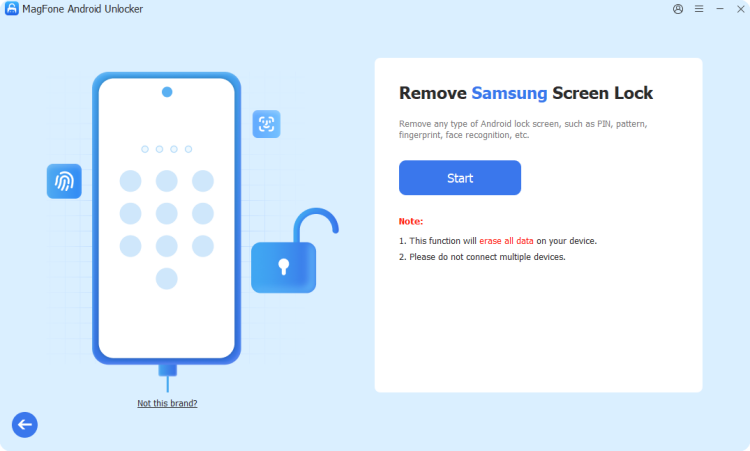
Obtain MagFone Android Unlocker on your computer, connect your locked Android device, then choose the screen lock removal option from the software's main interface. Next, select your device's manufacturer and model from the available lists, and proceed to the next step.
Step 2 Boot Your Phone Into Recovery Mode
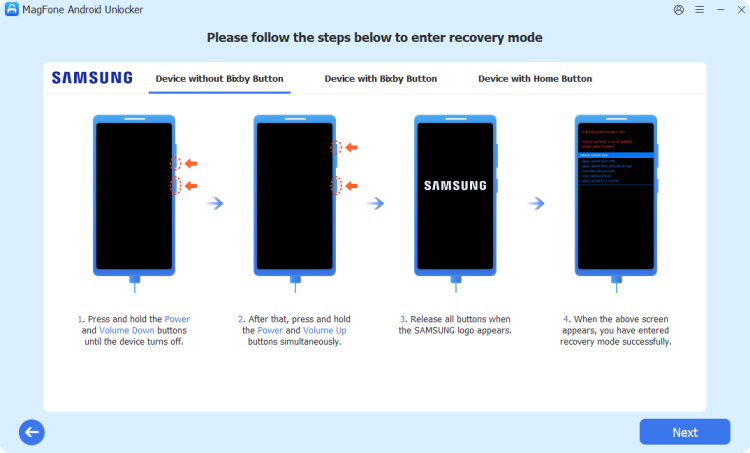
Once the software detects your phone, click the Start button. A message will warn you that some data may be erased. The software then shows the exact button sequence for your device so you can enter Recovery Mode correctly.
Step 3 Bypass the Screen Lock Automatically
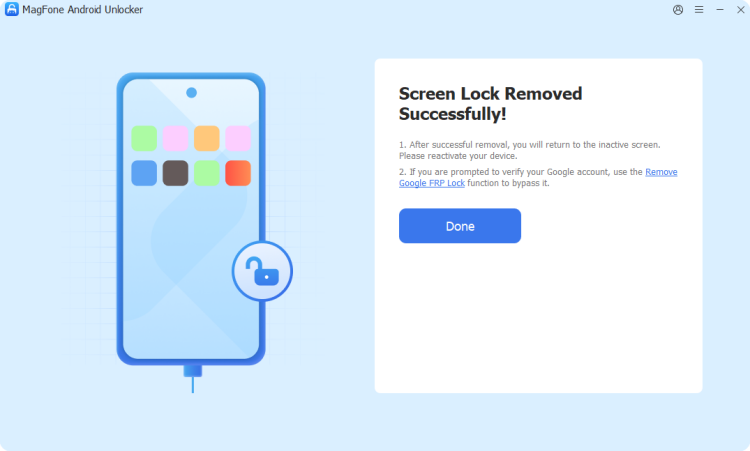
Follow the remaining on-screen instructions until the software and phone are connected properly, then click Next. The program takes over from there, and once it finishes, the old lock is gone and you can open the phone and set a new one.
Part 5. Conclusion
A Google account is often the easiest way to unlock an Android phone. Older devices may allow a screen-lock reset, while newer models may require a remote factory reset through Find Hub. If account details are lost, recovery mode or third-party tools may help, but both can erase data. To prevent future lockouts, back up your phone regularly and store your login details securely.

Dylan Jones
Editor in chief




