








If you've just picked up an off-brand Android phone or tablet running on a Spreadtrum/Unisoc chipset and it's stuck in a bootloop, won't start, or needs a firmware refresh, you've probably stumbled across the name "SPD Flash Tool" in a forum thread or two. This guide walks through what the tool actually does, where to get it safely, how to install it, and what to do if it turns out to be the wrong fit for your situation.
- Part 1. What Is SPD Flash Tool Used For?
- Part 2. User Feedback of SPD Flash Tool
- Part 3. Where to Download SPD Flash Tool
- Part 4. How to Set Up SPD Flash Tool on PC
- Part 5. Best Alternative Tool to SPD Flash Tool
- Part 6. Conclusion
Part 1. What Is SPD Flash Tool Used For?
Spreadtrum (now part of Unisoc) built this utility to let technicians and hobbyists flash firmware directly onto devices powered by its chipsets. It isn't a single rigid program — over the years it has been repackaged and bundled under slightly different names and versions, which is why you'll see people refer to "SPD Tool," "Upgrade Download," and "SPD Flash Tool" somewhat interchangeably.
Common Features Include:
- Flashing stock or custom firmware onto Spreadtrum-based devices.
- Reading .pac firmware packages, the file format the tool expects for a flash job.
- Multi-language interface for a wider international user base.
- Error codes during flashing, which help narrow down what went wrong mid-process.
- Recovery partition flashing, useful for advanced users who want custom recovery images.
- FRP removal, for devices locked out after a factory reset.
- Pattern/password unlock support in some builds, for devices locked due to a forgotten screen credential.
Part 2. User Feedback of SPD Flash Tool
There aren't many detailed, independent user reviews of SPD Flash Tool available online, making it difficult to evaluate its overall reliability. However, you can find demonstrations and user experiences in YouTube videos discussing firmware installation and troubleshooting. Some users report that their particular phone brands, models, or firmware versions are not supported. Therefore, double-check compatibility before downloading and setting up the utility.

Another common concern is the learning curve. Beginners may find the firmware selection and flashing process confusing, especially when dealing with unfamiliar PAC files or USB drivers. Incorrect firmware selection can cause serious software problems, including an unbootable device.
Part 3. Where to Download SPD Flash Tool
The easiest way to download the SPD Flash Tool is from its official website, where you can find the latest version without relying on third-party mirrors. Check the version number, file size, and Windows compatibility before downloading the ZIP package to avoid outdated or unsuitable copies.
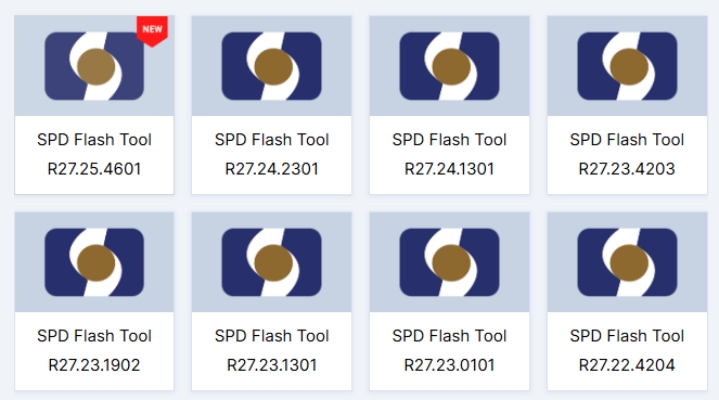
Avoid downloading cracked versions of SPD Flash Tool. Since the tool is already free, cracked packages offer no legitimate extra features and may contain malware or modified files. Stick to trusted download sources to protect your computer and avoid unnecessary security risks.
Part 4. How to Set Up SPD Flash Tool on PC
Getting the tool running takes a short bit of prep work before you touch your phone. You'll need a Windows PC, the correct Spreadtrum USB drivers, the matching .pac firmware for your exact device model, and a stable USB cable — skipping any of these is the most common reason a flash job fails partway through.
Step 1. Install the Spreadtrum/SPD USB drivers on your Windows PC first, so your device will actually be recognized once connected.
Step 2. Download the tool package and unzip it with WinRAR, 7-Zip, or a similar archive utility.
Step 3. Open the extracted folder and launch the main executable (often labeled something like "UpgradeDownload.exe").
Step 4. In the program window, click "Load Packet" (or "Load Firmware") and browse to the .pac file that matches your device.
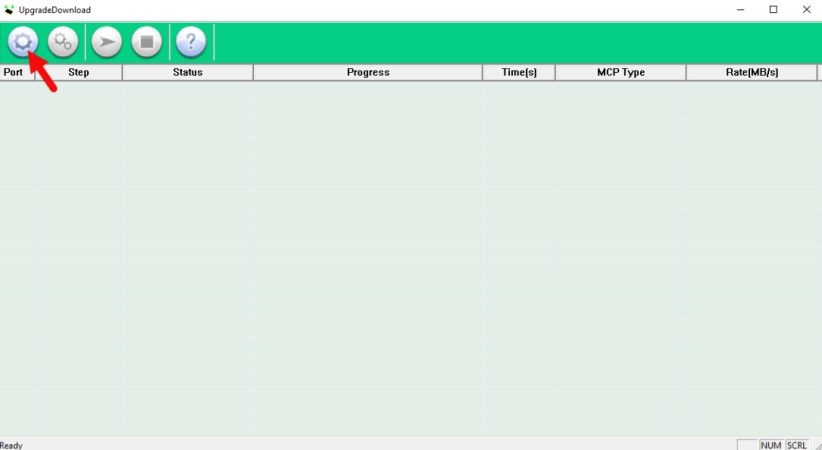
Step 5. With the phone powered off, connect it via USB — many models require holding a volume button while plugging in to enter download mode.
Step 6. Once the tool detects the device, hit "Start" and let the progress bar run its course without disconnecting the cable.
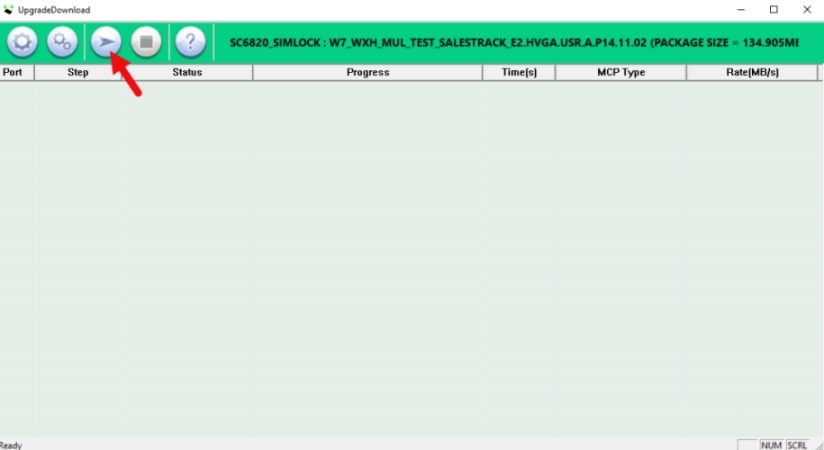
Step 7. Watch for a confirmation message (typically shown in green) indicating the flash completed successfully.
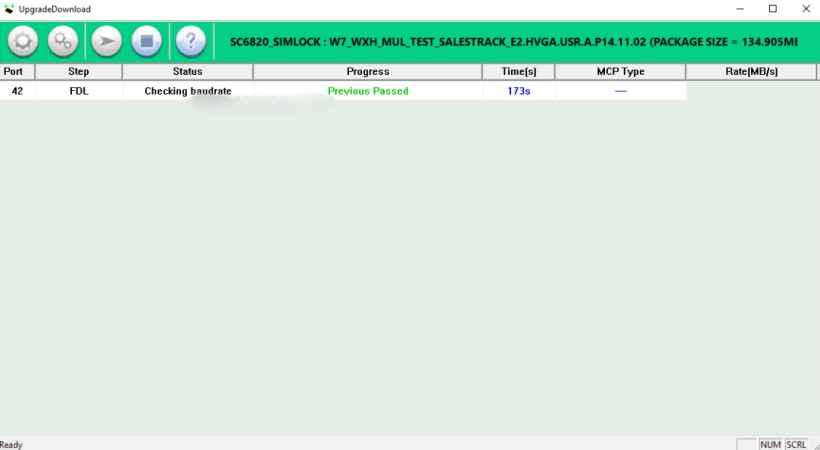
Step 8. Unplug the device and reboot it — it should now be running the newly flashed firmware.
Part 5. Best Alternative Tool to SPD Flash Tool
If your goal is to regain access to a locked phone rather than flash firmware, MagFone Android Unlocker is a simpler alternative. It supports FRP removal and screen lock removal without requiring firmware flashing. Its guided desktop interface makes the process easier, and MagFone guides you through each step, from connecting your device to completing the unlocking process. Here's how to use MagFone Android Unlocker to remove a screen lock.

MagFone Android Unlocker
Easily bypass Motorola FRP lock, highly efficient and convenient operation.
Step 1 Select the Screen Unlock Feature
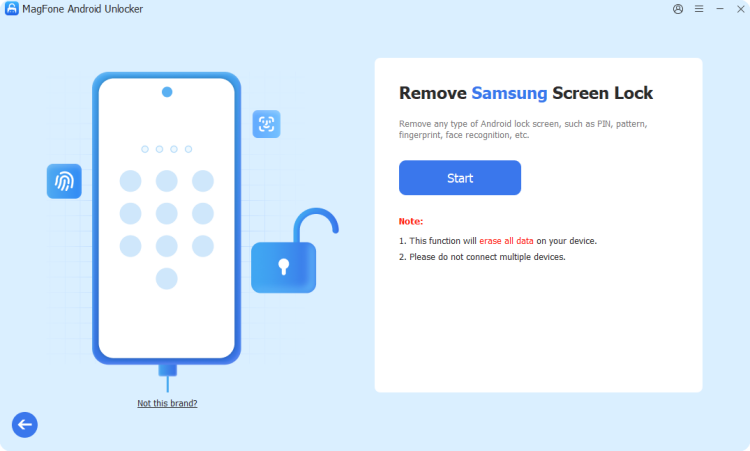
After installing and opening MagFone Android Unlocker on your computer, plug your phone in with a USB cable. From the home screen, choose the unlock tool, pick your device's brand from the list provided, and click "Continue" to move forward.
Step 2 Put Your Device into Recovery Mode
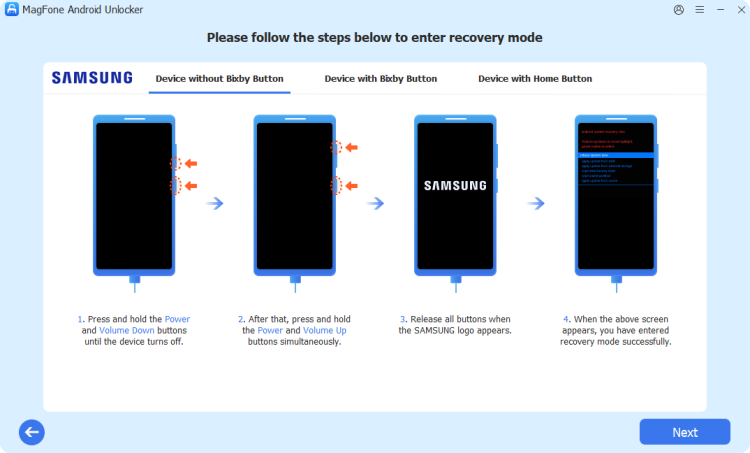
With your brand confirmed, press "Start." You'll get a warning that the process may erase some data — click "Continue" to accept and proceed. The program will then walk you through the specific button combination needed to get your phone into Recovery Mode.
Step 3 Clear the Screen Lock on Android
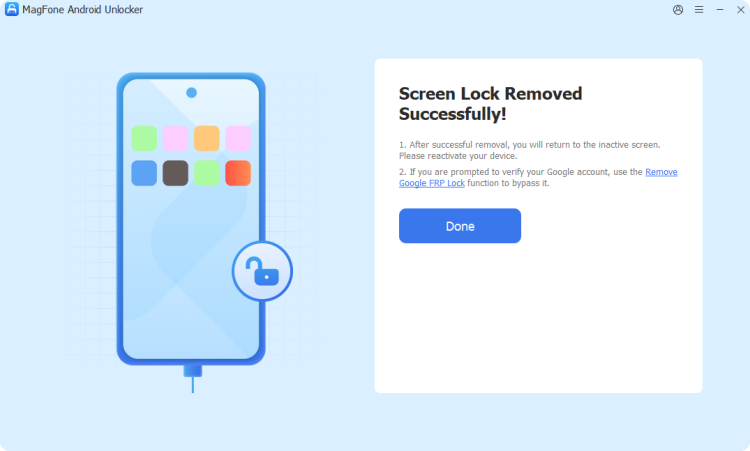
Follow the remaining on-screen guidance to keep your phone properly set up through the process, then click "Next" and let the software work through removing the lock. Once it finishes, your Samsung device's screen lock will be gone, and you'll be back in.
Part 6. Conclusion
SPD Flash Tool remains a go-to option for flashing Spreadtrum-chipset devices, but it demands careful preparation and carries real risk if your device or firmware isn't a clean match. For anyone whose actual problem is just a forgotten screen lock or FRP wall, a dedicated unlocker like MagFone offers a lower-risk path to the same result.

Dylan Jones
Editor in chief




