








People usually stumble onto EnterTechPro after a factory reset locks them out of a secondhand Android phone, or after they forget the Google credentials tied to their own device. That Factory Reset Protection (FRP) screen refuses to let the phone move past setup until the original Google account signs back in. EnterTechPro FRP Bypass is marketed as a quick fix for exactly that scenario, aiming to clear the Google lock on different Android phones.
- Part 1. Is EnterTechPro FRP Bypass Safe/Free/Legit?
- Part 2. Pros and Cons of TechPro for FRP Bypass
- Part 3. How to Use EnterTechPro for FRP Bypass
- Part 4. Best Alternative to EnterTechPro FRP Bypass
- Part 5. Conclusion
Part 1. Is EnterTechPro FRP Bypass Safe/Free/Legit?
Any tool that promises to strip away Google's account lock raises three obvious concerns before you ever download it: whether it will damage the phone or your privacy and whether the "free" label comes with hidden conditions. Here's what a closer look turns up for EnterTechPro.
01Is EnterTechPro FRP Bypass Safe?
Yes. EnterTechPro runs on your computer and talks to the phone over USB, so it doesn't ask for your Google password or request remote access to your accounts the way a shady "online unlock service" might. It doesn't bundle spyware in the way some cracked or mirrored APKs do, provided you grab the installer straight from the official site rather than a random forum link. The real risk isn't the software itself but where you download it from.
02Is EnterTechPro FRP Bypass Free?
EnterTechPro is free to handle FRP removal on a limited range of older Android models and chipsets. It's enough for many casual users to regain access to their phones.
03Is EnterTechPro FRP Bypass Legit?
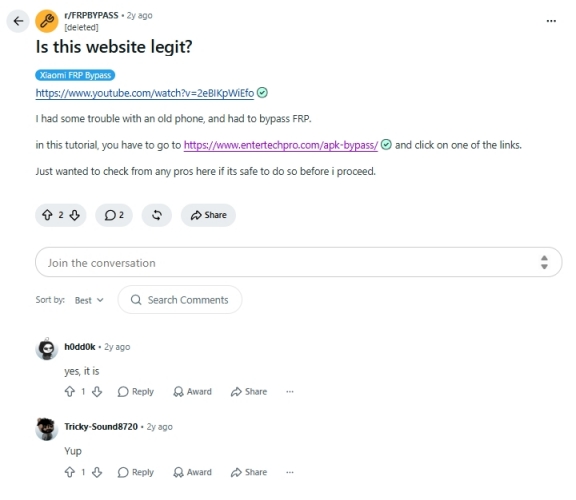
Yes. EnterTechPro has an established track record and offers a real support channel. Reddit users who have tried it generally report that this website works as described, with more positive feedback than warnings.
Part 2. Pros and Cons of TechPro for FRP Bypass
No FRP tool is a perfect fit for every device or every user, and EnterTechPro is no exception. Weighing what it does well against where it falls short makes it easier to decide whether it's the right pick for your particular phone, or whether another route makes more sense.
 Pros
- No prior technical skill needed.
- No computer required.
- Supports many popular brands.
- Free tier for older models.

- Newer flagships often not supported.
- Occasional driver installation hiccups.
- Complicated manual installation process.
- No guaranteed unlocking success.
Part 3. How to Use EnterTechPro for FRP Bypass
Running the actual bypass is straightforward once the software is installed and the phone is in the right mode. The general flow below applies to most supported Android models, though on-screen prompts can vary slightly by brand and firmware version.
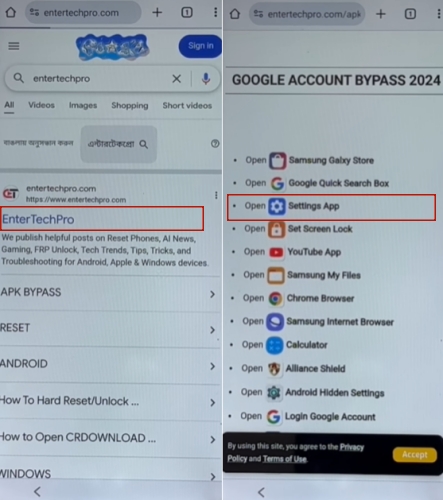
Step 1. Open a browser on the locked device and visit the EnterTechPro website to download the FRP Bypass APK.
Step 2. Enable Install Unknown Apps in your device's security settings.
Step 3. Open the downloaded APK from the Downloads folder and install it.
Step 4. Launch EnterTechPro FRP Bypass APK and follow the on-screen instructions.
Step 5. Use the provided device recovery options to access the appropriate Google account settings.
Step 6. If required, prepare a second Android phone with Easy Share and Activity Launcher installed.
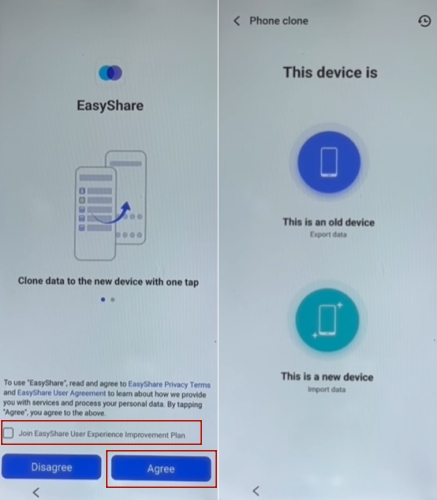
Step 7. Follow the official Google account recovery and device ownership verification process.
Step 8. Restart the phone and complete the Android setup.
Part 4. Best Alternative to EnterTechPro FRP Bypass
If EnterTechPro doesn't cover your phone's chipset or you'd rather use a dedicated unlocking program instead of a standalone APK, a purpose-built FRP removal tool is worth trying. MagFone Android Unlocker is one such option: it's designed specifically to clear FRP locks across a wide range of Android devices, including Samsung, Xiaomi and Redmi, and it walks you through the process with guided on-screen steps rather than leaving you to guess at menu options.

MagFone Android Unlocker
Remove multiple kinds of screen locks on over 5000 Android devices and delete Google FRP lock without a password.
Step 1 Set Up the Program and Plug In Your Phone
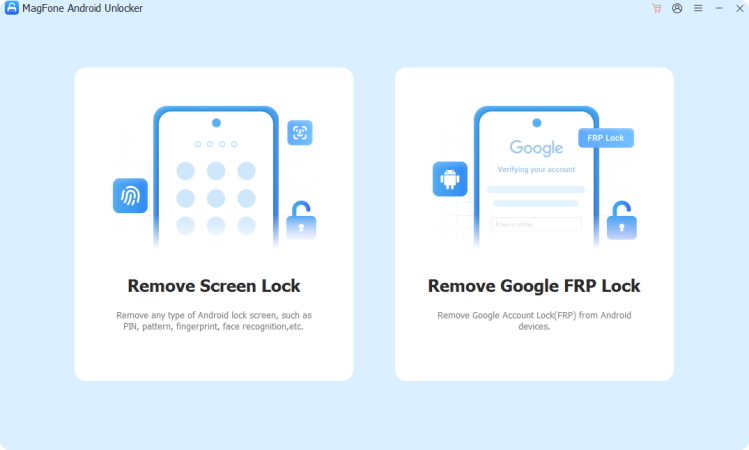
Download MagFone Android Unlocker onto your computer and launch it. Plug your Android device in with a USB cable, then pick the FRP-removal option from the home screen so the program can start scanning and preparing your phone for the next stage.
Step 2 Let It Check Your Device or Choose Brand
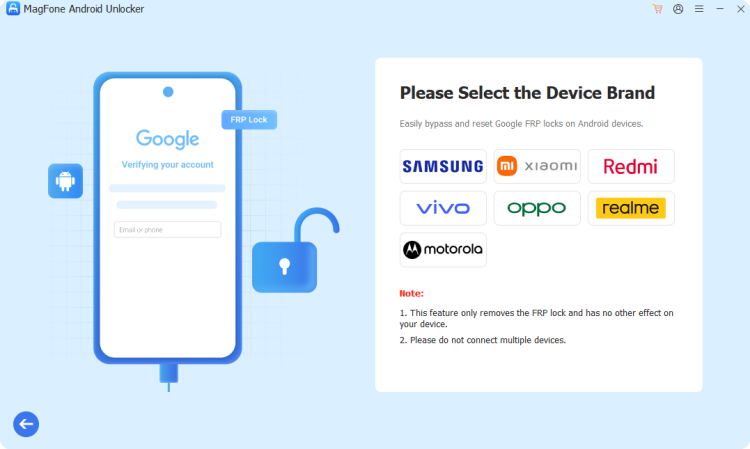
The software should automatically detect your phone's make and Android build. If it doesn't, select the manufacturer and OS version yourself from the lists provided. Double-check these details, since picking the correct profile is what lets the tool apply the right unlocking approach.
Step 3 Bypass the Google FRP Lock on Android
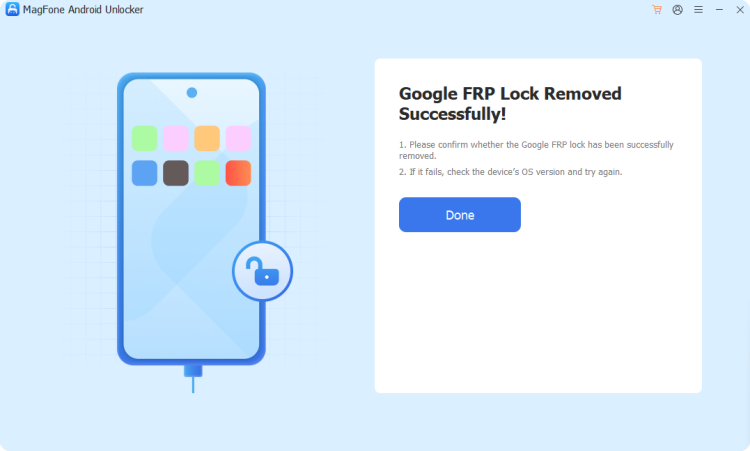
Once your device is confirmed, the program walks you through the rest with clear prompts. Follow the instructions shown both on your computer screen and on the phone itself, and the FRP lock will be lifted, leaving the device ready for normal setup.
Part 5. Conclusion
EnterTechPro FRP Bypass holds up as a reasonably safe, partly free, and generally trustworthy way to clear a Google account lock, as long as you download it from the official source and accept that newer or carrier-locked phones may need the paid tier. For devices it doesn't support, or if you want a more guided experience, MagFone Android Unlocker offers a solid alternative built specifically for FRP removal across Samsung, Xiaomi and Redmi phones.

Dylan Jones
Editor in chief




