








Forgetting a Gmail password can be frustrating, especially when you need quick access to emails, contacts, and other Google services on your phone. If you are searching for how to reset forgotten gmail password on android phone, there are several simple solutions available. Android devices provide built-in options to update your Google account password, while web recovery methods can also help you regain access when needed. Let's dive in.
- Part 1. Notes for Resetting Gmail Password on Android
- Part 2. How to Reset Gmail Password on Android in Settings
- Part 3. How to Reset Password on Gmail on Android on Web
- Part 4. Bonus Tip: How to Bypass FRP When Forgot Password
- Part 5. Conclusion
Part 1. Notes for Resetting Gmail Password on Android
To make the password reset process easier, prepare the needed account details in advance and become familiar with the recovery choices provided by Google. The following notes explain what you should check before trying to reset your Gmail password on an Android device.
- Sign Out on Other Devices: After resetting your Gmail password, you may be signed out of your Google Account on other phones, tablets, and computers, requiring you to sign in again with your new password.
- Recovery Information Required: If you forgot your current password and need to use the "Forgot Password" option, make sure you have access to your recovery phone number, backup email address, or another trusted verification method.
- Reauthentication Required: After creating a new password, you will need to update your sign-in details on devices, apps, and services that use your Google Account.
Part 2. How to Reset Gmail Password on Android in Settings
Android users can directly set a new password for their Gmail account through the phone settings without opening a browser. The process may slightly vary depending on the device brand. Here, we show you how to reset the Samsung Gmail password in settings step by step using the built-in account management options.
Requirements:
Access to Android phone Settings.
Remember the screen password or passcode.
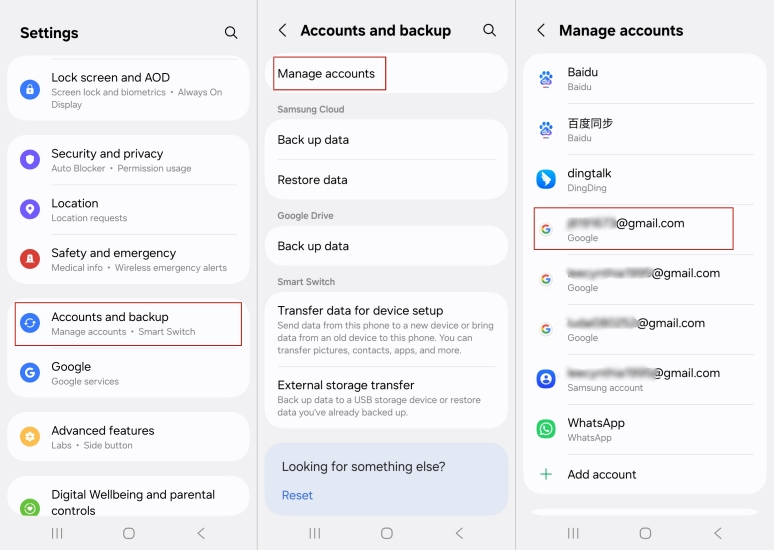
Step 1. Go to Settings. Find Accounts and backup, then tap the Manage accounts option.
Step 2. Choose your Gmail account and tap on it.
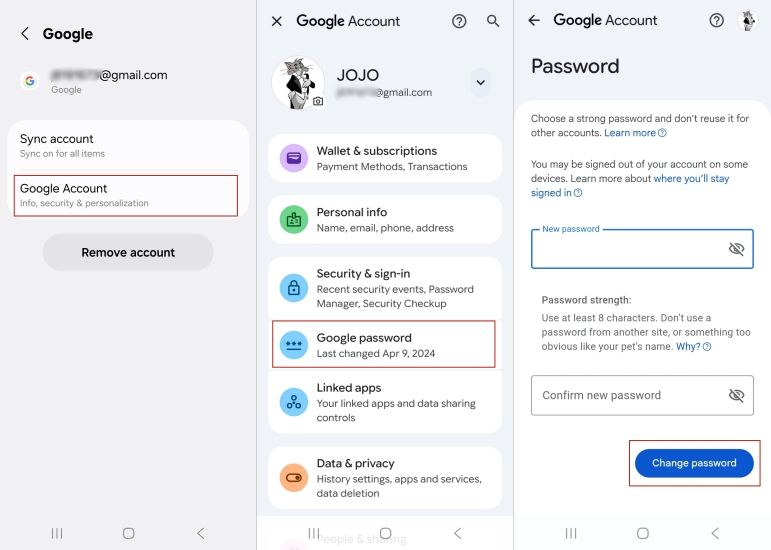
Step 3. Press and hold Google Account, then enter your screen password or passcode when prompted.
Step 4. From the list of options, tap Google Password.
Step 5. Enter your new password and confirm it. Tap Change password to save your new password.
Part 3. How to Reset Password on Gmail on Android on Web
If you cannot change your password through Android settings, you can use a web browser to recover your Gmail account. Google provides different verification methods depending on your account information. The following two methods explain how to reset a Gmail password on the Android using website pages.
Method 1. Reset Android Gmail Password on Sign-In Page
The Gmail sign-in page provides a direct way to recover access when you cannot remember your password. Whether you can or can't access your device, you can visit this site in any browser and regain access to your password. Refer to the instructions below to reset your account password.
Requirements:
Use a device that is connected to the internet.
Be able to access your recovery email address or phone number.
Step 1. Open a browser on your Android phone and visit the Google sign-in page.
Step 2. Enter your Gmail address and tap the option to continue.
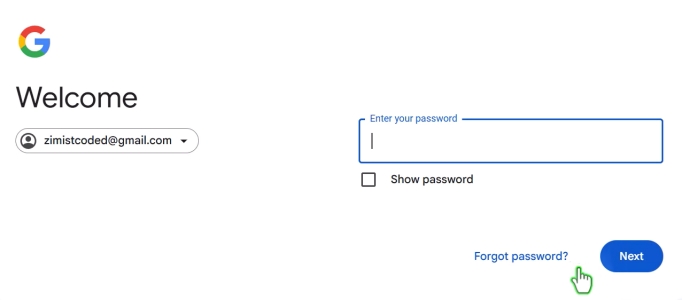
Step 3. When Google asks for your password, select the Forgot password? option.
Step 4. Choose a verification method provided by Google, such as confirming your device lock, receiving a verification code, or using another sign-in option.
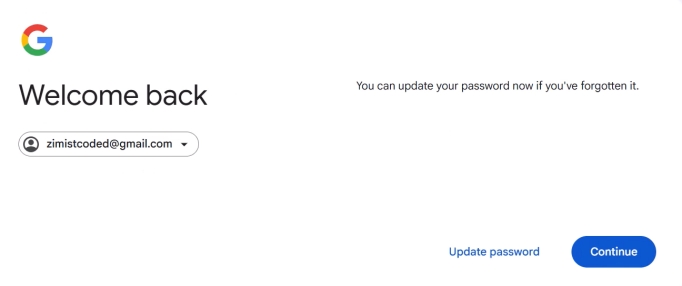
Step 5. Click Update password to create a new password when Google allows you to access your account.
Step 6. Verify your new password and complete the update process. You can now use the updated password to log in to Gmail.
Method 2. Reset Android Gmail Password on Account Recovery Page
Google also provides a dedicated account recovery page for users who cannot sign in normally. This option is useful when you no longer remember your password or need additional recovery choices. You can follow these steps to retrieve Gmail password on Android.
Requirements:
Use a device with an internet connection.
Have your account recovery email or phone number ready.

Step 1. Open your Android browser and go to the Google Account Recovery page.
Step 2. Type the Gmail address connected to your account and select the next option.
Step 3. Google will display available recovery methods based on your account settings. Choose a suitable option, such as receiving a verification code through email or phone.
Step 4. If the available method does not work, tap Try another way to view additional verification choices.
Step 5. Complete all required security checks provided by Google.
Step 6. After successfully verifying your identity, create and confirm a new Gmail password.
Step 7. Sign in again with your new password and update the login details on your Android device if necessary.
Part 4. Bonus Tip: How to Bypass FRP When Forgot Password
Google passwords are used for multiple services and also protect Android devices through account verification. When a Google account remains connected to a phone and the device is reset without removing the account first, Google FRP (Factory Reset Protection) may become activated.
However, sometimes even the original owner may forget the Google account password, and recovering the account may not always be possible. In this situation, you can consider using MagFone Android Unlocker, a professional tool designed to help bypass Google FRP locks on different Android brands, including Oppo, Motorola, Samsung, and more. Below are simple instructions for using the MagFone program. Here's how to bypass FRP lock using MagFone Android Unlocker.

MagFone Android Unlocker
Remove multiple kinds of screen locks on over 5000 Android devices and delete Google FRP lock without a password.
Step 1 Connect Devices and Open MagFone Program
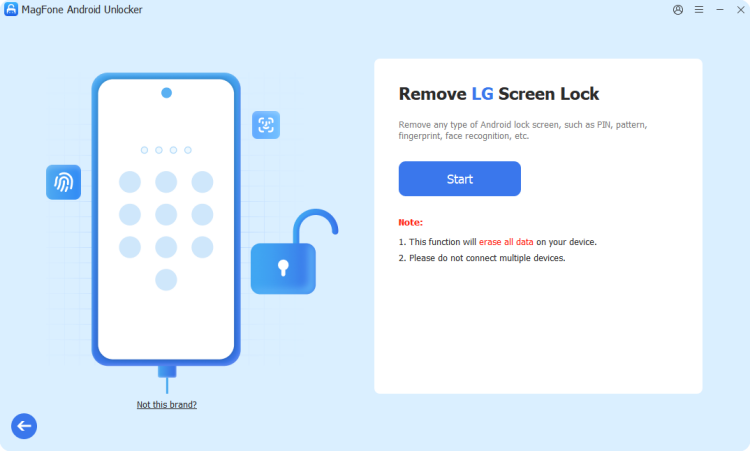
Download and install MagFone Android Unlocker on your computer, then launch the program. Pair your Android device with the computer using a USB cable. From the main interface, select the option for removing the Google FRP lock and choose your device brand to continue.
Step 2 Verify Device Information Before Starting
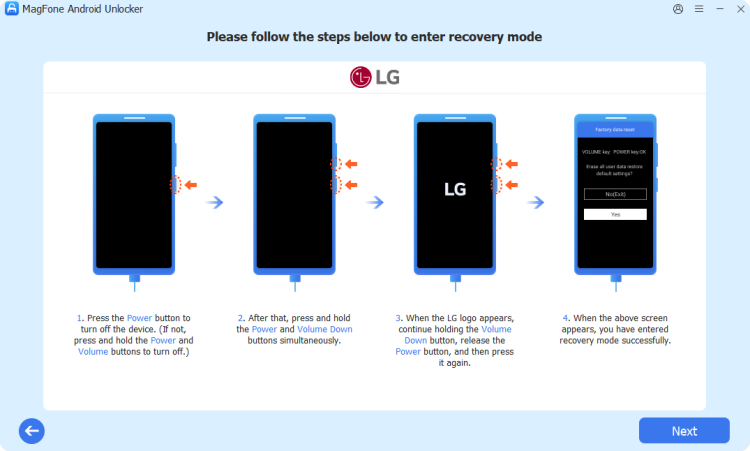
After connecting your phone, the software will try to identify your device automatically. If the information is not detected correctly, manually select the matching model details from the available options. Check the displayed information carefully before moving forward with the FRP removal procedure.
Step 3 Follow the Instructions to bypass the FRP Lock
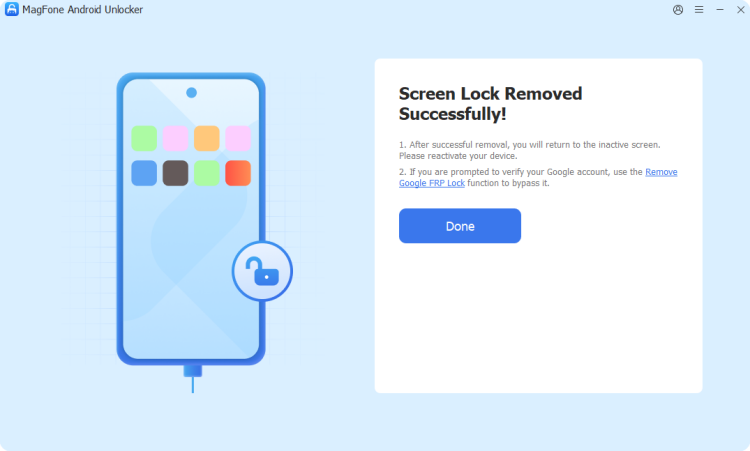
The program will provide specific guidance according to your Android model. Carefully follow the instructions shown on both the computer and the phone screen. After completing all required operations, MagFone will process the request and inform you once the Google FRP lock has been successfully removed.
Part 5. Conclusion
You can change or reset the password through the Android settings or use the Google's recovery website. For FRP-related problems, professional unlocking tools may provide additional assistance when normal recovery methods are unavailable. Always keep your recovery details updated for future security.

Dylan Jones
Editor in chief




