








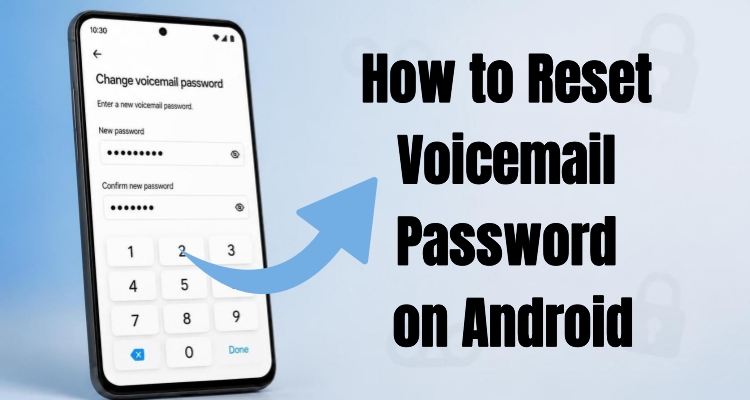
Voicemail is the built-in answering system that lets callers leave you a recorded message whenever you can't pick up. To keep those messages private, most carriers require a password or PIN before you can listen to them, and you'll be asked for it every time you dial into your mailbox from a new device or after a security check. But what happens when that password slips your mind right when you need it most? This guide walks you through exactly how to reset voicemail password on Android.
- Part 1. What If You Forgot Your Voicemail Password
- Part 2. 2 Solutions to Find Your Voicemail Password
- Part 3. How to Reset Voicemail Password on Android
- Part 4. Bonus Tip: How to Bypass Android Screen Lock
- Part 5. Conclusion
Part 1. What If You Forgot Your Voicemail Password
If you forget your voicemail password, you usually won't be able to access your saved voicemail messages until you verify your identity and reset the password. In a handful of cases, the code is still sitting somewhere on your device, so a quick search can save you the trouble. Most of the time, though, your only real option is to go through an official reset process to regain access.
Part 2. 2 Solutions to Find Your Voicemail Password
Before jumping straight to a reset, it's worth spending a few minutes checking whether your password is already stored somewhere accessible. Here are two places worth checking first.
Solution 1. Find Voicemail Password from Carrier Messages
When you first activate voicemail on a new line, your carrier typically sends a welcome or setup text that includes your temporary or default PIN. This trick only works if you never deleted that message and if you haven't changed the password since. Search your texts for terms like "voicemail," "PIN," or your carrier's name to track it down quickly.
Solution 2. Find Voicemail Password in Password Managers
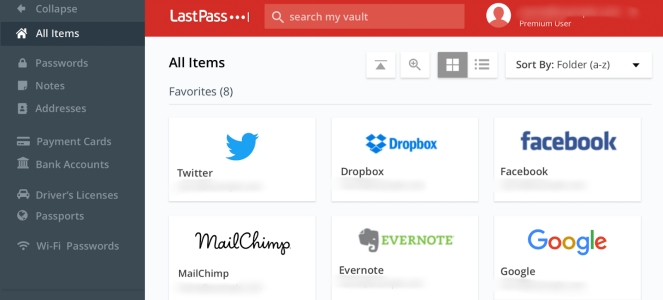
If you usually save your passwords in a password manager, your voicemail PIN may also be stored there. This could include built-in options like Google Password Manager or Samsung Pass, as well as third-party apps such as LastPass. If you previously entered your voicemail password while signing in to your carrier's website or app, the password manager may have saved it automatically.
Part 3. How to Reset Voicemail Password on Android
If neither of the above turns up your password, resetting it is still fairly painless. Depending on your phone and carrier, you can typically reset your voicemail PIN straight from your device settings, over a phone call to your voicemail system, or through your carrier's official channels.
Method 1. Reset Voicemail Password in Phone Settings
If your voicemail app is built into your phone's dialer, you may be able to reset the password directly from your Android settings menu without ever calling anyone. This option works best if your carrier's voicemail is integrated with the native Phone app.
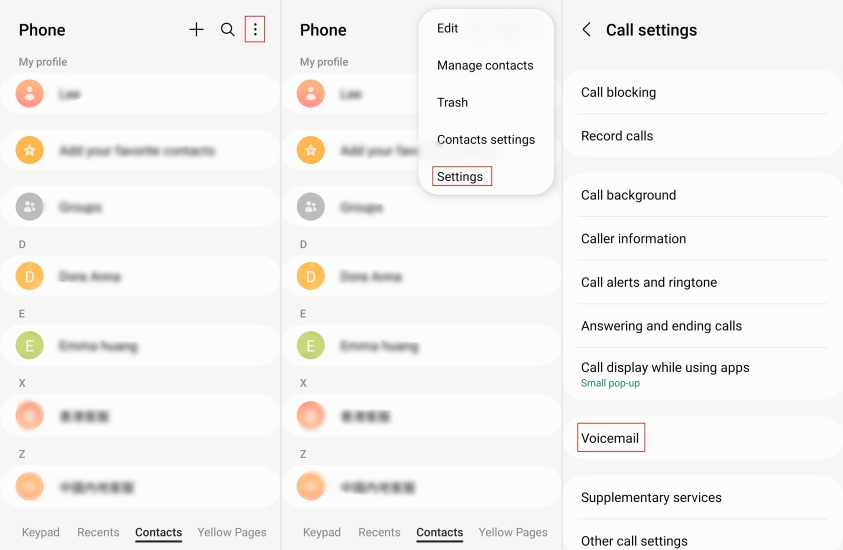
Step 1. Open your device's Phone app to access the dialer.
Step 2. Tap the three-dot menu icon in the top-right corner and select Settings.
Step 3. Scroll down and tap Voicemail (this may also appear as Voicemail Settings, depending on your device).
Step 4. Look for an option labeled Change PIN, Setup, or Voicemail Password and press it.
Step 5. Enter your old password if prompted, then type in a new PIN and confirm it to save the change.
Method 2. Reset Voicemail Password via Phone Call
Many carriers let you manage your voicemail PIN by calling directly into your voicemail box and following the automated voice prompts. This method doesn't require internet access or an app — just your dialer and a bit of patience while the system walks you through the menu options.
Step 1. Press and hold the 1 key on your dialer to auto-dial your voicemail box.
Step 2. Listen for the automated menu, or try pressing the key associated with "Settings" or "Password Security" (commonly the * or 5 key, depending on the carrier).
Step 3. Select the option to change or reset your password.
Step 4. Set your new PIN, then confirm it by pressing the # key.
Step 5. Listen as the system reads the new PIN back to you, then confirm by pressing # once more.
Method 3. Reset Voicemail Password Through Carrier
If neither of the above works, your carrier's official support channels are your most reliable fallback. Each major carrier has its own process, ranging from a quick phone code to a full account login, so check the steps that match your provider below.
AT&T
Step 1. Log in to your account through the AT&T website or app.
Step 2. Head to My Wireless, choose your device, then select Manage My Device.
Step 3. Choose Reset Voicemail Password and follow the on-screen prompts.
Verizon
Step 1. Dial *611 from your Verizon phone, or open the My Verizon app.
Step 2. Say or tap "reset voicemail password" and follow the automated instructions, or go to Account Settings > Security > Manage Voicemail Password in the app.
Step 3. Enter and confirm your new PIN.
T-Mobile
Step 1. Input #793# in the phone app and select the call option.
Step 2. Wait for a confirmation text; your password will default to the last four digits of your phone number.
Step 3. Dial into voicemail and set a new personal PIN when prompted.
Sprint
Step 1. Visit the Sprint website and sign in to My Sprint.
Step 2. Under My Preferences, find "Change Voicemail Passcode."
Step 3. Proceed with the prompts to establish a new passcode.
Tracfone
Step 1. Send a text to 611611 with the word "voicemail."
Step 2. Reply "Y" when prompted to reset your PIN to the last four digits of your phone number.
Step 3. Press and hold 1 to dial into voicemail and personalize your new password.
Other Carriers
Step 1. Search online for "reset voicemail password" plus your carrier's name.
Step 2. Follow the official instructions listed on their support page, or call their customer service line directly.
Part 4. Bonus Tip: How to Bypass Android Screen Lock
Losing your voicemail PIN is annoying, but forgetting your actual screen lock is a bigger headache since it can shut you out of your phone entirely. If that happens, a tool like MagFone Android Unlocker can help. It's built specifically to bypass screen locks and FRP locks across a wide range of Android brands and models, making it a handy option when you're completely locked out and standard recovery options aren't working. Once you've confirmed compatibility, the steps below will walk you through unlocking your device without needing the original password.

MagFone Android Unlocker
Remove multiple kinds of screen locks on over 5000 Android devices and delete Google FRP lock without a password.
Step 1 Link Device and Launch the Program First
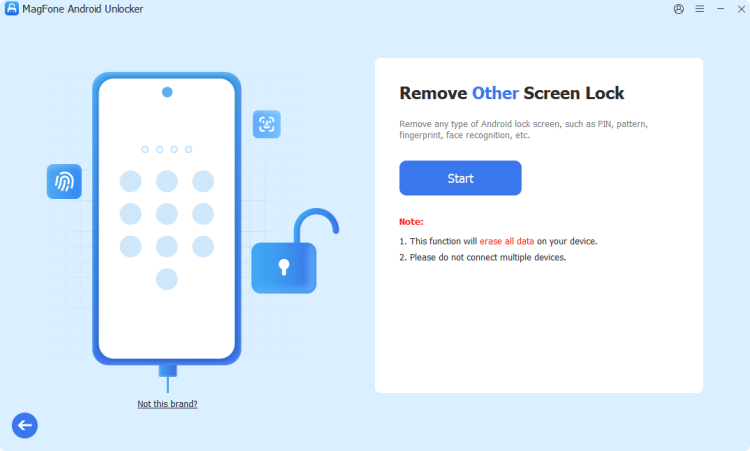
Install Magfone Android Unlocker on your computer and open it up. From the main menu, pick the option to remove your screen lock, then plug your phone into the computer using a USB cable.
Step 2 Put Your Android Phone into Recovery Mode
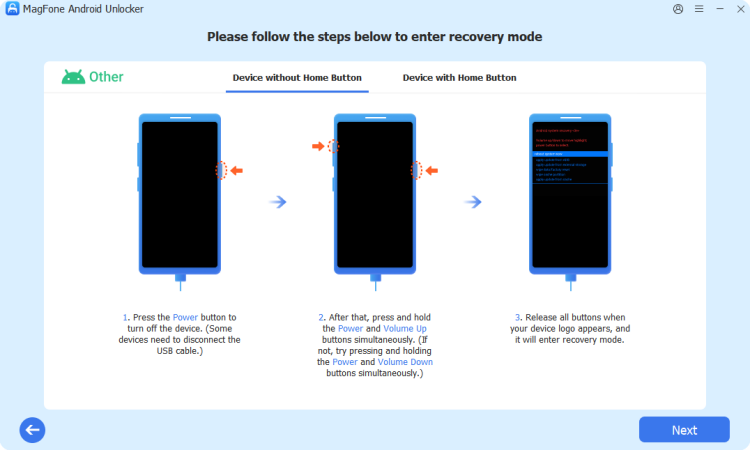
Once the software recognizes your connected device, it'll display on-screen guidance for booting your phone into recovery mode. Work through those prompts, then click Next and Continue to move forward.
Step 3 Finish Bypassing the Screen Lock on Android
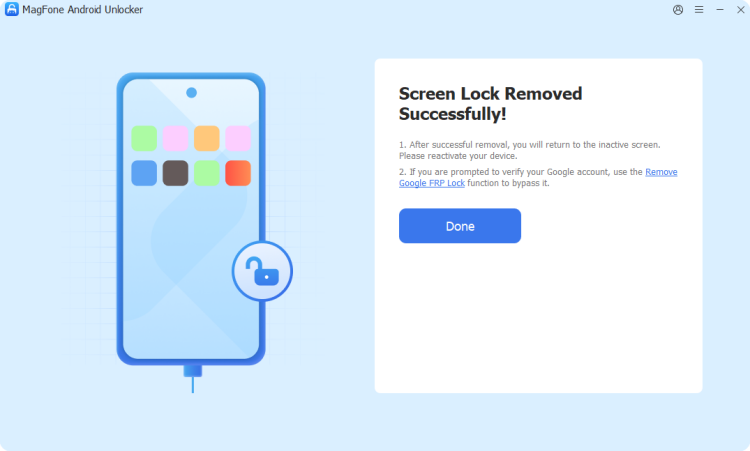
Keep following the instructions shown until the lock removal process finishes. Head back to the software window on your computer and click Start Unlock to wrap things up and regain full access to your phone.
Part 5. Conclusion
Forgetting your voicemail password doesn't have to derail your day. Start by checking old carrier texts or your password manager for a saved PIN, and if that comes up empty, use your phone's settings, a direct voicemail call, or your carrier's official reset process instead. And if you're ever locked out of your entire device, a tool like Magfone Android Unlocker can help you regain access quickly and safely.

Teresa Miller
Editor in chief





