








Locking your Samsung phone with a PIN keeps your data safe, but it can also be a headache, especially if you enter it incorrectly too many times or forget it entirely. Whether you simply want to switch to a faster unlock method or you're completely locked out and searching for a fix, this guide walks you through every practical option, from the simplest settings tweak to remove PIN from Samsung phone.
- Part 1. 6 Ways to Remove PIN from Samsung Phone
- Part 2. How to Remove PIN from Samsung Phone When Forgot
- Method 1. Remove PIN from Samsung Phone via MagFone Android Unlocker
- Method 2. Remove PIN from Samsung Phone in Recovery Mode
- Method 3. Remove PIN from Samsung Phone with Google Find Hub
- Method 4. Remove PIN from Samsung Phone Using SmartThings Find
- Method 5. Remove PIN from Samsung Phone Through Extend Lock
- Part 3. How to Remove PIN from Samsung Phone in Settings
- Part 4. Conclusion
Part 1. 6 Ways to Remove PIN from Samsung Phone
Not every situation calls for the same fix. If you still remember your PIN, a quick settings change is enough, but if you're locked out, you'll need a tool or a recovery trick instead. Here's a quick side-by-side look at the five approaches covered in this guide.
| Method Name | Password Required | Time Required | Recommend Stars |
|---|---|---|---|
| MagFone Android Unlocker | No | 10–15 minutes | ⭐⭐⭐⭐⭐ |
| Recovery Mode | No | 15–20 minutes | ⭐⭐⭐ |
| Google Find Hub | Yes (Google account) | 5–10 minutes | ⭐⭐⭐⭐ |
| SmartThings Find | Yes (Samsung account) | 5–10 minutes | ⭐⭐⭐⭐ |
| Extend Lock | No | Instant setup | ⭐⭐⭐ |
| Remove in Settings | Yes (Pin code) | 1–5 minutes | ⭐⭐⭐⭐⭐ |
Part 2. How to Remove PIN from Samsung Phone When Forgot
Forgetting your PIN doesn't have to mean losing access to your device forever. Depending on whether your data is expendable or precious, you can pick between a data-safe unlocking tool or a full reset method. Below are five reliable ways to unlock your locked Samsung phone.
Method 1. Remove PIN from Samsung Phone via MagFone Android Unlocker
MagFone Android Unlocker stands out because it can remove a Samsung PIN, pattern, or password without wiping all your files in most cases, and it works even if you haven't set up Find My Device. The tool guides you through the entire process with clear on-screen prompts, making it easy to use even for those who aren't tech-savvy. Whether you're using a Mac or Windows PC, you can bypass a Samsung PIN by following these steps.

MagFone Android Unlocker
Remove multiple kinds of screen locks on over 5000 Android devices and delete Google FRP lock without a password.
Step 1 Select the Screen Unlock Option
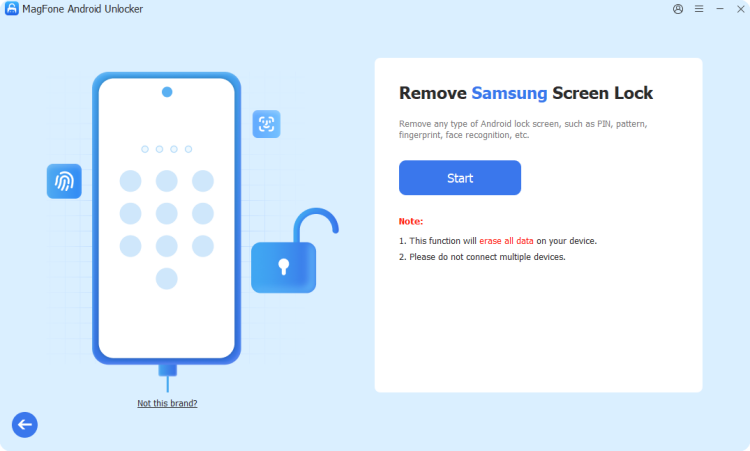
Download and open MagFone Android Unlocker on your PC, then plug your Samsung phone in with a USB cable. From the home screen, choose the unlock feature, pick your phone's model from the brand list, and hit Continue.
Step 2 Boot into Recovery Mode
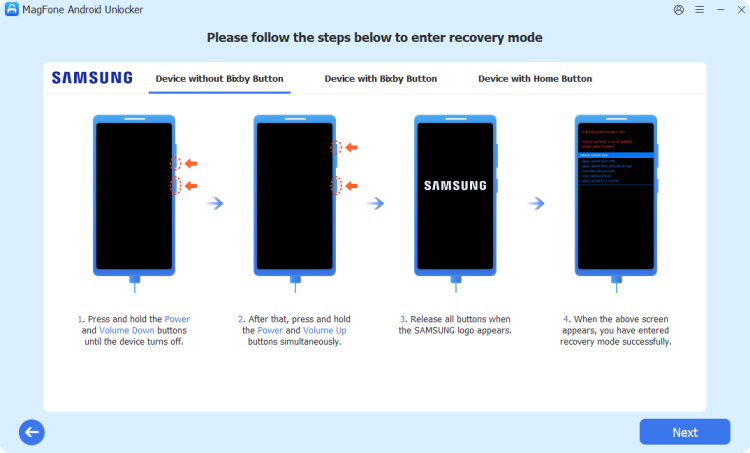
After confirming your device details, click Start. The program will notify you that some data could be lost during the process — accept the warning to proceed. Then follow the guided key-combination instructions to put your Samsung into Recovery Mode.
Step 3 Clear the Lock Screen PIN
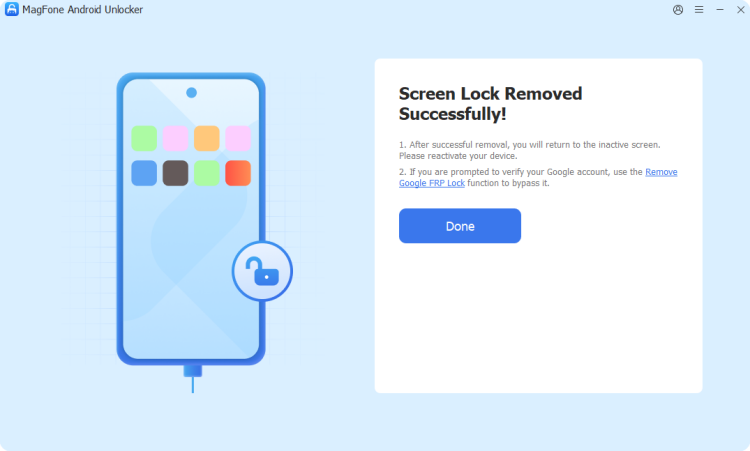
Continue following the prompts on your screen to finish configuring your device, then click Next and let the software handle the removal. Once it's done, your Samsung PIN will be gone, and you can access the home screen freely.
 Pros
Pros- Works without a password.
- Beginner-friendly guided process.
- No Google account needed.

- Requires a paid license.
Method 2. Remove PIN from Samsung Phone in Recovery Mode
Built-in Recovery Mode is a free, no-download option baked into every Samsung device. It performs a factory reset, meaning the PIN disappears along with everything else stored on the phone, so it's best treated as a last resort when you have nothing to lose or a recent backup ready.
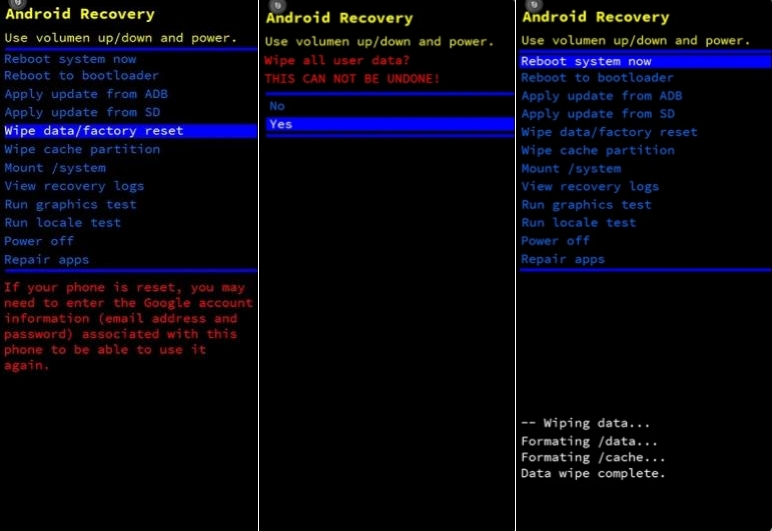
Step 1. Power off your Samsung phone completely.
Step 2. Press and hold the Volume Up and Power buttons together until the logo appears, then press the Power and Volume Up buttons for a while.
Step 3. Navigate the Recovery Mode menu with the volume keys and confirm selections using the Power button.
Step 4. Highlight Wipe data/factory reset, and confirm the action.
Pros- Completely free to use.
- No extra software needed.
- Works on any model.
- Erases all phone data.
Method 3. Remove PIN from Samsung Phone with Google Find Hub
Google's device-management hub lets you remotely wipe an Android phone tied to your Google account, clearing the PIN as part of a full reset. It's a solid pick when your phone is online and signed in, though like Recovery Mode, it sacrifices your files for access.
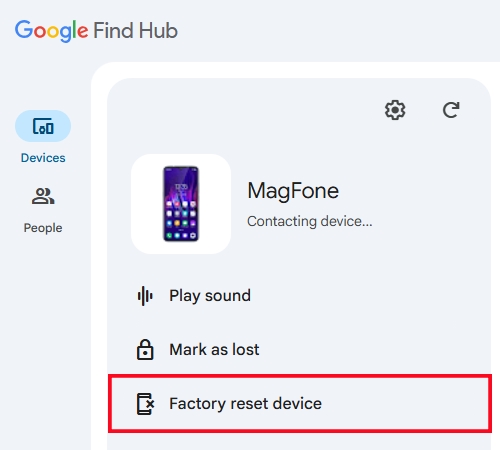
Step 1. On another device, open the Google Find Hub website and sign in with the same account linked to your Samsung phone.
Step 2. Select your locked device from the device section shown on the dashboard.
Step 3. Choose the Factory reset device option and confirm your decision when prompted.
Pros- No cables or software.
- Works from anywhere online.
- Simple browser-based process.
- Needs internet connection.
- Deletes entire phone content.
- Requires Google account and password.
Method 4. Remove PIN from Samsung Phone Using SmartThings Find
Samsung's own tracking and remote-management service, SmartThings Find, offers similar unlocking power to Google's tool but taps into your Samsung account instead. It's particularly handy for Galaxy owners who never linked their device to Find My Device but did set up a Samsung account.
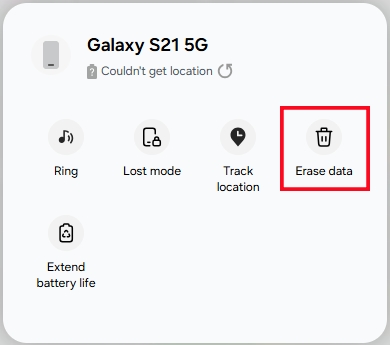
Step 1. From a browser or another device, go to the SmartThings Find website and log in with your Samsung account.
Step 2. Pick the locked phone from your list of registered devices.
Step 3. Select the Erase data option to reset the device, then access it without the old PIN.
Pros- Uses Samsung's own service.
- No PC required.
- Simple to use.
- Requires an active Samsung account.
- Erases data.
Method 5. Remove PIN from Samsung Phone Through Extend Lock
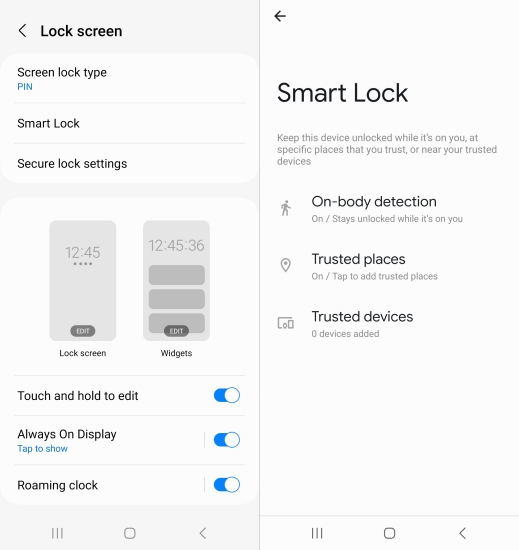
Extend Lock, also known as Extend Unlock, is a built-in Samsung feature that keeps your device unlocked automatically once it recognizes a familiar condition, rather than deleting the PIN outright. It kicks in and skips the lock screen when your phone stays on your body, connects to a trusted device like a Galaxy Watch, or sits within a location you've marked as trusted, such as home or work.
 Pros
Pros- Reduces daily PIN entry.
- Keeps underlying security intact.
- Easy to configure.
- PIN isn't fully removed.
- Not available on all devices.
- Must set up before lockout.
Part 3. How to Remove PIN from Samsung Phone in Settings
You'll want to do this when the PIN feels unnecessary for your routine, or you'd rather rely on a fingerprint or face scan. Note that Samsung doesn't let you delete lock security altogether while keeping sensitive features like Secure Folder active. Instead, you're really swapping to "Swipe," "None," or a biometric option.
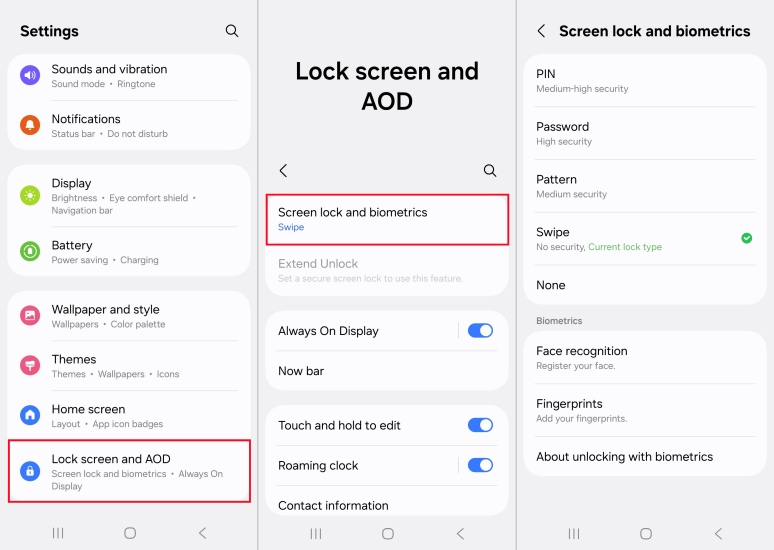
Step 1. Open the Settings app on your Samsung phone.
Step 2. Scroll to and tap Lock Screen and AOD.
Step 3. Tap Screen lock and biometrics and enter your current PIN to confirm your identity.
Step 4. Select Swipe, None, or a biometric method like fingerprint or face recognition to replace the PIN.
Step 5. Follow any remaining on-screen setup steps to finalize your new lock preference.
Part 4. Conclusion
Removing a PIN from a Samsung phone comes down to one key question: do you remember it or not? If you do, the Settings app handles it in seconds. If you've forgotten it, tools like MagFone Android Unlocker, Recovery Mode, Google Find Hub, and SmartThings Find each offer a path back in, with trade-offs between data safety and convenience worth weighing carefully.

Dylan Jones
Editor in chief




