








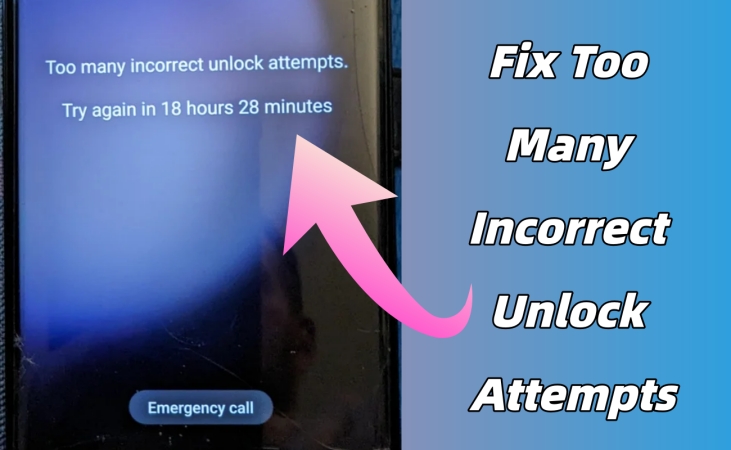
If your Samsung phone shows the warning Too many incorrect unlock attempts, it can be stressful especially when you need immediate access to your phone. But don't worry! This comprehensive guide will explore why you see Too many incorrect unlock attempts on your Samsung phone. Also, you can learn how to bypass Too many incorrect unlock attempts Samsung in this guide. Let's dive into more details now.
- Part 1. Why You See Too Many Incorrect Unlock Attempts on Samsung?
- Part 2. Easy Solution to Samsung Too Many Incorrect Unlock Attempts
- Part 3. How to Bypass Too Many Incorrect Unlock Attempts Samsung
- Part 4. How to Avoid Samsung Too Many Incorrect Unlock Attempts
- Part 5. Conclusion
Part 1. Why You See Too Many Incorrect Unlock Attempts on Samsung?
Samsung phones automatically apply lockout protection to prevent unauthorized access. When you enter multiple wrong PIN, password, pattern, or fingerprint attempts, it automatically activates security protection. The system assumes an unauthorized person is trying to break in. Then you may experience a message warning like Too many incorrect attempts. Try again in 30 seconds.
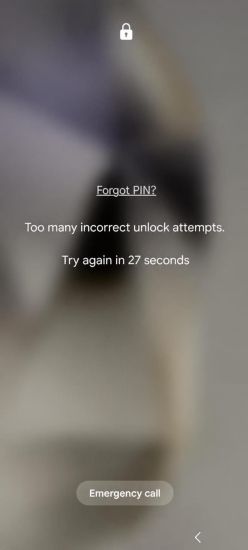
Depending on how many failed attempts were made, the lockout time may increase. In some cases, the phone may temporarily lock for 60 seconds, or several minutes, and repeated attempts may result in a longer lockout. There are several reasons that would trigger this warning message on a Samsung phone. The causes of this issue include:
- Multiple failed attempts in a short period
- Incorrect PIN due to recent lock change
- Accidental swipes or ghost touches
- Fingerprint recognition failures
- Children accidentally tapping the wrong pattern
- A security update that caused lockscreen instability
When your Samsung phone is locked due to this warning message, you can try entering the correct password, PIN, or pattern to unlock it. But after multiple wrong attempts, your Samsung phone will be permanently locked. Go on reading about how to fix Too many incorrect unlock attempts in the following content.
Part 2. Easy Solution to Samsung Too Many Incorrect Unlock Attempts
If your Samsung phone is locked due to Too many incorrect unlock attempts, MagFone Android Unlocker provides a straightforward and effective solution. This professional unlocking tool is designed to remove various types of Samsung screen locks, including PIN, password, pattern, fingerprint, and face lock, even when the device becomes inaccessible after repeated failed attempts. Follow the step-by-step instructions below to unlock your Samsung phone by using MagFone Android Unlocker.

MagFone Android Unlocker
Remove multiple kinds of screen locks on over 5000 Android devices and delete Google FRP lock without a password.
Step 1 Choose Remove Screen Lock on Samsung Phone
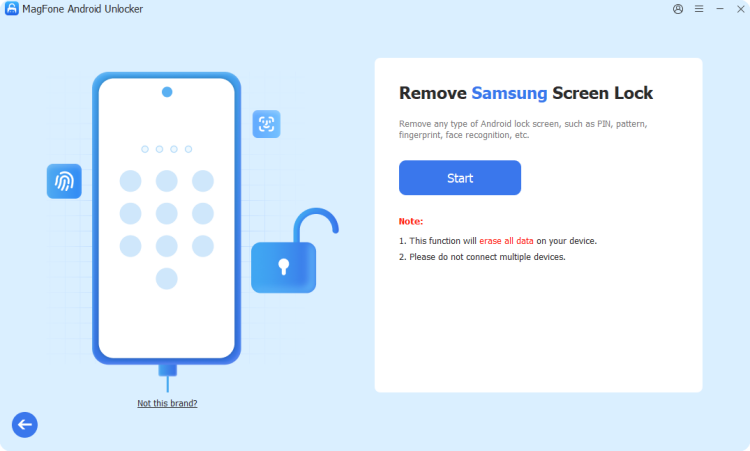
Download and install MagFone Android Unlocker on your computer, then launch the program and select Remove Screen Lock. Connect your locked Samsung phone via a USB cable.
Step 2 Go to Boot Samsung Phone into Recovery Mode
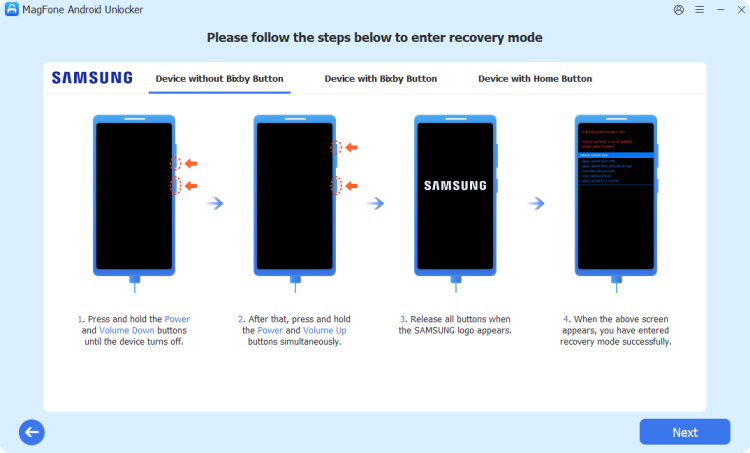
Follow the onscreen instructions to put your Samsung phone into Recovery Mode. Once the device is in Recovery Mode, click the Next button, then click the Continue button to confirm.
Step 3 Fix Samsung Too Many Incorrect Unlock Attempts

Proceed with the onscreen instructions to fix the Too many incorrect unlock attempts on your Samsung phone. Then click the Next button, and you'll see a successful prompt.
Part 3. How to Bypass Too Many Incorrect Unlock Attempts Samsung
With a trusted desktop utility like MagFone Android Unlocker, you can fix Too many incorrect unlock attempts on your Samsung phone quickly. Not using such a tool, some other methods to help you fix the issue is entirely possible. If you prefer to unlock your locked Samsung phone without using a third-party tool, you can try the following methods to get your phone unlocked.
| Method | Google Account | Samsung Account | Connect to a Network | Best For |
|---|---|---|---|---|
| Recovery Mode | ❌ | ❌ | ❌ | Direct screen lock removal |
| SmartThings Find | ❌ | ✔️ | ✔️ | Registered to SmartThings |
| Google Find Hub | ✔️ | ❌ | ✔️ | Linked to Google Find My Device |
| ADB Commands | ❌ | ❌ | ❌ | USB Debugging enabled and PC connected |
Method 1. Unlock a Samsung Phone via Recovery Mode
The Too many incorrect unlock attempts message appearing on your Samsung phone doesn't mean that your phone is permanently locked. To remove this warning message, you can use physical buttons to unlock your Samsung phone in Recovery Mode. But this erase all data on the device. Make sure that you have a backup of your Samsung phone.
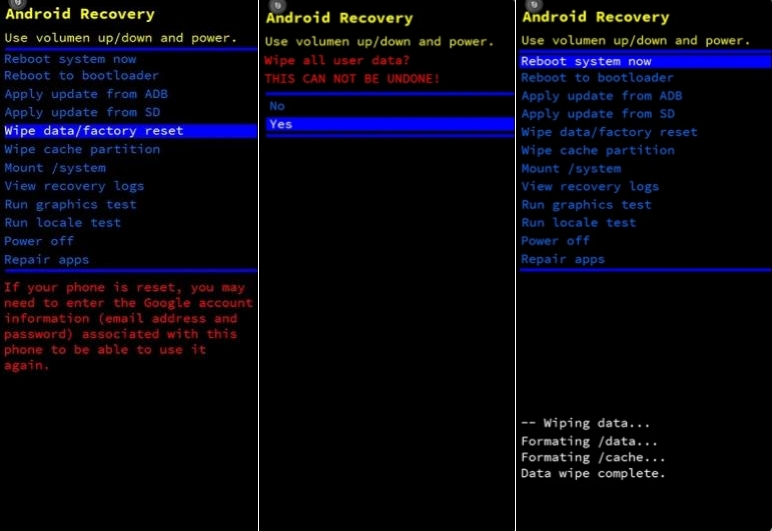
Step 1. Turn off your Samsung phone.
Step 2. Hold Volume Up and Power until the Android Recovery screen appears.
Step 3. Press Volume Down to select Wipe date/factory reset, then press Power to confirm.
Step 4. Continue to select Factory data reset and then Reboot system now.
Step 5. Wait to reset your phone to the factory default. After reset, you can set it up again.
Method 2. Unlock a Samsung Phone via SmartThings Find
If your Samsung phone is registered within SmartThings, you may bypass this warning message Too many incorrect unlock attempts on your phone using the SmartThings interface. This method works with data loss, provided your Samsung phone is online and you have your Samsung account credentials.
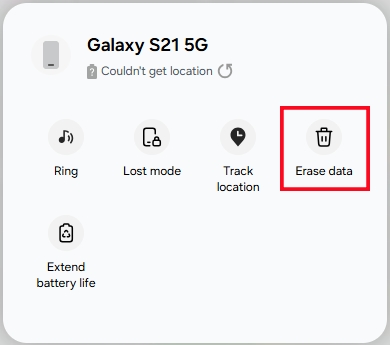
Step 1. Visit the Samsung SmartThings Find interface with your Samsung account and password.
Step 2. From the device information window, click Erase data.
Step 3. Enter the verification code you've received on your phone.
Step 4. Click Verify > Erase data > Erase, then enter your password and click Next.
Method 3. Unlock a Samsung Phone via Google Find Hub
After too many incorrect attempts, your Samsung phone gets locked, but you can also use Google Find My Device to perform a remote factory reset. This will erase all data and settings on the device, including the screen lock. If your Samsung phone is online and linked to a Google account with Find My Mobile enabled, you can reset and set up your Samsung phone.
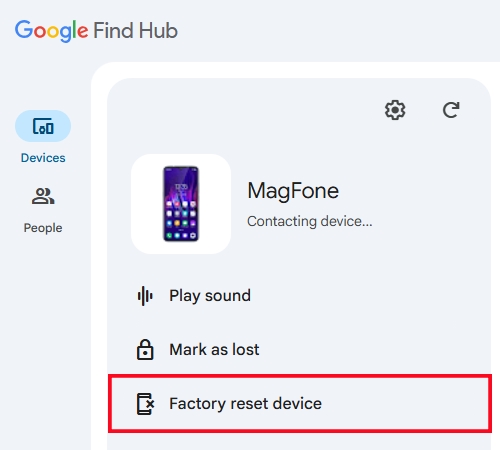
Step 1. Navigate to the Google Find Hub site in a browser on your other device.
Step 2. After logging into, click Device to find and select your Samsung phone.
Step 3. Click Factory reset device > Next and enter your password of Google account.
Step 4. Click Reset to wipe all data and settings on your device.
Method 4. Unlock a Samsung Phone via ADB Commands
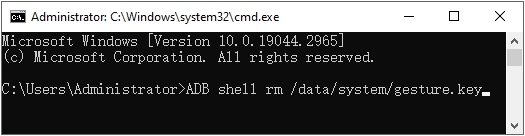
Instead of unlocking in Recovery Mode or with remote factory reset, you can also use ADB commands to fix Too many incorrect unlock attempts on your Samsung phone. But this method only works for a Samsung phone with USB Debugging enabled and a trusted PC previously authorized. If your Samsung phone meet these conditions, this solution is applicable.
Step 1. Connect your Samsung phone to a computer using a USB cable.
Step 2. Run "adb devices", then "adb shell" to open an ADB Shell.
Step 3. Enter the following common commands to fix the issues.
adb shell rm /data/system/gesture.key
adb shell rm /data/system/password.key
adb shell rm /data/system/pattern.key
Step 4. Run "adb reboot" to restart the device.
Step 5. Open Settings and tap Lock Screen > Screen Lock Type to set a new lock.
Part 4. How to Avoid Samsung Too Many Incorrect Unlock Attempts
The warning message saying Too many incorrect unlock attempts may appear due to accidental swipes or ghost touches. If you don't want to get into this trouble again, you can take some action to avoid this issue. The following methods can prevent you from encountering this issue.
Solution 1. Enable multiple unlock options. Using biometric locks like fingerprint or face lock can reduces typing error and reliance on a single password.
Solution 2. Turn on Smart Lock. Keeps your phone unlocked in trusted locations like home or with your other trusted Samsung phone.
Solution 3. Clean or repair fingerprint sensor. Frequently clean your phone screen to ensure successful scans and avoid accidental failures.
Solution 4. Add a protective case. Use a protective case reduces accidental touches. Pocket or bag touches can be prevented.
Solution 5. Keep Children away from your phone. Don't let your children or someone else to use your phone. Also, enable Ask for unlock to wake screen.
Part 5. Conclusion
When your Samsung phone displays Too many incorrect unlock attempts, it's a protective measure, but not the end of the world. Fortunately, you have multiple safe ways to regain access. Start with the official methods, then consider trusted tools like MagFone Android Unlocker if you need a practical alternative. As long as you follow proper steps, getting your Samsung phone unlocked is completely achievable.

Teresa Miller
Editor in chief




