








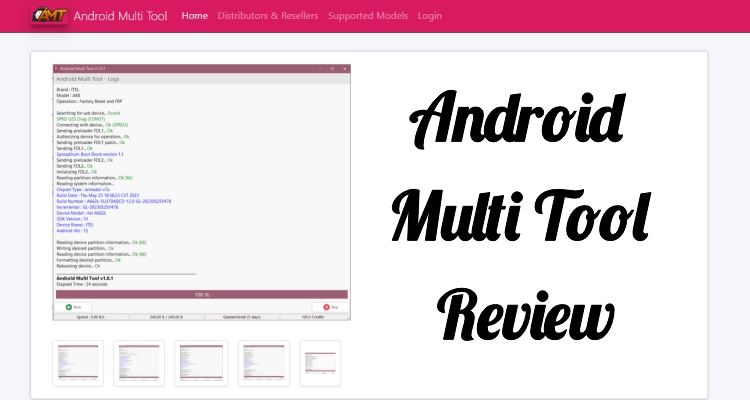
Stuck outside your own Android phone because of a forgotten pattern, a stubborn Google FRP screen, or a firmware crash? You've probably come across Android Multi Tool while searching for a fix. Before you connect your phone or try any repair method, it's important to understand the tool better. Here, we'll explain what Android Multi Tool actually does, how much it costs, whether it's safe to use, and what a smarter alternative may be worth considering before making a decision.
- Part 1. Things to Know About Android Multi Tool
- Part 2. How to Download Android Multi Tool
- Part 3. How to Use Android Multi Tool Step By Step
- Part 4. Best Alternative to the Android Multi Tool
- Part 5. Conclusion
Part 1. Things to Know About Android Multi Tool
Before downloading anything, it helps to understand what Android Multi Tool really is, who it's built for, and where its limits sit. Next, we'll break down its purpose, pricing, safety record, and technical requirements.
01What Is Android Multi Tool Used For?
Android Multi Tool, often abbreviated as AMT, is a Windows-based service program for technicians who repair Android handsets for a living. It reaches deep into system-level functions that ordinary recovery apps can't touch, covering tasks such as:
- Removing screen locks (PIN, pattern, password).
- Bypassing Google FRP verification after a factory reset.
- Flashing firmware to fix boot loops or bricked devices.
- Locking or unlocking the bootloader for custom ROMs.
- Reviving dead phones running Qualcomm or MediaTek chips.
02Is Android Multi Tool Free?
Not really. Access runs on a subscription model rather than a single purchase. A license unlocks the software itself, typically priced somewhere between $10 for three months and $30 or more for a full year, depending on the seller.
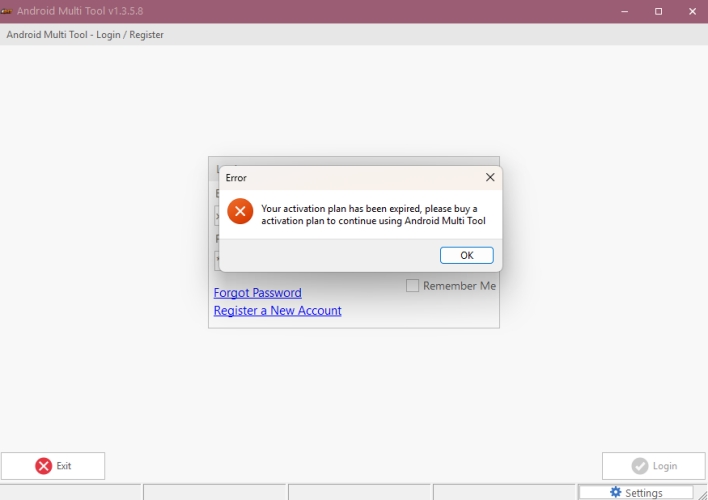
On top of that, many advanced operations draw from a separate pool of paid credits, often around a dollar apiece, so the total cost climbs the more you use the tool. A handful of features, such as certain Vivo unlocks, have become license-only in recent updates, but most brand-specific jobs still eat into your credit balance.
03Is Android Multi Tool Safe?
That depends heavily on where the copy comes from. Downloaded straight from the official channel, AMT tends to behave predictably. The real danger comes from cracked or repackaged versions floating around forums and file-sharing sites, many of which have been found bundled with malware during independent scans.
04Requirements of Android Multi Tool
Getting AMT running isn't just a matter of double-clicking an installer. You'll need a compatible PC, the correct drivers for your phone's chipset, a dependable USB connection, and a supported device in the right service mode. The table below lays out the essentials.
| Requirement | Details |
|---|---|
| Operating System | Windows 7, 8, 10, or 11 (64-bit recommended) |
| Supported Android Version | Android 5.0 and above; best results on Android 12 and earlier |
| Supported Brands | Vivo, Xiaomi, Tecno, Infinix, itel, Realme, Karbonn, Samsung, OPPO, and others |
| Drivers Needed | MTK and Qualcomm USB drivers |
| Connection | USB data cable (not charge-only) |
| Account | Online login and active license required |
| File Size | Roughly 30 to 40MB |
05Pros and Cons of Android Multi Tool
Like most professional-grade repair software, AMT trades ease of use for raw capability. Weighing its strengths against its drawbacks makes it easier to judge whether it fits your needs.
 Pros
Pros- Unlocks screen locks for free-ish.
- Supports many Android brands.
- Removes FRP and Mi lock.
- Works on older budget phones.

- Needs paid credits often.
- No official technical support.
- Risk of permanently bricking phones.
- Cracked copies carry malware risk.
Part 2. How to Download Android Multi Tool
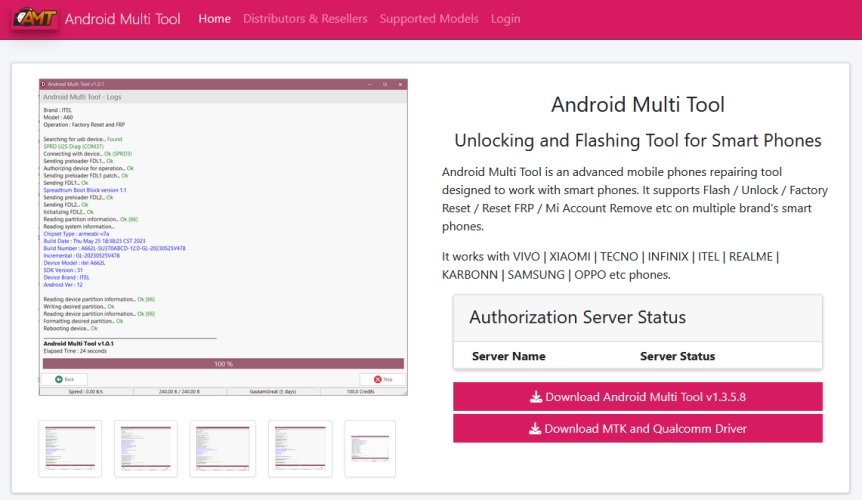
Rather than pulling the installer from a random forum post or a reseller mirror, go straight to the tool's official website. From there, you can grab the current build of Android Multi Tool along with the matching MTK and Qualcomm driver packages, which are listed as separate downloads on the same page.
Part 3. How to Use Android Multi Tool Step By Step
Once the software and drivers are installed, the unlocking process follows a fairly consistent sequence, though the exact screens may vary slightly depending on your phone's brand and chipset.
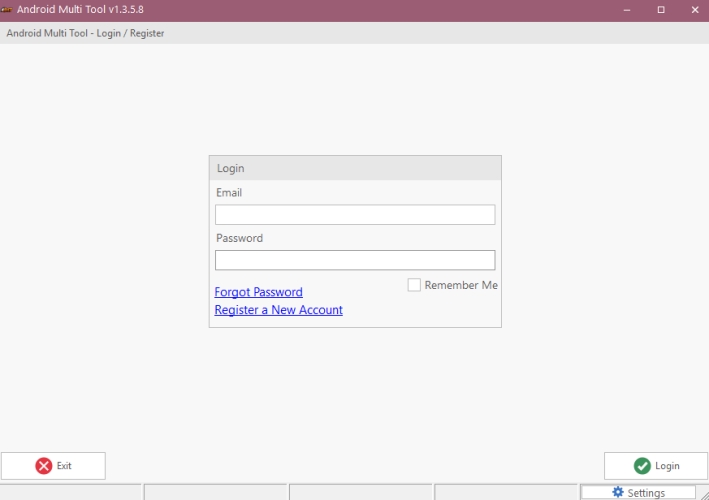
Step 1. Install Android Multi Tool and the matching MTK or Qualcomm drivers on your Windows PC, then launch the program.
Step 2. Sign in with your registered account, since most functions sit behind a login screen.
Step 3. Enable USB debugging on your Android device through Developer Options, then connect it to your PC with a reliable data cable.
Step 4. Choose your phone's exact brand and model from the device list inside the program.
Step 5. Pick the operation you need (such as FRP removal, screen unlock, or firmware flashing) and confirm any data-loss warning that appears.
Step 6. Follow the on-screen prompts until the software reports that the process has finished, keeping the phone connected the entire time.
Part 4. Best Alternative to the Android Multi Tool
Unlike Android Multi Tool, which juggles flashing, rooting, resets, and multiple lock-removal functions all at once, MagFone Android Unlocker focuses on one job: getting past screen locks and FRP restrictions. That narrower focus translates into a more dependable, higher success-rate experience, especially for people who just want their phone unlocked without wading through technical menus built for repair shops. Here's how to bypass FRP with the MagFone program.

MagFone Android Unlocker
Remove multiple kinds of screen locks on over 5000 Android devices and delete Google FRP lock without a password.
Step 1 Connect Phone and Launch the Software
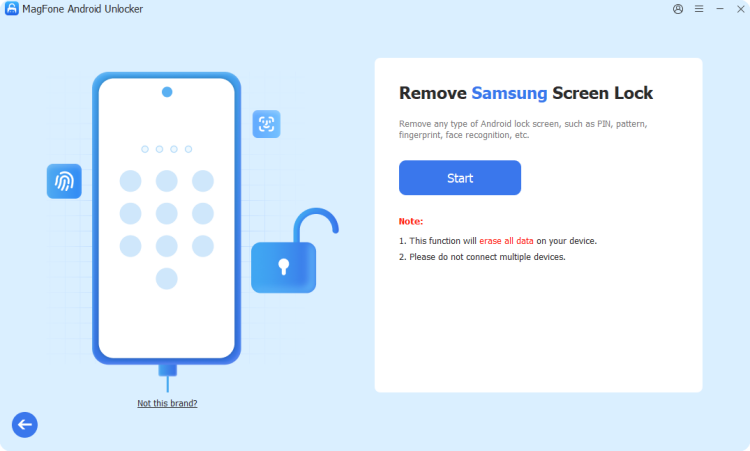
Download and open MagFone Android Unlocker on your computer, then plug in your Android device with a stable USB cable. On the home screen, choose the Remove Google FRP Lock option to begin.
Step 2 Let the Program Detect Your Device
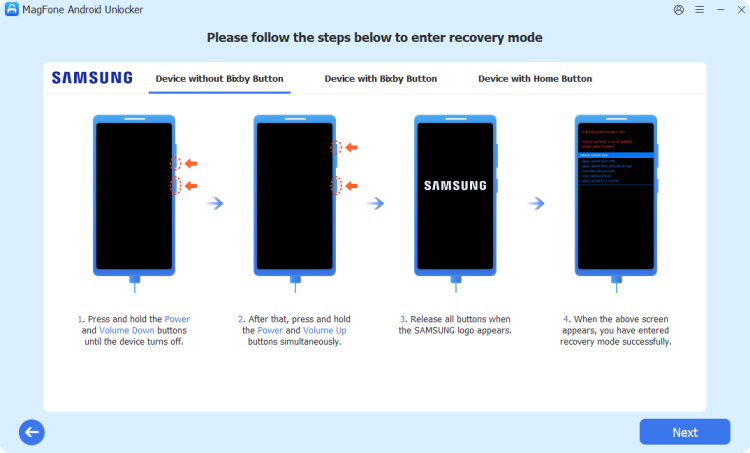
The tool usually recognizes your phone's brand and Android version automatically. If it doesn't, pick these details manually from the list, verify everything is correct, and click Start.
Step 3 Follow the On-Screen Removal Guide
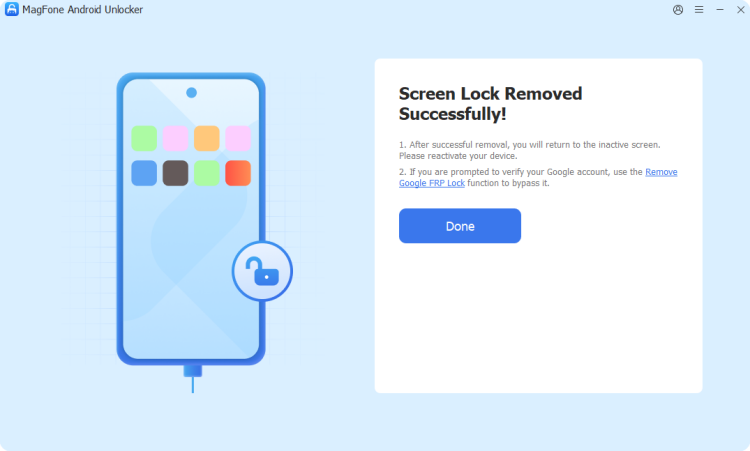
With your device confirmed, MagFone walks you through the exact actions needed on your phone's screen. Complete each prompt as instructed, and once finished, the FRP lock will be cleared from your device.
Part 5. Conclusion
Android Multi Tool offers genuine repair power for technicians comfortable with drivers, credits, and device-specific quirks, but its cost, safety risks, and steep learning curve make it a poor fit for casual users. If you simply want your screen or FRP lock removed without the complexity, MagFone Android Unlocker delivers a safer, more reliable, and far more beginner-friendly path to the same result.

Dylan Jones
Editor in chief




