








With WhatsApp being widely used worldwide, many people use it for voice or video calls in their daily lives and at work. Sometimes we need to save these calls as important information backups or meeting minutes. However, WhatsApp itself does not offer a direct call recording feature, which requires some tips or tools to achieve it. In this guide, we will introduce in detail how to record a WhatsApp call on Android, iPhone, and a computer. Also, we will introduce several of the best WhatsApp call recorders to help you save every important conversation with ease.

- Part 1. How Can I Record a WhatsApp Call?
- Part 2. How to Record a WhatsApp Call on Android & iPhone
- Part 3. How to Record WhatsApp Call on PC & Mac
- Part 4. Best WhatsApp Call Recorder
- Part 5. Conclusion
Part 1. How Can I Record a WhatsApp Call?
In daily work, WhatsApp is often an essential tool for communication, facilitating quick information sharing, real-time collaboration, and efficient coordination among colleagues and teams. You may need to hold meetings on WhatsApp. Sometimes, it's important to keep a record of these meetings, so in certain cases, you might want to record a WhatsApp call. Though there is no direct option to record WhatsApp calls, there are still several methods you can use.
Part 2. How to Record a WhatsApp Call on iPhone/Android
You may often have calls on WhatsApp and need to record important messages during the call. Here are 3 methods to record a WhatsApp call on Android devices and iPhones.
Method 1. Use Another Phone
The most direct method is to record with another phone. It does not rely on any app or system permissions, making it suitable for quickly saving calls in case of emergency. The shortage is that the recording quality can be affected by ambient noise.
Method 2. Use the In-built Screen Recorder
If there is no other device at hand, then you can use the built-in screen record feature on your Android phone or iPhone.
On Android:
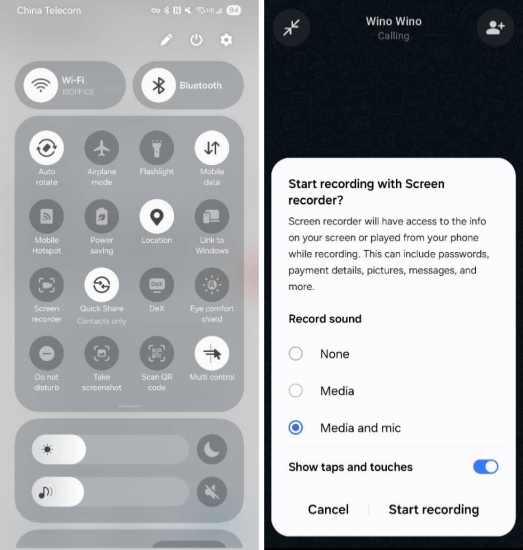
Step 1. When there is an outgoing call in WhatsApp, swipe from the top-right corner to access the control center.
Step 2. Tap Screen recorder, choose Media and mic, and then tap Start recording.
Step 3. Get through the call on WhatsApp. When it ends, tap the square icon to stop. And the recording will be saved to your phone's Gallery.
On iPhone:
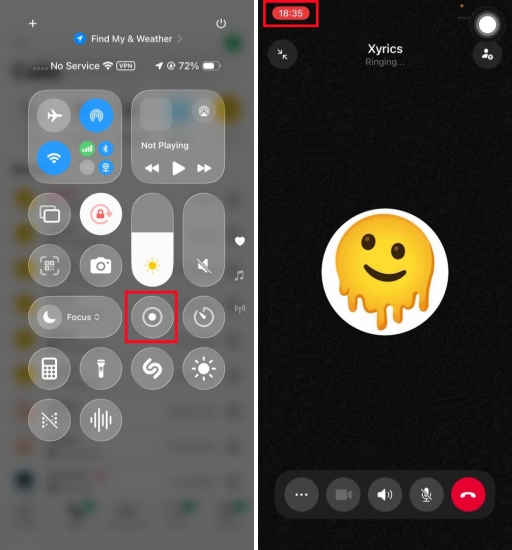
Step 1. When you have a WhatsApp call incoming, first swipe from the upper-right screen to enter the Control Center.
Step 2. Add the Voice Memo control and Screen Recording control to your Control Center.
Step 3. Tap the Voice Memo or Screen Recording icon to start recording your WhatsApp call.
Step 4. Get through the WhatsApp call and tap the upper-left corner of the iPhone screen to stop recording.
Note:
Due to iOS restrictions, you can typically record only your own voice and surrounding sounds using the microphone. Audio from the other person on the WhatsApp call is often not included in the recording, unless you place the call on speakerphone so the microphone can pick up both sides of the conversation.
Method 3. Use a WhatsApp Call Recorder
For users who have frequent WhatsApp calls and need high-quality recordings, third-party WhatsApp call recorders are more professional. These tools can help you record incoming and outgoing calls automatically. Here we have also tried a lot of WhatsApp call recording tools, and we will review them in Part 4.
Part 3. How to Record WhatsApp Call on PC & Mac
In addition to mobile phones, many users want to record WhatsApp calls on their computers, especially for work meetings or long calls. With computer recording, you can more conveniently save, manage, and edit call recordings. Here's how to record a WhatsApp call on a computer:
Step 1. Use the shortcut to run the recording process on your computer. Press Win+Alt+R on Windows or Cmd+Shift+5 on Mac.
Step 2. Click the Record option to start recording. Then accept a WhatsApp call on your computer.
Step 3. Press Win+Alt+R on Windows or Cmd+Control+Esc on Mac to stop the record when the call ends.

MagFone Chats Transfer
Transfer your WhatsApp calls history across devices. Back up your WhatsApp data effortlessly.
Part 4. Best WhatsApp Call Recorders
There are many WhatsApp call recorders to choose from, but how can you choose the fittest one? Here we have tried a few and collected the best 4 options for you. Each WhatsApp call recorder offers unique features and compatibility. By viewing the advantages and potential drawbacks, you can make an informed decision and choose the tool that best suits your preferences for recording WhatsApp calls.
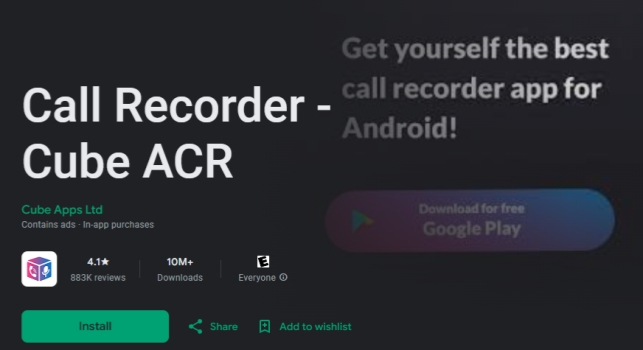
No.1 Cube ACR
Cube ACR is a comprehensive call recorder designed to capture both phone calls and VoIP conversations effortlessly. It supports automatic high-quality recording for incoming and outgoing calls, as well as social apps like WhatsApp, Google Meet, Line, IMO, Viber, Facebook, and WeChat. In Cube ACR, you can switch between automatic and manual recording modes freely according to your preference. You can also record voice memos and listen to recorded WhatsApp calls in this app. Besides, it offers a more convenient option to star your favorite call recordings and supports saving them to the cloud.
| 📱Compatibility | Android and iPhone |
| ✨Features | Record incoming and outgoing phone calls Record calls on Messenger apps Record voice memos Listen to and share recorded calls Back up recorded calls |
| 💰Price | In-app purchase |
| 🙆Pros | Auto-record every incoming and outgoing call Ease of use Support recording calls on various social apps Clear quality |
| 🙅Cons | Need to download a companion app on Android The other party's voice not recording Facing Cube ACR has issues message |
No.2 Screen Recorder - AZ Recorder
AZ Recorder is a powerful and user-friendly screen recording tool that lets you capture high-quality videos with audio, edit your screenshots and recorded videos, and even livestream your screen to YouTube and Facebook. It allows you to record gameplay videos and video calls effortlessly with both internal and microphone audio.

| 📱Compatibility | Android |
| ✨Features | Record screen with internal audios Edit videos and photos Livestream screen to YouTube or Facebook |
| 💰Price | In-app purchase |
| 🙆Pros | Auto-record every incoming and outgoing call Ease of use Support recording calls on various social apps Clear quality |
| 🙅Cons | Pop-up ads Floating buttons ay disappear sometimes Can't record after recording several times |
No.3 Talk ACR
Talker ACR is a flexible and easy-to-use call recorder that captures incoming, outgoing calls, and VoIP conversations in high quality. It supports WhatsApp, Viber, Skype, Hangouts, Facebook Messenger, WeChat, LINE, Slack, KAKAO, IMO, and more. With a bunch of extra features, you can customize recording settings to prevent recording unwanted contact, back up recorded calls to a cloud platform.

| 📱Compatibility | Android and iPhone |
| ✨Features | Automatic call record and manual record Play recorded calls in the app Call a contact directly in the app |
| 💰Price | In-app purchase |
| 🙆Pros | Wide recording support Works flawlessly |
| 🙅Cons | Require a helper app on Android Only record voice of one side |
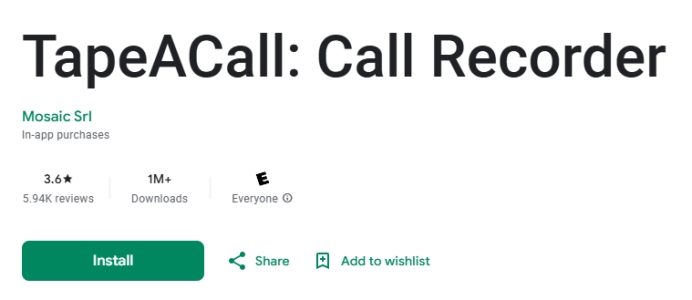
No.4 TapeACall: Call Recorder
As one of the best WhatsApp call recorders, TapeACall is designed for those who need to save important conversations. It offers unlimited recording storage, fast processing, and crystal-clear sound. It also provides advanced features like automatic call transcription, easy sharing of audio or text, and seamless transfer of recordings to new devices, computers, or cloud services such as Dropbox, Evernote, and Google Drive.
| 📱Compatibility | Android and iPhone |
| ✨Features | Record incoming and outgoing calls in high-quality Transcribe the recorded calls to text Transfer recorded calls to new devices |
| 💰Price | In-app purchase |
| 🙆Pros | Transcribe recorded calls Easy to use and export recordings |
| 🙅Cons | Unable to skip the subscription option Calls don't merge properly |
Part 5. Conclusion
Recording WhatsApp calls isn't complicated. As long as you choose the method that suits you, whether it's using your device's built-in tools, another device, or a WhatsApp call recorder, you can save important conversations smoothly. If you often need to back up or manage your WhatsApp data, you can also use professional tools like MagFone Chats Transfer to securely save voice message recordings and chats to your computer to avoid data loss. Hopefully, the methods in this guide can help you record WhatsApp calls smoothly.

Edgar Davis
Editor in chief





