








WhatsApp makes it easy to share photos. And some users may need to save WhatsApp images to a PDF to send, print, or store. Whether you are using an iPhone or an Android device, there are simple ways to convert WhatsApp image into PDF, and even export both images and messages together when needed. In this guide, we will walk through the most practical methods so you can choose the one that works best for your device and purpose.
- Part 1. Can You Convert WhatsApp Image to PDF?
- Part 2. How to Convert WhatsApp Images to PDF on iPhone
- Part 3. How to Convert WhatsApp Images to PDF on Android
- Part 4. How to Convert WhatsApp Images and Messages to PDF
- Part 5. Conclusion
Part 1. Can You Convert WhatsApp Image to PDF?
Yes, you can convert a WhatsApp image to PDF. It is entirely possible whether you want to turn a single image into a PDF or combine multiple images into one PDF file. This can be useful for organizing shared images and making them easier to print or send.
Part 2. How to Convert WhatsApp Images to PDF on iPhone
On iPhone, converting WhatsApp images to PDF is fairly straightforward. You can either turn the images into a PDF directly from WhatsApp or save them first and create the PDF later in the Files app. Below, we will walk through both methods step by step.
Convert WhatsApp Images to PDF Directly in WhatsApp
One of the easiest ways to convert WhatsApp images to PDF on iPhone is to do it directly in WhatsApp. This method is convenient because it lets you create a PDF without first saving the images to your Photos app.
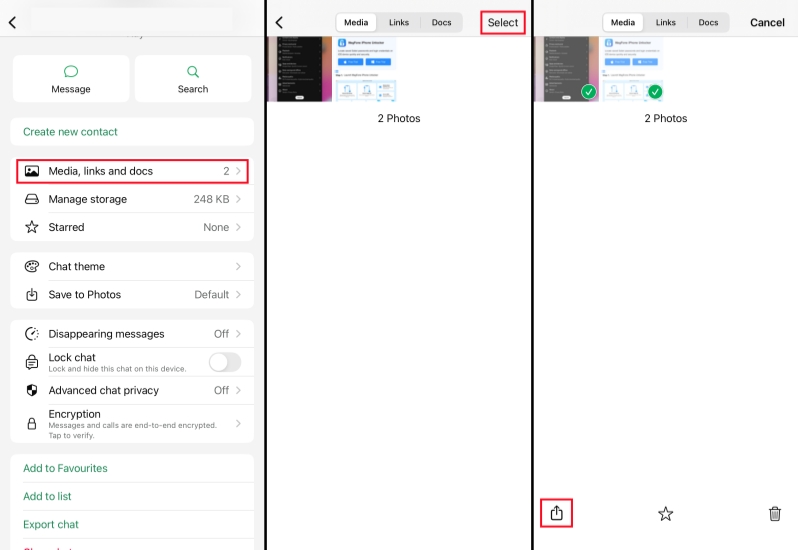
Step 1. Open a WhatsApp chat and tap the contact profile.
Step 2. Tap Media, links, and docs.
Step 3. Tap Select to select the photos you want to convert to a PDF.
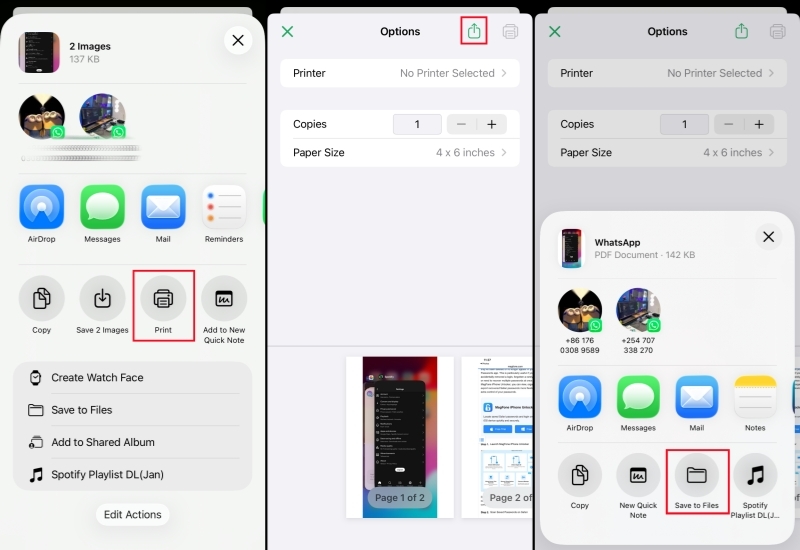
Step 4. Tap the Share icon and choose Print.
Step 5. Tap the Share icon and choose Save to Files. And the WhatsApp images are converted to a PDF automatically. You can open Files to check the PDF file.
Save WhatsApp Images to Files and Create a PDF
Another convenient option is to save the WhatsApp images to the Files app first and then use the built-in Create PDF feature on iPhone.
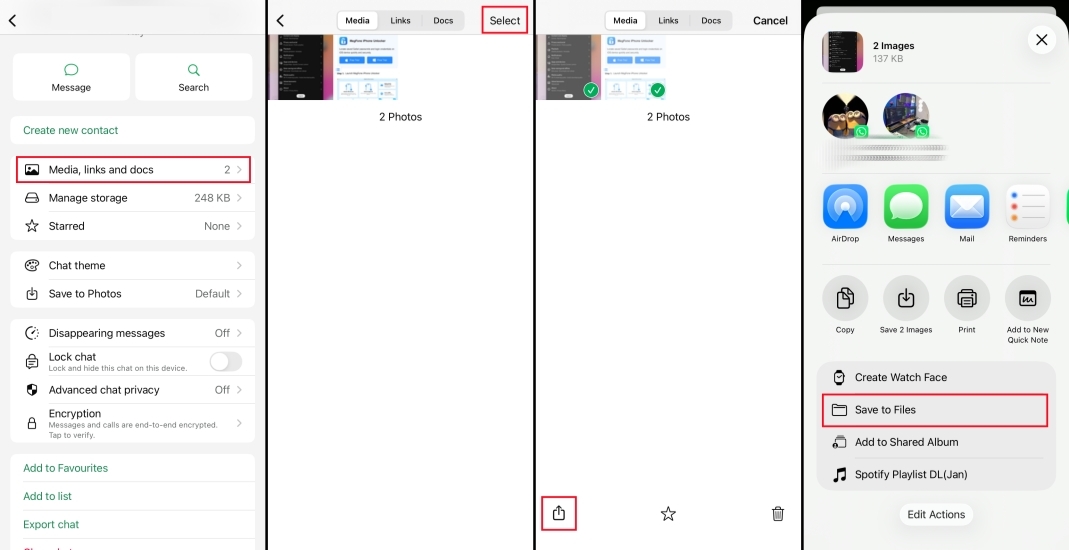
Step 1. Open a WhatsApp chat and tap the profile icon.
Step 2. Tap Media, links, and docs.
Step 3. Tap Select to select the wanted images and tap the Share icon.
Step 4. Tap Save to Files > Save to save the WhatsApp images to Files.
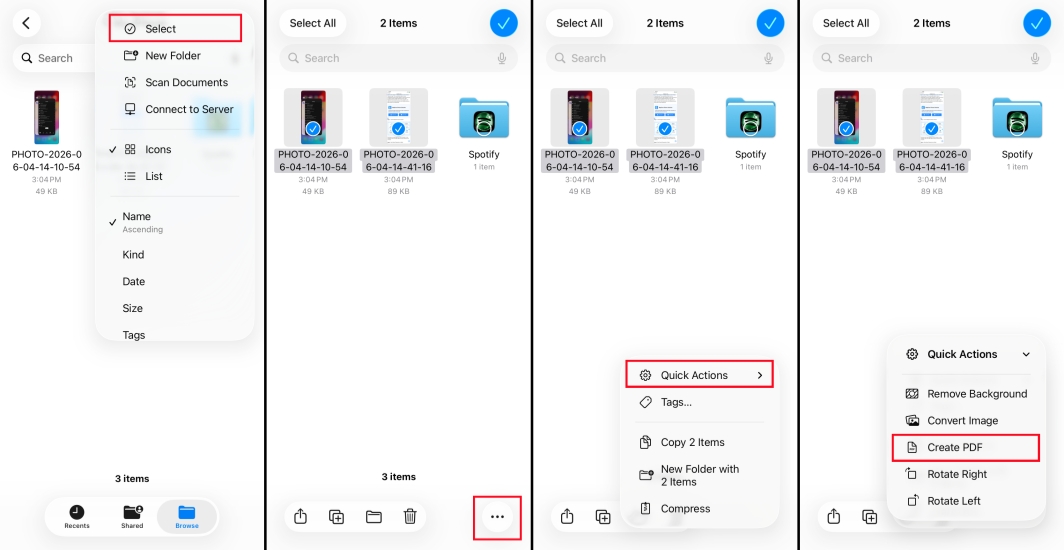
Step 5. Open Files and find the WhatsApp images you have just saved.
Step 6. Tap the triple-dot icon, tap Select to select the WhatsApp images.
Step 7. Tap the triple-dot icon, then tap Quick Actions > Create PDF.
Part 3. How to Convert WhatsApp Images to PDF on Android
On Android, the process is a little different because WhatsApp does not offer a direct option to convert images to PDF within the app. However, you can still do it easily by using the Print feature available in your phone's Gallery app or use an online converter.
Convert WhatsApp Images to PDF in Gallery
If WhatsApp images are downloaded automatically, you can usually find them in the WhatsApp Images album and convert them from there.
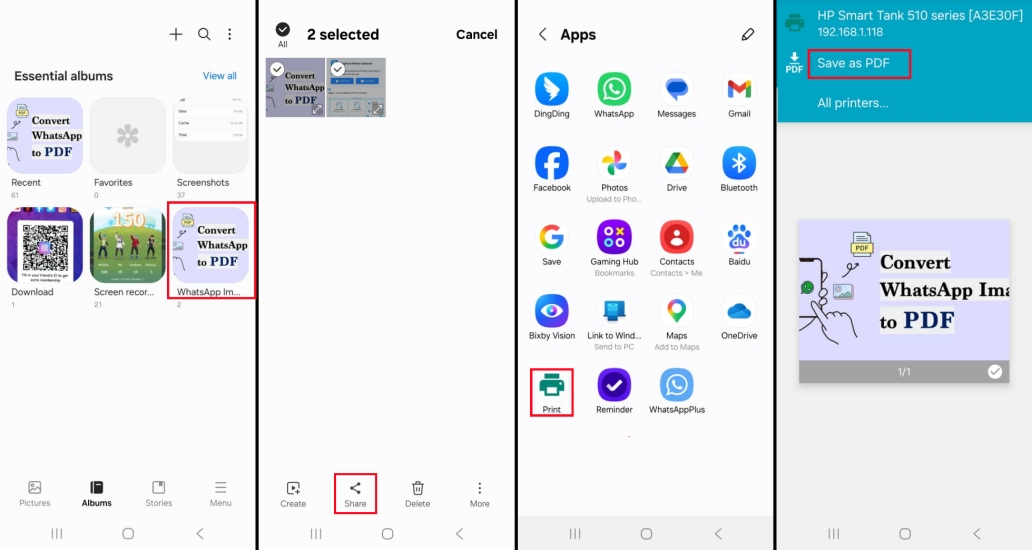
Step 1. Open Gallery and tap Albums at the bottom.
Step 2. Enter the WhatsApp Images album, long-press the photo you want to convert to PDF.
Step 3. Tap Share and find Print in more options.
Step 4. Tap the drop-down icon and tap Save as PDF, then tap the save icon to save the PDF to your phone.
Convert WhatsApp Images to PDF via Online Converter
In Gallery, you can only convert one WhatsApp image to PDF at a time. If you need to convert multiple WhatsApp images, you can use an online tool such as PDFgear. It allows you to either save each image as a separate PDF or combine several images into one PDF file.
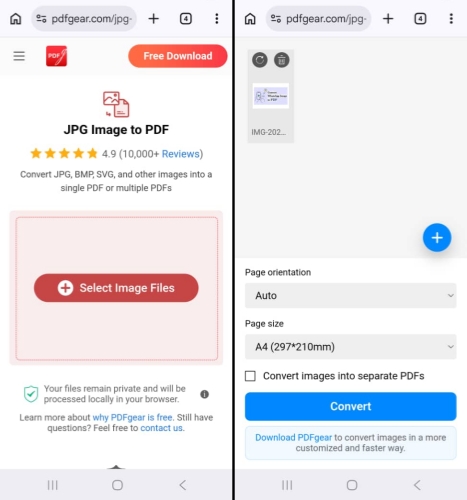
Step 1. Navigate to the PDFgear online conversion website.
Step 2. Tap Select Image Files to select WhatsApp images from your phone's Gallery.
Step 3. Tap Convert and save the converted PDF file to your phone.
📝Tip: How to Send Photo as PDF in WhatsApp?
If you need to send photos as PDF in WhatsApp, you can first follow the methods we introduced in this part to convert images to PDF, then send the PDF as a document in WhatsApp.
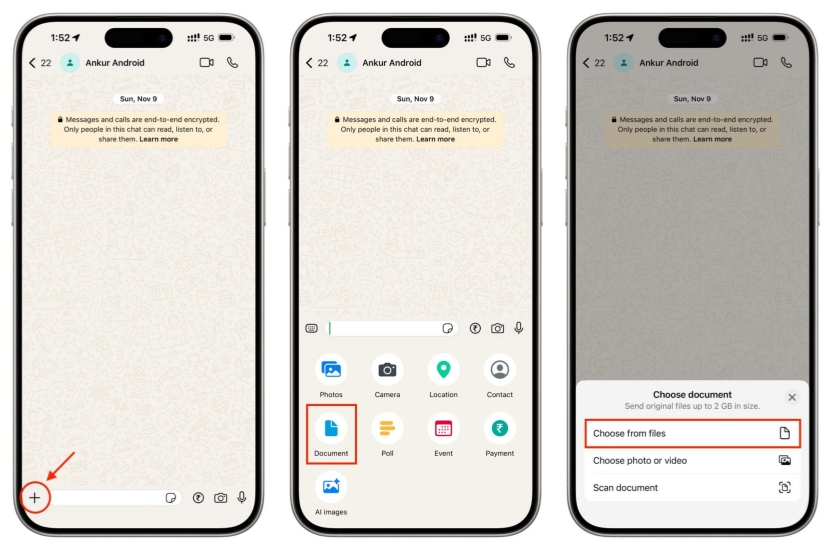
Step 1. Open a WhatsApp chat and tap the + icon.
Step 2. Tap Document and choose the PDF file from your iPhone.
Step 3. Tap the send icon to send photo as PDF in WhatsApp.
Part 4. How to Convert WhatsApp Images and Messages to PDF
WhatsApp's built-in export feature can only save chat messages as a TXT file while exporting images separately, so it does not let you export both messages and images into a single PDF. If you need to save WhatsApp messages and images together in PDF format, a third-party tool such as MagFone WhatsApp Transfer can help. In addition to managing WhatsApp data through transfer, backup, and restore functions, it also allows you to export WhatsApp messages and images as PDF files. If this is the option you want to use, follow the steps below.

MagFone Chats Transfer
Efficiently back up and export your WhatsApp content without loss or hassle — everything moves with you, just as it was.
Step 1 Connect iPhone to Computer

First, download and install MagFone WhatsApp Transfer on your computer. Then use a data cable to connect your iPhone to the computer and run this tool.
Step 2 Back Up WhatsApp Images and Messages
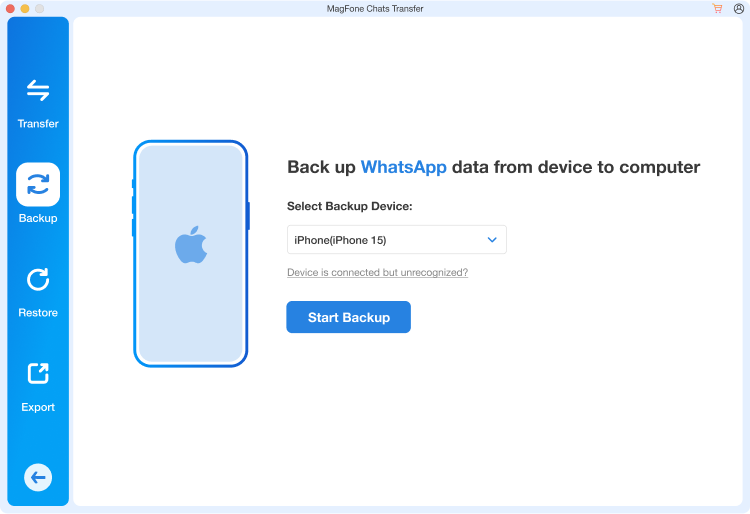
Choose WhatsApp and click Backup on the next page. Once the iPhone is connected, click Start Backup to back up your WhatsApp to the computer.
Step 3 Export WhatsApp Images and Messages to Computer
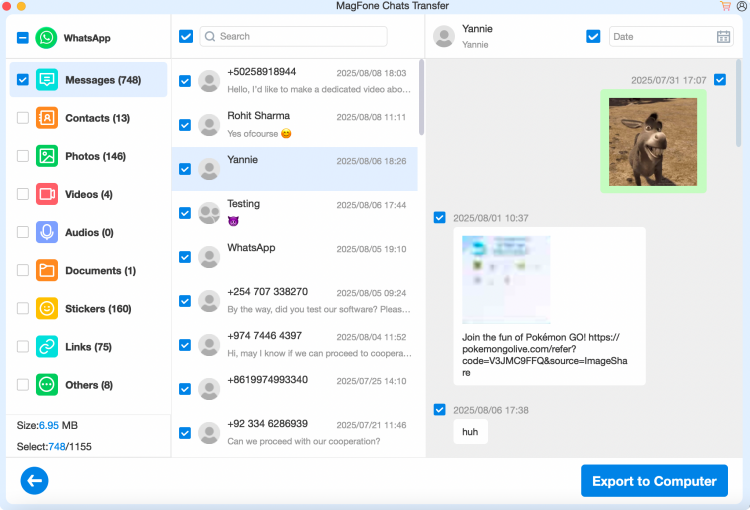
When the backup is done, click Export to see the backup details. Select Messages and click Export to computer.
Step 4 Convert WhatsApp Images and Messages to PDF
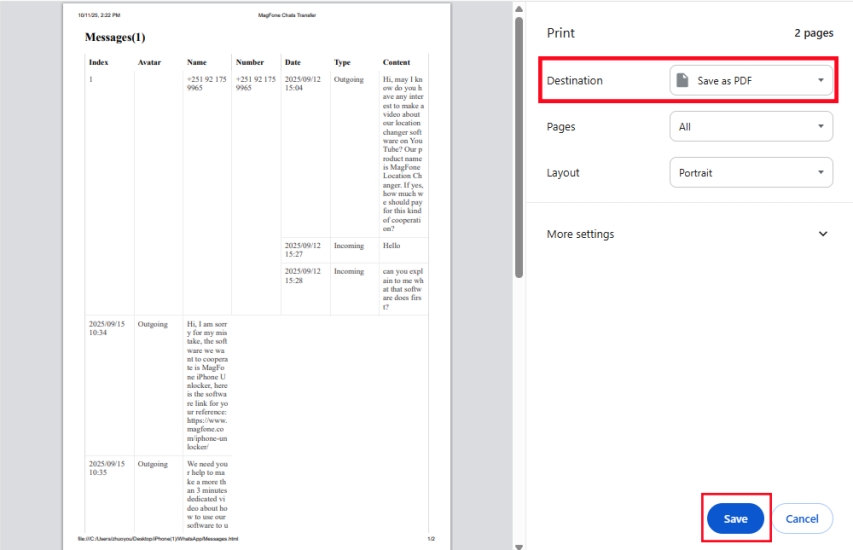
Open the exported file. Then press Command + P or Ctrl + P to trigger the print page. Choose Save as PDF in the drop-down list. Then you will gain a PDF file including the WhatsApp images and messages.
Part 5. Conclusion
Converting WhatsApp images to PDF is simple once you know which method works best for your device. With the built-in Print or Create PDF features on your phone, you can easily turn a single image or multiple images into a PDF. If you also need to save WhatsApp messages together with images in PDF format, a tool like MagFone WhatsApp Transfer can be a practical option.

Edgar Davis
Editor in chief




