








Some people already have my location but I'm trying to share it with new people and it always says 'Share location unavailable. Please try again later.' It is not my connection because I've tried this in various locations and even with wifi. I have no restrictions on my phone and my location services are turned on. The people who already have my location can see it just fine as well. What do I do to fix this?"
—— From the Apple Community
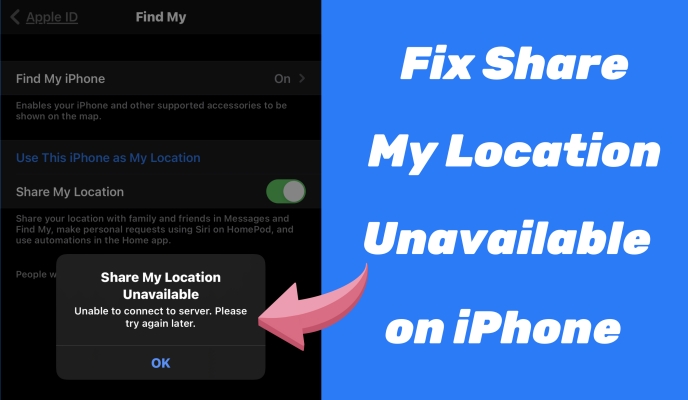
Sharing location is a very common and important feature in our daily lives. You can share your location with your family or friends, but sometimes when you need to share it with a new friend, or when you arrive at a new place, your iPhone keeps showing 'Share Location Unavailable. Please try again later.' Despite repeated attempts, the sharing was still unsuccessful. Not to worry, now let's learn more about reasons for Share Location Unavailable on iPhone and how to fix iPhone Share Location Unavailable.
- Part 1. What Does Share Location Unavailable Mean on iPhone?
- Part 2. Why Does My iPhone Say Share Location Unavailable?
- Part 3. How to Set up Share My Location for Find My on iPhone
- Part 4. How to Fix Share Location Unavailable on iPhone
- Part 5. How to Share Location on iPhone When It Says Unavailable
- Part 6. FAQs about iPhone Share Location
- Part 7. Conclusion
Part 1. What Does Share Location Unavailable Mean on iPhone?
When your iPhone shows "Share My Location Unavailable," it means your device cannot send updated location data to another person. This doesn't always mean your GPS is broken; instead, it often indicates that a setting, connection, or permission is preventing the system from updating your location. In simple terms, your iPhone knows where you are, but it cannot communicate that information to others.
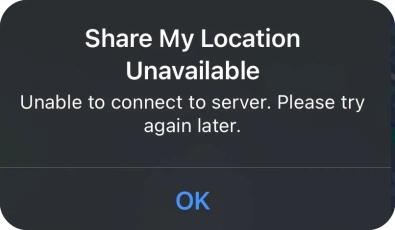
However, many users cannot distinguish those location sharing issues, as they often encounter similar alerts like Location Not Available and No Location Found. Here we will show the differences among these location alerts, helping diagnose the problem more accurately. Figure out Location Not Available vs No Location Found vs Share Location Unavailable.
| Alerts | Location Not Available | No Location Found | Share Location Unavailable |
|---|---|---|---|
| Meaning | The device is with a temporary issue. | The device cannot be reached at all. | The device cannot send live location updates. |
| Reasons | Weak GPS signal; Poor internet connection; Device being offline. |
Device powered off; Device being offline; iCloud logout status. |
Disabled sharing settings; Connectivity issues; Account configuration problems. |
| Fixes | Solutions | Solutions | Solutions |
Part 2. Why Does My iPhone Say Share Location Unavailable?
Before jumping into fixes, it's important to understand the root cause of iPhone Share Location Unavailable. Numerous factors can affect the success of sharing a location. Below are the most common reasons behind the "iPhone Share Location Unavailable" issue.
Location Services Disabled. If Location Services are disabled, your device cannot access GPS data, making location sharing impossible.
Share My Location Disabled. Even with Location Services on, the Share My Location feature must be enabled in Find My settings for location sharing to work.
Weak Internet or GPS Signal. Location sharing requires both GPS and internet connectivity. Poor Wi-Fi, weak cellular signal, or being indoors can cause the error.
Apple ID or iCloud Sync Problems. Location sharing depends on iCloud authentication. If you're signed out or using multiple Apple IDs, sharing may fail.
Screen Time or Privacy restrictions. Parental controls or privacy restrictions can block location sharing permissions without obvious alerts.
Airplane Mode Enabled. Airplane Mode disables all network connections, preventing location updates from being transmitted.
Outdated iOS or System Glitches. Software glitches or outdated iOS versions may cause persistent location sharing errors.
Part 3. How to Set up Share My Location for Find My on iPhone
Turning on the feature of Share My Location is the initial step. So, you need to ensure that your iPhone allows you to share the location. Here we will show you how to set up Share My Location for sharing your location with friends, family members or other trusted contacts in Find My, Messages, and Maps. If you have already turned on Share My Location on your iPhone, you can refer to the solutions in Part 4. Now let's take a look at how to enable Share My Location.
Step 1 Turn on Location Services
To achieve location sharing, first you need to turn on Location Services in the Settings. If you don't make sure whether you have turned it on before, you can also follow the steps to check.
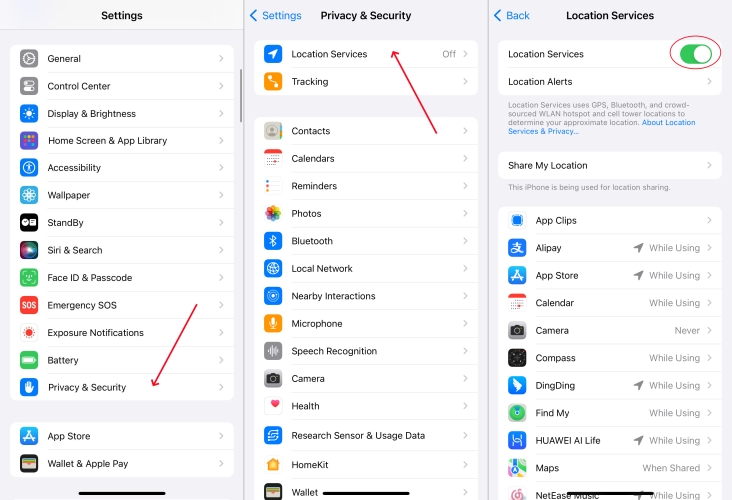
1) Navigate to Settings > Privacy & Security.
2) Tap Location Services, then turn on Location Services.
Step 2 Turn on Share My Location
After enabling Location Services, you can check if you have turned on Share My Location. There are two options to enable Share My Location, respectively in the Settings or the Find My app.
In the Settings App
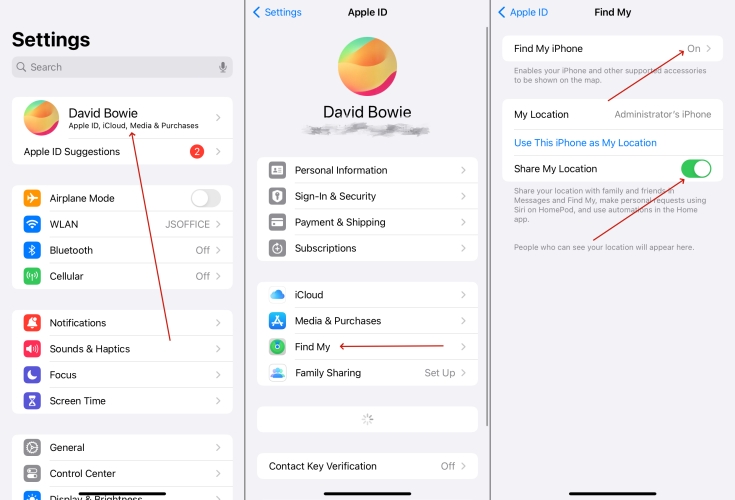
1) In the Settings, tap your Apple ID name.
2) Tap Find My, then turn on Share My Location.
In the Find My App
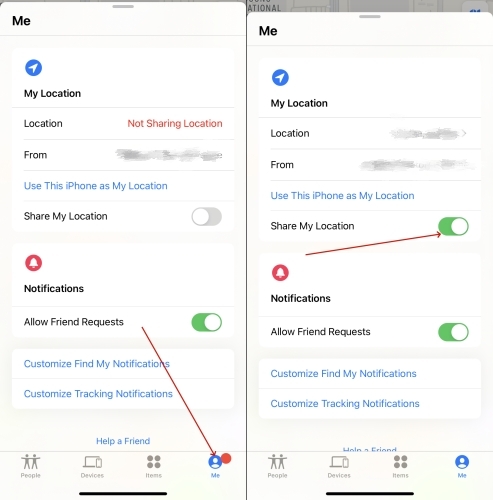
1) Get into the Find My app and tap Me at the bottom.
2) Turn on Share My Location.
Step 3 Set Precise Location for Find My
When you share your location with others in Find My, Messages, or Maps, you'd better check if you consent to the app to obtain the device location, and then turn on Precise Location.
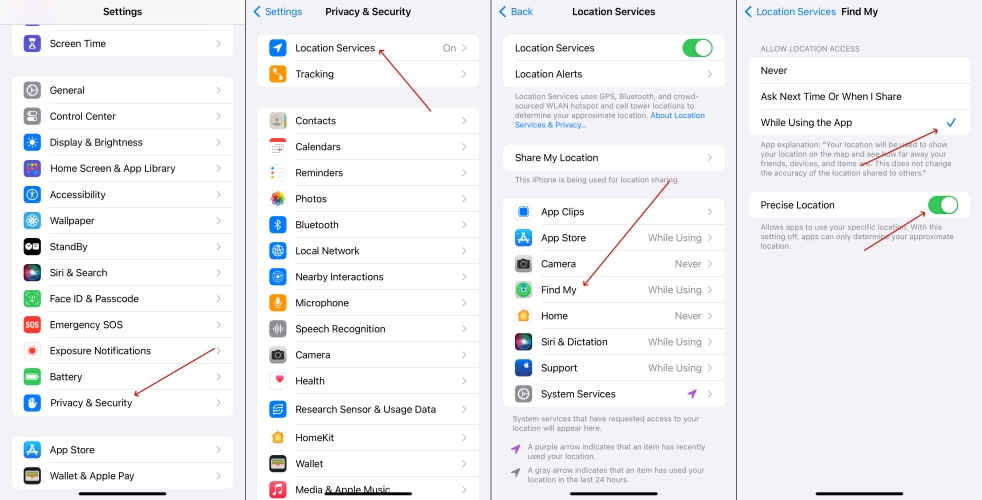
1) Launch Settings and tap Privacy & Security.
2) Tap Location Services and select Find My.
3) Turn on Precise Location and select While Using the App.
Step 4 Allow Location Sharing with Family
If you share a location with family members, you can see if Location Sharing with Family is enabled in Family Sharing. After turning it on, you can share with your family automatically.
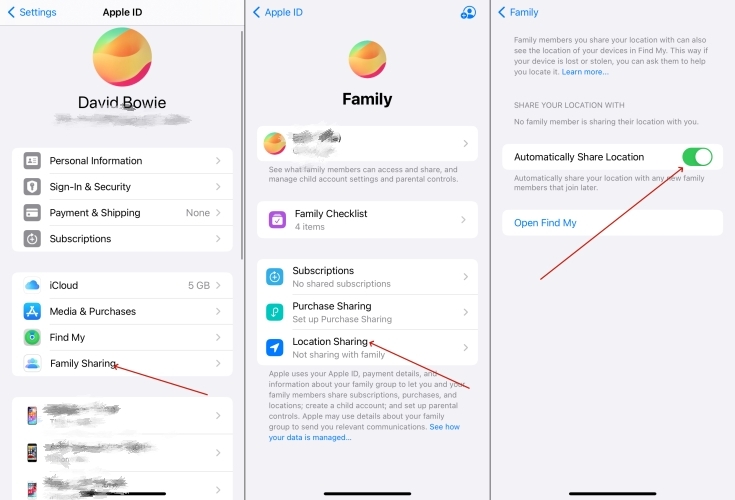
1) Go to Settings > Family Sharing > Location Sharing.
2) Turn on Automatically Share Location.
Part 4. How to Fix Share Location Unavailable on iPhone
After turning on Share My Location on your iPhone, you should be able to share your location with your friends and family members. But if there still exists the problem of Share My Location Unavailable, you can try the following solutions to resolve it.
Solution 1. Resume iCloud Data Sync
Apple has increased security for end-to-end encrypted data. If you see a red badge in Settings saying "Follow Ups" or "Finish Setting Up iPhone," your location sharing may be paused until you re-authenticate your Apple ID. Go to resume data sync for iCloud.
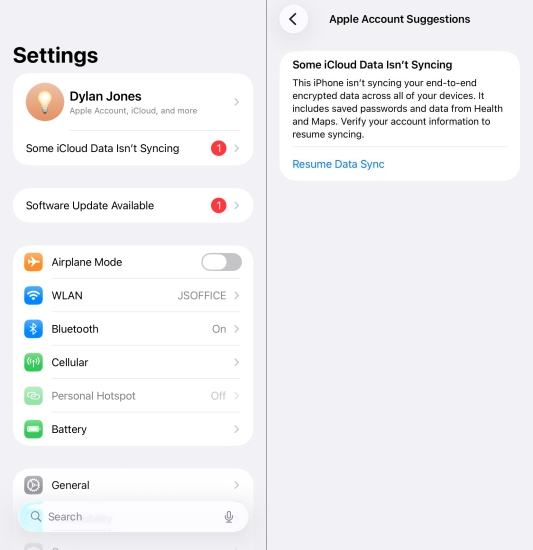
Step 1. Open Settings and tap Some iCloud Data Isn't Sync.
Step 2. Tap Resume Data Sync.
Solution 2. Set up Passcode or Face ID
For privacy reasons, modern iOS versions often disable "Share My Location" if the device does not have a secure lock like passcode, Face ID, or Touch ID enabled. In this case, you can set up a screen lock to fix the iPhone Share Location Unavailable issue.
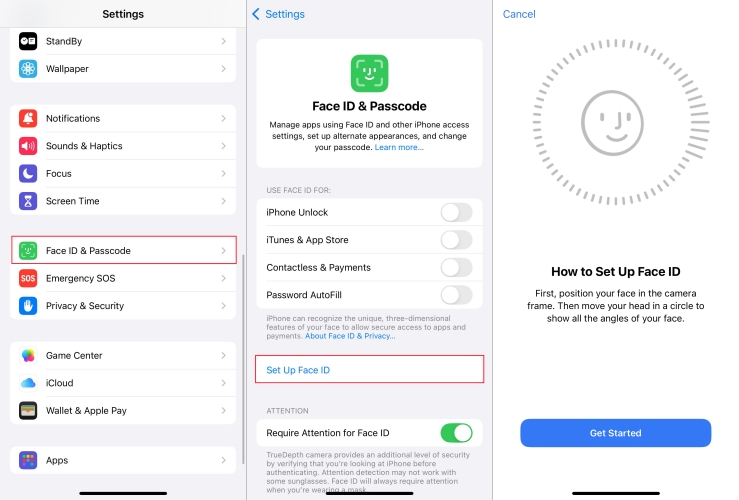
Step 1. Go to Settings > Face ID & Passcode.
Step 2. Tap Set Up Face ID and complete the setup.
Solution 3. Disable Screen Time & Privacy Restrictions
If you have Screen Time enabled on your iPhone or if your iPhone is part of a Family Sharing plan, location changes might be locked. Make sure that Location Services is allowed in Content & Privacy Restrictions under Screen Time.
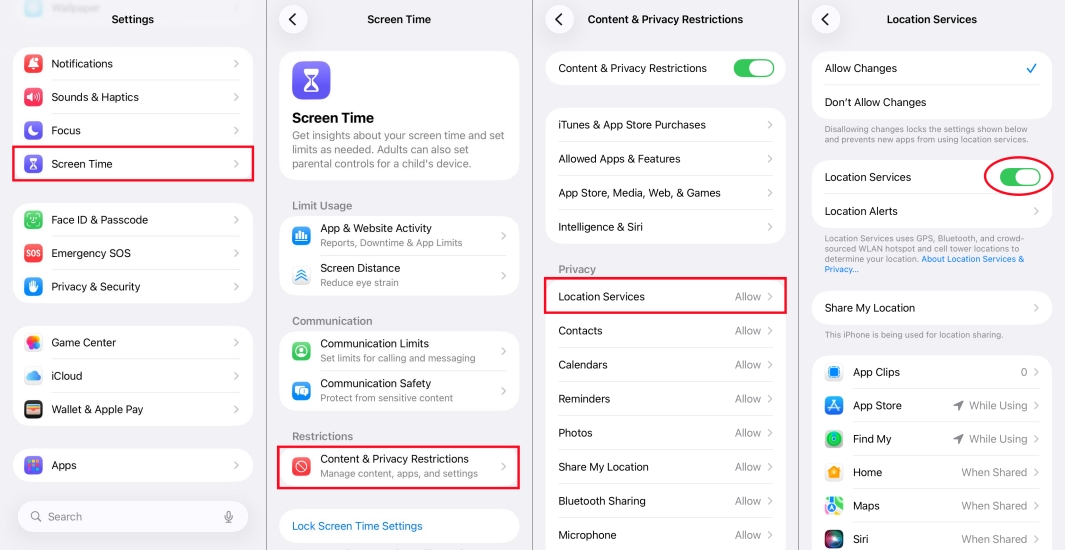
Step 1. Tap Screen Time > Content & Privacy Restrictions in the Settings.
Step 2. Tap Location Services, then turn on Location Services.
Solution 4. Reset Location & Privacy Settings
Sometimes, there may be some setup defects that cause tracking delays. It gets in the way of location sharing. Resetting location and privacy is a method to solve this issue. This doesn't delete your data; it simply resets all app permissions to factory defaults.
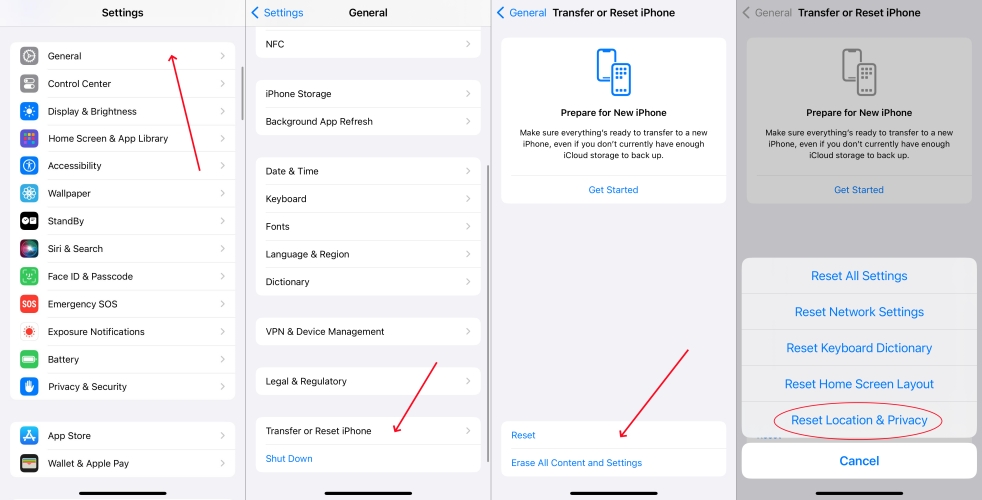
Step 1. Go to Settings > General > Transfer or Reset iPhone.
Step 2. Tap Reset and choose Reset Location & Privacy.
Step 3. Tap Reset and enter the screen passcode to confirm.
Solution 5. Sign Out and Back Into iCloud
A "Share Location Unavailable" error is often a "handshake" issue with your Apple ID. To resolve this issue, you'd better sign out of your Apple ID on your iPhone and then sign back into. This resets the communication layers between your iPhone and Apple's servers.
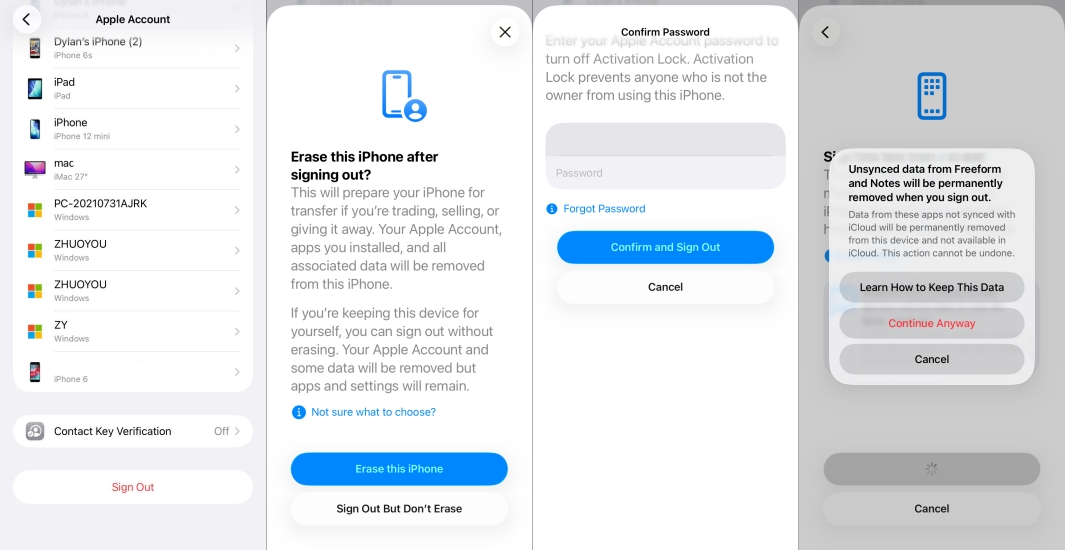
Step 1. Go to Settings and tap your Apple ID name.
Step 2. Tap Sign Out at the bottom, then Sign Out But Don't Erase.
Step 3. Tap Continue > Continue Anyway > Continue.
Step 4. Enter your Apple ID password and tap Confirm and Sign Out.
Step 5. Restart your phone and sign back in.
Solution 6. Set This iPhone as Primary
If you own an iPad or a second iPhone, your Apple ID might be trying to share the location of a device that is sitting at home on your desk. The best way to resolve the issue is to set your primary iPhone as the location provider.
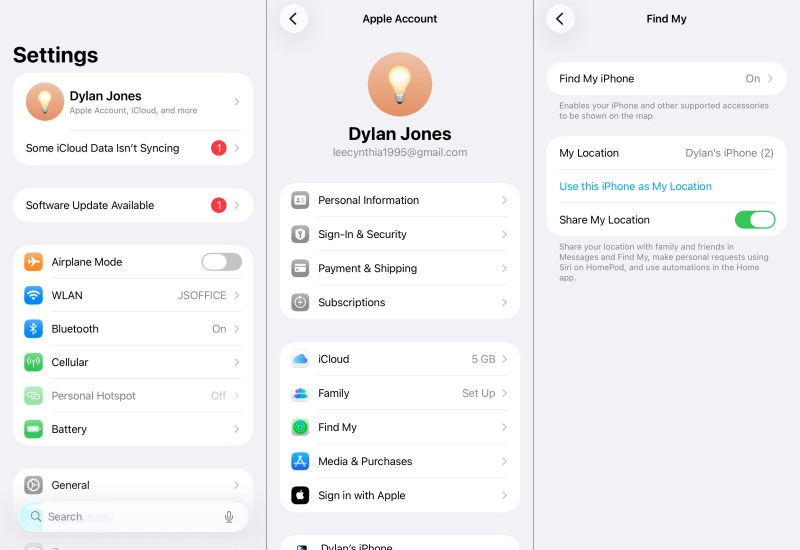
Step 1. Go to Settings > your Apple ID name > Find My.
Step 2. Tap Use This iPhone as My Location.
Solution 7. Check the Internet Connection
Whether the network is running smoothly influences the sharing process. For that, you can check if your iPhone has access to a good network. WiFi and cellular data are selectable, but it is more recommended to prioritize using cellular data when sharing locations, as it will be more stable.
Check WLAN
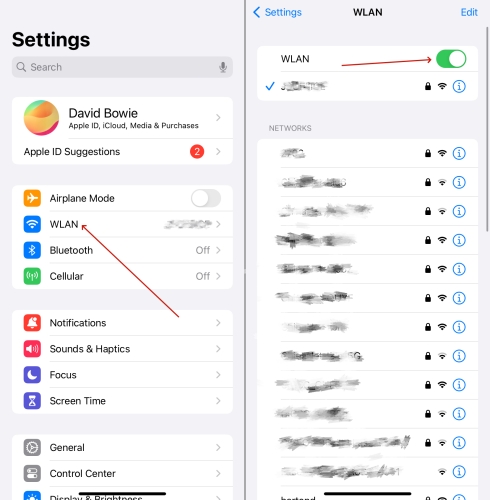
Step 1. Get into Settings > WLAN.
Step 2. Check if your device has connected to a good one.
Enable Cellular
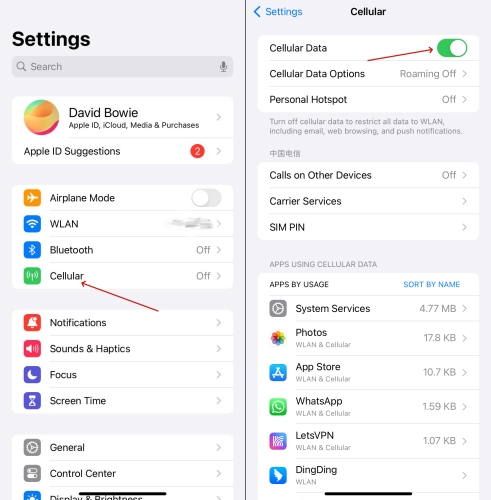
Step 1. Launch Settings and tap Cellular.
Step 2. Turn on Cellular Data.
Solution 8. Adjust Date & Time
Improper date and time settings can occasionally impact location sharing. To avoid your accidentally changing the settings, follow these steps to check. Also, you can turn on Set Automatically to ensure the accuracy.
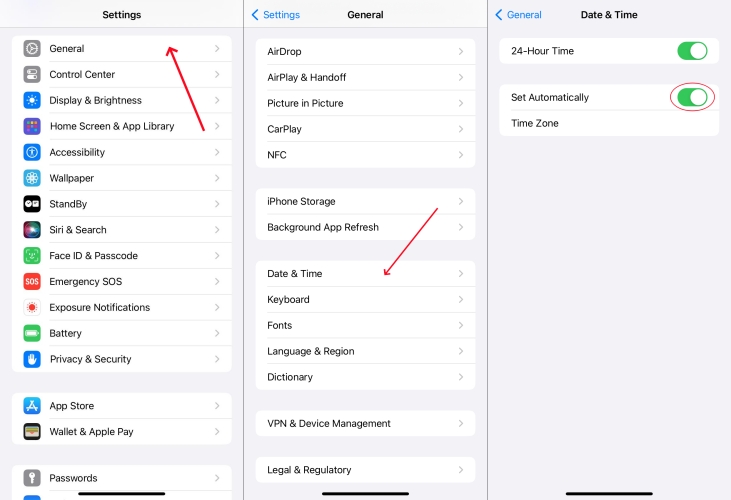
Step 1. Access Settings > General > Date & Time.
Step 2. Turn on Set Automatically.
Solution 9. Restart Your iPhone
A simple restart can resolve temporary system glitches affecting location sharing. If your iPhone says Share My Location Unavailable, you can perform a soft restart or force restart to resolve this issue. The following are the steps to force restart your iPhone.
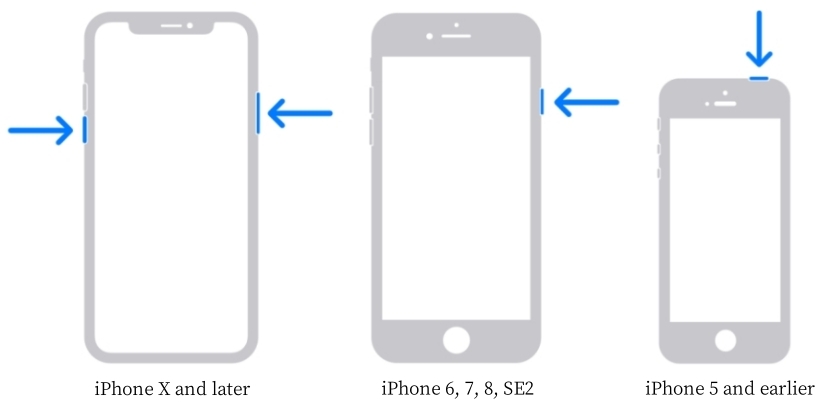
Step 1. Press and quickly release the volume up button.
Step 2. Do the same action with the volume down button.
Step 3. Press and hold the power button until the Apple logo appears.
Solution 10. Reset Network Settings
Generally, the network has great impact on the location sharing. Network misconfigurations can interfere with real-time location updates. Resetting network settings on the iPhone could be a feasible solution. This won't erase any data, but saved WiFi password will be removed.
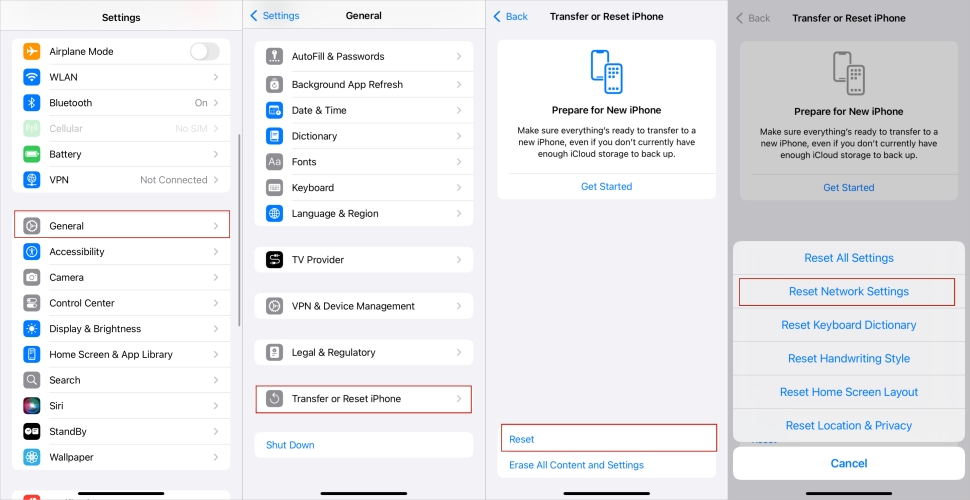
Step 1. Fire up Settings > General > Transfer or Reset iPhone.
Step 2. Select Reset at the bottom, then tap Reset Network Settings.
Step 3. Enter the screen lock passcode and tap Reset to start resetting.
Solution 11. Update the iOS Version
Software glitches may prevent location sharing from updating properly, especially when the iPhone is running a lower iOS version. Updating the iPhone to the latest iOS version can make the location sharing function faster and more convenient.

Step 1. Open Settings > General > Software Update.
Step 2. Tap Update Now to download the firmware.
Step 3. Tap Install Now and enter the screen passcode to confirm.
Solution 12. Use an iOS System Repairing Tool
Sometimes, the "Share My Location Unavailable" message persists even when every setting is correct. This typically indicates a corrupted iOS firmware component or a bug in the location services daemon. If some standard fixes don't work, a specialized repair may be necessary. Using a tool like MagFone iOS System Recovery can help target these deep system-level errors. Its "Standard Repair" mode is designed to fix internal service glitches like a frozen Find My process without wiping your personal data. This is particularly useful if the issue started immediately after an iOS update. Start to fix the issue with MagFone iOS System Recovery.

MagFone iOS System Recovery
Fix various iOS and iPadOS system issues, such as black screen, boot loop, frozen screen, or stuck on Apple logo, without data loss.
Step 1 Launch MagFone iOS System Recovery

Download MagFone iOS System Recovery and connect your iPhone to the computer by a USB cable. Click iOS System Repair on the main interface and click Start on the next interface.
Step 2 Select Standard Repair [No Data Loss]
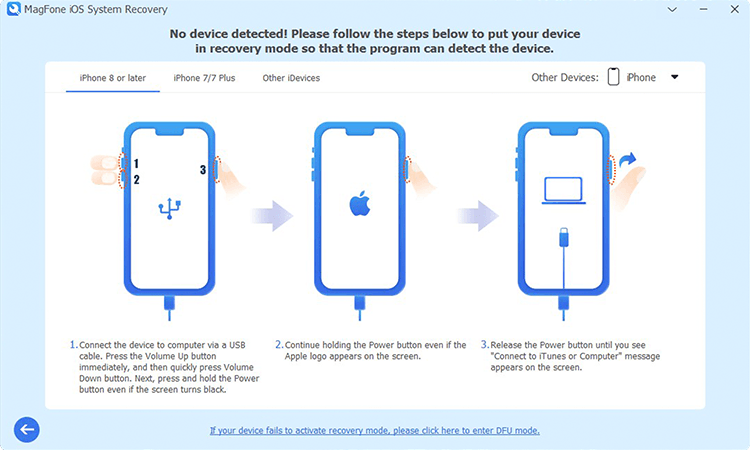
Next you should put your iPhone into recovery mode manually. Please follow the steps shown on the screen of the software. If it failed, you can click the link below to put your device into DFU mode.
Step 3 Download Firmware Package

In this part, you're required to check the device information of your iPhone. After choosing the firmware version, you can click the Download to download the latest iOS firmware package.
Step 4 Fix Share My Location Unavailable on iPhone

Click the Repair button to unzip and verify the firmware package. Then MagFone iOS System Recovery will start fix the iPhone share location unavailable. After the whole process is completed, click the Finish button.
Part 5. How to Share Location on iPhone When It Says Unavailable
If you are in a hurry and the native "Find My" service is still acting up, using Google Maps is an excellent alternative, as it uses a different sharing protocol. Here is how to set up and use Google Maps to share your location on an iPhone when it says unavailable.
Step 1 Enable Always Location Access
For Google Maps to share your location in the background, even when the app isn't open, you must adjust the privacy settings on your iPhone.
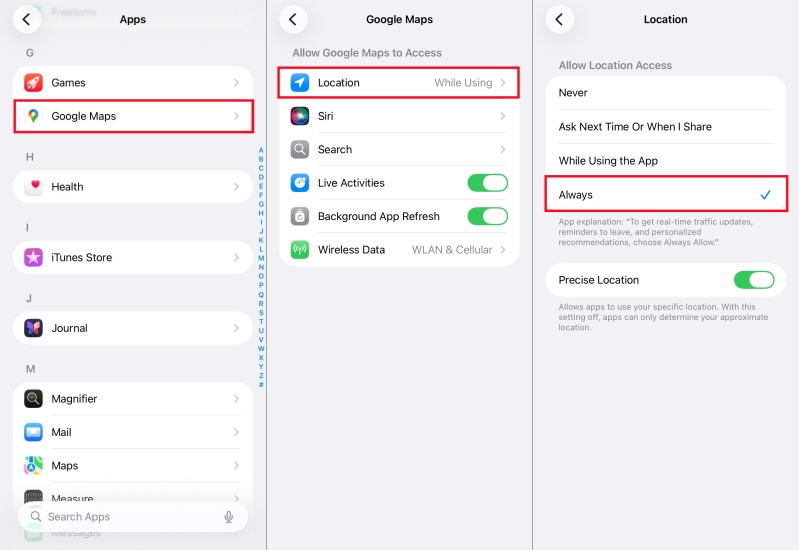
1) Open Settings and tap Apps > Google Maps.
2) Tap Location and select Always.
3) Toggle on Precise Location.
Step 2 Start Sharing in Google Maps
After completing the location service setup, you can use the Google Maps to share your location on an iPhone with others. And the process to share a location is easy.
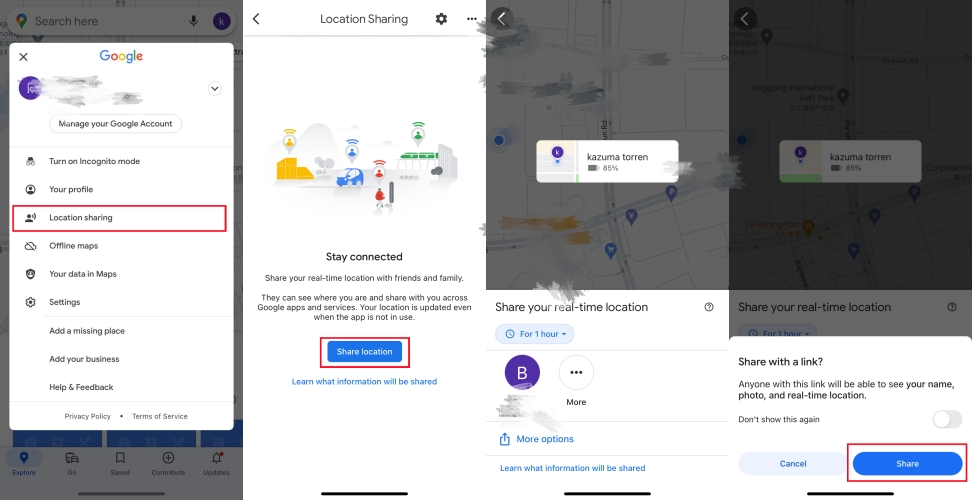
1) Open the Google Maps app and tap your profile icon in the top right corner.
2) Tap Location sharing, then move to the Share location button.
3) Select a time limit like For 1 hour or select Until you turn this off.
4) Choose a contact from your list or tap More options to send a private link via iMessage.
Part 6. FAQs about iPhone Share Location
How to share my location on iPhone?
To share your location on your iPhone, the best way is to use the Find My app, especially when the received people is also using an iPhone. Here's how to share location on iPhone with family and friends using the Find My app.
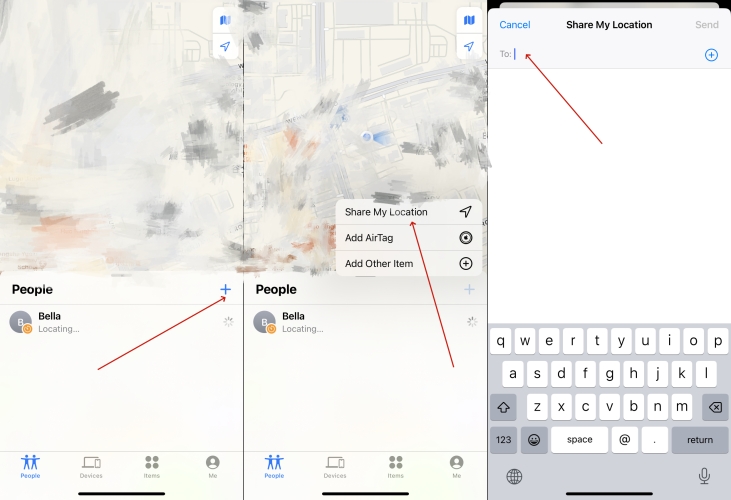
Step 1. Launch the Find My app and tap the People tab.
Step 2. Tap the + button, then select Share My Location.
Step 3. Select a person to share by entering the name or the phone number.
Step 4. Tap Sendand choose how long you want to share your location.
How to share location from iPhone to Android?
The Find My app is available for the iPhone, but not Android phones. Therefore, you need to use a third-party software like Google Maps. Google Maps is a great tool for iPhone and Android users to share location with each other. The steps are as follows.
Step 1. On your iPhone, open the Google Maps app, then tap the profile picture to sign in.
Step 2. After signing in, tap Location sharing > New share.
Step 3. Choose how long you want to share your location.
Step 4. Select the person to share your location, then tap Share.
How to share location from Mac instead of iPhone?
Instead of using an iPhone, you can share your location from your Mac with the Find My app. The steps to share your location in Find My on your iPhone are as follows.
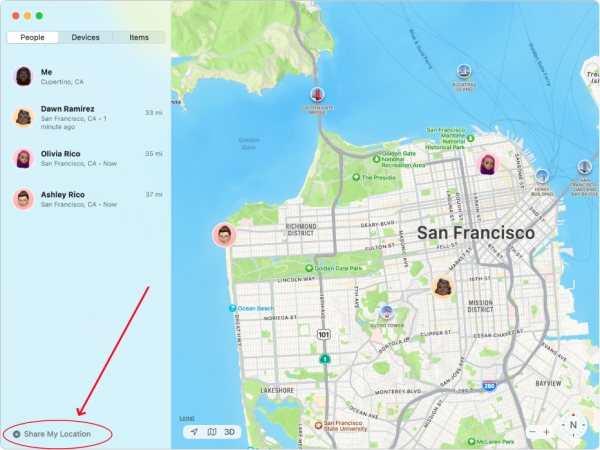
Step 1. Open the Find My app on your Mac, then click People.
Step 2. Click Share My Location at the bottom of the People list.
Step 3. Select a contact from the people list to share your location.
Step 4. Click Send, then choose how long you want to share your location.
Part 7. Conclusion
It's not that difficult, right? After reading the whole guide, you can fix iPhone Share Location Unavailable by yourself easily. If you want to quickly solve this issue and don't want to lose data, MagFone iOS System Recovery is the first choice for you. And when the issue is fixed successfully, you can make use of the Find My app to share your location with someone else.

Dylan Jones
Editor in chief





