








Finding your iPhone stuck on charging screen will make you frustrated, especially when you need it for urgent use. It usually means that the device is getting power but iOS isn't loading properly. The issue often happens when the battery is completely drained, iOS encounters a glitch, or something interrupts the normal startup process. The good news is that, in many cases, you can fix it yourself without losing data. This guide explains what the charging screen means, why the problem happens, and how to fix an iPhone stuck on charging screen step by step, starting with the safest solutions.
- Part 1. What Does "iPhone Stuck on Charging Screen" Mean?
- Part 2. Why Is My iPhone Stuck on Charging Screen?
- Part 3. How to Fix iPhone Stuck on Charging Screen (Basic Fixes)
- Part 4. Advanced Fixes to iPhone Stuck on Battery Charging Screen
- Part 5. Conclusion
Part 1. What Does "iPhone Stuck on Charging Screen" Mean?
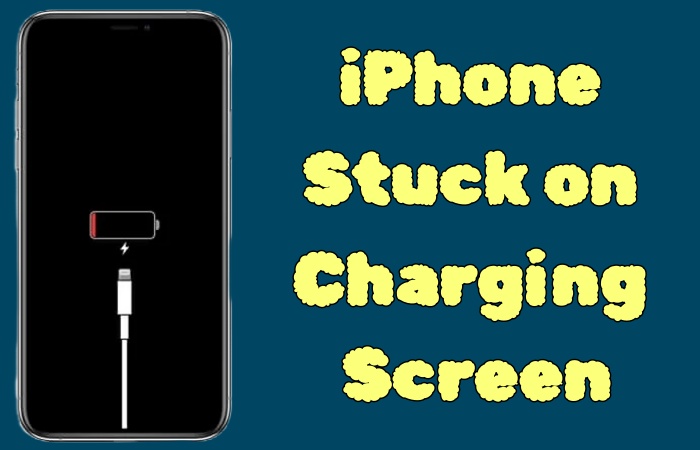
When an iPhone shows a battery icon or a lightning symbol and doesn't move past it, it means the device is receiving power but iOS is not fully booting. That is to say, your iPhone is stuck on the charging screen. So, while your iPhone is charging, how do you know whether it is stuck on the battery charging screen? This can look like:

Symptom 1: iPhone Stuck on Red Battery Screen
Your iPhone shows a red battery icon with a lightning bolt if charging, or just the red icon if completely dead.
Symptom 2: iPhone Stuck on Charging Screen Overnight
If your iPhone is charged overnight but there is no response, your iPhone will display a red battery icon, a "Charging On Hold" message, or a frozen Apple logo progress bar.
Symptom 3: iPhone Stuck on Charging Screen After iOS Update
When your iPhone is stuck on the charging screen after an iOS update, it usually shows a battery icon that won't progress.
Symptom 4: iPhone Stuck on Charging Screen and Won't Respond
When your iPhone is stuck on the charging screen and unresponsive, symptoms usually include seeing only the battery icon with a lightning bolt or a red battery, and the inability to power on or respond to touches.
Symptom 5: iPhone Only Shows Charging Screen Repeatedly
Your iPhone screen usually appears as a red battery icon or the Apple logo, or shows the plug symbol, but never gains power.
Part 2. Why Is My iPhone Stuck on Charging Screen?
An iPhone stuck on charging screen can look serious, but in most cases, it's caused by software glitches or power-related issues, not permanent damage. If your iPhone accord with the above symptoms, you can find the reasons for your iPhone stuck on charging screen. Now, the causes below are prepared for your reference.
Reason 1. Battery Completely Drained
When your iPhone's battery completely drains, it's often a software problem or power management issue. The battery is too low to start your iPhone normally, showing the red icon instead.
Reason 2. iOS System Glitch or Crash
An iOS glitch or crash can leave your iPhone stuck on the charging screen because there is a temporary iOS system error freezing the boot process.
Reason 3. Interrupted or Failed iOS Update
When the installation process is interrupted or failed, it will leave system files damaged and unable to boot correctly.
Reason 4. Faulty Charging Accessories
The faulty charging accessories will provide inconsistent, insufficient, or unfiltered power, confusing the iPhone's charging system and causing your iPhone stuck on charging screen.
Reason 5. Dirty or Blocked Charging Port
A dirty or blocked charging port will block the lightning connector from making a full connection with the internal pins and disrupt the charging process.
Reason 6. Battery Health or Hardware Problems
A battery with low battery health can’t hold enough charge properly. And hardware problems may cause your iPhone can't charging totally.
Part 3. How to Fix iPhone Stuck on Charging Screen (Basic Fixes)
After having a basic understanding of the reasons for iPhone stuck on charging screen, it's time to fix the issue. Begin with basic fixes of iPhone stuck on charging screen, which is more acceptable for most users. So if your iPhone stuck on charging screen, try the basic solutions first.
Solution 1. Let Your iPhone Charge Longer
If the battery of your iPhone completely drains, it needs to be charged for at least 30 to 60 minutes to "wake up". So, letting your iPhone charge longer is a primary and feasible method to fix the issue of your iPhone stuck on charging screen.
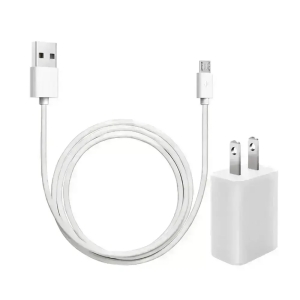
Solution 2. Check Your Charging Accessories
Check your charging accessories to rule out faulty hardware that prevents charging. If the charging accessories can't be used normally or are damaged, replace a new one for charging effectively.
Solution 3. Clean the Charging Port
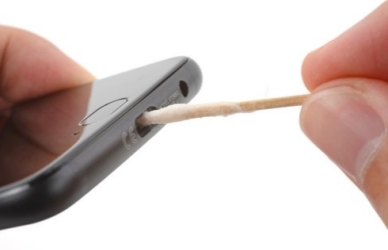
The dirty charging port will prevent the connection between charging cable and your iPhone. So cleaning the charging port with a toothpick can be helpful for your iPhone stuck on charging screen
Solution 4. Heat the Battery Before Charging
The battery usually performs better at warm temperatures. So if you are in a cold environment, heating your battery is important before charging. It can "wake up" the battery for normal work.
Solution 5. Force Restart Your iPhone
After checking the external issues, you can turn to the iPhone. While a force restart can solve most issues for iOS system bugs. So maybe force restarting your iPhone is also useful for your iPhone stuck on charging screen issue.
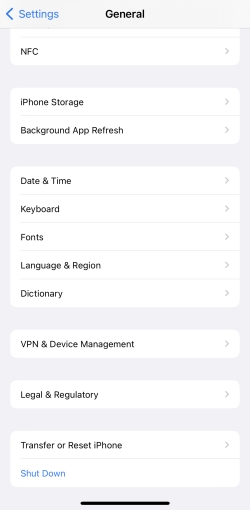
Step 1. Go to Settings > General.
Step 2. Scroll to the bottom to tap Shut Down.
Step 3. Slide the slider to power off your iPhone.
Step 4. After your iPhone power off correctly, turn it on with the Power button.
Part 4. Advanced Fixes to iPhone Stuck on Battery Charging Screen
Basic solutions troubleshoot the common problems of iPhone stuck on charging screen. If you have checked the above methods and can't get out of the charging screen, try the advanced fixes for deeper repair.
Solution 1. Update Your iPhone in Recovery Mode
Putting your iPhone into Recovery Mode via iTunes or Finder can reinstall the iOS software, overwriting the corrupted system files and allowing the iPhone to boot normally.
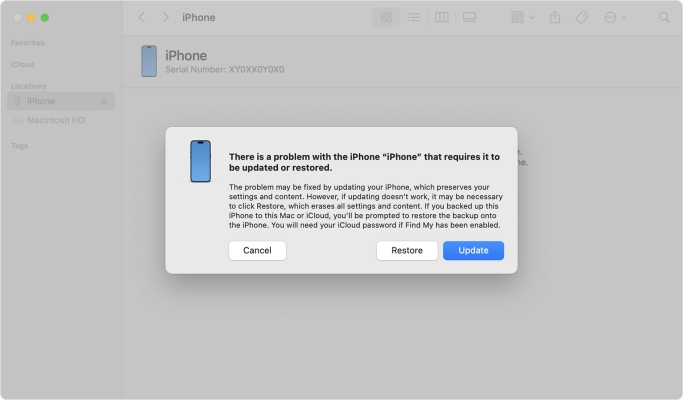
Step 1. Turn off your iPhone first, then connect your iPhone to a computer with a USB cable.
Step 2. Open iTunes on your computer.
Step 3. Press and quickly release the Volume Up button.
Step 4. Followed by quickly pressing and releasing the Volume Down button to put your iPhone into Recovery Mode.
Step 5. Click Update from the on-screen notification.
Step 6. Wait for iTunes to update your iPhone, and then you can use your iPhone freely.
Solution 2. Restore Your iPhone in DFU Mode (Data Loss)
DFU Mode is a deeper mode than Recovery Mode. It will completely rewrite your iPhone's operating system. But this method will cause data loss. Confirm it carefully before operating.
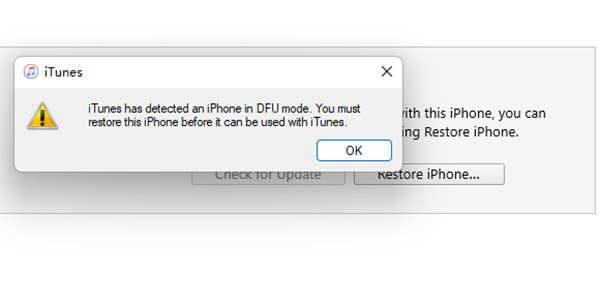
Step 1. Power off your iPhone, and plug a USB cable into a computer to connect your iPhone.
Step 2. Run iTunes on a PC or Finder on a Mac.
Step 3. Press and quickly release the Volume Up button, then press and quickly release the Volume Down button.
Step 4. Press and hold the Power button. When your iPhone screen turns black, release it.
Step 5. Simultaneously holding the Power button and the Volume Down button.
Step 6. Release the Power button, but keep holding the Volume Down button. Your iPhone will get into DFU Mode if the screen is still black.
Step 7. Click Restore in the pop-up window and wait for the software to restore your iPhone.
Solution 3. Use an iOS System Repair Tool
If the above methods can't turn your iPhone back to normal, the issue is caused by complicated iOS system glitches. In this situation, MagFone iOS System Recovery is considered the best software to fix common iOS system issues, including iPhone stuck on charging screen, iPhone stuck on Attempting data recovery, iPhone stuck in boot loop and so on. It can return you an iPhone to normal with no system glitches, while protecting your important data in your iPhone. So learn how to repair the issue of iPhone stuck on charging screen with MagFone iOS System Recovery now.

MagFone iOS System Recovery
Fix various iOS and iPadOS system issues, such as black screen, boot loop, frozen screen, or stuck on Apple logo, without data loss.
Step 1 Connect Your iPhone to PC

First, connect your iPhone to a computer through a USB cable. Enter the iOS System Repair part, and then click Start.
Step 2Select Standard Repair Mode
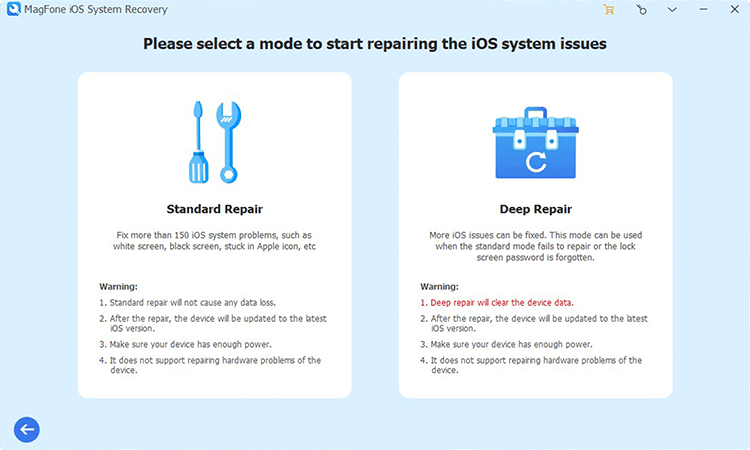
Click Standard Repair and make sure your iPhone is detected by the program. If not, put your iPhone into Recovery mode.
Step 3Download the Firmware Package

Your iPhone information will appear on your computer screen, check it, and choose the firmware version. Then click Download.
Step 4 Fix iPhone Stuck on Charging Screen
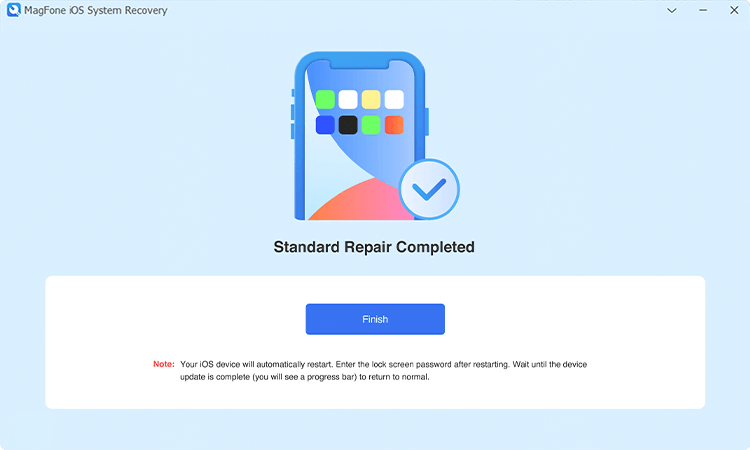
When the firmware has been downloaded successfully, click Start Standard Repair. MagFone iOS System Recovery will unzip the firmware and fix the issue of iPhone stuck on charging screen soon. When the whole process is finished, click Finish.
Solution 4. Contact Apple Support or a Repair Shop
In other possible conditions, the hardware problem exists in your iPhone. And in this case, things are more difficult than you can solve at home. You should contact Apple Support or find a repair store to fix hardware issues.
Part 5. Conclusion
Fixing the issue of your iPhone stuck on battery charging screen is not difficult if there are no hardware problems. You can make basic checks with basic methods, or choose advanced methods to repair iPhone stuck on charging screen related to iOS system glitches. If there are hardware problems, seek the help of Apple Support and repair stores. Last but not least, MagFone iOS System Recovery is the ideal helper to repair iOS system issues. Try it now!

Teresa Miller
Editor in chief





