








I have an iPhone 11 Pro Max and for some reason numbers I call or calls I receive are not showing in my "Recents" list. Anyone else having this issue?
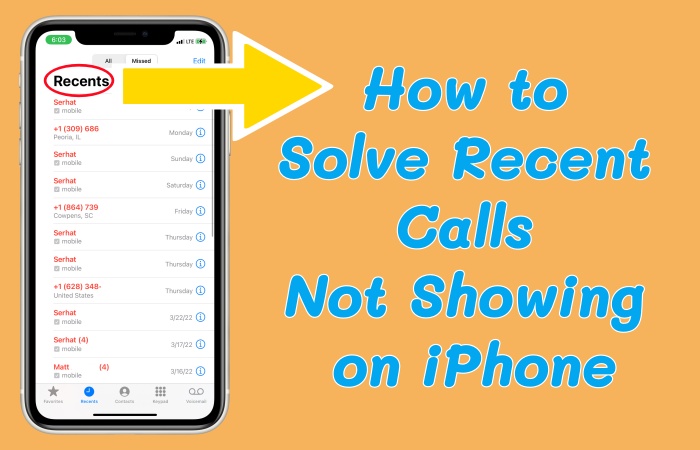
The Recents list in the Phone app on your iPhone shows your call history that lets you tap to call back, view details, and delete individual or multiple calls. But if the Recents list are not showing on your iPhone, you may miss some important calls. This issue may make users frustrated and overwhelmed. This useful guide will introduce reasons of recent calls not showing on iPhone and how to fix it quickly and successfully.
- Part 1. Why Is Recent Calls Not Showing on iPhone?
- Part 2. Quick Fixes for iPhone Not Showing Recent Calls
- Part 3. How to Fix Recent Phone Calls Not Showing on iPhone
- Part 4. FAQs about Recent Phone Calls on iPhone
- Part 5. Conclusion
Part 1. Why Is Recent Calls Not Showing on iPhone?
It is essential to know the reasons for recent calls not showing on your iPhone toward fixing it. However, the reasons behind recent calls not showing may vary across different iPhone models. Here are the most common and verified reasons why iPhone recent calls may not appear.
| Issue | Reason |
|---|---|
| iPhone Call History Limit | iOS does not store unlimited call logs. Once the internal limit is reached, older calls are automatically overwritten, which can make it seem like call history disappeared. |
| Call Filtering or Blocking Settings | Features like Silence Unknown Callers or third-party call-blocking apps may hide certain calls from the Recents list. |
| Incorrect Date & Time Settings | If your date or time is incorrect, iOS may fail to sort or display call records properly. |
| iOS Bugs or System Glitches | Temporary system errors, especially after an iOS update, can cause the Phone app to stop displaying recent calls correctly. |
| iCloud Sync Issues | When multiple devices use the same Apple ID, call history syncing may fail, causing recent calls not to show on one or more devices. |
| Low iPhone Storage | When storage is nearly full, iOS may stop saving new call logs correctly. |
| Carrier or Network Problems | Unstable network connections or outdated carrier settings can prevent calls from being logged. |
Part 2. Quick Fixes for iPhone Not Showing Recent Calls
After knowing the possible reasons for iPhone not showing recent calls, you may want to find out the quick and effective fixes. But before diving into advanced fixes, try these simple but effective checks.
Solution 1. Check "All" vs "Missed"
Checking calls history in Phone app, you can see the complete call history by the All tab. But if you tapped Missed, you can't see the whole call history.
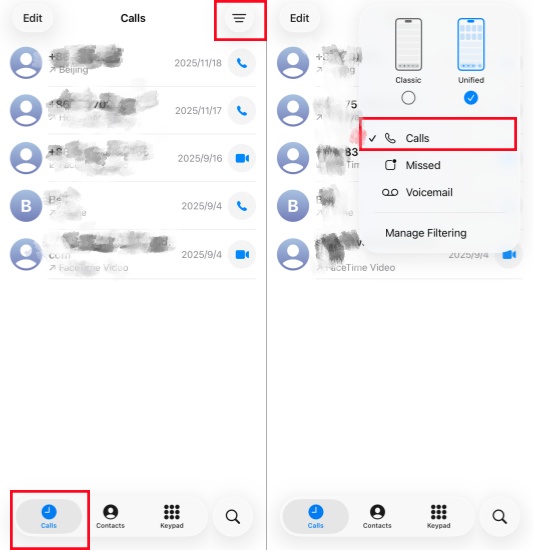
Step 1. Open the Phone app on your iPhone.
Step 2. View recent calls from the Calls interface.
Step 3. Tap the upper-right icon and choose Calls instead of Missed.
Solution 2. Check Blocked Numbers
If you have blocked some numbers as spam numbers before, these phone numbers will not be shown in recent calls. So if you have blocked them before and want to find them back, you can go to Settings to unblock them.
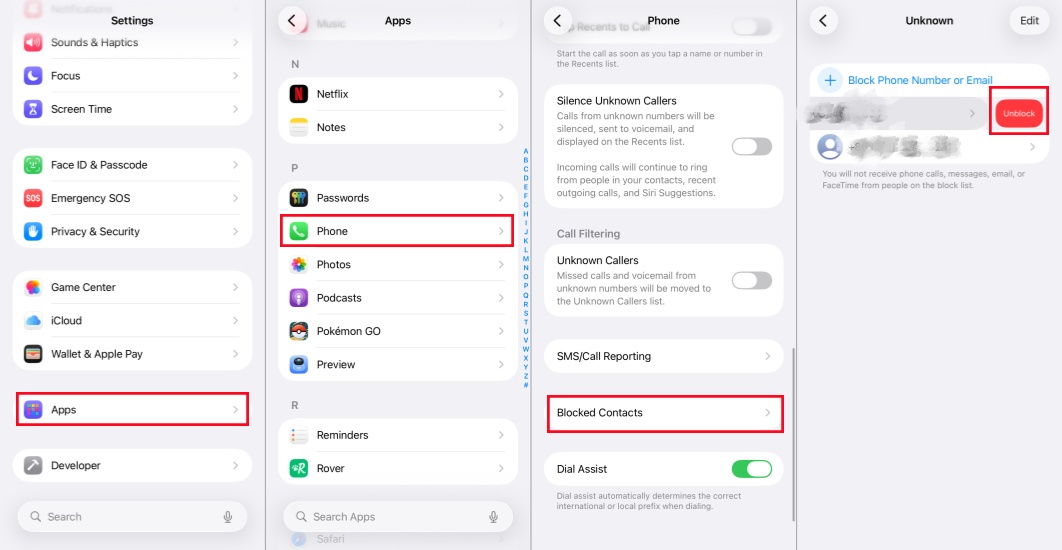
Step 1. Head to Settings > Apps > Phone > Blocked Contacts.
Step 2. Find the phone number you have blocked before.
Step 3. Swipe the blocked number right to left and tap Unblock.
Solution 3. Check Filtering Settings
Check the filtering settings to confirm whether third-party apps block recent calls or not. Toggle off the option of Unknown Callers to ensure there are no calls missed.
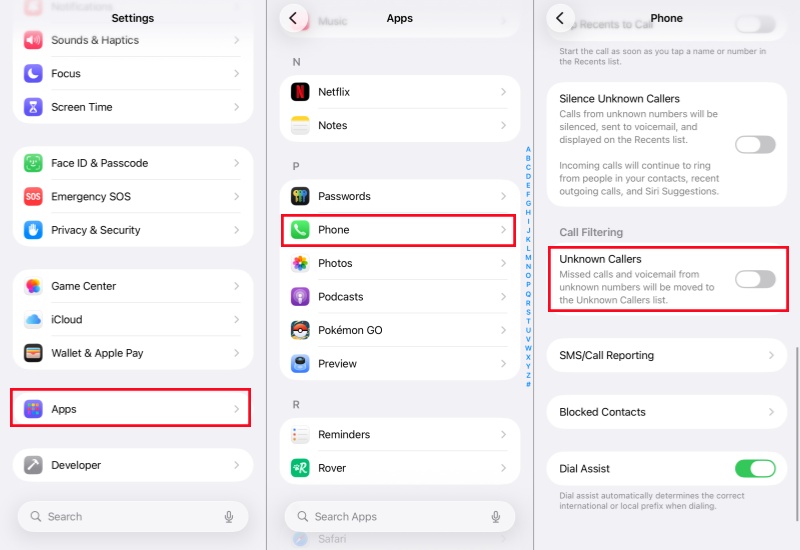
Step 1. Navigate to Settings > Apps > Phone.
Step 2. Scroll to the Unknown Callers section.
Step 3. Toggle off the option of Unknown Callers.
Solution 4. Check iCloud iPhone Sync
Ensure you're signed into the same Apple ID on all devices, then check the iCloud iPhone sync to display recent calls appearing across all devices.
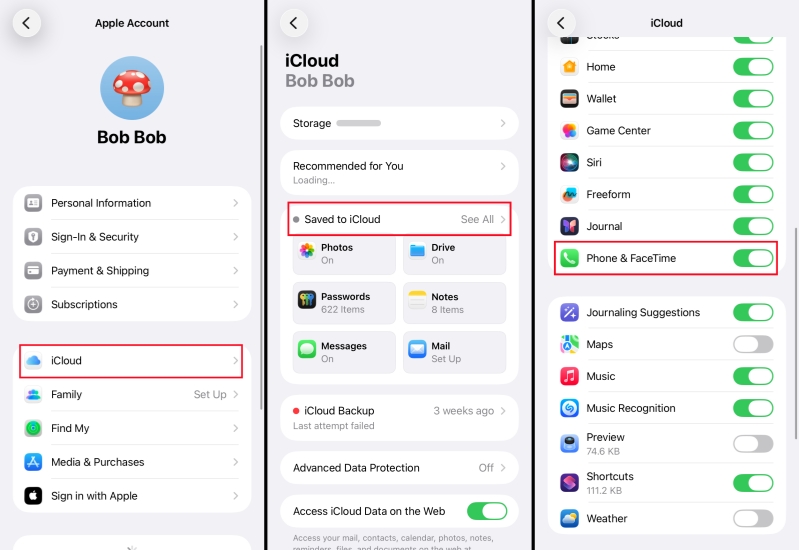
Step 1. Go to Settings and tap Your Name.
Step 2. Scroll down to check your Apple devices with the same Apple ID.
Step 3. Tap each device to view iCloud Backup.
Step 4. Back to Apple Account and select iCloud.
Step 5. Switch on the Phone & FaceTime tab.
Solution 5. Check Date & Time Settings
The wrong date and time will cause the loss of your recent call history. By setting the date and time automatically, the recent calls will appear normally.
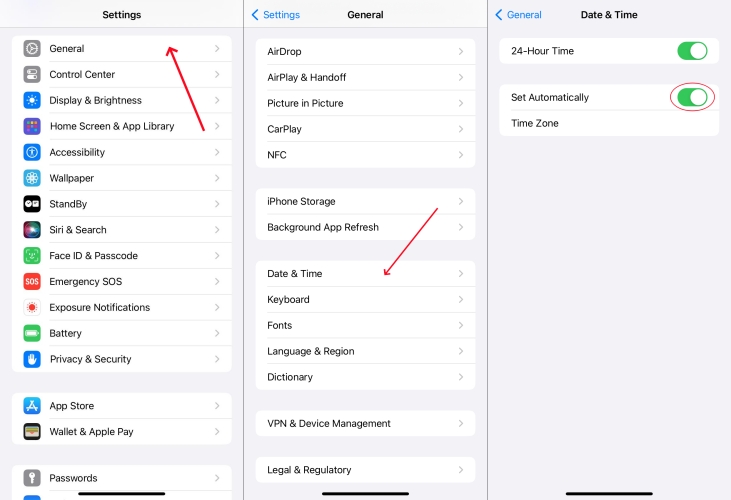
Step 1. Run Settings > General > Date & Time.
Step 2. Toggle Set Automatically on.
Part 3. How to Fix Recent Phone Calls Not Showing on iPhone
If there is no effect after you operating the above methods, it means you should use deeper methods to fix the issue of recent phone calls not showing on your iPhone. The methods below not only set up your iPhone in Settings, but also include some extra methods. Learn and operate together.
Solution 1. Restart Your iPhone
Restarting your iPhone is the direct solution to fix iOS system glitches and bugs, like recent calls not showing on your iPhone. Restarting your iPhone may give you back a normal working iPhone.
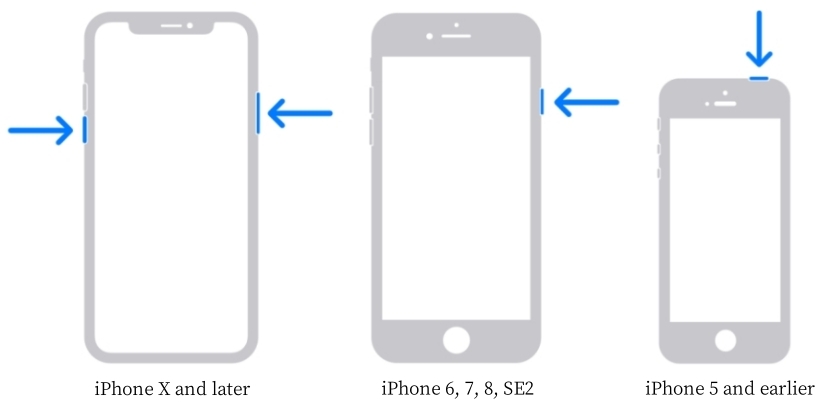
iPhone X and models after iPhone X: Press and hold the Volume Down button and the Wake button simultaneously until the power-off slider appears. Switch the slider to turn off your iPhone, then press and hold the Wake button to turn on the iPhone.
iPhone 6, 7, 8, or SE(2nd and 3rd generation): Until the Power-off slider appears, don't release the Side button. Drag the slider to power off your iPhone, then press and hold the Side button to power on your iPhone.
iPhone SE (1st generation) and earlier:Keep pressing the Home button and the Power button until the Apple logo appears. After turning off your iPhone, turn it on with the Power button.
Solution 2. Switch Airplane Mode
Switching Airplane Mode forces a network refresh, re-establishing connection with carriers. With this solution, you can resolve call log glitches.
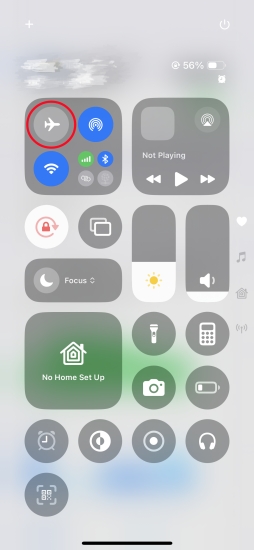
Step 1. Swipe down from the top-right corner to access the Control Center.
Step 2. Tap the Plane icon to turn on Airplane Mode.
Step 3. Then tap the Plane icon again to turn it off for reflashing.
Solution 3. Free up Storage Space
To store call data, there should be at least 3GB storage space on the iPhone. Check whether your iPhone has enough storage space for call data. If not, you should free up the storage space in your iPhone.
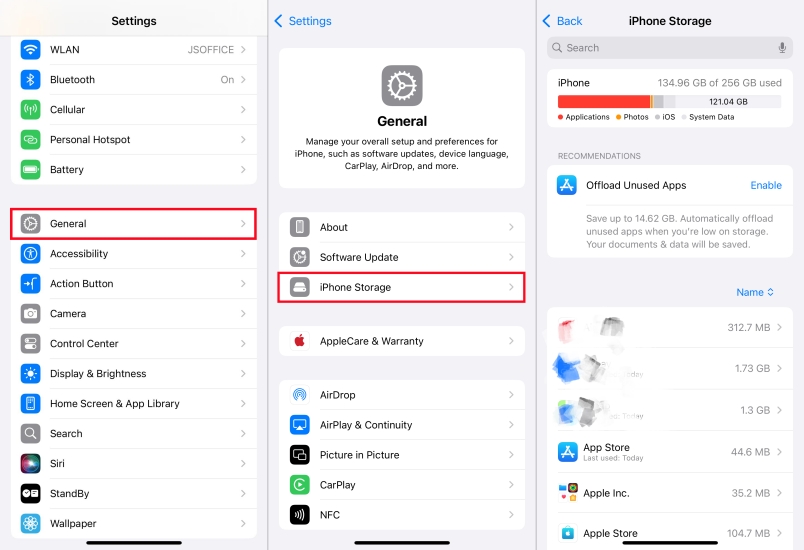
Step 1. Fire up Settings > General > iPhone Storage.
Step 2. Check whether there is 3 GB space or not.
Step 3. If there is not enough storage space, select apps that are rarely used or not utilized at all. Then tap Delete App to release storage space.
Solution 4. Reinsert the SIM Card
Reinsertting the SIM card can force a fresh connection to the cellular network, resolve the temporary software glitches and ensure proper physical contact for data transfer. So it is also one possible way to keep recent calls history.
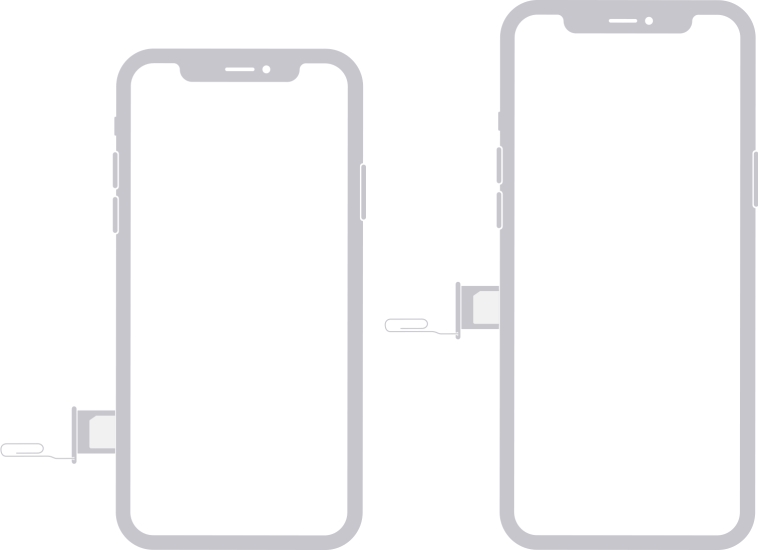
Step 1. Power off your iPhone completely.
Step 2. Gently eject the SIM card from its tray, then reinsert the SIM card in its tray.
Step 3. After ensuring it's aligned and seated firmly, restart your iPhone.
Solution 5. Reset Network Settings
By resetting network settings, your iPhone's connection configurations will be reverted to their factory defaults, and saved networks will be cleared. It will solve the issue of disrupting call data, slow or block call notification.
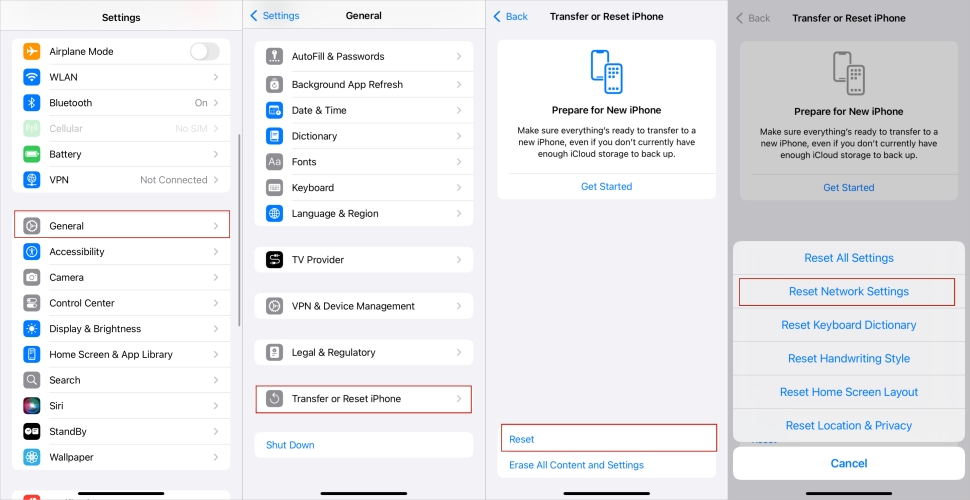
Step 1. Open Settings > General > Transfer or Reset iPhone.
Step 2. Choose Reset and then tap Reset Network Settings.
Step 3. Enter your passcode and tap Reset Network Settings.
Solution 6. Upgrade the iOS System
Older versions may have some system bugs, causing recent calls not showing on your iPhone. But a new version for the iOS system upgrade usually can resolve current system bugs. So, try to install the latest iOS system to fix iPhone's recent calls not showing issue.

Step 1. Go to Settings > General > Software Update.
Step 2. Choose the latest version and tap Install now.
Solution 7. Reset All Settings
Resetting all settings on your iPhone will return system preferences like Wi-Fi to default without deleting apps, photos, or data. By this method, the recent calls display will recover normally.

Step 1. Head to Settings > General.
Step 2. Find and tap Transfer or Reset iPhone.
Step 3. Select Reset All Settings in the Reset option.
Step 4. Input your password and tap Reset All Settings for confirm.
Solution 8. Repair iOS Systems
If the quick fixes or normal methods can not help you practically, you may need a third-party repair tool to help you. Recent calls not showing on your iPhone may be a kind of iOS system issue. So, to repair the iOS system issues, MagFone iOS System Recovery is highly professional and credible. MagFone iOS System Recovery is designed to repair the iOS system issues, including iPhone recent calls not showing. Whether the success rate or profession, MagFone iOS System Recovery will give you a satisfactory answer. Follow the steps to use MagFone iOS System Recovery to fix the iPhone recent calls not showing issue.

MagFone iOS System Recovery
Fix various iOS and iPadOS system issues, such as black screen, boot loop, frozen screen, or stuck on Apple logo, without data loss.
Step 1Fire up MagFone and Connect to Your iPhone

Use a USB cable between your iPhone and a computer for connection. Then fire up MagFone iOS System Recovery and choose iOS System Repair at the beginning. And begin with the Start button.
Step 2Fix With Standard Repair Mode
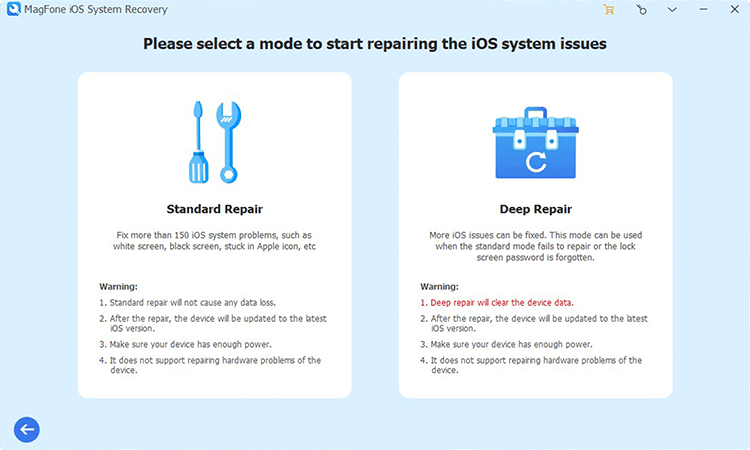
When you need to choose one mode for repairing, choose Standard Repair. Then make sure your iPhone is detected by MagFone correctly.
Step 3Download the Firmware Package

Check and confirm your iPhone information on the computer screen. Then choose a suitable firmware version with clicking the Download button.
Step 4 Solve Recent Calls Not Showing on iPhone

When the firmware package is downloaded successfully, you can choose Start Standard Repair. MagFone will unzip the firmware package and begin fixing the issue of the Recents list are not showing on your iPhone on your iPhone. When completing the process, you can click the Finish button.
Part 4. FAQs about Recent Phone Calls on iPhone
How to delete recent calls on iPhone?
Deleting recent calls on your iPhone is easy. You just need to choose the calls you want to delete in the Phone app. Follow the steps to delete them correctly.
Delete one recent call
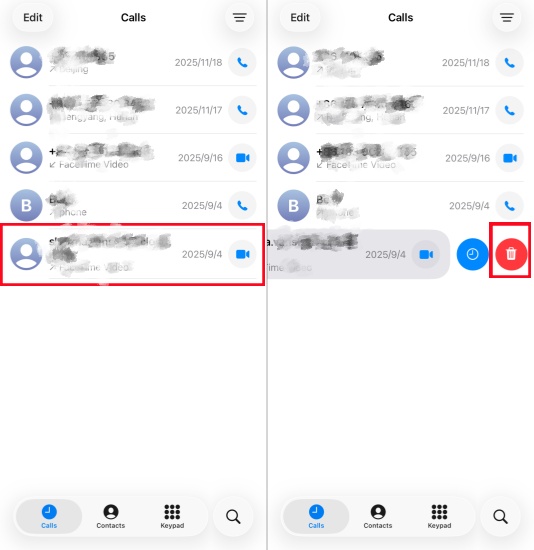
Step 1. Head to the Phone app.
Step 2. Find the phone number you want to delete.
Step 3. Drag the phone number right to left and tap the Delete icon.
Delete multiple recent calls
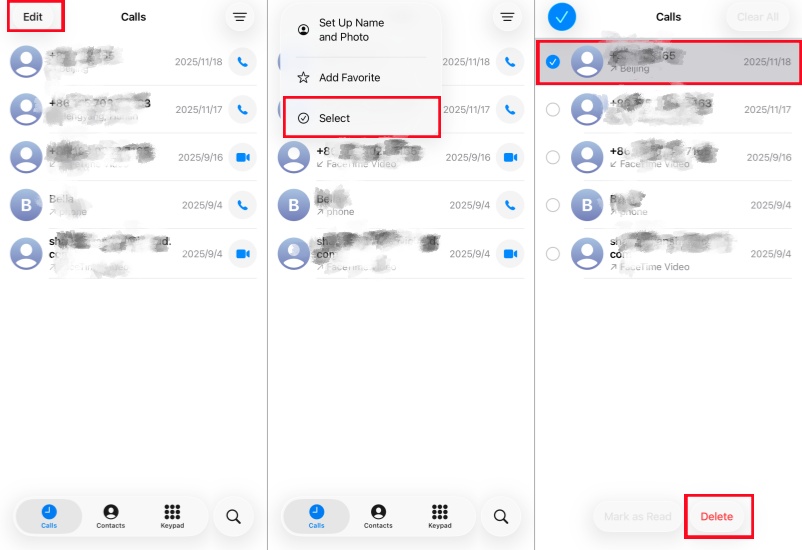
Step 1. Open the Phone app on your iPhone.
Step 2. Press Edit in the upper-left corner.
Step 3. Choose Select, then pick the call history you want to delete.
Step 4. Tap Delete at the bottom.
How to clear recent calls on iPhone?
Different from deleting recent calls, clearing recent calls can't be found back. So before clearing them, confirm your decision or back them up via iTunes or Finder.
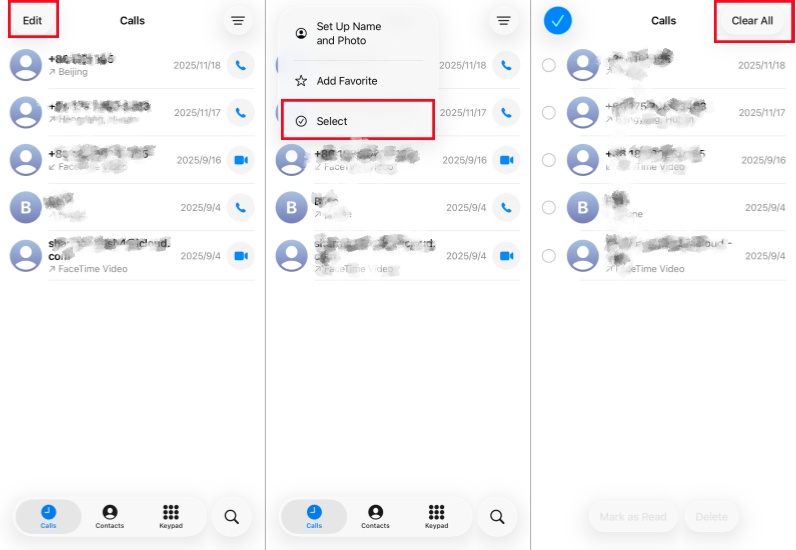
Step 1. Enter the Phone app and tap Edit in the interface of Calls.
Step 2. Tap Select > Clear All to clear all recent calls.
How to see recently deleted calls on iPhone?
You can’t see deleted calls in the Phone app on your iPhone. But if you have turned on iCloud Sync on your iPhone, then you can see deleted calls on your other Apple devices where you've logged into with the same Apple ID. Or you can contact your carriers for recent calls history.
How to recover deleted recent calls on iPhone?
If you have backuped your iPhone via iCloud or iTunes recently, you can recover deleted recent calls from iCloud backup or iTunes backup. You can also check your carrier’s online account for records or use third-party tools to recover all deleted recent calls on your iPhone.
Part 5. Conclusion
Finding your recent calls not showing on your iPhone may make you stressed and nervous. But there are both quick fixes and advanced solutions to help you fix the recent calls not showing on iPhone issue. If you prefer a quick and effective method, you'd better choose a professional system repair tool like MagFone iOS System Recovery. It can fix the iPhone not showing recent call issues caused by some complicated system issues with ease.

Teresa Miller
Editor in chief





