








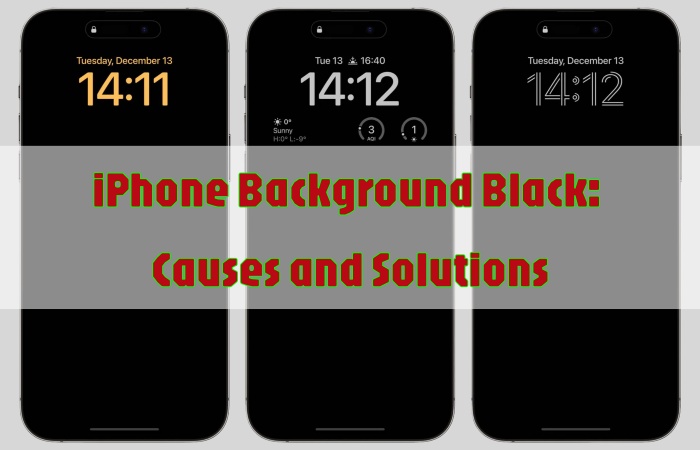
Has your iPhone wallpaper kept going black? Why is your iPhone background black? These issues may have troubled you before. Thankfully, there are several useful methods that can help you solve the problem. You can either reset some settings on your iPhone for the screen to display normally, or use advanced methods to fix the issue of iPhone background black caused by iOS system issues. Now, follow the practical guide to discover more details.
- Part 1. Why Is My Background Black on My iPhone?
- Part 2. How to Change Black Background on iPhone
- Part 3. How to Get Rid of Black Background on iPhone
- Part 4. Conclusion
Part 1. Why Is My Background Black on My iPhone?
When you face the issue of iPhone background black, you don't know what happened and how to solve it. Knowing the reasons for it can help you solve the issue with a higher success rate. Here are several possible reasons:
Reason 1. iOS Glitches
iOS glitches will cause your wallpaper display incorrectly. Or if the iOS system has been updated recently, temporary conflicts will impact the display of wallpaper, causing the background to turn black.
Reason 2. Dark Mode
If your iPhone turns on Dark Mode automatically, when it is on, your wallpaper will become black.
Reason 3. Low Power Mode
The iPhone will enter Low Power Mode when the battery is lower than 20%. Thus, your iPhone background will turn black.
Reason 4. Focus Mode
If you haven't set a specific wallpaper for a special focus mode, the wallpaper will turn black when your iPhone enters this focus scenario.
Reason 5. Corrupted Wallpaper File
If the photos you used as wallpaper, such as a Live Photo, a third-party app photo, or a low-res photo has been deleted in Photos, the background of your iPhone will be black.
Reason 6. Display Issues
In rare cases, your iPhone wallpaper displays black due to hardware issues, such as suddenly dropping or getting wet. You should seek the help of Apple Support in this case.
Part 2. How to Change Black Background on iPhone
Now that you know why your background is black on your iPhone, there are several easy methods for you to change the black background on your iPhone. Go through and operate these methods by setting up your iPhone.
Method 1. Reset a New Screen Wallpaper
While the black background appears, the first thing we can do is reset the screen wallpaper. Change another color or another image of your new wallpaper now.
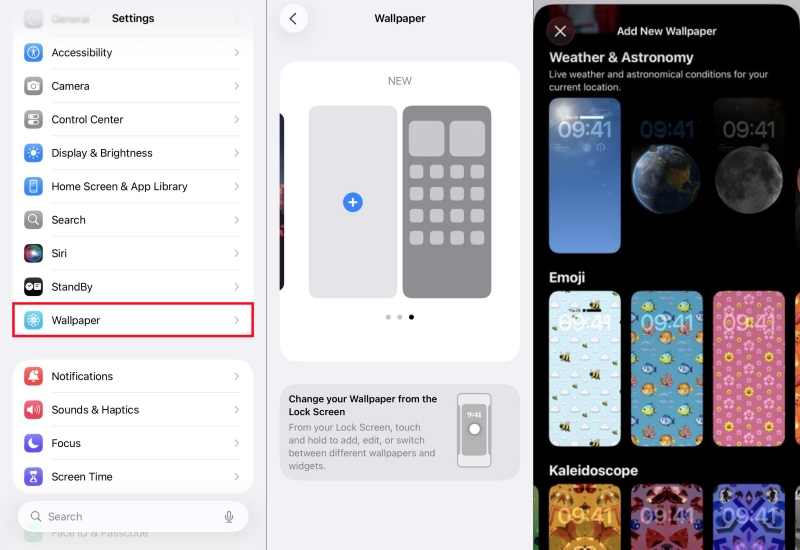
Step 1. Enter Settings, and find Wallpaper.
Step 2. Select Add New Wallpaper, and then choose one image you like in Photos.
Step 3. After viewing the effect, pick Add in the upper-right corner.
Method 2. Disable Dark Mode
Many users are used to using Dark Mode for daily use. But the Dark Mode usually makes your iPhone screen with a dark color or even a black background. So, disabling the Dark Mode may be useful to change the black background on your iPhone.
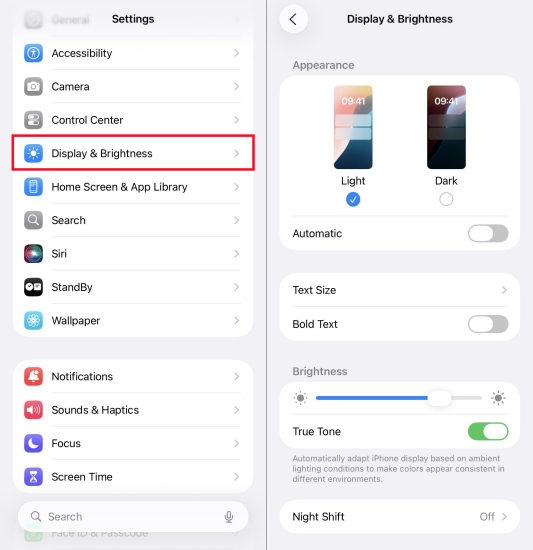
Step 1. Run Settings > Display & Brightness.
Step 2. Pick Light in Appearance.
Method 3. Turn Off Low Power Mode
Low Power Mode extends your iPhone battery life by temporarily reducing power consumption. So, in order to reduce power consumption, turning your iPhone background to black is available. When you turn off the Low Power Mode, the background will be displayed normally.
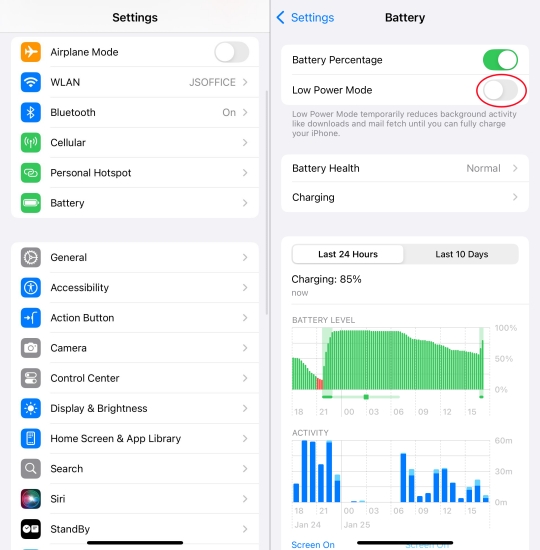
Step 1. Go to Settings.
Step 2. Scroll down to tap Battery.
Step 3. Toggle off Low Power Mode.
Method 4. Disable Dim Lock Screen
Dim Lock Screen is usually linked to Focus Mode, especially when entering Sleep focus mode. This mode will replace your wallpaper with a black screen to reduce distraction. Disabling this function will be effective for changing the black background.
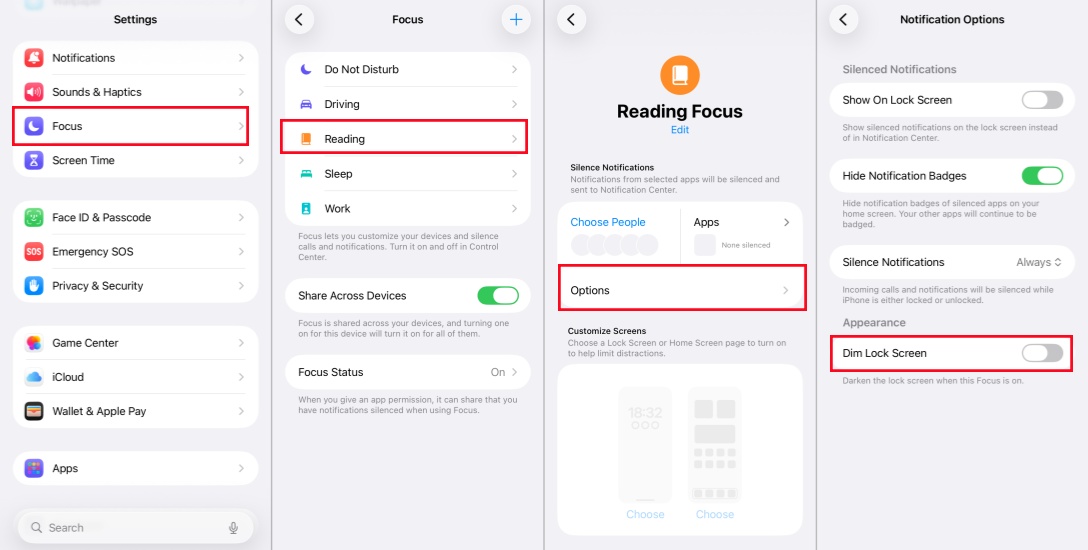
Step 1. Access Settings > Focus.
Step 2. Choose one focus mode that you used.
Step 3. Tap Options and disable the option of Dim Lock Screen.
Method 5. Toggle Off Night Shift
The feature of Night Shift often turn your iPhone screen colors to warm tones for less eye strain. So turning off the option of Night Shift option will help you fix the black background issue.
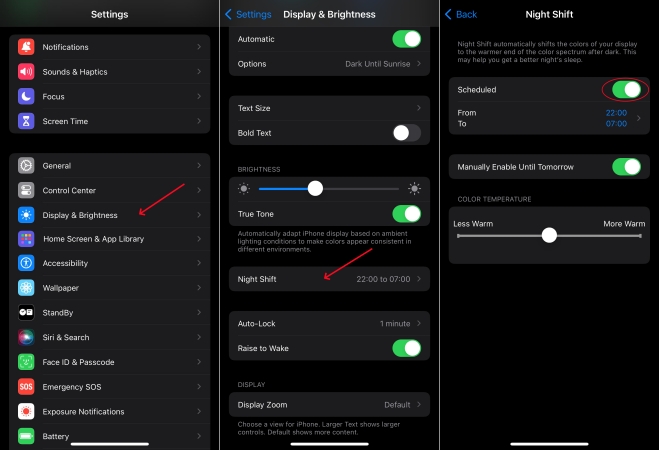
Step 1. Head to Settings > Display & Brightness.
Step 2. Scroll down to the Night Shift section.
Step 3. Switch Scheduled to off.
Method 6. Turn on True Tone
Turning on True Tone can adjust your iPhone screen's color and intensity to match your environment, making colors more natural. The more natural color will make the screen light instead of black.
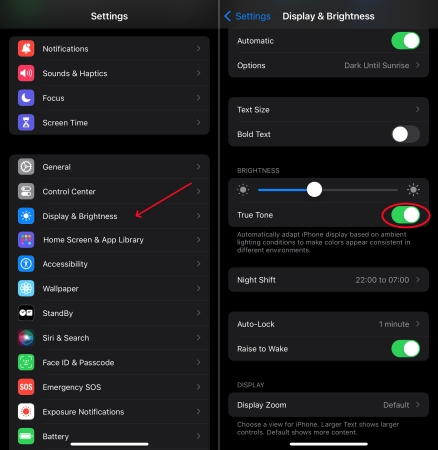
Step 1. Navigate to Settings.
Step 2. Find and tap Display & Brightness.
Step 3. Toggle True Tone on.
Part 3. How to Get Rid of Black Background on iPhone
Operating the above methods is setting up your iPhone with basic settings. If the primary methods can't fix the black background issue, try the advanced methods now. These methods will relate to repairing iOS system issues. Now, follow the guide below to set your iPhone correctly.
Method 1. Restart Your iPhone
Many users will choose to restart their iPhones when they encounter any issues. But this method is useful in most conditions. You can also try the method to get rid of the black background issue.
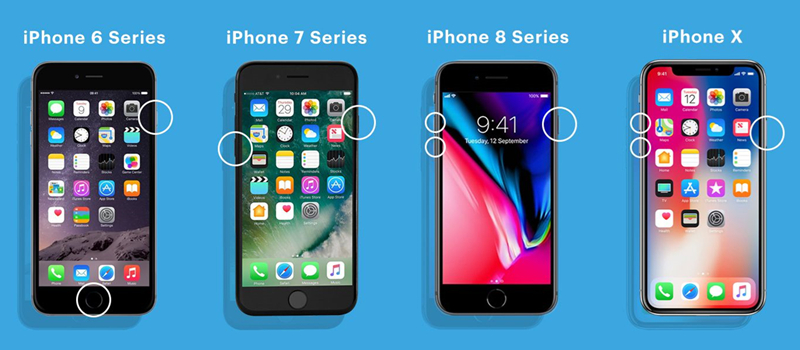
iPhone 8 and models later than iPhone 8: Press the Volume Up button quickly, and then operate the same step as the Volume Down button. Until you see the on-screen Apple logo, don't release the Power button.
iPhone7/7 Plus: Press and hold the Volume Down button and the Side button at the same time until an on-screen Apple logo appears.
iPhone 6 and models earlier than iPhone 6:Simultaneously press and hold the Wake button and the Home button. After the Apple logo displays, release them.
Method 2. Check App-Specific Settings
App-specific settings will change system defaults, then cause the iPhone's wallpaper to keep going black. So, checking the app-specific settings carefully is essential. You should enter the apps with individual settings and then go to Settings in the app to toggle off special settings like Dark Mode.
Method 3. Update to the Latest iOS
Updating to the latest iOS system can patch software bugs, resolve conflicts from new features like Focus Mode, and restore corrupted display settings. So, update your iOS system to fix the black background.

Step 1. Open Settings > General > Software Update.
Step 2. Install the latest version by tapping Install now.
Method 4. Reset All Settings
Resetting all settings will clear corrupted settings and correct incorrect display configurations. By this method, your iPhone's background will display normally.

Step 1. Fire up Settings > General.
Step 2. Tap Transfer or Reset iPhone at the bottom.
Step 3. Tap Reset > Reset All Settings.
Step 4. Enter your password and tap Reset All Settings again.
Method 5. Fix with MagFone iOS System Recovery
Tried the above methods and no response? That means there are iOS glitches on your iPhone. You should find a safe repair tool to fix them. However, MagFone iOS System Recovery is standing out. Whether the basic iOS issues or deeper iOS issues, MagFone iOS System Recovery will help you repair them practically. After using the credible iOS system repair tool, your iOS system bugs will be repaired totally, and also the issue of iPhone background black will be solved successfully.

MagFone iOS System Recovery
Fix various iOS and iPadOS system issues, such as black screen, boot loop, frozen screen, or stuck on Apple logo, without data loss.
Step 1Connect Your iPhone to MagFone

Find a USB cable to connect your iPhone to your computer. Then fire up MagFone iOS System Recovery. Click Start to begin repairing.
Step 2Choose Standard Repair
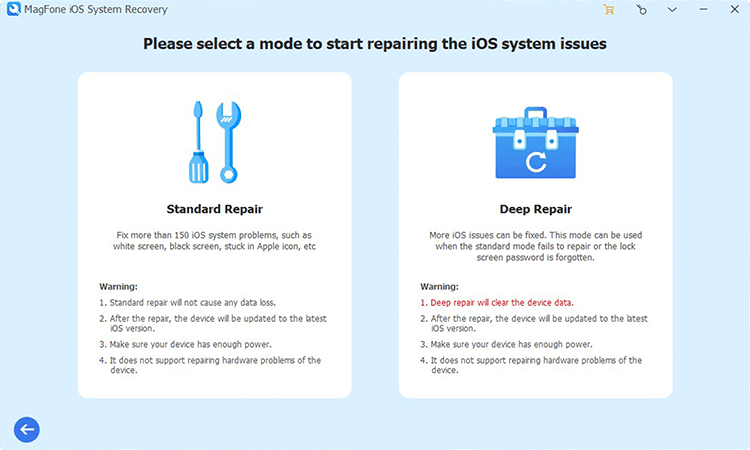
On the next screen, choose Standard Repair. Your iPhone model will be detected by the software correctly.
Step 3Download Firmware Package

You will see your iPhone's basic information on the computer. What you need to do is check the information and choose a suitable firmware version to download. Then click Download.
Step 4 Fix the Issue of Black Background
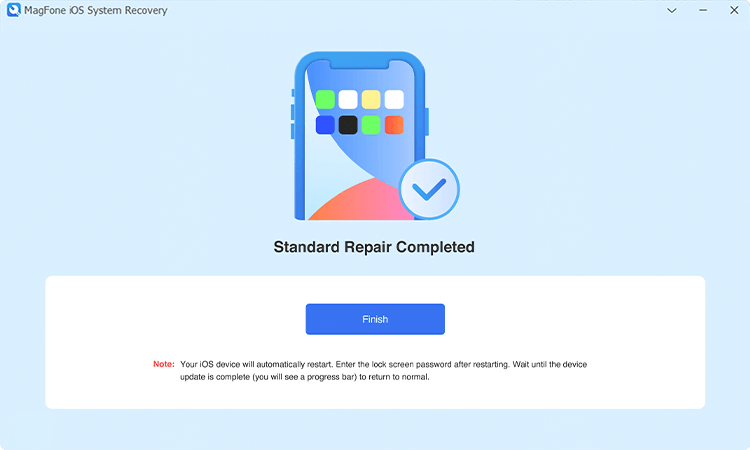
After the firmware package has been downloaded successfully, you can choose Start Standard Repair. MagFone iOS System Recovery will start fixing the iOS system glitches of your iPhone. Then your iPhone screen will display normally after the process.
Part 4. Conclusion
Viewing the causes of iPhone black background, it is clear that fixing it is not difficult. You can make basic checks to turn the black background to be normal, while the advanced methods aim to repair the iOS system issues of your iPhone. No matter what the reasons for the black background issue, it can be solved. If you need to repair iOS system issues on your iPhone, MagFone iOS System Recovery is the best option.

Teresa Miller
Editor in chief





