








Is your iPad screen suddenly clicking by itself, opening apps, or typing random characters without you touching it? This frustrating phenomenon is known as iPad Ghost Touch. Whether you're using the latest iPad Pro or a reliable older model, ghost touch can make your device feel possessed and unusable. The causes of ghost touch have evolved, ranging from software bugs to hardware issues. This guide provides a step-by-step diagnostic flow to help you fix iPad ghost touch before you spend hundreds on a repair.

- Part 1. Why Is My iPad Ghost Touching?
- Part 2. Quick Fixes for Ghost Touching iPad
- Part 3. How to Get Rid of Ghost Touch on iPad
- Part 4. How to Fix Ghost Touch on iPad (Advanced)
- Part 5. Conclusion
Part 1. Why Is My iPad Ghost Touching?
"Ghost touching" is a frustrating phenomenon where your iPad registers taps, swipes, or typing even though you aren't touching the screen. In the Apple Community, we've seen lots of threads about iPad ghost touch. But most users don't know why this issue happened and how to fix it.
My iPad Pro 5th gen seems to have sudden ghost touch problem one to bottom part. Which is on the right side when I use it normally on rotate to left horizontally. its a pain on my *** when I try to working on safari. Normally YouTube video will fast forward but when it comes to work it's not OK. Tried all the method in YouTube can't solve it, including iOS update, soft restart hard restart etc. Any idea to deal?"
—— From the Apple Community
In fact, this issue can be triggered by everything from wrong settings and system issues to external factors, even those specific software bugs in recent iPadOS updates. Here we will explore the root cause of iPad ghost touch.
| Causes | External Interference | Software & Accessibility Tweaks | Hardware Realities |
|---|---|---|---|
| Details | Dirty screen, bad screen protector, third-party chargers, and tight-fitting cases. | Wrong touch settings, old iPadOS version, system bugs, malware attack, and more. | Device dropped or other damages. |
| Fixes | Clean the screen, remove the screen protector, and unplug the charger. | Restart the device, reset settings, update the device, and restore the device. | Professional repair. |
Part 2. Quick Fixes for Ghost Touching iPad
Before diving into complex settings, we must rule out environmental factors like the case and screen protector that interfere with the iPad's screen. Here we will first introduce some common methods for fixing ghost touching iPad. Let's take a closer look at the details together.
Method 1. Clean the Screen Thoroughly
Oils, moisture, or microscopic debris can conduct electricity and fool the sensor into thinking a finger is pressing down. Just power off the screen, then use a high-quality microfiber or lint-free cloth dampened slightly. Wipe in circular motions until the surface is pristine.
Method 2. Remove the Screen Protector or Case
Third-party cases that fit too tightly can "pinch" the edges of the screen, while glass protectors can trap static or dust that triggers phantom inputs. Strip the iPad bare. If the ghost touch stops, your protector was likely applied incorrectly or the case is warping the frame.

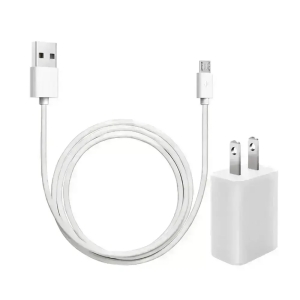
Method 3. Check Your Charging Cable
Are you using a non-MFi certified charger? Low-quality power bricks can cause electromagnetic interference that disrupts the screen's touch signals. Unplug the iPad. If the ghosting stops immediately, discard that charger and switch to an official Apple or reputable third-party block.
Part 3. How to Get Rid of Ghost Touch on iPad
Sometimes, the issue of iPad ghost touch is caused by some software glitches and bugs, especially after a major update release. In addition to adjustments to external factors, those solutions, like settings changes and system updates are useful for this issue.
Method 1. Adjust Accessibility Settings
As a matter of fact, you can set the touch screen according to your preferences. Although it is handy sometimes, these settings will influence iPad ghost touch. Just reset Apple's Accessibility to filter out the ghosting.
Option 1. Adjust Haptic Touch
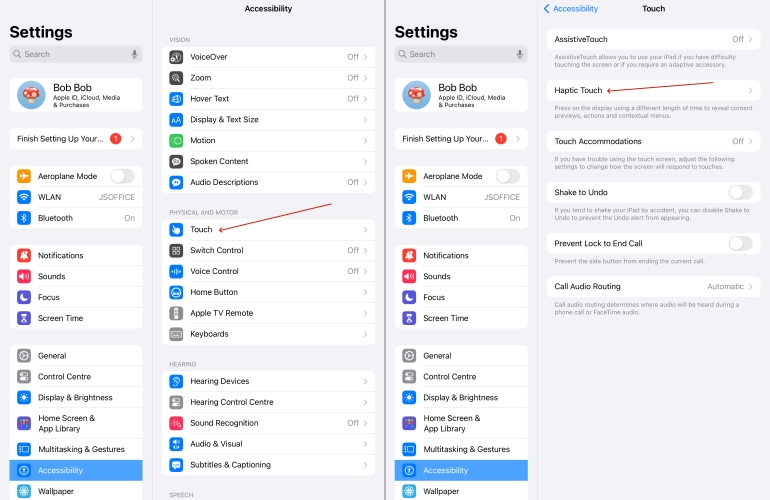
Step 1. Go to Settings > Accessibility > Touch.
Step 2. Tap Haptic Touch and select Default.
Option 2. Disable Shake to Undo
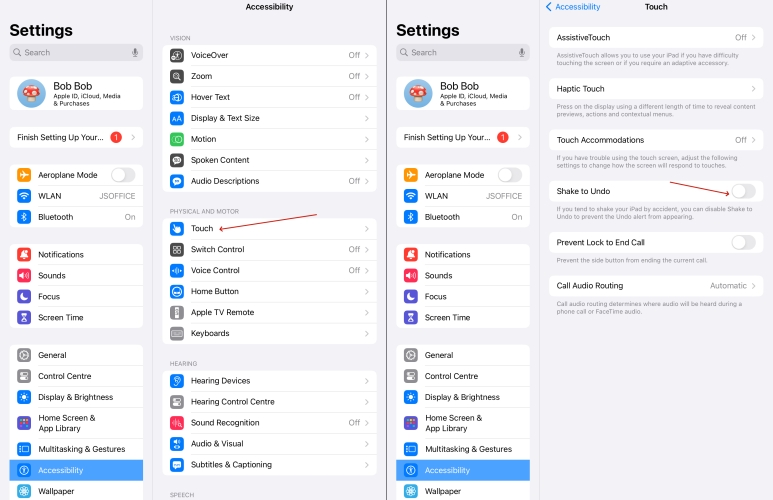
Step 1. Open Settings > Accessibility > Touch.
Step 2. Turn off Shake to Undo.
Option 3. Enable Touch Accommodations
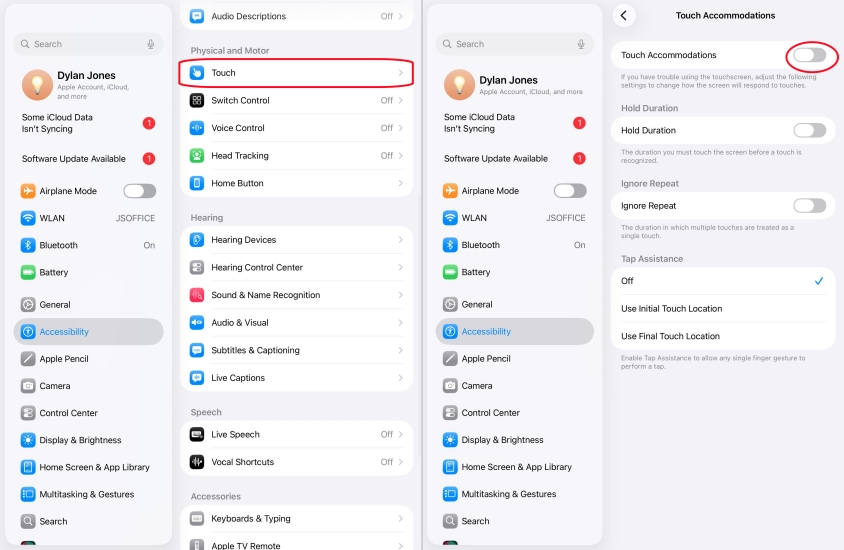
Step 1. Navigate to Settings > Accessibility > Touch.
Step 2. Tap Touch Accommodations, then toggle it on.
Method 2. Restart the iPad
Another simple solution is to restart the iPad. This can fix most minor iPad issues, embracing iPad ghost touch. Sometime, a simple "Slide to Power Off" doesn't clear the hardware cache. You can perform both soft restart and force restart.
Option 1. Restart from Settings
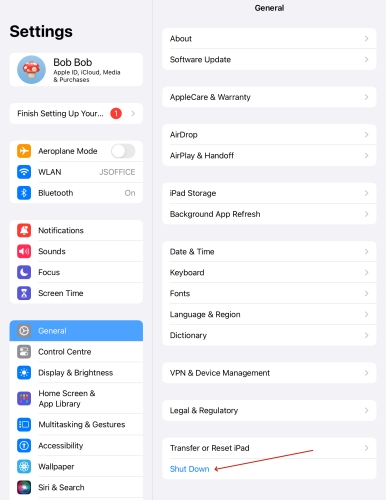
Step 1. Get into Settings > General and tap Shut Down.
Step 2. Drag the slider to Power Off slider from left to right.
Option 2. Restart with Buttons
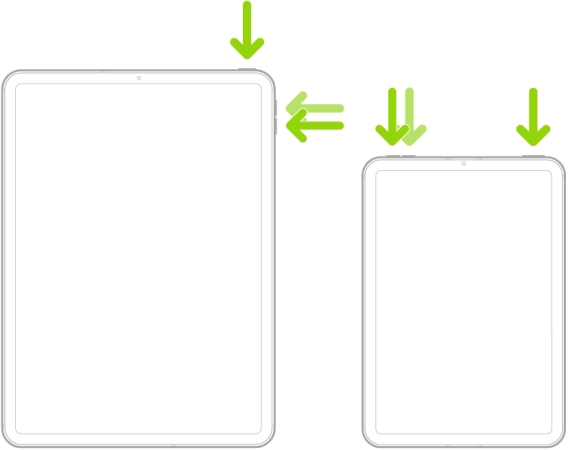
Step 1. Quickly press and release Volume Up.
Step 2. Quickly press and release Volume Down.
Step 3. Press and hold the Top Power Button until the Apple logo appears.
Method 3. Close Apps Running in the Background
As is well known, running too many applications in the background can overload your iPad. It might get stuck and potentially cause the screen to move randomly. In this case, we suggest you close unnecessary programs running in the background.
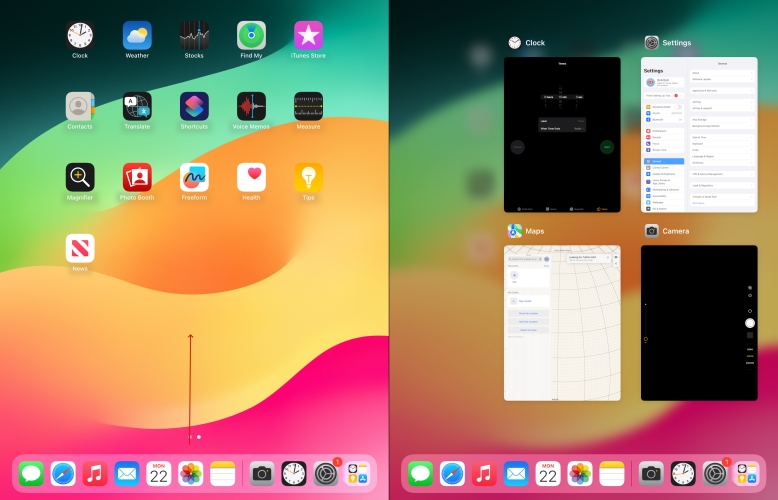
Step 1. Swipe up from the bottom on the home page.
Step 2. Close the applications displayed on the screen.
Method 4. Update the iPadOS System
Due to the fact that iPad systems regularly need glitches fix or optimization, there are often system updates. When you use the old system version, it may cause an iPad ghost touch. You need to check if your system is the latest one.
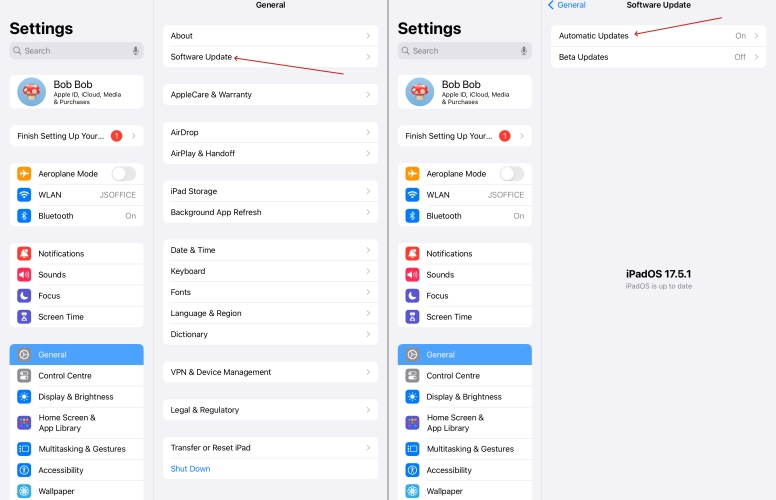
Step 1. In the Settings, tap General > Software Update.
Step 2. Tap Update Now to install the update file.
Step 3. Tap Install Now and enter the screen passcode to start updating.
Method 5. Reset All Settings
To avoid the occurrence of iPad ghost touch caused by an incorrect setting, you can reset all settings on your iPad, which will refresh your system configurations. This only deletes some basic settings, not including your personal data.
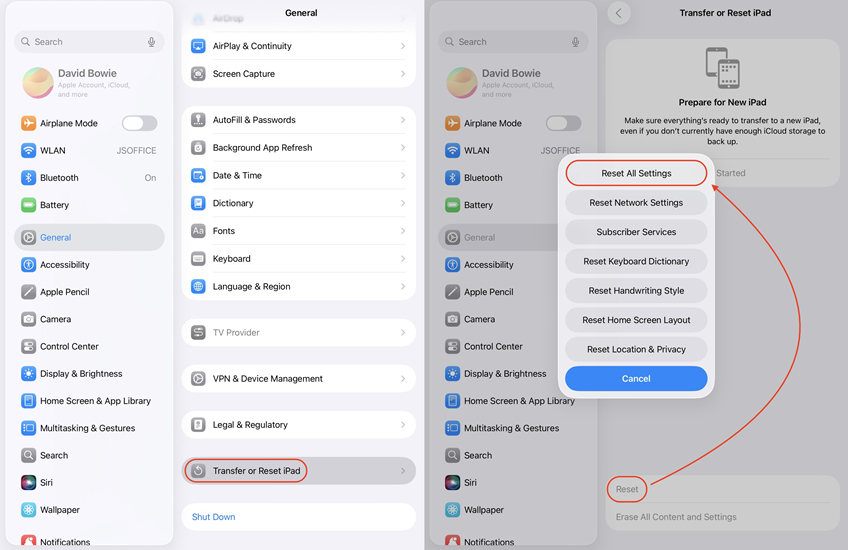
Step 1. Fire up Settings > General > Transfer or Reset iPad.
Step 2. Press Reset at the bottom and choose Reset All Settings.
Step 3. Enter the screen passcode and confirm with Reset again.
Method 6. Perform a Factory Reset
Sometimes, resetting all settings doesn't work for this issue. In this case, you have to reset your iPad to the default settings, which will get your device refreshed completely. But before using this method, back up your iPad using iCloud or iTunes first.
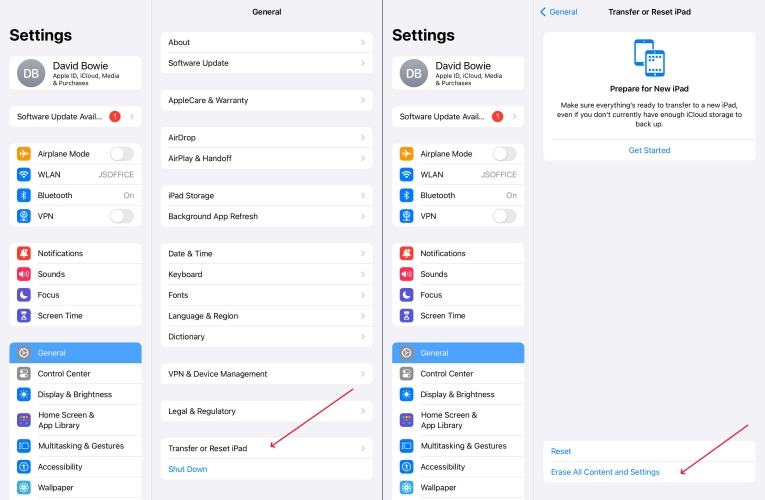
Step 1. Go into Settings > General >Transfer or Reset iPad.
Step 2. Select Erase All Content and Settings and tap Continue.
Step 3. Tap Erase iPad and follow the onscreen instructions to complete.
Part 4. How to Fix Ghost Touch on iPad (Advanced)
The aforesaid methods are commonly used to fix iPad ghost touch caused by external factors or improper settings. If the issue lies deep with the iPadOS firmware, you have to perform a deep system recovery to fix the issue. Here are two options for iPad system recovery.
Solution 1. Repair iPad in Recovery Mode
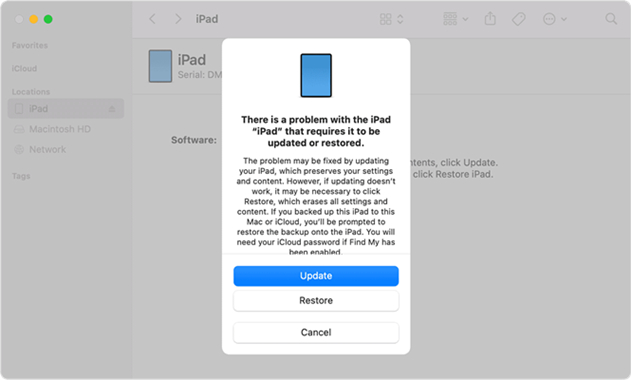
A standard "Reset" through the iPad settings only deletes user data. A Recovery Mode Restore replaces the entire operating system. This is the "nuclear option" for software troubleshooting and is highly effective if the ghost touch was caused by a corrupted iPadOS update, system-level firm bugs, or deep-seated software conflicts that survived a normal restart.
Step 1. Connect your iPad to your computer using a USB cable.
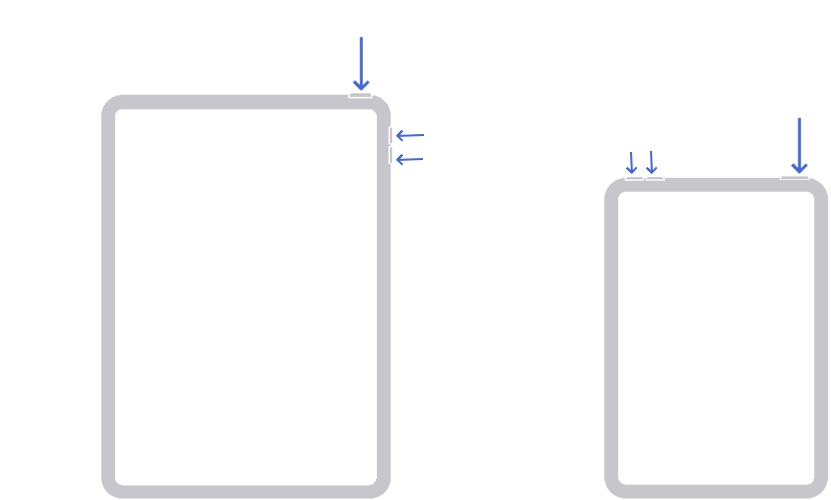
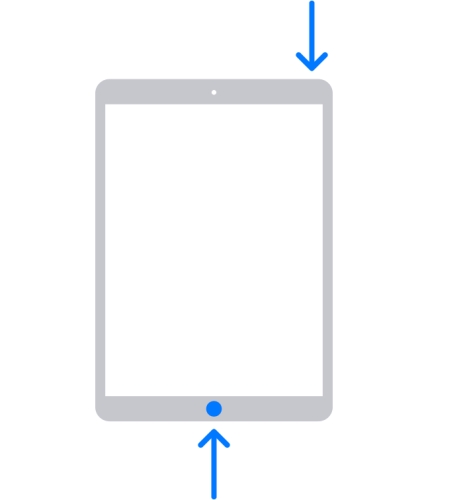
Step 2. Put your device in recovery mode in a proper way.
- iPad without a Home button: Press and release the volume button near the top button. The same goes for the button relatively far from the top button. Then press and hold the top (or side) button.
- iPad with a Home button: Press and hold both the Home and the top (or side) buttons at once.
Directly use MagFone iOS System Recovery to put your iPad into recovery mode for free.
Step 3. Open iTunes or Finder, then click Restore.
Solution 2. Recover iPad via a Third-Party Tool
Using third-party software like MagFone iOS System Recovery is an alternative to iTunes for fixing software-induced iPad Ghost Touch. This tool is often favored because it offers a "Standard Repair" mode that attempts to fix firmware issues without erasing your data, while something the standard iTunes Restore cannot do. Also, instead of complex technical skills required to get the issue fixed, MagFone iOS System Recovery can help you deal with the issue within just a few minutes. Here is how to use MagFone to address ghost touch.

MagFone iOS System Recovery
Fix various iOS and iPadOS system issues, such as black screen, boot loop, frozen screen, or stuck on Apple logo, without data loss.
Step 1Click iOS System Recovery

Firstly, you should connect your iPad to the computer via a USB cable and download iTunes on your computer. Make sure it can detect your iPad. Then click iOS System Repair. Choose Start and let it begin.
Step 2Put iPad into Recovery Mode
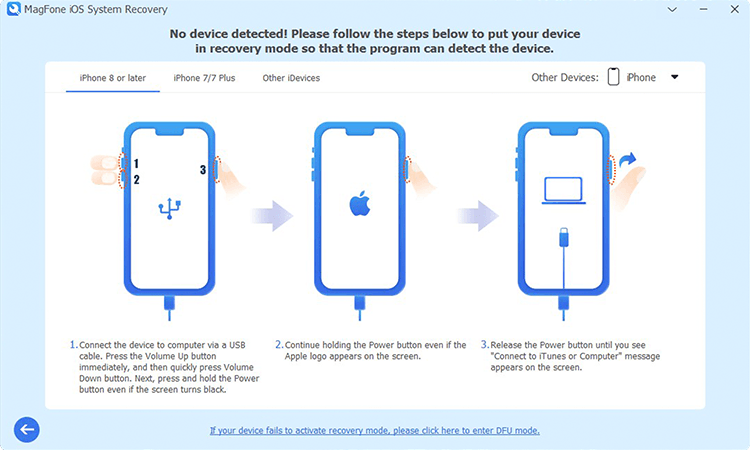
Now select the Standard Repair. If the software can detect your iPad, you can turn to the next step. If it fails, you need to follow the instructions to get the iPad into recovery mode.
Step 3Download the Firmware Package and Verify It

Select the right firmware package version and then click Download. After the process is completed, the program will verify the firmware package automatically.
Step 4Repair iPad Without Data Loss

Finally, it's time to click Start to repair your iPad. If the process goes successfully, your iPad will reboot soon and iPad ghost touch is fixed.
Conclusion
Several feasible solutions introduced in this guide can help you fix iPad ghost touch with ease. All of them are efficient and relatively easy to operate. Some methods doesn't affect the running of your iPad, while a few methods would cause the data loss. If you've tried all these methods and still fails to fix the issue, you can turn to Apple Customer Support for help. And it may also be a hardware issue, so you can also take your iPad to a fix shop for repair. Have any other questions, just leave a comment below to let us know.

Teresa Miller
Editor in chief





