








It is a frustrating moment: you tap your screen to open an app or swipe to unlock, and nothing happens. The iPad screen not responding to touch is a common issue, especially after an update. When your iPad does not respond to touch, it means that you can't unlock it anymore and have to try some fixes to resolve it in time. In this comprehensive guide, we will explore the exact causes of the iPad not responding to touch and introduce some quick troubleshooting steps to get rid of this issue. Now, let's move on see more details!
- Part 1. Why Is My iPad Not Responding to Touch?
- Part 2. Immediate Fixes to iPad Not Responding to Touch
- Part 3. How to Fix iPad Screen Not Responding to Touch
- Part 4. Professional Repair Costs to iPad Not Responding to Touch
- Part 5. Conclusion
Part 1. Why Is My iPad Not Responding to Touch?
It is incredibly frustrating when your screen decides to ignore you, especially when you're in the middle of something important. Since the iPad is almost entirely touch-based, a frozen digital device can feel like a total lockout. Here is a breakdown of why this happens.
- Temporary system glitches or app crashes
- Outdated iPadOS software
- Screen protector interference
- Moisture, dust, or oil on the screen
- Low storage affecting system performance
- Physical damage to the display or digitizer
- Faulty accessories or chargers
- Extreme temperature exposure
The iPad does not respond to touch issues that arise from multiple factors, with different causes for different situations. Here are some common cases of the iPad not responding to touch.

Case 1. iPad Not Responding to Touch Intermittently
"My iPad occasionally won't respond to any touch commands and has been happening more frequently of late." If your iPad only seems to respond about half the time and is intermittently not in control, maybe it's due to attacks from malicious apps or overloaded storage.
Case 2. iPad Not Responding to Touch When Charging
"As soon as I plug in to recharge my iPad, it becomes unresponsive to touch causing misspelling every time." If you're in the same matter now, you can check if the charging cable and charger are matched and from Apple's official store.
Case 3. iPad Not Responding to Touch after Water
"My iPad has water entered it and the screen is not responding. I found my iPad screen not responding in some area." The iPad may have hardware issues when you drop it into water or fall. The screen can't sense your finger because it is damaged.
Case 4. iPad Touch Screen Not Working after Restart
"After a forced restart, the touch screen is unresponsive to touch completely." In fact, forcing rebooting your iPad too many times will cause some hardware damage to your iPad, and the frozen screen may occur.
Part 2. Immediate Fixes to iPad Not Responding to Touch
Once we identify the possible cause, resolving the issue becomes significantly easier. Before diving into complicated troubleshooting steps, some basic fixes are available for you to resolve the iPad not responding to touch caused by external factors or minor software glitches.
Solution 1. Clean the iPad Screen to Restore Touch Sensitivity
One of the most overlooked fixes for an unresponsive iPad touchscreen is simply cleaning the display. Even small amounts of oil, dirt, or moisture can disrupt the capacitive touch sensors.
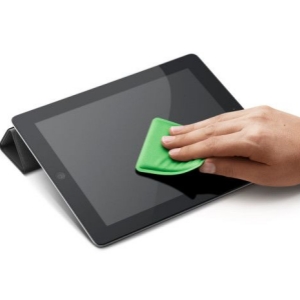
Step 1. Turn off the iPad and disconnect all accessories.
Step 2. Use a soft, lint-free microfiber cloth.
Step 3. Lightly wipe the screen in circular motions.
Step 4. Avoid spraying liquid directly onto the device.
Solution 2. Force Restart the iPad to Fix Touchscreen Freezes
A force restart is one of the fastest solutions when an iPad screen is not responding to touch. However, repeatedly restarting the device is not recommended, as it will cause some damages.
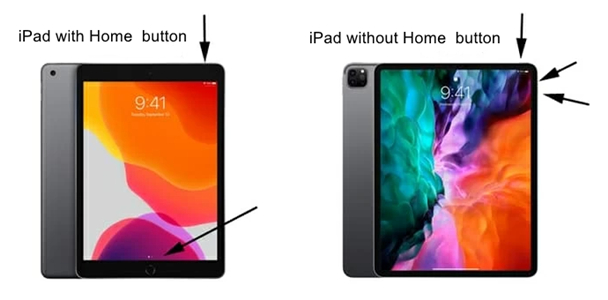
For iPads with Face ID:
Step 1. Press and quickly release the Volume Up button.
Step 2. Press and quickly release the Volume Down button.
Step 3. Press and hold the Power button.
Step 4. Release when the Apple logo appears.
For iPads With Touch ID:
Step 1. Press and hold the Home button and Power button simultaneously.
Step 2. Continue holding until the Apple logo appears.
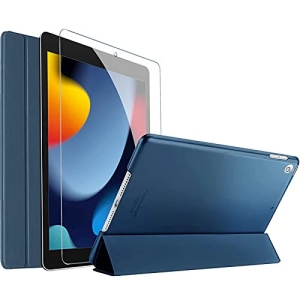
Solution 3. Remove the Screen Protector or Case
Certain thick or poorly aligned screen protectors can interfere with touch sensitivity. Sometimes, removing the screen protector or case is the simplest solution to fix the iPad screen not responding to touch. Just remove tempered glass protectors, plastic screen films, and rugged protective cases pressing on the screen edges.
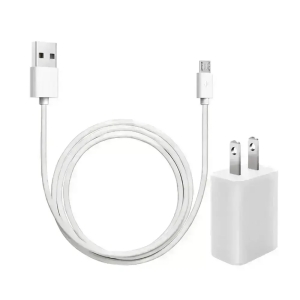
Solution 4. Check Charging Cables or Adapters
Using low-quality charging cables or adapters can interfere with touchscreen responsiveness. Faulty chargers may cause ghost touches, delayed touch input, and screen freezing while charging. Try using original Apple chargers, disconnecting third-party accessories, and testing the touchscreen while unplugged.
Part 3. How to Fix iPad Screen Not Responding to Touch
If your iPad does not respond to touch after an update or restart, then you can try the following solution to fix this issue. As for complicated system issues and malicious software attacks, you need to resolve the iPad screen not responding to touch issue from various aspects.
Solution 1. Update iPadOS to the Latest Version
Running outdated software can lead to touchscreen responsiveness problems. System updates include bug fixes, touch optimization improvements, and security patches that often resolve touch-related issues. Updating your iPad resolves the touchscreen responsiveness issue.
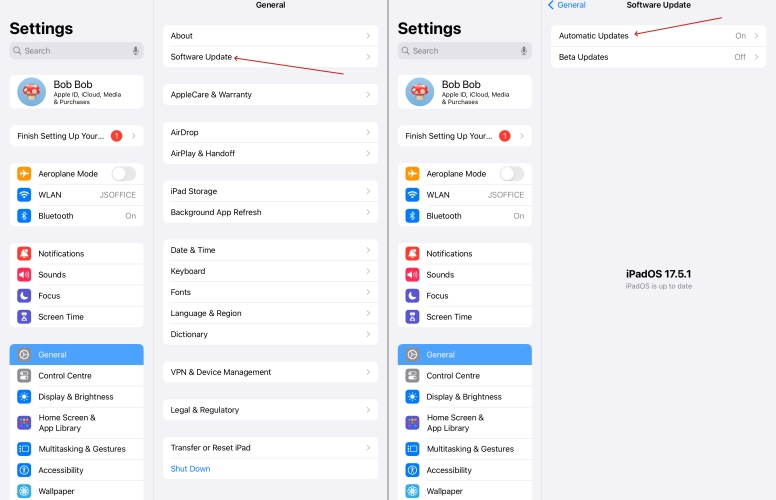
Step 1. Open Settings and tap General > Software Update.
Step 2. Tap Download and Install to download the update.
Step 3. After downloading, tap Install Now to update the device.
Solution 2. Free Up Storage Space for Better Performance
When an iPad's storage is nearly full, the device may experience lag, freezing, or delayed touch input. Maintaining at least 5–10 GB of free storage helps ensure smooth touchscreen performance. Simply delete unnecessary items such as large video files.
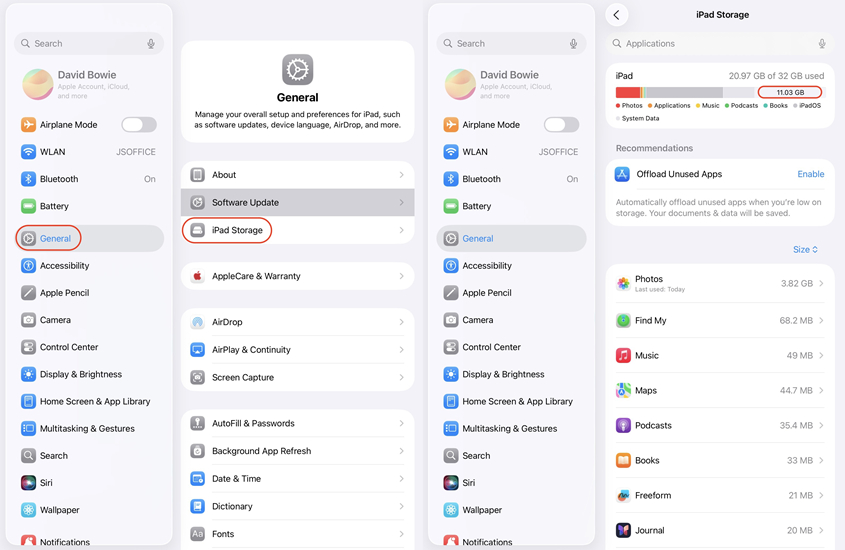
Step 1. Go to Settings > General and select iPad Storage.
Step 2. Check the storage space and delete unnecessary items.
Solution 3. Reset All Settings to Fix System Conflicts
Configuration conflicts may cause the iPad touchscreen to malfunction. Resetting settings restores system defaults without deleting data, which can resolve some minor bugs. After resetting all settings on the device, personal data and apps still remain intact.
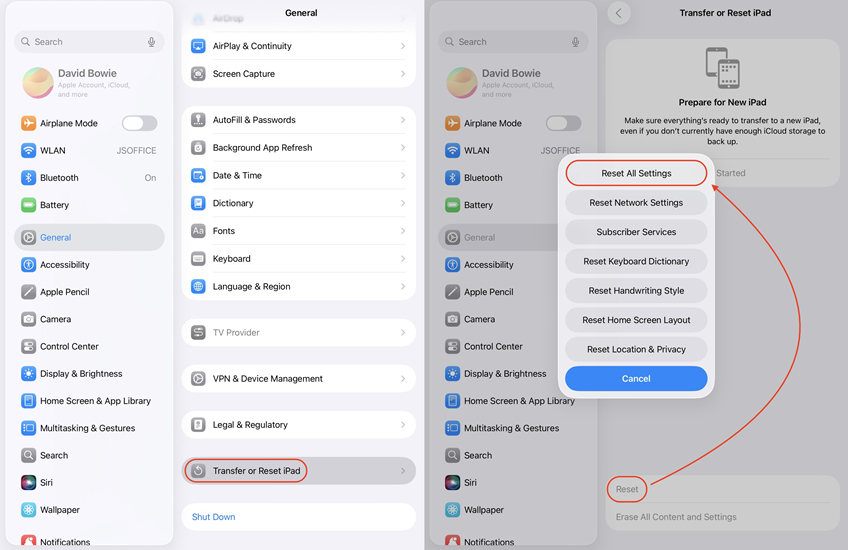
Step 1. Navigate to Settings and tap General > Transfer or Reset iPad.
Step 2. Tap Reset and choose Reset All Settings.
Step 3. Enter the device screen passcode and tap Reset to confirm.
Solution 4. Restore iPad Using Recovery Mode [Data Loss]
If the touchscreen problem persists, restoring the device through Recovery Mode can resolve deep system errors. Restoring reinstall the system and completely wipes the device. Before performing a full restoring in Recovery Mode, always backup the device.
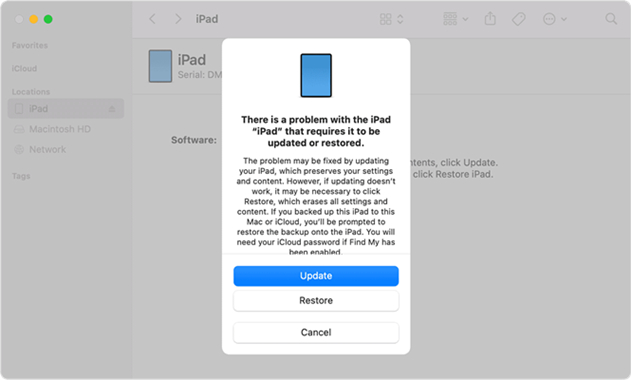
Step 1. Connect the iPad to computer, then turn it off.
Step 2. Launch Finder on a Mac or iTunes on a Windows PC.
Step 3. Put the iPad into Recovery Mode and select Restore.
Solution 4. Use a Professional iPad System Recovery Tool [No Data Loss]
When an iPad not responding to touch issue is caused by deeper system errors such as iPadOS glitches, firmware corruption, system crashes, or update failures, standard troubleshooting methods may not always work. In such cases, using a professional repair tool like MagFone iOS System Recovery can provide a fast and reliable solution without risking data loss.
MagFone iOS System Recovery is a specialized repair utility designed to fix various iOS and iPadOS system problems. It can resolve issues such as unresponsive touchscreens, frozen screens, boot loops, black screens, recovery mode errors, and system crashes with just a few guided steps. Follow the steps below to use MagFone iOS System Recovery to resolve the issue quickly.

MagFone iOS System Recovery
Fix various iOS and iPadOS system issues, such as black screen, boot loop, frozen screen, or stuck on Apple logo, without data loss.
Step 1 Link Your iPad and a Computer First

The first step you need to do is to connect your iPad to the computer and access the MagFone program on the computer. Then click the iOS System Repair tab and choose Start to start the recovery process.
Step 2 Select the Standard Repair Mode Choice
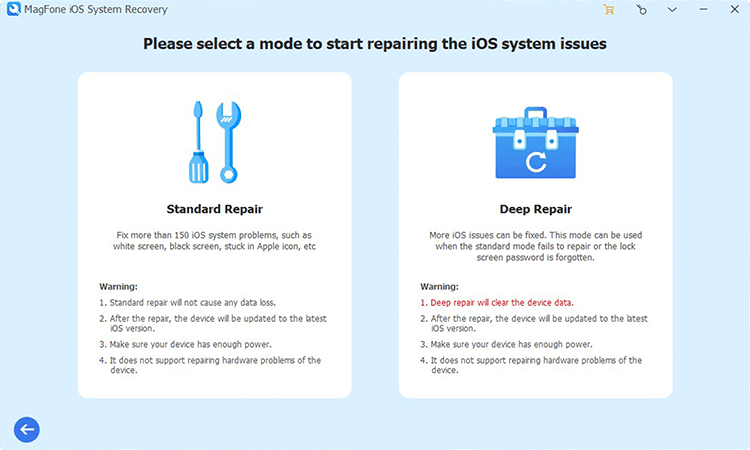
On the next screen, select the Standard Repair tab. If MagFone can detect your device, switch to the next step directly. If it fails, get your iPad into recovery mode according to the onscreen guidance.
Step 3 Download a Firmware Package and Verify It

Your device information will show on the computer. Check them carefully and then click Download. After the firmware is downloaded, the software will begin to verify the firmware package automatically.
Step 4 Finish Fixing the Unresponsive iPad Screen
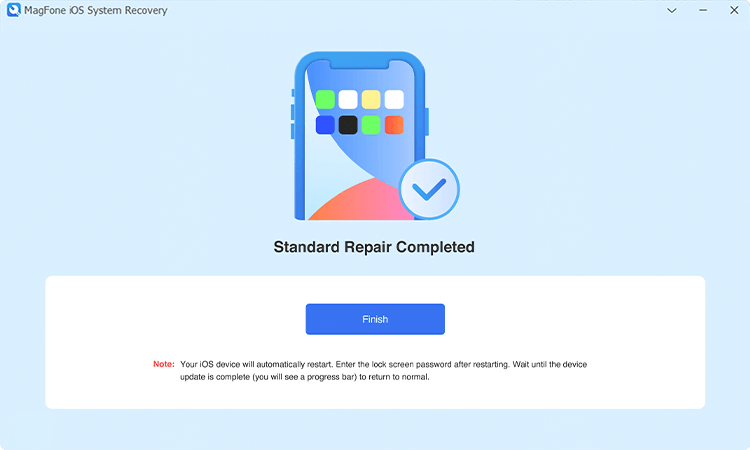
As long as the firmware is available, click Start Standard Repair to fix your iPad screen issue. MagFone will unzip the firmware package and finish repairing, then your device will reboot soon and you can touch the iPad screen now.
Part 4. Professional Repair Costs to iPad Not Responding to Touch
If none of the above solutions fix the iPad not responding to touch, hardware damage may be the cause. Worse, the issue is caused by digitizer damage or internal connection. In this case, you are likely looking at a hardware failure of the display assembly.
| Model Range | Estimated Out-of-Warranty Cost | AppleCare+ Free |
|---|---|---|
| iPad Mini / Base Model | $249 - $299 | $49 |
| iPad Air | $349 - $449 | $49 |
| iPad Pro | $499 - $649 | $49 |
| "Unable to Erase" message | Find My iPhone is still active | Disable Find My in Settings |
Part 5. Conclusion
An iPad not responding to touch can usually be resolved with a few systematic troubleshooting steps. Cleaning the screen, force restarting the device, updating iPadOS, and removing problematic accessories often restore normal touch sensitivity quickly. When software solutions fail, deeper restoration methods or hardware diagnostics provide the next path forward.

Teresa Miller
Editor in chief





