








Transferring photos from one iPhone to another can be quick and easy when you choose the right method. Whether you want to send a few pictures, transfer your entire photo library, or move photos without using iCloud, there are several options available. This guide explains 7 ways to transfer photos from iPhone to iPhone using AirDrop, iTunes, Quick Start, iCloud links, Shared Albums, and iCloud Photos. You'll also learn a bonus way to transfer photos between iPhones and computers.
- Part 1. What Is the Best Way to Transfer Photos from iPhone to iPhone? [Comparison Table]
- Part 2. How to Transfer Photos from iPhone to iPhone without iCloud
- Part 3. How to Transfer Photos from iPhone to iPhone with iCloud
- Part 4. Bonus Tip: Transfer Photos Across iPhones and Computers
- Part 5. Conclusion
Part 1. What Is the Best Way to Transfer Photos from iPhone to iPhone?
Transferring photos among iPhones is much easier than you might imagine. The best way to transfer photos between iPhones depends on how many photos you want to move and whether you have access to iCloud, a computer, or both devices. Below, we have collected each available method, and we will discuss it step by step in the following part.
| Method | Requires Computer? | Requires iCloud Storage? | Transfer Speed | Best For |
|---|---|---|---|---|
| AirDrop | ❌ | ❌ | Fast | Quick and small transfer |
| iTunes Sync | ✔️ | ❌ | Low | Transfer photos through a computer |
| Quick Start | ❌ | ❌ | Moderate | Transfer data to new iPhone |
| Temporary iCloud Shared Album Link | ❌ | ✔️ | Depends on internet speed | Quick sharing |
| Shared Album | ❌ | ✔️ | Depends on internet speed | Selective Transfer |
| iCloud Photos Sync | ❌ | ✔️ | Moderate | All iCloud photos transfer |
| MagFone iPhone Data Recovery | ✔️ | ❌ | Fast | Selective and massive transfer |
Part 2. How to Transfer Photos from iPhone to iPhone without iCloud
If you do not want to use iCloud, you can still transfer photos between iPhones in several simple ways. AirDrop works well for quick wireless transfers, while iTunes can help you move photos through a computer. For users setting up a new iPhone, Quick Start offers a direct way to transfer photos and other data from the old device.
Option 1. AirDrop
The easiest way to transfer photos from iPhone to iPhone is AirDrop. It allows you to send photos from one iPhone to another directly and wirelessly. Both iPhones should have Wi-Fi and Bluetooth turned on, and they should be nearby with AirDrop enabled. But the connection may fail when there is a large number of photos in one AirDrop.
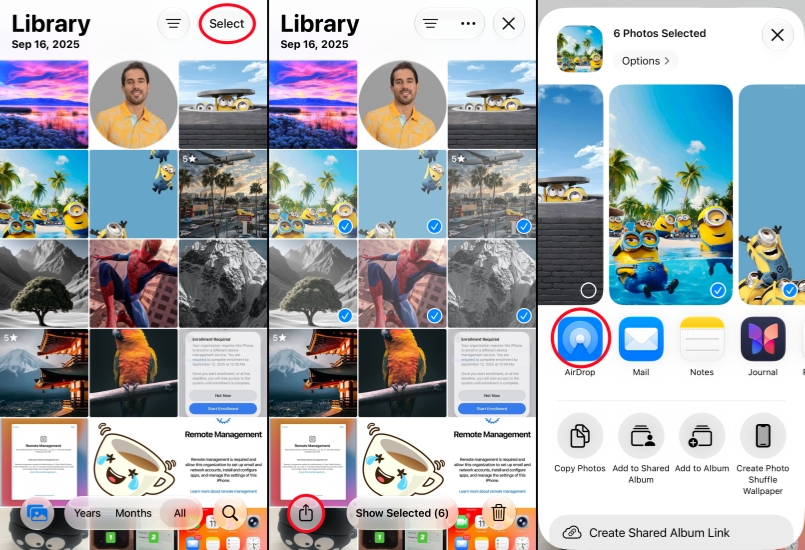
Step 1. Open Photos and tap Library.
Step 2. Tap Select to select the photos you want to share.
Step 3. Tap the Share icon and choose AirDrop.
Step 4. Tap another iPhone. Tap Receive on another iPhone.
Option 2. iTunes on Computer
With the Photos app and iTunes on a computer, you can transfer photos between an iPhone and a computer before syncing them to another iPhone. However, it may take more time and requires a compatible computer, a USB cable, and enough storage space.
Import Photos from iPhone to Computer
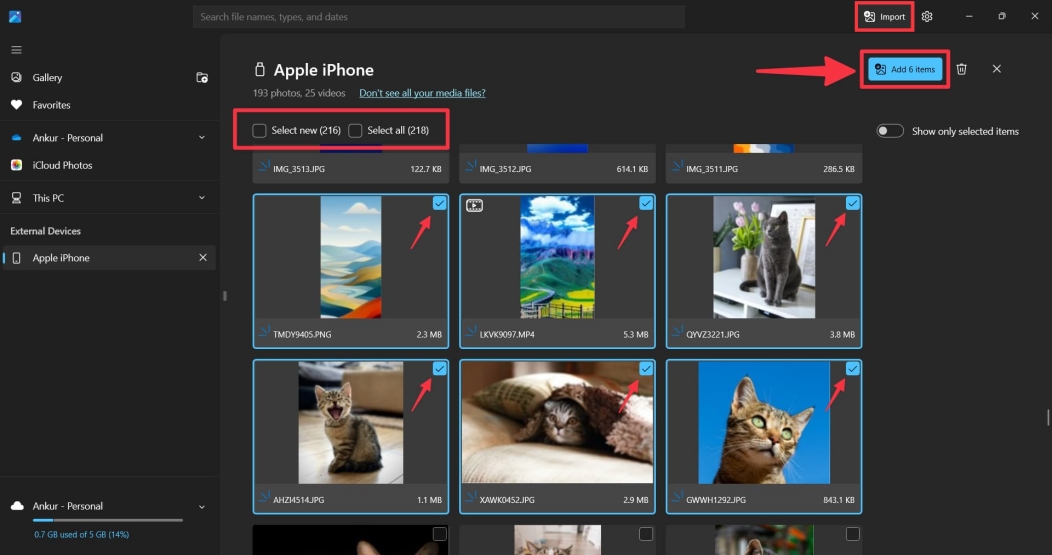
Step 1. Use a data cable to connect the shared iPhone to a computer.
Step 2. Open the Photos app, and import the photos from the iPhone to the computer.
Sync Photos from Computer to iPhone
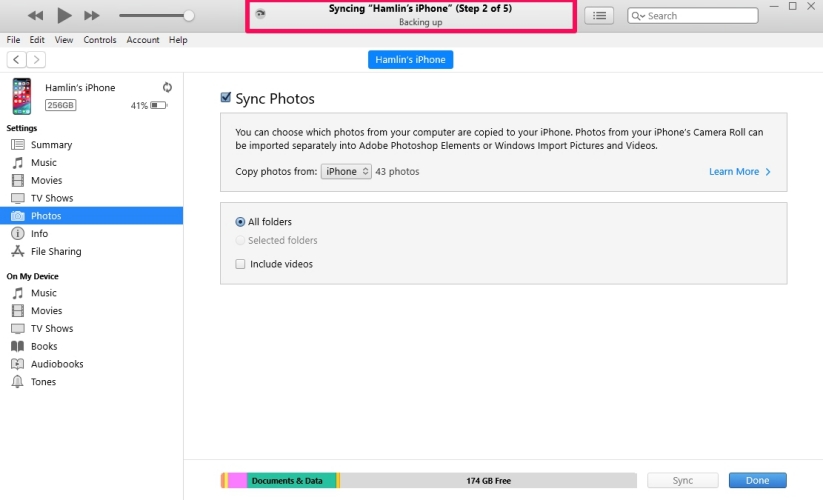
Step 1. Connect the receiving iPhone to the computer and open iTunes.
Step 2. Click the device icon and click Photos in the left directory.
Step 3. Click Sync Photos and choose the photos you want to transfer to the iPhone.
Option 3. Quick Start for New iPhone
Quick Start is designed for users who are setting up a new iPhone. It allows you to transfer photos, apps, settings, and other data directly from your old iPhone. This method is convenient for moving all of your iPhone data at once, but both devices should be nearby and connected to power during the transfer.
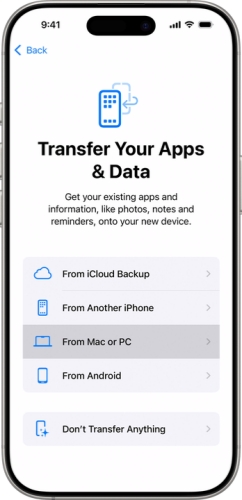
Step 1. Put the old iPhone and new iPhone together.
Step 2. Open the new iPhone and follow the prompts to set it up.
Step 3. When you see the Transfer Your Apps & Data screen, choose Transfer from Another iPhone. Then follow the instructions to transfer data from the old iPhone to the new one.
Part 3. How to Transfer Photos from iPhone to iPhone with iCloud
If you have enough storage in iCloud, it offers you several ways to transfer or share photos between iPhones. You can create a temporary link, use a Shared Album for ongoing access, or turn on iCloud Photos to sync your entire photo library.
Option 1. iCloud Shared Album Link [Temporary]
An iCloud Shared Album link is a convenient way to share selected photos for a limited period. You can copy the link and send it to another person or open it on another device. But be aware that the shared photos should have been synced to your iCloud account first, and you can create a shared iCloud album link.
Sender's iPhone
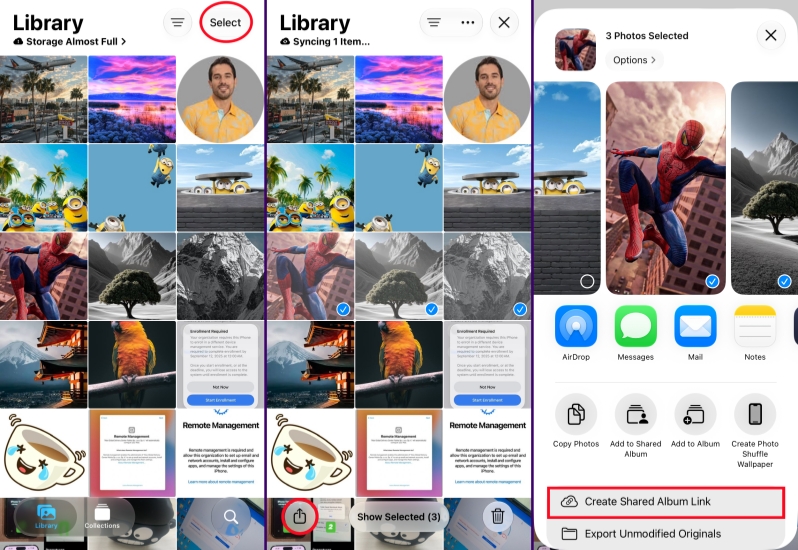
Step 1. Open Photos and tap Library.
Step 2. Tap Select to select the photos you want to transfer.
Step 3. Tap the Share icon and choose Create iCloud Shared Album Link. Then you can copy the link and share it with another iPhone.
Receiver's iPhone
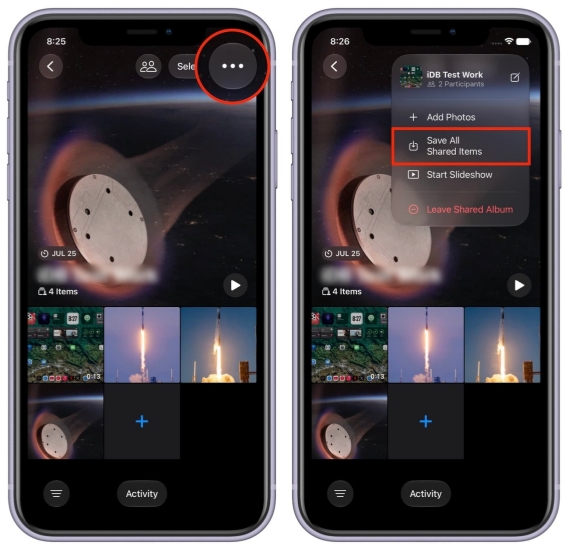
Step 1. Open the Shared Album link, and you will be directed to the shared album in the Photos app.
Step 2. Tap the triple-dot icon and choose Save All Shared Items to save the photos to your personal library.
Option 2. Create Shared Album [Permanent]
Creating a Shared Album allows you to keep selected photos available for longer-term access. You can invite another Apple user to view the album and add more photos over time.
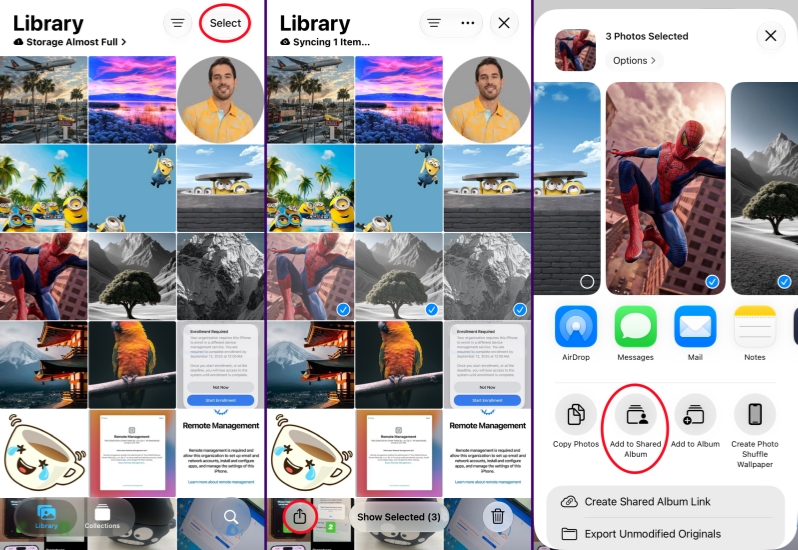
Step 1. Open Photos and tap Library.
Step 2. Tap Select to select the photos you want to transfer.
Step 3. Tap the Share icon and choose Add to Shared Album.
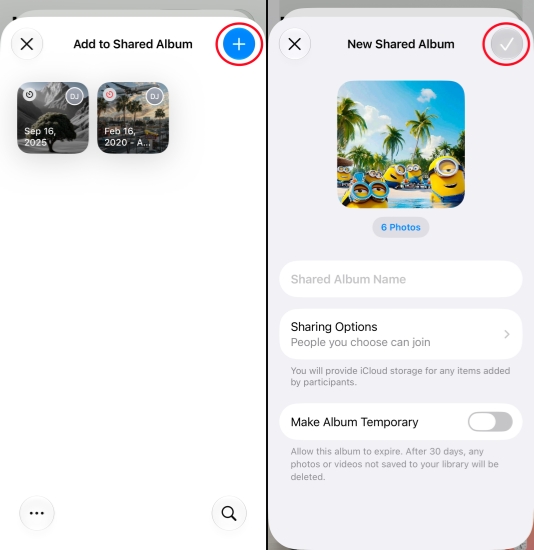
Step 4. Tap the + icon to create a new Shared Album, edit the album name, and tap the Done icon.
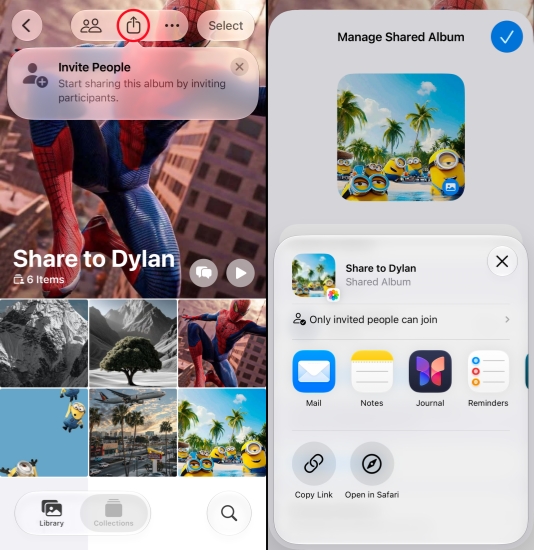
Step 5. Tap the Share icon and tap Copy Link.
Step 6. Share the link with another iPhone.
Option 3. iCloud Photos Sync
iCloud Photos automatically syncs your photo library across iPhones that use the same Apple Account. After signing in with your Apple ID on another iPhone and enabling iCloud Photos sync, your photos and edits can appear on your other device as long as it has an internet connection.
Sign Out of Apple ID on iPhone
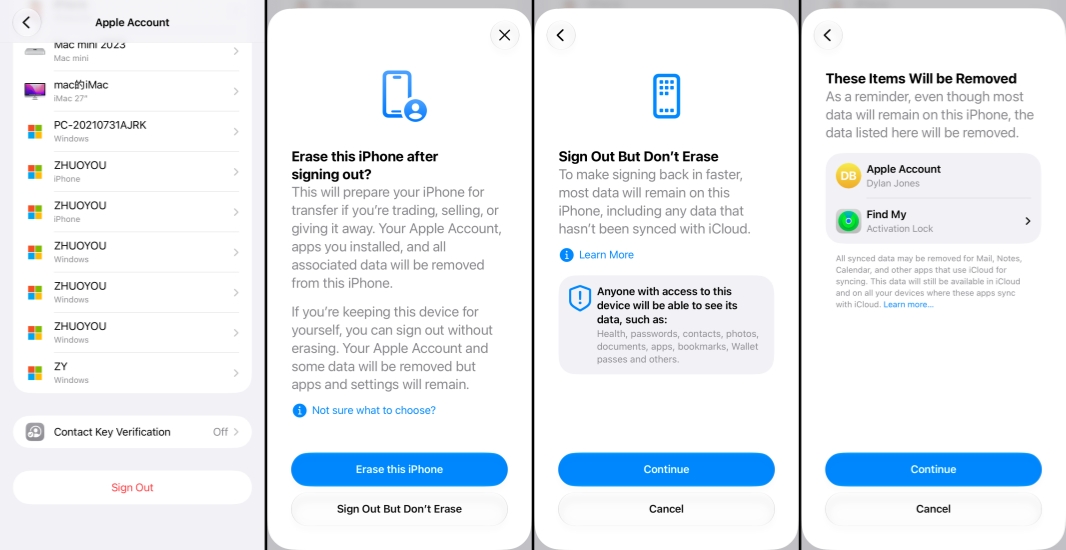
Step 1. Go to Settings > Apple ID.
Step 2. Tap Sign Out at the bottom and choose Sign Out But Don't Erase.
Step 3. Tap Continue and enter your Apple ID to disable Find My iPhone and sign out.
Sign in and Sync iCloud Photos
Step 1. Tap Sign in and sign in with your Apple ID on another iPhone.
Step 2. Wait for data to sync on the iPhone; afterwards, iCloud photos will also be synced on the iPhone.
Part 4. Transfer Photos Across iPhones and Computers
If you want to transfer photos through a computer, MagFone iPhone Data Recovery can provide another option. It allows you to recover or export photos from an iPhone to a computer, where you can save and organize them before transferring them to another iPhone. In addition, it offers more data management features, including recovering deleted photos from an iPhone, extracting photos from an iTunes backup, backing up and restoring iPhone data. Just follow the steps below to transfer your photos across iPhones.

MagFone iPhone Data Recovery
Extract and Transfer iPhone Photos from Your Device or Backup in Minutes.
Step 1 Open MagFone iPhone Data Recovery
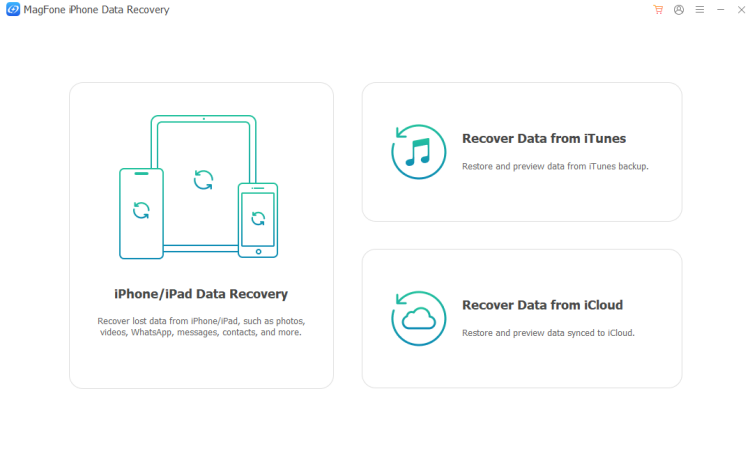
First, download and install MagFone iPhone Data Recovery on the computer. Use a data cable to link an iPhone to the computer. Then open the data management tool to start.
Step 2 Scan Photos on iPhone
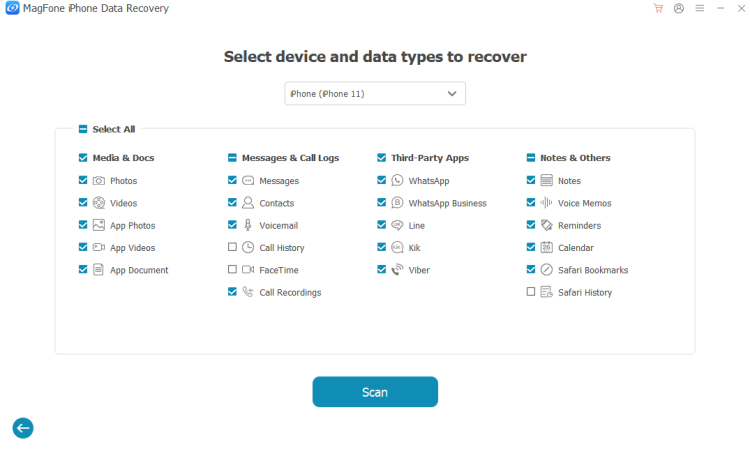
Click iPhone/iPad Data Recovery on MagFone. Select Photos and click Scan to scan for photos on the iPhone.
Step 3 Transfer Photos from iPhone to Computer
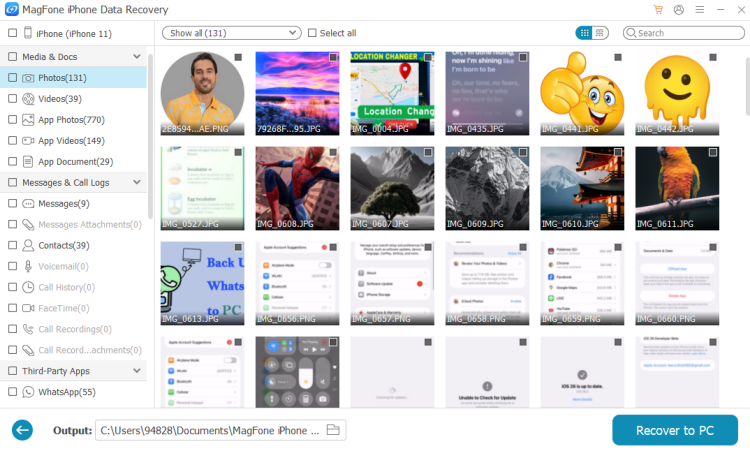
After MagFone scans your iPhone photos, you can select the photos you want to transfer and click Recover to PC or Recover to Mac to export to your computer.
Step 4 Transfer Photos to iPhone
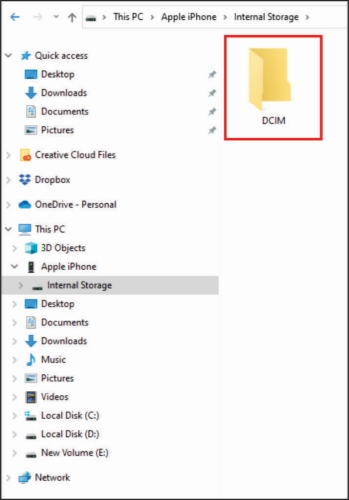
Link another iPhone to the computer. Open File Manager and go to Apple iPhone > Internal Storage > DCIM. Then transfer the photos from the computer to the iPhone.
Part 5. Conclusion
Each photo transfer method has different advantages. AirDrop is best for quick sharing, Quick Start is suitable for setting up a new iPhone, and iCloud Photos works well for keeping photos synced across devices. If you want more control or need to move photos through a computer, iTunes, Finder, or the MagFone iPhone Data Recovery app can also be useful. Choose the method that best matches the number of photos, available devices, storage space, and transfer time.

Edgar Davis
Editor in chief




