







Switching old iPhone to a new one? Or sharing contacts to another iPhone device? Whether you're setting up a new iPhone or simply sharing your contacts between devices, there are several easy ways to move them. In this guide, we will walk you through how to transfer contacts from iPhone to iPhone with AirDrop, iCloud Contacts sync, or a CSV file.
- Part 1. How Can I Transfer Contacts from iPhone to iPhone?
- Part 2. How to Transfer Contacts from iPhone to iPhone
- Part 3. Bonus Tip: Transfer Contacts from iPhone to Computer
- Part 4. FAQs about Transferring iPhone Contacts
- Part 5. Conclusion
Part 1. How Can I Transfer Contacts from iPhone to iPhone?
If you want to transfer a single contact from iPhone to another iPhone, you can share the contact via AirDrop quickly. If you are going to transfer all contacts from one iPhone to another iPhone, you can sync contacts via iCloud, or export contacts to CSV and import them to another iPhone. If you want to transfer selective contacts from iPhone to iPhone, you can consider using a contacts transfer tool. You can choose the suitable method based on your needs.
| Method | Best For |
|---|---|
| AirDrop | Single contact one time |
| iCloud Contacts Sync | Transfer all contacts or selective contacts |
| Export to CSV and Import | Transfer all contacts at once |
| MagFone iPhone Data Recovery | Transfer all or selective contacts |
Part 2. How to Transfer Contacts from iPhone to iPhone
Since you have learned about these methods, follow the steps below to transfer contacts from iPhone to iPhone.
Method 1. Transfer Contacts via AirDrop
If you just need to transfer a single contact to another iPhone, you can share the contact via the AirDrop feature. When the two iPhones are nearby, you can follow the steps below to share a contact.
Share Single Contact:
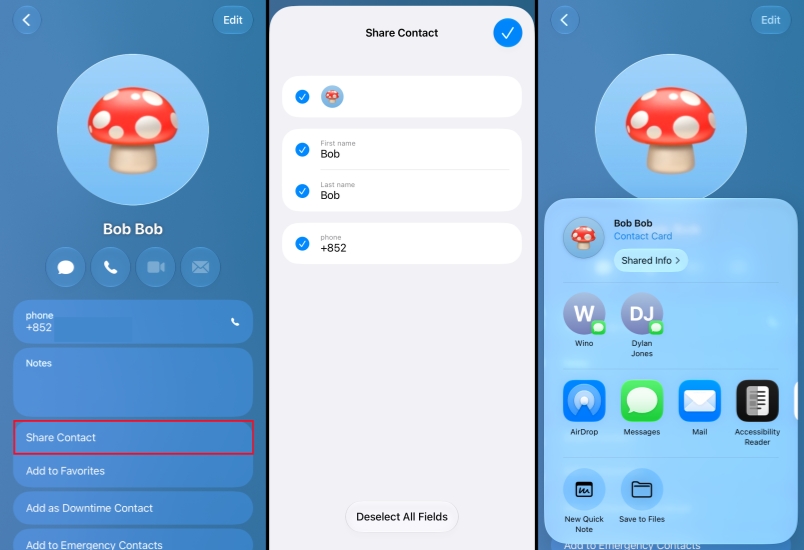
Step 1. Open the Contacts app and go to the All Contacts folder.
Step 2. Tap the contact you need to transfer and tap Share Contact.
Step 3. Select the contact information you want to include, and tap the OK icon.
Step 4. Tap AirDrop and tap the iPhone you need to transfer to.
Step 5. When the receiver taps Accept, the contact will be saved to their iPhone automatically.
Share Selective Contacts:
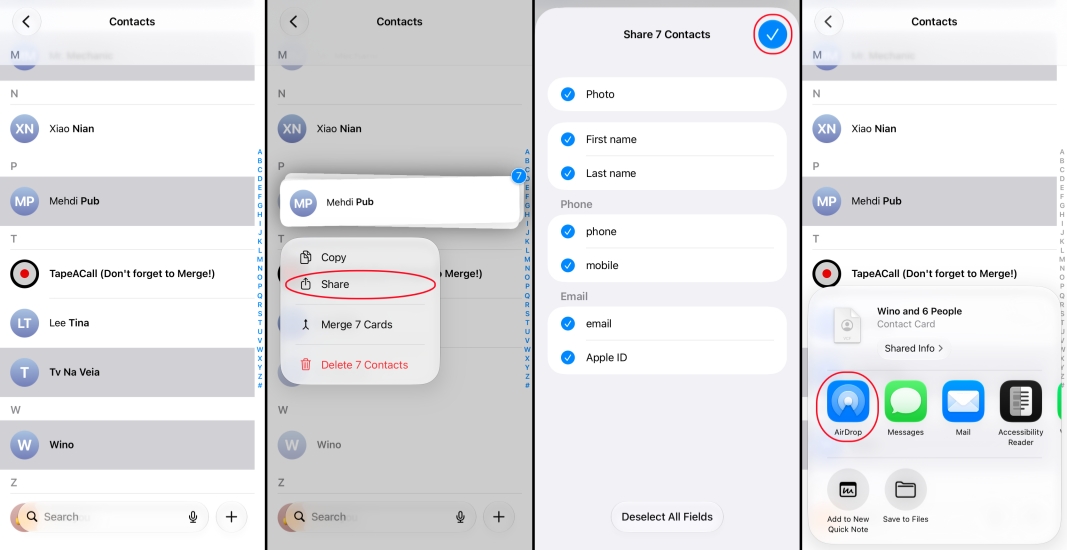
Step 1. Open the Contacts app and go to the All Contacts list.
Step 2. Use two fingers to tap and drag over the contacts you want to share.
Step 3. Long-press the selected contacts, and tap Share.
Step 4. Select the contact information you want to include, and tap the OK icon.
Step 5. Tap AirDrop and choose the iPhone you want to transfer to.
Step 6. Tap Accept on the receiver's iPhone and import the contacts to the iPhone.
 Pros
- Quick for sharing single contact
- Wireless method

- Requires both devices nearby
Method 2. Transfer Contacts via iCloud Sync
If you need to transfer contacts from an iPhone to a new iPhone, you can use iCloud to sync the contacts. You need first back up the contacts to your iCloud Contacts, then sync the contacts on the new iPhone.
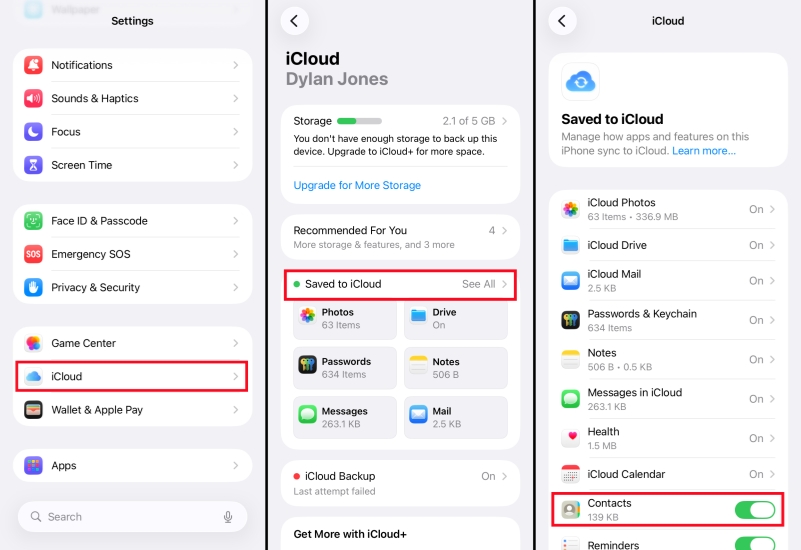
Step 1. Go to iPhone Settings > Apple ID > iCloud.
Step 2. Tap Saved to iCloud and turn on the switch next to Contacts. Wait for your contacts to sync to iCloud.
Step 3. When you log in to the same Apple ID on a new iPhone and enable iCloud Contacts, the contacts will automatically sync on the new iPhone.
Pros- Convenient for transferring contacts from old iPhone to new iPhone
- Needs to sign in to the same Apple Account
- Requires network
Method 3. Transfer Contacts via Export
As many users know, there may be errors while using iCloud to sync data. You can also transfer contacts from iPhone to iPhone without iCloud. You can first export your contact lists and import the contact list to another iPhone.
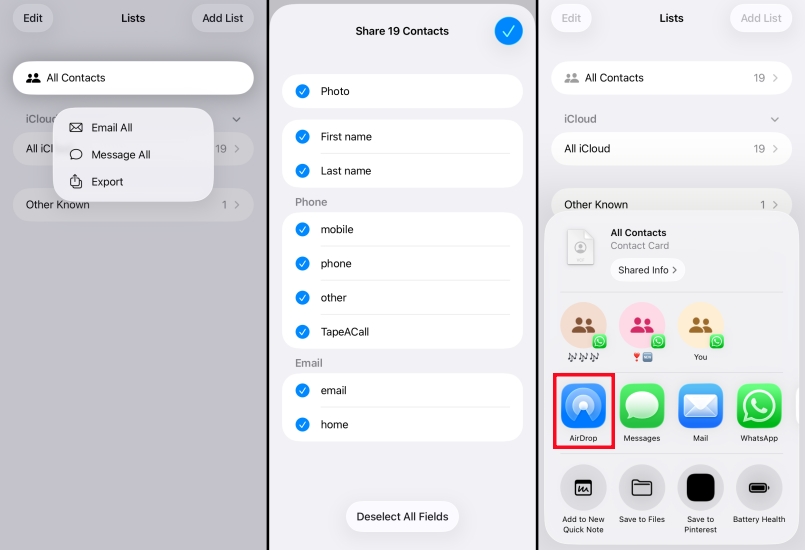
Step 1. Open Contacts and go to the Lists page.
Step 2. Long-press the contacts list you need to transfer and choose Export.
Step 3. Choose the information you want to include and tap OK.
Step 4. You can transfer the CSV file to another iPhone via AirDrop, email, or another third-party platform.
Step 5. Open the CSV file on another iPhone and import the contacts.
Pros- Transfer all contacts at once
- Easy to store and manage
- Import steps vary by service or method
Part 3. Bonus Tip: Transfer Contacts from iPhone to Computer
If you'd like to transfer selected contacts from an iPhone, MagFone iPhone Data Recovery can make the transfer easier. As a versatile data management tool, MagFone can scan contacts on your iPhone and allow you to export your contacts selectively. Besides, it can also extract contacts from your iTunes backup and iCloud Contacts, allowing you to transfer contacts in different scenarios. It offers you a quick and effortless solution whenever you want to transfer your iPhone data. Follow the steps below to selectively export your iPhone contacts.

MagFone iPhone Data Recovery
Extract and Transfer iPhone Contacts from Your Device or Backup in Minutes.
Step 1 Open MagFone iPhone Data Recovery
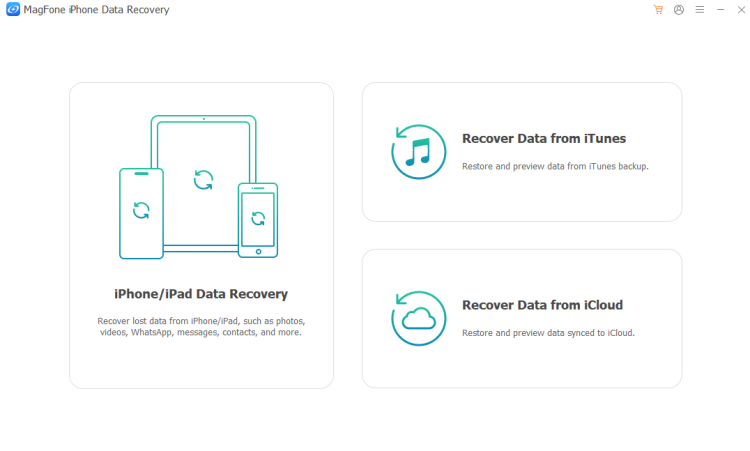
First, download and install MagFone iPhone Data Recovery on a computer, and launch it.
Step 2 Scan Contacts on iPhone
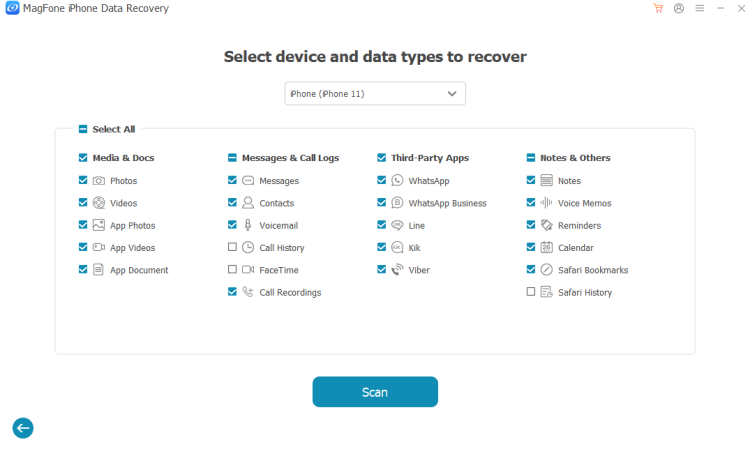
Use a data cable to link your iPhone to the computer. Choose iPhone/iPad Data Recovery in MagFone, select Contacts, and click Scan to scan iPhone contacts.
Step 3 Export iPhone Contacts to Computer
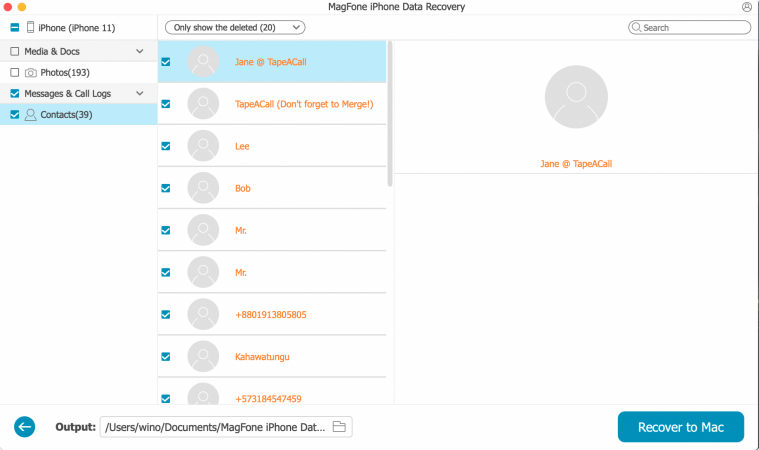
Select the contacts you want to transfer and click Recover to PC or Recover to Mac to export the contacts to your computer. Then you can share the exported contacts with anyone or any iPhone you want to.
Part 4. FAQs about Transferring iPhone Contacts
How to transfer contacts from Android to iPhone?
You can export contacts on an Android phone first, then import the contacts to an iPhone.
Step 1. Open Contacts and tap the hamburger icon.
Step 2. Tap Manage contacts > Export contacts.
Step 3. Select Internal storage and tap Export.
Step 4. Find the exported vcf file in Internal storage and share it to the iPhone.
Step 5. Save the vcf file to the Files app.
Step 6. Open the vcf file and choose Import or Add All Contacts when you are asked.
How to import contacts to iPhone?
If the contacts are saved in a vcf file, you can directly open the file and choose to add the contacts to your iPhone.
How can I transfer contacts from iPhone to iPhone without iCloud?
If you want to transfer iPhone contacts without iCloud, you can export iPhone contacts first, then import the contacts to another iPhone.
Part 5. Conclusion
Transferring contacts from one iPhone to another can be simple once you choose a method that fits your needs. AirDrop works well for sharing single or a few contacts, while iCloud Contacts sync is convenient for keeping all contacts synced across Apple devices. Exporting contacts to a CSV file offers another way to transfer contacts without iCloud. If you also want a computer copy, consider a tool such as MagFone iPhone Data Recovery.

Edgar Davis
Editor in chief




