








Even though my Iphone messager is set to hold messages forever, all of my text messages from before 2022 have disappeared (I swear I didn't delete them). There are a few that I'd like to recover. I've tried turning things off and back on (both iMessenger and the phone itself), but no joy. Am I out of luck?"
——From Reddit
In the daily use of an iPhone, text messages often carry important information. Though you have set your iPhone to keep messages forever, you are unable to find the old text messages on your iPhone. Have you ever faced the same issue? When you want to recall some old text messages on iPhone, how can you find them, and what to do if you can't find them? In this guide, we will introduce how to find old text messages on iPhone and 3 methods to recover old messages on iPhone.
- Part 1. Can You Recover Old Text Messages on iPhone?
- Part 2. How to Find Old Text Messages on iPhone
- Part 3. How to Retrieve Old Text Messages on iPhone
- Part 4. Conclusion
Part 1. Can You Recover Old Text Messages on iPhone?
Many users find it challenging to locate old text messages on their iPhone when they want to recall them. And they may ask if I can recover old text messages on iPhone.
Actually, whether you can get back old text messages depends on whether the text messages were deleted, how long has passed since they were deleted, and whether you have a backup. Under normal circumstances, the iPhone will not automatically delete text messages, and old text messages can be stored in the device forever. But if you manually delete text messages, or the system has set up automatic cleanup, then these old text messages may go into Recently Deleted or even disappear from your device completely.
Note:
If the Message History setting is set to keep for 30 days or 1 year, older text messages will be permanently deleted from your iPhone. To prevent old text messages from disappearing, you can check and adjust the Message History setting.
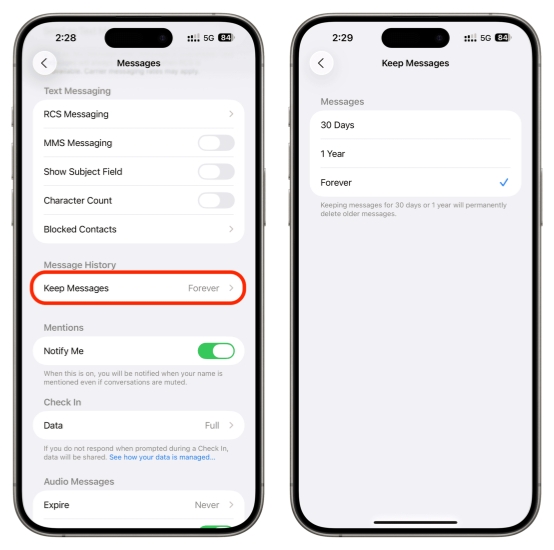
Step 1. Go to iPhone Settings > Apps > Messages.
Step 2. Find and tap Keep Messages, set it to Forever.
Part 2. How to Find Old Text Messages on iPhone
In many cases, the old iPhone text messages are not missing, but they are simply moved to the Recently Deleted folder or ignored because there are many chats. You may find the old text messages on iPhone in the Recently Deleted folder or by using the search bar.
Method 1. Find Old Text Messages from the Recently Deleted Folder
Starting with iOS 16, the Messages app has added the Recently Deleted feature. If your old text messages were recently deleted, chances are they're still stored in the Recently Deleted folder and can be restored directly to the original conversation list.
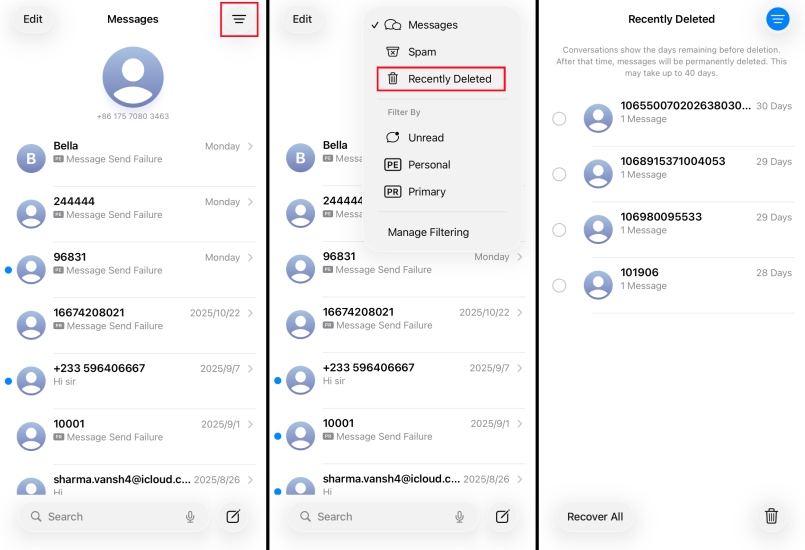
Step 1. Open the Messages app on your iPhone.
Step 2. Tap the upper-right icon and choose the Recently Deleted filter.
Step 3. Check if you can find old text messages in this folder.
Method 2. Find Old Text Messages via Search Bar
When there are numerous chat logs, and the conversations span a lengthy period, manually swiping up to find old text messages can be inefficient. In this case, the search bar in the Messages app can help you quickly locate old messages.
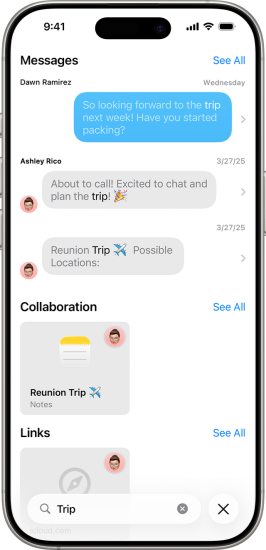
Just enter a contact's name, phone number, or keywords from the message, and the system will automatically filter out message records containing relevant content. Even if the messages were sent a long time ago, as long as they are still kept on your device, you can find them directly through the search.
Part 3. How to Retrieve Old Text Messages on iPhone
If the old text messages disappeared weirdly, or you have set the Messages app to keep your messages for 30 days or 1 year, then it's hard to find them on your device. In this case, you need to recall if you have backed up the old text messages to iCloud or iTunes. Here, we will show you how to retrieve old text messages on iPhone from a backup or without a backup.
Method 1. Recover from iCloud Backup
If you can't find any relevant old text messages on your iPhone, and you previously had iCloud backup enabled, then restoring from an iCloud backup is a viable option. iCloud backups usually contain text message data, and as long as the backup was created before the messages were deleted, there's a chance these old messages can be restored to your device.
It's important to note that restoring from an iCloud backup will erase all data on your current device and overwrite it with the backup content. Therefore, before using this method, make sure the backup actually contains the text messages you need.

Step 1. Head for iPhone Settings > General.
Step 2. Scroll to the bottom and tap Transfer or Reset iPhone.
Step 3. Tap Erase All Content and Settings > Continue > Erase iPhone, then enter your iPhone passcode to wipe your iPhone.

Step 4. After iPhone data is erased, follow the on-screen instructions to configure your iPhone. When you see the Transfer Apps & Data screen, choose From iCloud Backup to restore data from iCloud.
Step 5. After setting up, you can open the Messages app to check the old text messages on iPhone.
Method 2. Recover from iTunes Backup
Besides iCloud, iTunes can also help iPhone users create backups. If you've ever connected your iPhone to your computer for a full backup, those backup files likely contain your text message history from that time. Recovering old text messages from an iTunes backup will overwrite the current data on your iPhone, so be cautious when trying.

Step 1. Link your iPhone to your computer via a data cable. Then launch iTunes.
Step 2. When your iPhone is detected, click the device icon on the iTunes window, then click Summary.
Step 3. Click Restore Backup and choose the backup you want to restore to your iPhone.
Method 3. Recover Using a Third-Party Tool
It's lucky that if you can find the old text messages on iPhone, or you have a previous backup of iPhone messages. But if you haven't enabled iCloud backup for the Messages app, or you haven't synced your iPhone to iTunes. Then MagFone iPhone Data Recovery is recommended for you. It's a dedicated iPhone data recovery tool that can help you scan, preview old text messages on iPhone, and recover them without data overwriting. Besides, it's also available to extract old text messages from iTunes backup without restoring the entire backup. If you don't want any data overwritten, just follow the steps below to retrieve old text messages on iPhone:

MagFone iPhone Data Recovery
Recover data from iPhone and iPad in three recovery modes without data overwritting and device reset.
Step 1 Launch MagFone and Connect Your Device

Download MagFone iPhone Data Recovery, install it, and run the program on your computer. Plug your iPhone into the computer using a USB cable to establish a stable connection.
Step 2 Search for Old Text Messages on iPhone

Choose iPhone/iPad Data Recovery on the main window. Mark the data types you wish to get back and hit Scan to begin scanning your iPhone.
Step 3 Recover Old iPhone Text Messages
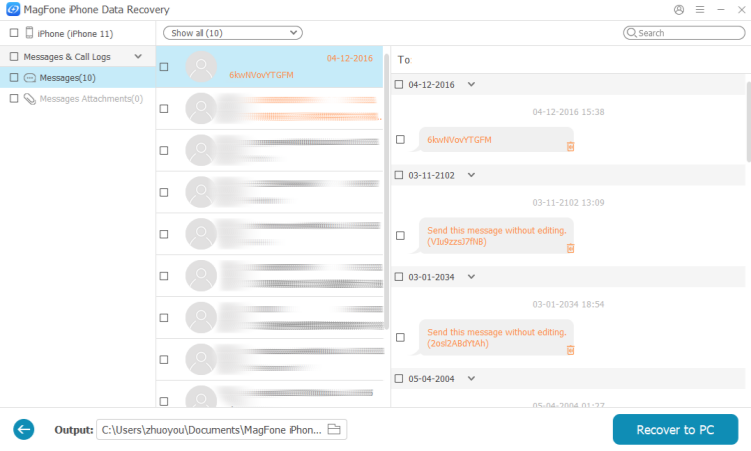
After the scanning process, the program will display all selected iPhone data. Click Messages, find and select the old text messages you want to restore, and choose Recover to PC to retrieve them.
Part 4. Conclusion
It's easy to find and recover old text messages on iPhone using the methods introduced in this guide. To avoid encountering the same issue of missing old text messages, it's recommended that you enable iCloud backup for the Messages app so that you can restore them when needed, or use MagFone iPhone Data Recovery to retrieve old text messages on your iPhone.

Edgar Davis
Editor in chief





