








Have you ever had this moment: you open your iPhone Notes app, ready to check an important message, only to find that several notes, or even the entire note, are gone? They were there yesterday, but today they've vanished without a trace. Not one user has reported the issue that iPhone notes disappeared. And you can't figure out whether they were accidentally deleted, failed to sync, or caused a problem after a system update. In this guide, we will show you how to find missing notes on iPhone and recover lost notes on iPhone after accidental deletion.
- Part 1. How Do I Recover Lost Notes on iPhone?
- Part 2. How to Find Lost Notes on iPhone Directly
- Part 3. How to Retrieve Lost Notes on iPhone
- Part 4. Conclusion
Part 1. How Do I Recover Lost Notes on iPhone?
Losing important notes can be stressful, but in many cases, the problem comes down to iPhone settings, sync issues, or accidental operations rather than permanent data loss. Before you rush to restore your iPhone from a backup, it's worth first checking whether the missing notes are simply hidden, unsynced, or temporarily removed.
When you are clear that it's a data loss, then you can head for Part 3 to recover missing notes on iPhone from a backup or using a recovery tool.
Part 2. How to Find Lost Notes on iPhone Directly
When you can't find your lost notes on your iPhone, don't rush. It may be related to iPhone settings. Apple officially provides a clear and practical set of troubleshooting steps. You can follow these steps to find lost notes on the iPhone.
Method 1. Check Your Account Settings
If you used to store your iPhone notes in some mail account, like iCloud, Gmail, Outlook, or Yahoo, when the Notes option for that account is turned off, your iPhone notes won't appear in that account. You need to ensure that you have allowed the mail account to sync your iPhone notes.
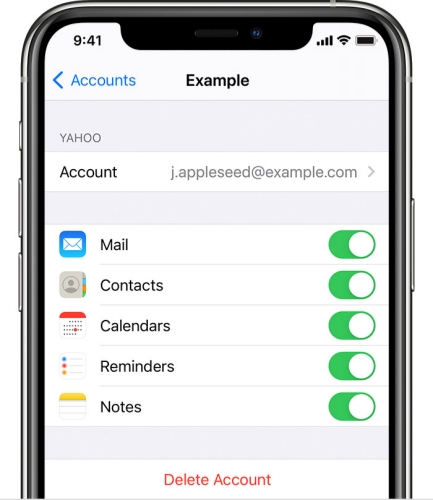
Step 1. Open iPhone Settings and scroll down to the bottom.
Step 2. Tap Apps and find Mail.
Step 3. Access your mail account and make sure Notes is switched on.
Method 2. Check Your Recently Deleted Folder
Sometimes a note seems to be lost but is accidentally deleted. Your iPhone will store deleted notes in the Recently Deleted folder up to 30 days, where you can find and recover them.
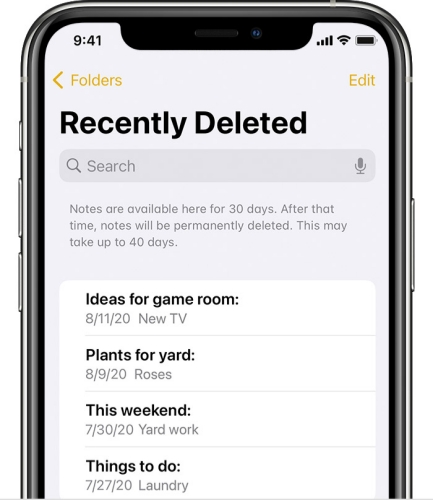
Step 1. Open the Notes app and go back to the folder list page.
Step 2. Tap the Recently Deleted folder and check if the lost notes are in this folder.
Step 3. If you can find the missing notes here, long-press the lost note and tap Move to recover them to your iPhone.
Method 3. Use Search to Find Your Notes
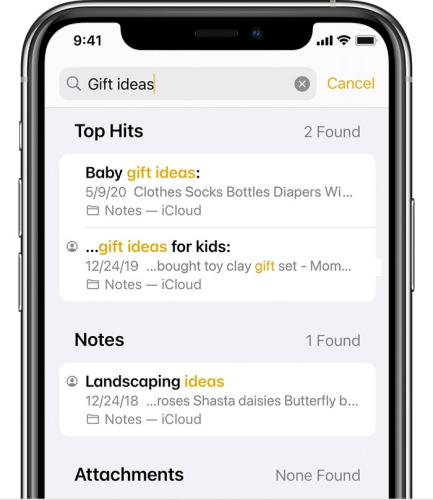
When there are a large number of notes on your iPhone, you can quickly find missing notes using the search feature. Just type in keywords from the note's content and check the search results to locate the lost notes on your iPhone.
Method 4. Manually Search for Your Notes
If you can't remember the specific note content and fail to find the lost notes using the search feature, then you can manually browse through every folder to find the missing notes on iPhone.
Part 3. How to Retrieve Lost Notes on iPhone
If you can't find the lost notes after checking these methods, it is likely that the note has been permanently deleted or disappeared due to device or sync issues, in which case you need to recover them from a backup or device cache. In this part, we will show you how to retrieve lost notes on iPhone, whether you have a backup or not.
Method 1. Get Back Lost iPhone Notes via a Recovery Tool
When you can't figure out where your lost notes have gone, the most recommended solution is to use a professional data management and recovery tool to scan your iPhone. Instead of blindly guessing whether the notes were deleted, unsynced, or affected by a system glitch, a recovery tool can perform a deep scan of your device storage and backups to locate any recoverable note data. With MagFone iPhone Data Recovery, you can detect and recover lost notes on iPhone without having to restore the entire device or overwrite your existing data. The operation is quite simple as follows:

MagFone iPhone Data Recovery
Recover data from iPhone and iPad in three recovery modes without data overwritting and device reset.
Step 1 Launch MagFone iPhone Data Recovery

Start by downloading and installing MagFone iPhone Data Recovery on your computer. Connect your iPhone to the computer via a data cable. Then launch this program to forward.
Step 2 Scan Lost Notes on iPhone

Click iPhone/iPad Data Recovery on the main screen. Select the data you want to recover on your iPhone. Then click Scan to scan iPhone lost notes. Enter your iPhone passcode if asked to give permission.
Step 3 Retrieve Lost Notes on iPhone
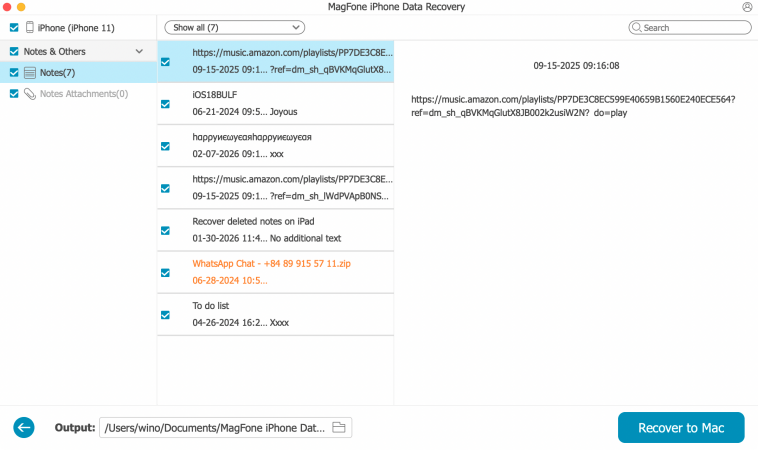
After the scan, you can preview iPhone notes in the next screen. You can find out if the lost notes are in the list. Then select the lost notes and click Recover to PC to get them back.
Method 2. Get Back Lost Notes from iTunes Backup
If you used to make a full backup of your iPhone with iTunes on your computer before your notes were lost, you can restore that backup to get your notes back. After the restore, the iPhone will return to the state it was in when the backup was created, including all the notes saved at that time. However, this will overwrite the current data on your iPhone.

Step 1. Connect your iPhone to your computer using a data cable and open iTunes.
Step 2. Click the device icon, then click Summary in the left bar.
Step 3. Click Restore Backup and choose one backup to restore to your iPhone.
Method 3. Get Back Lost Notes from iCloud Backup
If you have iCloud automatic backup turned on and your notes were lost after an iCloud backup, you can also get them back by restoring your iCloud backup. This method requires you to erase your iPhone and will also overwrite the current data on your iPhone.

Step 1. Go to iPhone Settings > General > Transfer or Reset iPhone.
Step 2. Choose Erase All Content and Settings, and choose Continue.
Step 3. Tap Erase iPhone and enter your iPhone passcode to confirm the operation.

Step 4. After erasing the iPhone, follow the on-screen instructions to set up the iPhone. When you reach the Transfer Your Apps & Data screen, choose From iCloud Backup to restore the iPhone data from iCloud.
Step 5. After setting up, you can open Notes to check the lost notes.
Part 4. Conclusion
By following the steps in this guide, from adjusting iPhone settings to using backups or recovery tools, you can easily find or recover the lost notes on iPhone. Whether the loss was caused by accidental deletion, sync errors, or a system update, MagFone iPhone Data Recovery can help you find and recover lost or deleted iPhone notes in a safe way.

Edgar Davis
Editor in chief





