








Location sharing in iMessage is a useful feature for staying connected with family and friends, but there are times when you may want to protect your privacy without drawing attention. Whether you need temporary privacy or simply don't want others to monitor your whereabouts, there are several effective methods can help. This guide explains how to stop sharing location without notifying others in iMessage, along with some practical tips.
- Part 1. Common Reasons to Disable Location Sharing in iMessage
- Part 2. How to Stop Sharing Location Without Notifying iMessage
- Part 3. More Methods to Stop Sharing Location in iMessage
- Part 4. Conclusion
Part 1. Common Reasons to Disable Location Sharing in iMessage
When you share your location in iMessage, Apple actually relies on the Find My service rather than Messages itself. Although you can begin sharing your location directly in an iMessage conversation, your location is managed through Find My, allowing the recipient to view your whereabouts in both the Messages app and the Find My app. Apple lets you share your location for one hour, until the end of the day, or indefinitely.
Whenever you choose, you can stop sharing from either Messages or Find My. Below are several common reasons why users decide to disable location sharing in iMessage.
- Protect personal privacy when you don't want others knowing your exact location.
- Avoid constant tracking by friends, family members, or acquaintances.
- Keep surprise plans confidential, such as preparing gifts or organizing events.
- Reduce unnecessary questions about your whereabouts.
- Prevent location misuse by people you no longer trust.
- Improve personal security while traveling or visiting unfamiliar places.
Part 2. How to Stop Sharing Location Without Notifying iMessage
If your goal is to keep your actual whereabouts private without immediately alerting the other person, there are two practical approaches worth trying. Instead of completely disabling location sharing, these methods either replace your real location or switch the shared location source.
Method 1. Use MagFone Location Changer
If you prefer not to reveal your real-time location but don't want others to notice you've stopped sharing it, a GPS spoofing tool can help. MagFone Location Changer lets you set a virtual location on iPhone and Android devices in just a few clicks. Instead of displaying your actual position, it shows a chosen location. It also allows users to simulate natural movement across customized paths at varying speeds. Here's a simple user guide for you.

MagFone Location Changer
Easily change your GPS location on iOS and Android devices to anywhere with one click, while not requiring root or jailbreaking!
Step 1 Connect Your Device and Open MagFone
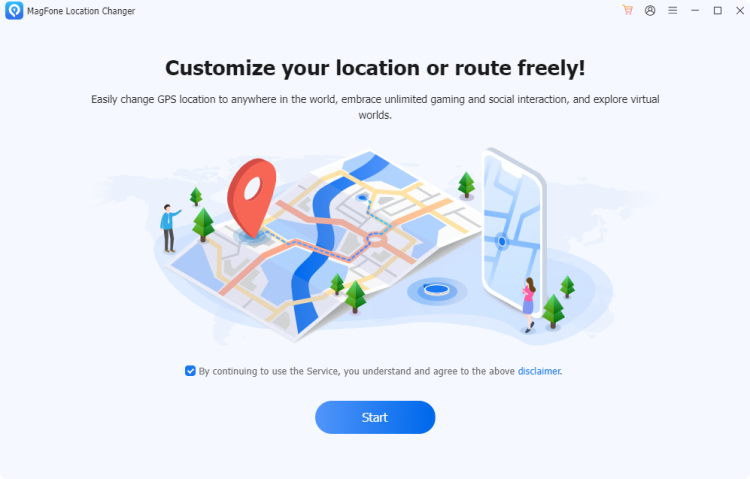
Hold a USB cable to link your iPhone or Android phone to your PC. If prompted, enable Developer Mode or the required permissions on your device. Launch MagFone Location Changer, click Start and Next, then choose the General mode.
Step 2 Apply a Virtual GPS Location in iMessage
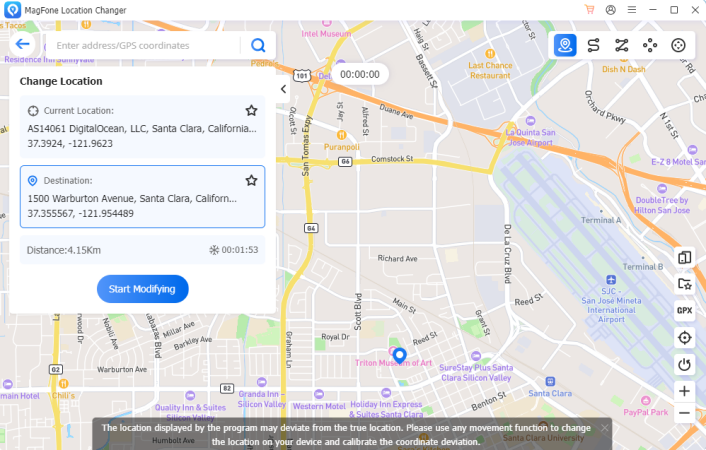
Browse the interactive map or enter your preferred destination using the search box. After finding the desired location, review it carefully and select Start Modifying to replace your current GPS position with the virtual one.
Method 2. Use Another Device Location
If you own multiple Apple devices signed in with the same Apple ID, you can change which device shares your location. This method lets another device become the source of your shared location. Here's how to use another device's location to stop sharing your real location in iMessage.
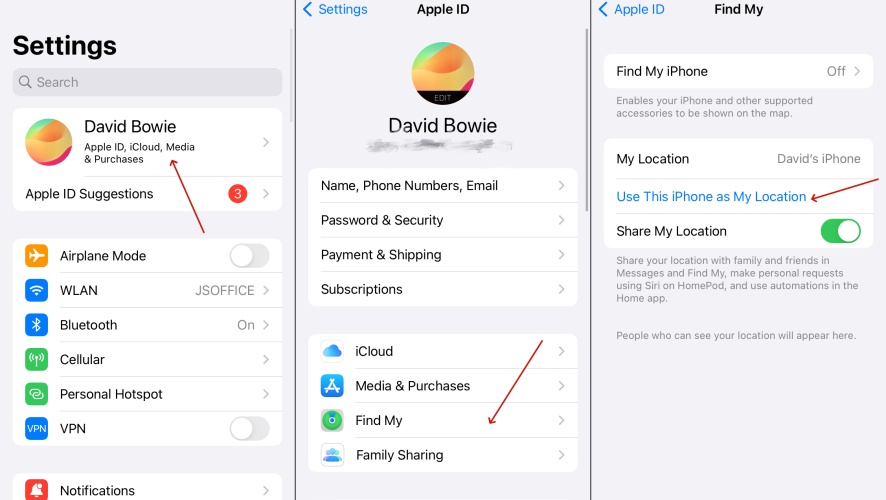
Step 1. On another Apple device with the same Apple ID, go to Settings.
Step 2. Select the Find My section and tap Use This iPhone as My Location.
Part 3. More Methods to Stop Sharing Location in iMessage
Besides using virtual location tools or another Apple device, Apple also provides several built-in privacy settings that let you manage location sharing. Depending on your situation, you can stop sharing with one individual, disable location permissions, or temporarily pause location updates.
Method 1. Stop Sharing Location with a Specific Person
Although your shared location is managed through Find My, you can stop sharing it directly from the Messages app without opening Find My. This is one of the quickest ways to stop sharing your location with a specific person while keeping location sharing enabled for everyone else.
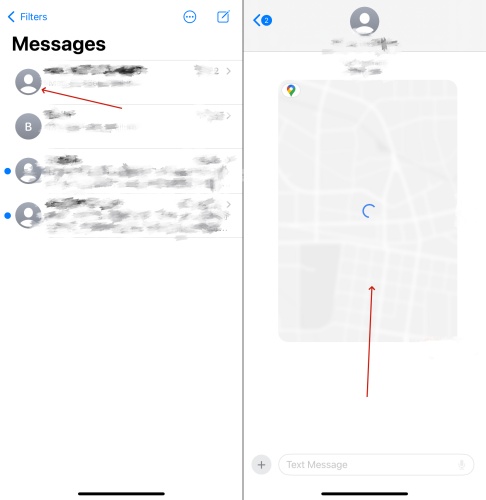
Step 1. Launch the Messages app and open the chat with the contact you want to stop sharing your location with.
Step 2. Tap the location-sharing card in the conversation, then tap Stop Sharing My Location.
Method 2. Turn Off Location Services for iMessage
Another option is disabling location permission for the Messages app. Without location access, iMessage cannot send your current location through conversations, helping limit location sharing while maintaining your messaging functions.
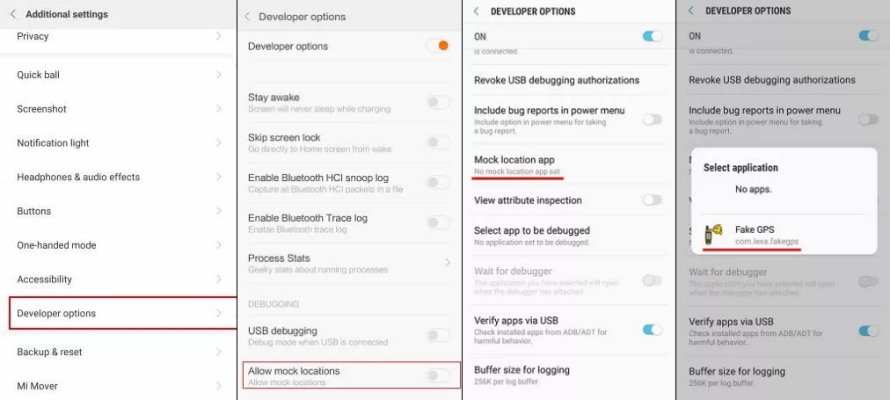
Step 1. Open the Settings app and tap Privacy & Security.
Step 2. Select Location Services. Then scroll down and choose Messages.
Step 3. Then choose Never to disable location access.
Method 3. Turn Off Share My Location in Find My
Since iMessage location sharing depends on Apple's Find My service, disabling the Share My Location feature completely stops your location from being shared with anyone connected through Find My. Here's how to do that on your iPhone.
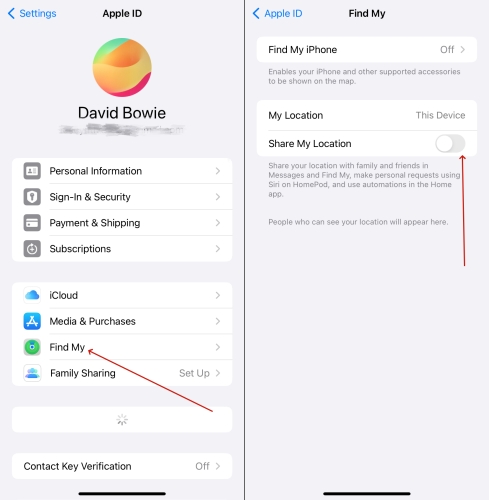
Step 1. Go to Settings and press your Apple ID profile at the top.
Step 2. Choose Find My and tap Share My Location.
Step 3. Toggle off the Share My Location button.
Method 4. Turn On Airplane Mode on Your Phone
Airplane Mode disconnects your device from cellular networks, Wi-Fi, and other wireless connections. Since your iPhone cannot communicate with Apple's servers while offline, your live location cannot be updated until connectivity is restored.
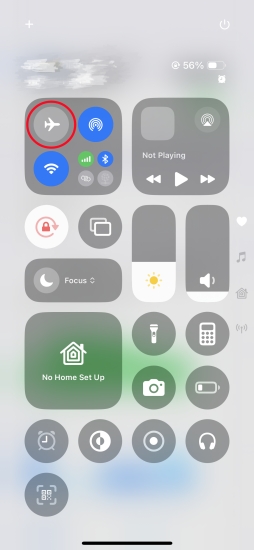
Step 1. Swipe down from the upper-right corner to open Control Center.
Step 2. Tap the Airplane Mode icon.
Part 4. Conclusion
Managing your location privacy in iMessage is easier than many users realize. Whether you choose to use MagFone Location Changer, switch your shared location to another Apple device, or rely on Apple's built-in privacy settings, each method offers a different level of control. By understanding these options, you can better protect your privacy while deciding exactly when, where, and with whom your location information is shared.

Olivia Wood
Editor in chief





