








Managing your location on Twitter (now called X) is more important than many users realize. Your location settings influence what trends you see, the type of content recommended to you, and even how others perceive your profile. Whether you want to explore trends in another country, update your personal profile details, or maintain privacy, learning how to change location on X can help you customize your experience and stay in control of your online presence.
- Part 1. How to Change Location on Twitter (X) Profile
- Part 2. How to Change Trend Location on Twitter (X)
- Part 3. How to Change Twitter (X) Location to Worldwide
- Part 4. FAQs about Location on Twitter
- Part 5. Conclusion
Part 1. How to Change Location on Twitter (X) Profile
The profile location on Twitter is a simple text field displayed on your public profile page. It appears under your bio and helps others identify where you are based or associated with. While it doesn't directly affect your feed or trends, it shapes how people perceive your identity and presence online.
Step 1. Open the Twitter (X) app or go to the website and log in to your account.
Step 2. Navigate to your profile by tapping your profile icon or clicking Profile in the sidebar.
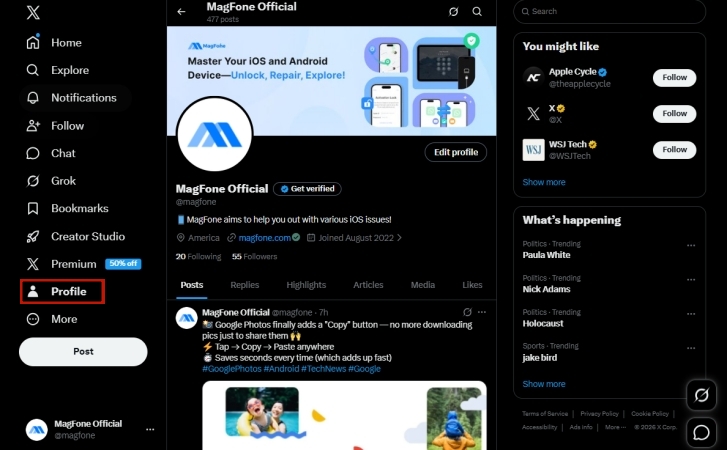
Step 3. Click or tap the Edit profile button.
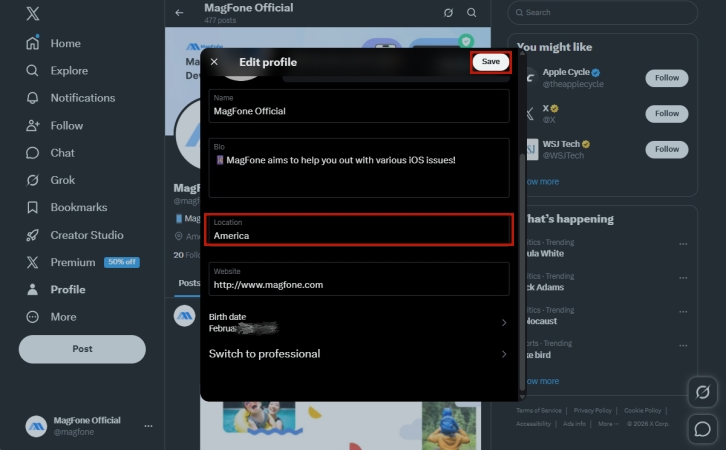
Step 4. Find the Location field in the profile editor and enter your desired location.
Step 5. Click or tap Save to update your profile location instantly.
Part 2. How to Change Trend Location on Twitter (X)
Trend location on Twitter determines what trending topics appear in your Explore or Trends section. These trends are usually based on your current location or selected region. Changing this setting allows you to see what people are discussing in other cities or countries, making it useful for global awareness or niche interests.
Step 1. Open the Twitter (X) app or website and log in.
Step 2. Go to the Explore tab, where Trending topics are displayed.
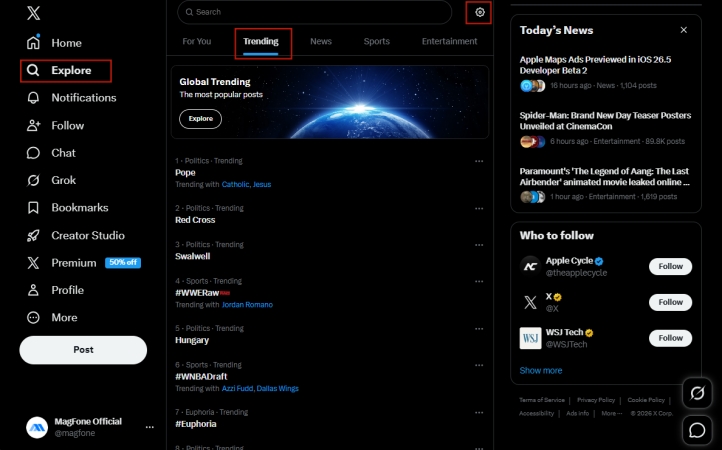
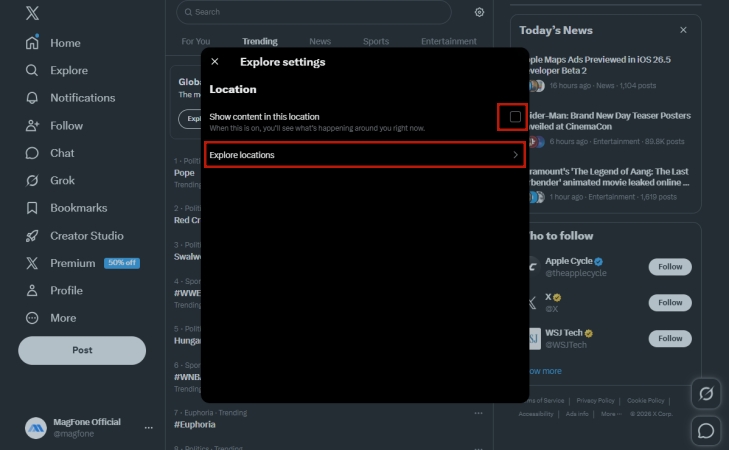
Step 3. Click or tap the Settings (gear icon) in the Trends section.
Step 4. Turn off the Show content in this location option and select Explore locations.
Step 5. Then search for a city or country you prefer, and the trends will refresh automatically.
Part 3. How to Change Twitter (X) Location to Worldwide
If you want to broaden your perspective, switching your Twitter location to worldwide is a great option. This allows you to see global trends rather than region-specific ones. It's especially helpful for staying updated on international news, viral topics, and global conversations without being limited to your local area.
Method 1. Change Twitter Location in Settings and Privacy
Your account's country setting is used by Twitter to tailor recommendations, ads, and certain content features. Changing this setting can shift how the platform personalizes your experience and may also impact the trends you see.
Step 1. Open the Twitter (X) app or website and log in.
Step 2. Click the More icon and go to Settings & Privacy.
Step 3. Select Your Account, then click Account Information.
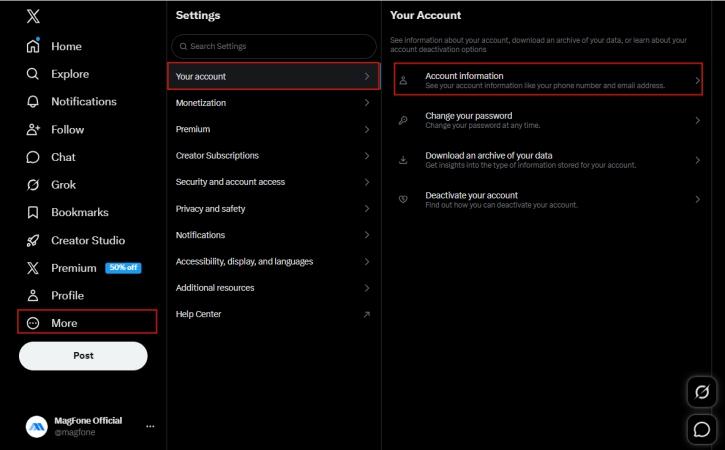
Step 4. Enter your password and locate the Country option.
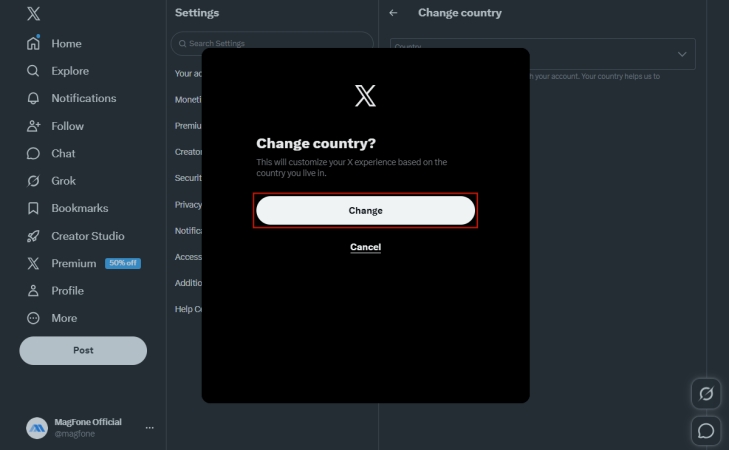
Step 5. Choose a different country from the list.
Step 6. Tap Change to confirm your action when prompted.
Method 2. Change Twitter Location Using a VPN
A VPN (Virtual Private Network) is a tool that masks your real IP address and lets you connect to servers in different locations. By using a VPN, you can make it appear as if you are browsing from another country, which can influence the trends and content shown on Twitter.
Step 1. Download and install a reliable VPN app on your device.
Step 2. Open the VPN and sign in or create an account.
Step 3. Select a server location in the country you want to appear in.
Step 4. Tap Connect to link to the VPN server.
Step 5. Open Twitter (X) and refresh your feed or Explore page.
Step 6. Your trends and some content may now reflect the selected location.
If you frequently use apps, you might also want to adjust location settings beyond Twitter. For example, map services, Find My apps, or location-based games like Pokémon GO rely heavily on GPS data. If you want to simulate or change your device's GPS location on an iPhone or Android device, MagFone Location Changer can help. With just one click, you can modify your device's location easily, making the location changing process hassle-free.


MagFone Location Changer
Easily change your GPS location on iOS and Android devices to anywhere with one click, while not requiring root or jailbreaking!
Part 4. FAQs about Location on Twitter
How to add a location on my Twitter post?
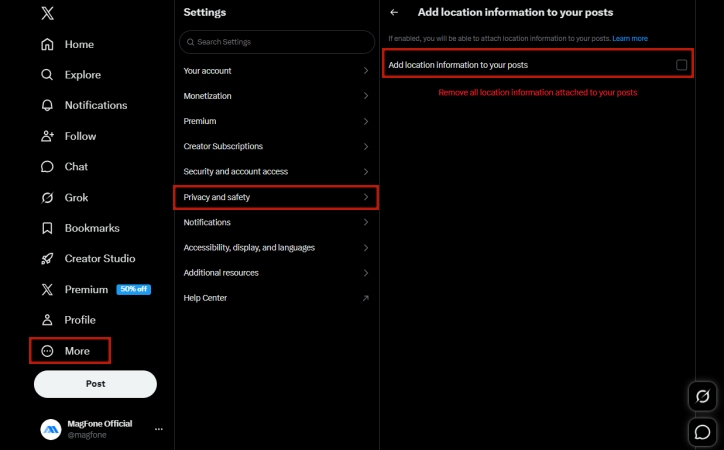
You can add a location when composing a post on Twitter. While creating a tweet, tap the location icon to attach your current place. If the icon appears greyed out, it usually means location sharing is disabled. To fix this, go to More > Settings and privacy > Privacy and safety > Your posts > Add location information to your posts, and enable this option for your posts.
How to hide location on Twitter?
To hide your location in Twitter, simply remove it from your profile or avoid adding it to tweets.
How to turn off location on Twitter?
You can disable location access entirely by turning off location services for the Twitter app in your device settings.
How to see someone's location on Twitter?
You can only see someone's location if they choose to share it publicly. This might appear in their profile or on individual posts with geotags. However, Twitter does not provide real-time or precise location tracking of users, so access is limited to what the user voluntarily discloses.
Part 5. Conclusion
Changing your location on Twitter (X) is a straightforward process that can significantly enhance your experience on the platform. Whether you want to update your profile, explore trends in different regions, or switch to worldwide content, there are multiple methods available to suit your needs. By understanding how these settings work, you can better control your content and improve privacy.

Olivia Wood
Editor in chief




