








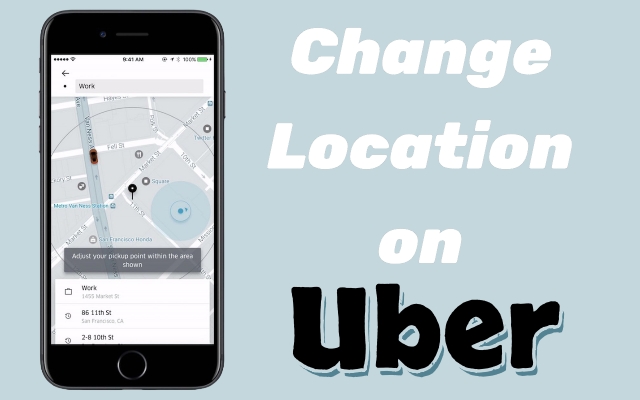
Whether you're on a trip, planning a ride for someone else, or simply entering the wrong location, there are plenty of situations where you might need to change your location in the Uber app. This need usually arises when you're setting up a ride and realize the pickup or drop-off isn't quite right, or when you're switching cities or countries. Fortunately, Uber offers flexible options to modify your ride details, and we'll tell you how to change location on Uber in this detailed guide.
- Part 1. Can You Change Uber Destination?
- Part 2. How to Change Destination in Uber
- Part 3. How to Change Location on Uber [100% Work]
- Part 4. FAQs about Uber Destination Change
- Part 5. Conclusion
Part 1. Can You Change Uber Destination?
Yes, you can change your Uber destination even after the ride has started. Uber allows riders to update the drop-off location directly in the app, which is helpful if your plans change mid-ride or if you made a mistake when booking. However, the limitations are also apparent:
- Only One Change Allowed: Uber typically allows only one destination change per trip.
- Driver's Consent Matters: While rare, your driver may decline the change if it significantly alters the route.
- Pricing May Change: Modifying the destination can affect the fare, especially if the new location is farther.
- Not Always Available: In some regions or with certain ride types (like UberPOOL or shared rides), changing the destination may not be supported.
Part 2. How to Change Destination in Uber
Sometimes plans change mid-ride. Maybe your friend changed the meeting point, or you realized a better drop-off exists. In the Uber app, you can manage your pick-up or drop-off destinations without turning off the ride. Let's walk through how to make that change efficiently.
01How to Change Pickup Location on Uber
After requesting a ride, you can usually adjust your pickup location by editing your current pickup address. However, the new location must be within the gray circle displayed on your screen and you can only adjust your pickup location once per ride request. Here's how to change pick up location on Uber.
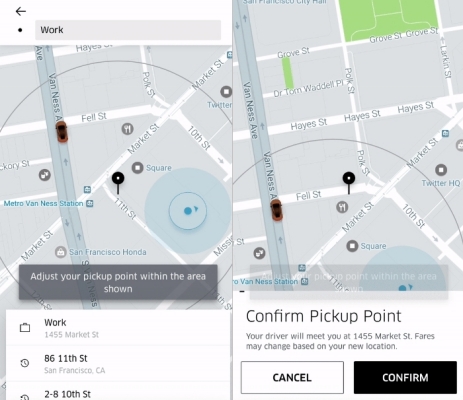
Step 1. Launch the Uber app and choose your pickup point by selecting the location.
Step 2. Look for the small Edit icon beside the current address and tap it to proceed.
Step 3. You can either input a different address manually or reposition the location pin within the highlighted gray area on the map.
Step 4. After the new location is selected successfully, choose Confirm to update it.
02How to Change Drop Off Location on Uber
Standard Rides allow you to update the destination at any point during the trip by tapping the destination bar and entering a new address. While rare, a driver may decline a destination change if it's significantly beyond reasonable expectations. The steps to change the Uber destination are as follows.
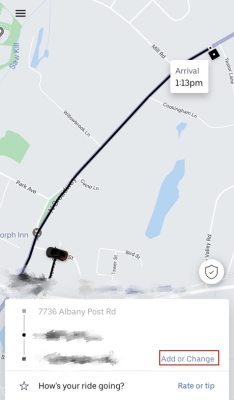
Step 1. Run the Uber app on your phone.
Step 2. Continue to tap the destination name or select the Add or Change button.
Step 3. After doing that, you can input the new drop-off location in the text field.
Step 4. Once you've typed in the address, confirm the change to update your destination.
03How to Change Home Location on Uber App
Your Home address in the Uber app helps streamline future trips, saving you the hassle of typing it in each time. If you've recently moved or are staying somewhere temporarily, updating this setting is a smart move. It's easy to modify this from within the app's settings like this.
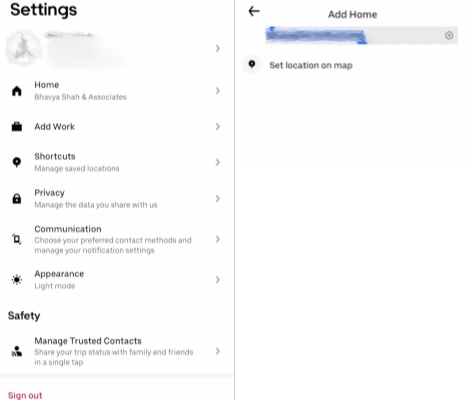
Step 1. Fire up Uber and then select the Account section.
Step 2. Go to Settings and select Home to change address.
Step 3. Enter your new home address in the field provided.
Step 4. Find and tap the address name, then Uber will update your home address automatically.
Part 3. How to Change Location on Uber [100% Work]
Want to use the Uber app in another city or country? Location changers like MagFone Location Changer let you change your GPS location to access Uber anywhere. It's useful for traveling or planning rides in advance. Simply pick a destination on the map and your device updates instantly. It works on iOS and Android, offering one-click GPS simulation without disrupting app performance or functionality. It helps bypass regional restrictions and set trips.

MagFone Location Changer
Easily change your GPS location on iOS and Android devices to anywhere with one click, while not requiring root or jailbreaking!
Step 1 Install and Run MagFone Location Changer

The first step is to run MagFone Location Changer on your PC, and then then link your device to the computer through a USB cable. After detection, pick the Change Location tab from the main interface to begin the Uber location-changing process.
Step 2 Set a New Location for Uber with One Click

Continue to pick the Start button to enter the map view. You can either search for the desired location by entering the city name or manually select a spot on the map. Once you've chosen the location, click Start Modifying to instantly update your Uber GPS location.
Part 4. FAQs about Uber Destination Change
Can I drive Uber in a different city?
Yes, you can drive for Uber in a different city as long as your account is active. Make sure your vehicle meets that city's standards and that you follow local traffic laws and insurance requirements.
Can I drive Uber in different states?
You are allowed to drive Uber in other states, but your car, insurance, and background check must comply with that state's regulations. While it's fine to pick up passengers in one state and drop them off in another, routinely driving there requires meeting local rules.
Can I drive Uber in another state while on vacation?
Yes, you can drive in another state during a trip, but you should:
1) Review local requirements, as some areas may need extra inspections or registration.
2) Update your app with current vehicle and insurance information, and ensure your background check is valid.
3) Confirm your insurance coverage, since Uber's protection can differ by state.
4) Keep in mind local taxes, which may apply to your earnings.
Part 5. Conclusion
Changing your location on Uber, whether it's pickup, drop-off, home address, or city, doesn't have to be complicated. By understanding what changes are allowed and how to make them, you can better control your ride experience. For more advanced needs like simulating a location, tools like MagFone Location Changer offer powerful flexibility.

Olivia Wood
Editor in chief





