








"How to block my phone from being tracked?" is a common question among users concerned about privacy. In today's hyperconnected world, apps and individuals can monitor your movements, activities, and online behavior. GPS signals, IP addresses, and app permissions can expose sensitive information and put personal security at risk. In this guide, we'll show you how to stop someone from tracking your phone effectively.
- Part 1. Can You Stop Someone Tracking Your Phone?
- Part 2. How to Stop Someone from Tracking Your IP Address
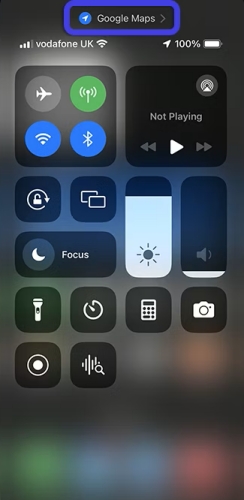
- Part 3. How to Stop Someone from GPS Tracking Your Phone
- Part 4. Conclusion
Part 1. Can You Stop Someone Tracking Your Phone?
Phone tracking generally occurs through two main channels: IP address monitoring and GPS location tracking. IP tracking is linked to your internet connection, so once you go online, your IP address can be automatically detected. In contrast, GPS tracking usually requires your permission or depends on location services being turned on. However, in both cases, you can reduce or prevent phone tracking by using the right methods.
Part 2. How to Stop Someone from Tracking Your IP Address
Your IP address acts as a digital fingerprint whenever you access the internet. Below are practical approaches to safeguard your IP address.
Method 1. Enable Airplane Mode
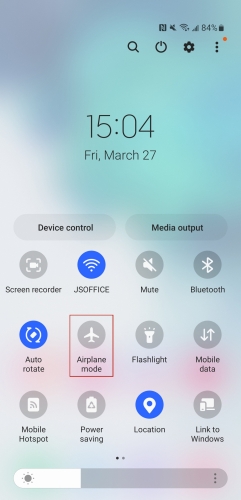
Turning on Airplane Mode instantly halts all wireless transmissions, cutting off cellular, Wi-Fi, and Bluetooth connections, which are often used to monitor your IP or location. You can easily turn it off by swiping to access the Control Center and tap the Airplane Mode icon.
 Pros
Pros- Instantly stops all connections.
- Prevents IP-based tracking.
- Simple one-tap activation.

- No internet or calls.
- Disrupts ongoing activities.
- Not practical long-term.
Method 2. Disable Bluetooth
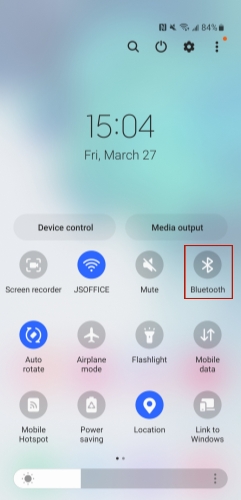
Bluetooth can also be used for some tracking, especially in crowded public spaces where devices exchange signals. Turning it off limits these interactions. Just like the Airplane Mode, you can also diable your Bluetooth in the control center.
 Pros
Pros- Reduces nearby device tracking.
- Saves battery life.
- Easy to toggle off.
- Doesn't hide IP address.
- Limits device connectivity.
- Ineffective against online tracking.
Method 3. Use a Faraday Bag
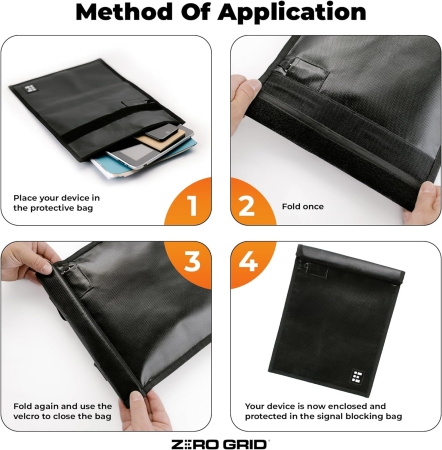
A Faraday bag is a signal-blocking pouch that prevents your phone from sending or receiving wireless communications such as Wi-Fi, Bluetooth, and cellular signals. By sealing your device inside, it becomes invisible to trackers and networks. This approach is useful for high-privacy situations, though it temporarily disables calls, texts, and internet access.
 Pros
Pros- Blocks all wireless signals.
- Prevents any remote tracking.
- Strong physical privacy protection.
- No calls or internet.
- Inconvenient for daily use.
- Requires carrying extra gear.
Method 4. Use a VPN
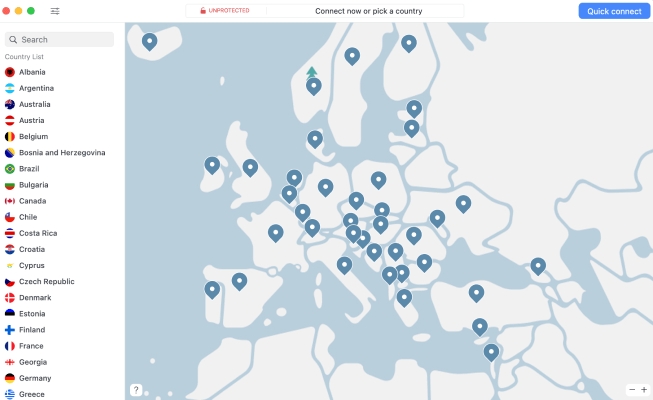
A Virtual Private Network (VPN) hides your real IP address by routing your internet traffic through secure servers. There are many VPN options to choose from, but before downloading, be sure to check compatibility with your iOS or Android device. Here are some top VPNs for your reference.
 Pros
Pros- Masks real IP address.
- Encrypts internet traffic.
- Works during normal browsing.
- May reduce connection speed.
- Some services block VPNs.
- Requires subscription cost.
Part 3. How to Stop Someone from GPS Tracking Your Phone
GPS tracking can reveal your precise movements to apps and third parties. To better protect your location data, we listed two feasible ways.
Method 1. Turn Off Location Services
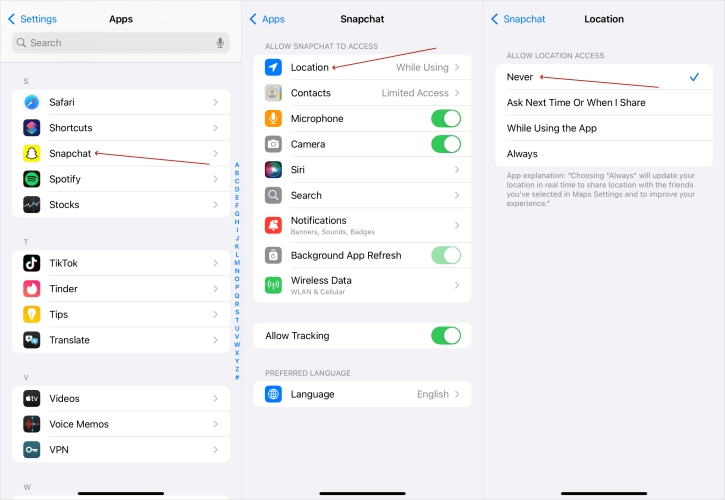
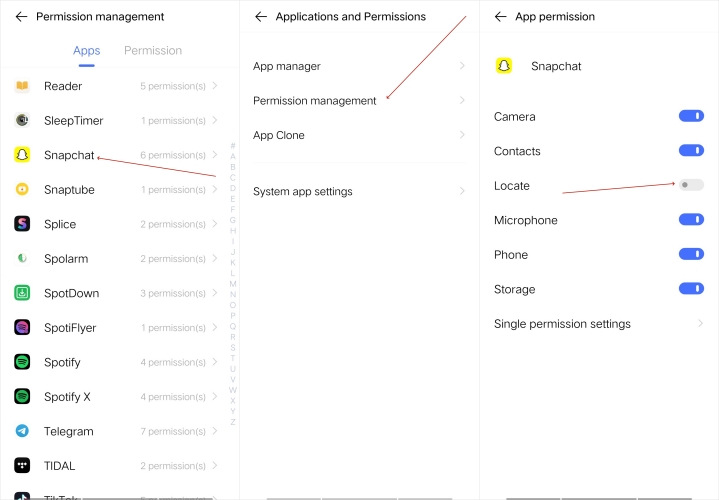
Disabling location services prevents apps from accessing your GPS data. While effective, it may limit functionality, especially for navigation and ride-sharing apps. Therefore, you can choose to turn off location services only for specific apps.
For iOS: Go to Settings > Apps > [Any App] > Location > Never.
For Android: Open Settings > Applications and Permissions > Permission management > turn Locate off.
 Pros
Pros- Stops GPS data sharing.
- Easy to manage permissions.
- Works per app control.
- Limits app functionality.
- May raise suspicion.
Method 2. Use a Location Changer
Sometimes, simply turning off location services will alert others that your phone is no longer being tracked. A smarter solution is using a location changer, such as MagFone Location Changer, which allows you to hide your real location while showing a fake or preferred GPS location to apps and services. Here's how to use this program.

MagFone Location Changer
Easily change your GPS location on Rover to anywhere with one click, while not requiring jailbreaking!
Step 1 Install and Run MagFone Location Changer

Download and launch the software on your PC. Connect your device via USB. After detection, follow the onscreen instructions to enter the General Mode tab and start the process.
Step 2 Set a New Location with One Click

Click Start to open the map interface. Search for your desired location or manually select a point on the map. Once chosen, click Start Modifying to instantly update your GPS location across apps.
Pros- Hides real location.
- Keeps apps functioning normally.
- Flexible location customization.
- Not free to use.
Part 4. Conclusion
In a connected world, devices can reveal movements, activities, and personal information, putting privacy at risk. Users can protect themselves by limiting connectivity, managing app permissions, and masking their digital footprint. Adjusting settings or altering location visibility reduces unauthorized monitoring and safeguards sensitive data.

Edgar Davis
Editor in chief





