








Snapchat's location feature allows friends to see your whereabouts through Snap Map whenever the app updates your position. It helps users stay connected, share locations, and even use Live Location for safety purposes. However, there are times when you may want to pause or freeze your location without completely turning it off or alerting your friends. Can you do that on Snapchat without anyone knowing? Read this guide to find the answer and learn different ways to freeze your location on Snapchat.
- Part 1. 5 Methods to Freeze Location on Snapchat
- Part 2. How to Pause Snapchat Location without Turning It Off
- Part 3. How to Pause Your Location on Sanapchat
- Part 4. FAQs about Freezing Snapchat Location
- Part 5. Conclusion
Part 1. 5 Methods to Freeze Location on Snapchat
Snapchat offers a built-in feature called Ghost Mode that hides your location from others while still allowing you to use the app. However, friends may notice that your location is no longer visible, making it obvious that you've hidden it. Fortunately, there are other ways to pause your Snapchat location more discreetly. Let's compare these methods and choose the one that best suits your needs.
| Method | Will Others Know? | Can You Still Use Snapchat? |
|---|---|---|
| MagFone Location Changer | No | Yes |
| Ghost Mode | Yes | Yes |
| Airplane Mode | No | Limited |
| Hide Live Location | Yes (for Live Location only) | Yes |
| Disable Location Services | Yes | Yes |
Part 2. How to Pause Snapchat Location without Turning It Off
To pause your Snapchat location without others knowing, you can pause your real one while faking a virtual location on the Snapchat map. That's when MagFone Location Changer comes in handy. It allows you to simulate movement or set a virtual location without jailbreaking or rooting your device. You can freeze your presence in a place of your choice, creating the illusion that you're somewhere else while still interacting naturally with friends. Here's how to use it.

MagFone Location Changer
Easily change your GPS location on iOS and Android devices to anywhere with one click, while not requiring root or jailbreaking!
Step 1 Plug In Your iPhone and Open MagFone
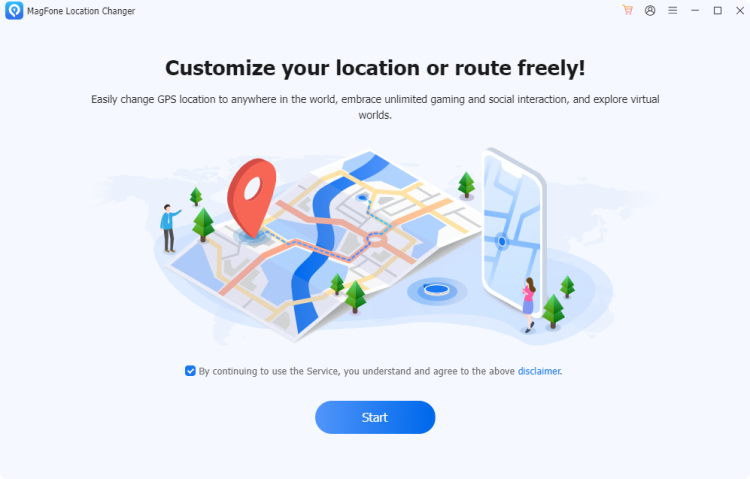
Begin by plugging your iPhone into your computer. After linked successully, fire up MagFone Location Changer and switch to the Change Location feature. Proceed by clicking Start to move forward.
Step 2 Set a Virtual Location on Your Snapchat
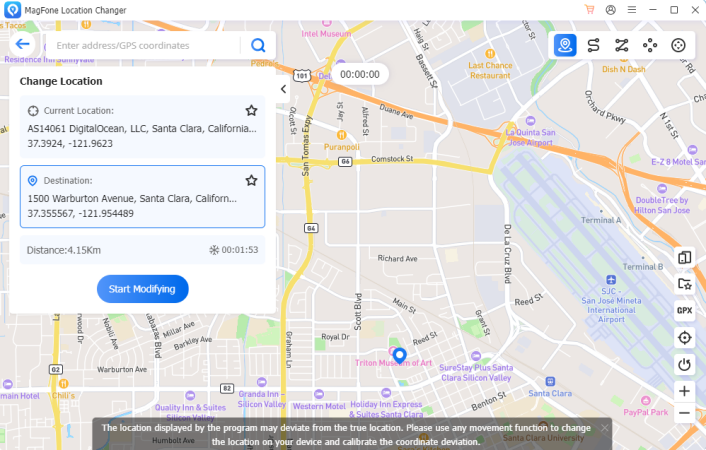
Use the map interface to find a desired location. After pinpointing it, tap Start Modifying to instantly shift your GPS location. Snapchat will then display this new location as your current position.
Part 3. How to Pause Your Location on Sanapchat
In addition to MagFone Location Changer, there are several other useful built-in features that can help you pause your Snapchat location.
Method 1. Enable Ghost Mode
Ghost Mode is Snapchat's built-in privacy shield. It allows you to use the app normally while hiding your location from everyone else. When activated, your last known location disappears from the map, and the app stops updating it in real time. However, the main limitation is that while it removes you from the map, it doesn't preserve a static position——you simply vanish, which may raise curiosity among close contacts who frequently check your location.
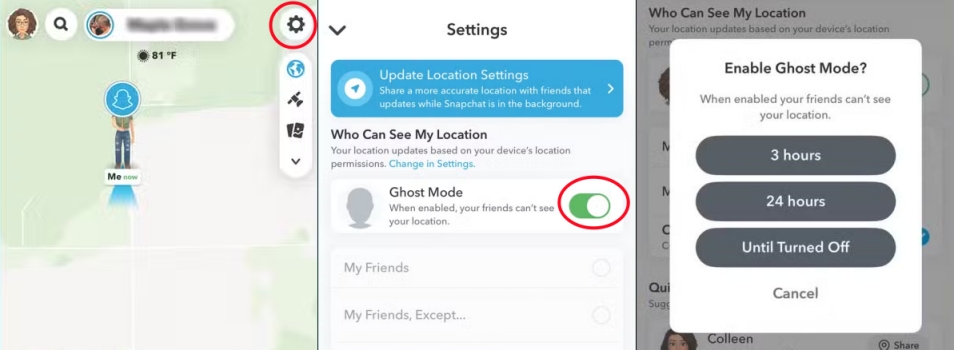
Step 1. Navigate to Snapchat and pick the map part on the bottom.
Step 2. Press the gear icon. Then toggle on the Ghost Mode option.
Step 3. After that, select the time period you want for Ghost Mode.
Method 2. Enable Airplane Mode
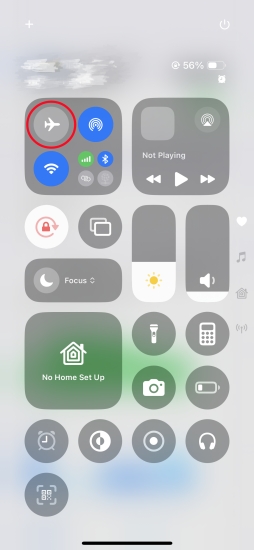
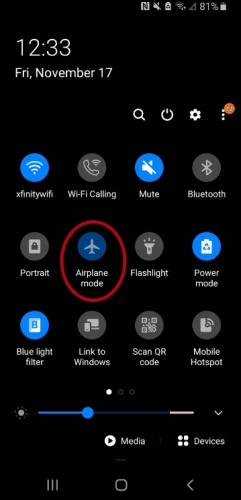
Enabling Airplane Mode offers a short-term method to halt Snapchat location updates By disabling all wireless signals, Snapchat cannot refresh your location data, even if the app is open. This method works well for quick moments when you want to go off-grid without changing in-app settings. Once your connection is restored, though, the app will often update your location the next time it opens. It's a useful option, but one with limitations in terms of long-term use.
On iPhone: Go to the control center and hit on the Plane icon to turn off the Airplane mode if it's enabled.
On Android: Wake up the control center on the Android phone and then hit the Airplane mode if it's blue.
Method 3. Hide Live Location
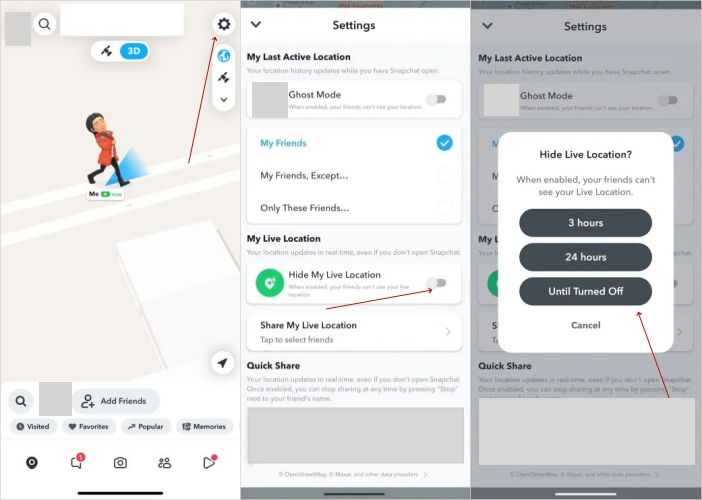
Disabling real-time updates can help maintain more privacy while still allowing Snapchat some access to your location. This method keeps the app from sending continuous updates, freezing your last shared spot instead. Friends who check your location will see where you were last online, not your current movement. Here's how to pause location on Snapchat without them knowing by turning off live location.
Step 1. Run Snapchat from the home screen.
Step 2. Press the settings gear and tap Hide My Live Location.
Step 3. Next, choose the time duration you don't want to show live location.
Method 4. Disable Location Services
By cutting off Snapchat's access to your phone's location services, you effectively stop it from gathering or sharing any geographic data. This is one of the most complete ways to pause your location, as it prevents updates regardless of whether the app is open or closed. The major downside, however, is that friends won't see your position at all, and Snapchat will not display any location-based features.
On iPhone:
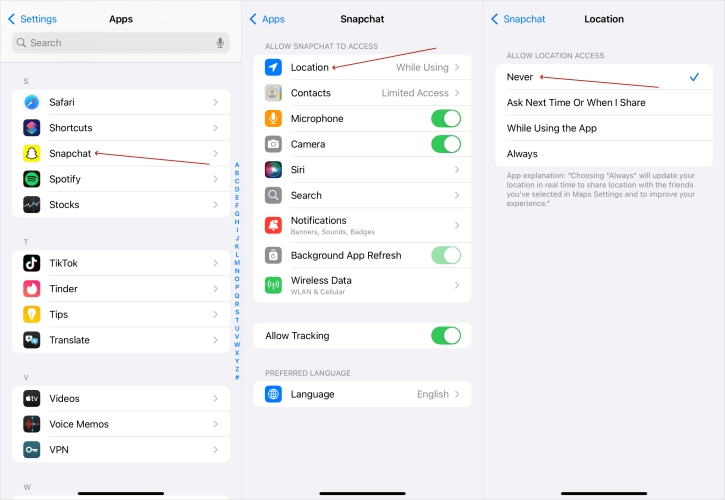
Step 1. Fire up Settings and then enter the Apps section.
Step 2. Swipe to search Snapchat and touch it. Then enter the Location tab.
Step 3. What you should do next is tap Never to turn off the Snapchat location permission.
On Android:
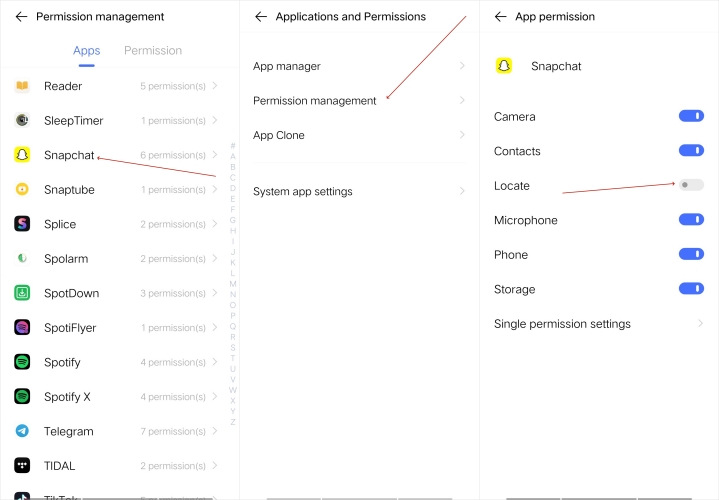
Step 1. Enter Settings on your Android phone.
Step 2. Choose Applications and Permissions on the bottom of the screen.
Step 3. Find and pick Snapchat, next, Permission management to toggle off the Locate switch.
Part 4. FAQs about Freezing Snapchat Location
How to know if someone paused their location on Snapchat?
When a user turns on Ghost Mode or disables location sharing, they disappear from the Snap Map. Besides, if someone's location stops updating for hours or days, they may have paused or hidden it. The absence of updates and a missing Bitmoji on the map are common indicators.
Can people see when you check their location on snapchat?
No. Snapchat does not notify someone when you view their location on the Snap Map. However, if you request a live location through Snapchat, they'll know because they have to share it with you.
Does Ghost Mode freeze your location?
Ghost Mode hides your location from everyone on your friend's list, meaning no one can see where you are. However, it doesn't actually freeze your position in a specific spot. Instead, it removes your marker from the map altogether. Your last location won't be visible, and the map won't store or display any updated data while the mode is active.
Can you pause your location with Snapchat plus?
While Snapchat Plus gives more insights and visibility tools, it doesn't offer an exclusive way to freeze your location. You still need to rely on core privacy settings like Ghost Mode or device-based solutions outlined in this guide to pause or hide your location.
How to go on Snapchat without updating location?
To use Snapchat but not update your location, the quickest method is to shut off the app's location permission on your device. Alternatively, Ghost Mode is another option to make your activity invisible, but the app may still track your location in the background.
Part 5. Conclusion
How to pause location on Snap is an essential topic for balancing connection and privacy. Whether you want to disappear for a while or take full control of what others see, there are various ways to pause, freeze, or adjust your location data. By using built-in settings or third-party tools, you can ensure that your digital footprint stays within your comfort zone.

Olivia Wood
Editor in chief





