








Have you ever heard of iFakeLocation? When people want to change their device's location, this is often one of the tools they search for. It has been around for many years and is regularly updated. If you want to change your location but aren't sure whether iFakeLocation is the right choice, read this complete guide to learn how to download and use iFakeLocation, as well as discover a great alternative location changer listed later in the article.
- Part 1. Everything You Need to Know about iFakeLocation
- Part 2. Where to Download the iFakeLocation Tool?
- Part 3. How to Change Location with iFakeLocation
- Part 4. iFakeLocation vs. MagFone Location Changer: Which Is Better?
- Part 5. Conclusion
Part 1. Everything You Need to Know about iFakeLocation
iFakeLocation is an iOS location-changing tool that lets you fake GPS location on your iPhone or iPad, hiding your real location from apps and services. It can be used for privacy, testing location-based apps, accessing region-specific content, or just for fun. Below are some common questions and answers to help you understand the iFakeLocation tool.
Is iFakeLocation safe to use?
When downloaded from a trusted source and used responsibly, iFakeLocation is considered safe.
Is iFakeLocation free to use?
Yes, iFakeLocation is free to download and use for spoofing your location on iOS devices.
Which apps work with iFakeLocation?
iFakeLocation can affect many GPS-based apps, including navigation, social media, dating, fitness, and gaming applications.
Part 2. Where to Download the iFakeLocation Tool?
iFakeLocation has been updated from v0.2 to v1.7.0, bringing several improvements. The latest release upgrades the framework from .NET 5.0 to .NET 6.0, adds support for iOS 16 and later by enabling the Developer Mode toggle, includes newer iDevice model names, and introduces an alternative map tile server option. macOS and Ubuntu users must install the .NET 6 runtime, while Ubuntu users should also ensure libssl 1.0.0 is installed. Windows users are unaffected by these requirements.
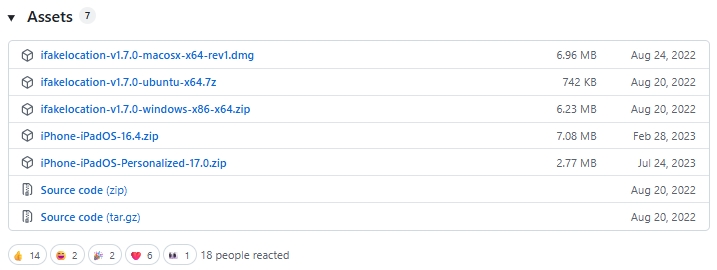
Step 1. Go to GitHub and download the iFakeLocation files to your Windows PC or Mac.
Step 2. Extract the ZIP file, or download the files directly to your Mac.
Step 3. On Windows, right-click the iFakeLocation .exe file and select Open > Extract all.
Step 4. Afterward, right-click the iFakeLocation.exe file and choose Run as administrator to start the application.
Part 3. How to Change Location with iFakeLocation
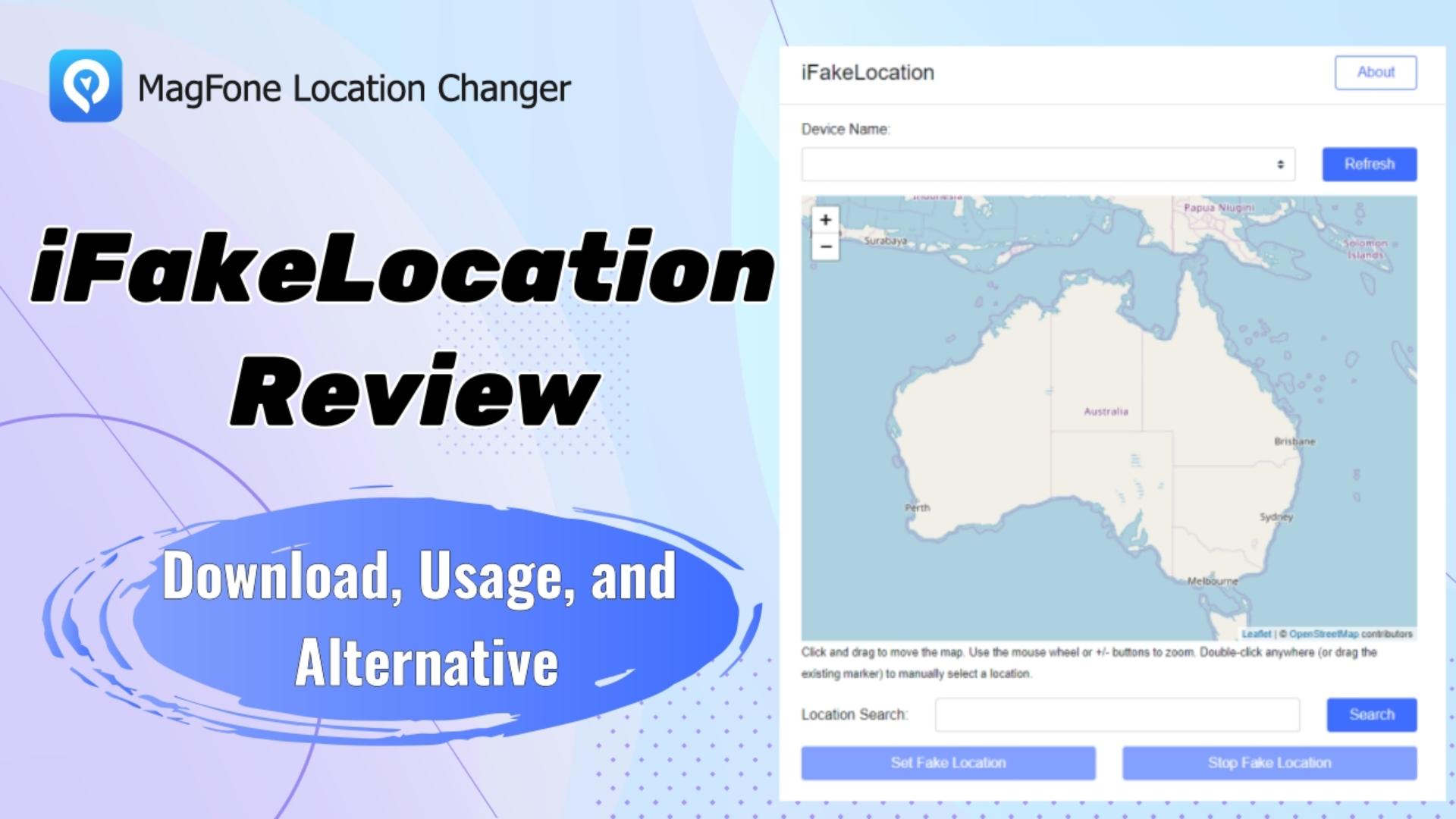
Unlike other location changers, iFakeLocation now primarily operates through a browser-based interface. This means you can access and use the service directly from a web page without launching dedicated software. Follow the video and steps below to change your device's GPS location with iFakeLocation on your PC.
Step 1. Connect your iPhone or iPad to your computer and tap Trust when prompted on the device. Launch iTunes to detect your device.
Step 2. Click the Refresh button in the iFakeLocation page. Then choose your device from the Device Name section.
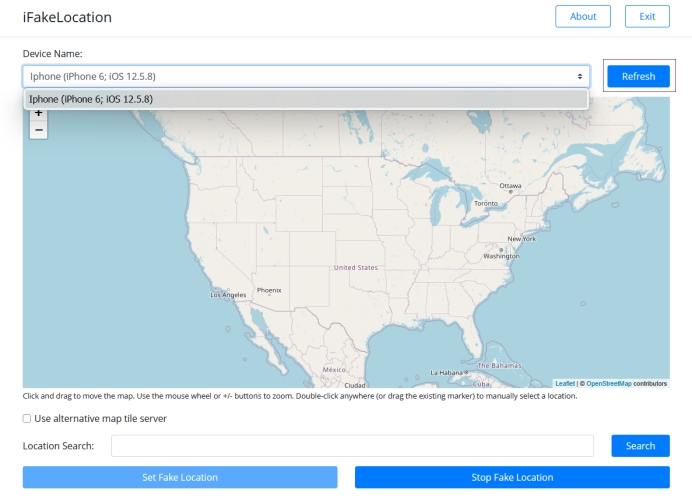
Step 3. Type the location you want to spoof into the search field and click Search. Alternatively, you can set a location manually by double-clicking any point on the map.
Step 4. Select Set Fake Location to apply the new location. If this is your first time using the tool, it may download additional files required to activate Developer Mode on your device.
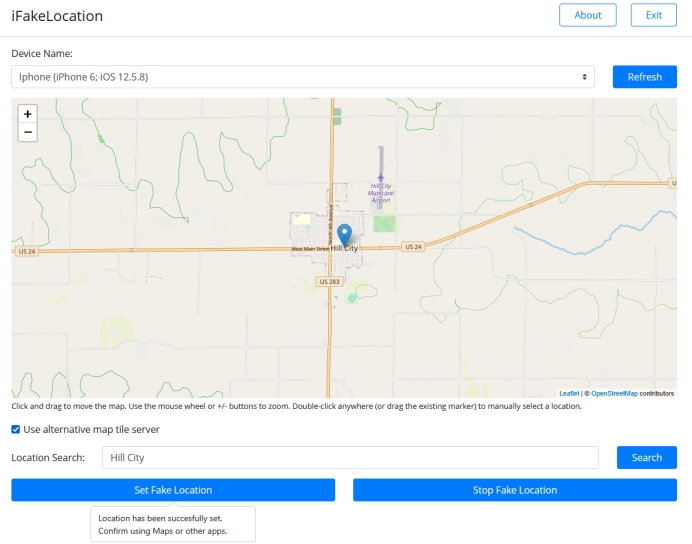
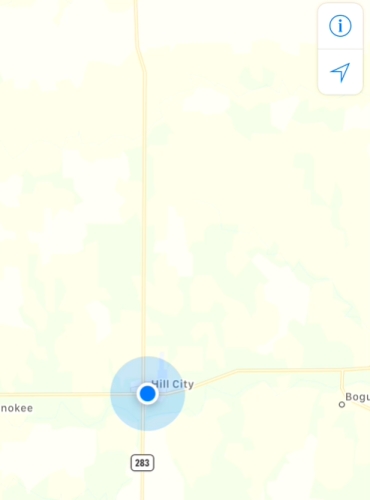
Step 5. Open Apple Maps, Google Maps, or another map app to verify the location change. When you're ready to return to your real location, click Stop Fake Location.
Part 4. iFakeLocation vs. MagFone Location Changer: Which Is Better?
Even though iFakeLocation is free to use for simple GPS teleportation, it comes with a major limitation—it only works on iOS devices. If you are also an Android user, here's a better location changer compatible with both iOS and Android devices for greater flexibility.
| Aspect | iFakeLocation | MagFone Location Changer |
|---|---|---|
| Main Features | Teleportion | Telepotion, route simulation, joystick control |
| Supported Devices | iOS only | iOS and Android |
| Supported iOS | Not reported officially | iOS 12 to 26 Android 6 to Android 16 |
Unlike iFakeLocation, MagFone Location Changer not only lets you fake your GPS location but also simulates real movement routes for added realism. It even includes a joystick feature, allowing control across games and social apps. Here's a simple guide on how to use it effectively.

MagFone Location Changer
Easily change your GPS location on iOS and Android devices to anywhere with one click, while not requiring root or jailbreaking!
Step 1 Get and Prepare MagFone Location Changer

Download MagFone Location Changer from its official website and install it on your Windows PC or Mac. Launch the program, connect your phone, and enable Developer Mode along with Location Services so the software can properly recognize your device. Once the connection is established, click the Start option.
Step 2 Select and Apply Location on iOS or Android

Next, choose either Game Mode or General Mode depending on your preference. A map interface will then appear, allowing you to manually switch location spoofing options from the top controls. After picking your desired location, click Start Modifying or Plan Route to apply the changes.
Part 5. Conclusion
iFakeLocation provides an easy way for iOS users to change their GPS position for privacy, testing, and entertainment purposes. It supports many apps and is simple to use with a PC connection. However, MagFone Location Changer offers more advanced features like route simulation and Android support, making it a more versatile option for users seeking greater control and flexibility overall in everyday practical use.

Edgar Davis
Editor in chief




