








Google Shopping relies heavily on your device's GPS location to recommend local stores, deals, and products, so accurate location information is crucial. Whether you're moving to a new city or simply want to explore stores or products in different areas, you will need to change your location on Google Shopping. Besides common methods like VPN Services, there are several ways to easily change your location. This guide will show you how to change location on Google Shopping on your phone and computer.
- Part 1. How Google Determines Your Location While Shopping?
- Part 2. How to Change Google Shopping Location on Phones
- Part 3. How to Change Location on Google Shopping Online
- Part 4. Conclusion
Part 1. How Google Determines Your Location While Shopping?
When you use Google Shopping, Google integrates multiple sources to recommend nearby stores or products. Google Shopping location in setting is one of the important sources, and whether on computer or mobile phone, turning on your Google Shopping location permission is simple. Follow these simple instructions below.
Sources for Determining Google Shopping Location
Google Shopping obtains user's location information from various sources, which are explained in detail below.
- Your IP address: IP addresses are used to establish a connection between your device and the websites you use. This means Google Shopping can use location information based on your IP address.
- Your saved activity: In many cases, location information from your past searches may be used to estimate the location for your current search.
- Your home or work addresses: If you have set up your home or work address in your Google account, it will be used as an important reference for your shopping location, helping to recommend nearby shopping options.
- Your device location: You can choose whether or not to provide Google Shopping with your location information through the location permissions feature. If enabled, this location information will allow Google Shopping to confirm your location.
How to Manage Location for Google Shopping
You can manage your Google Shopping location on your computer, iPhone, and Android phone. By enabling location services on your phone or computer, Google can use your real-time location, but this can't change your device location to another place. Here are the steps to enable location permissions for Google Shopping.
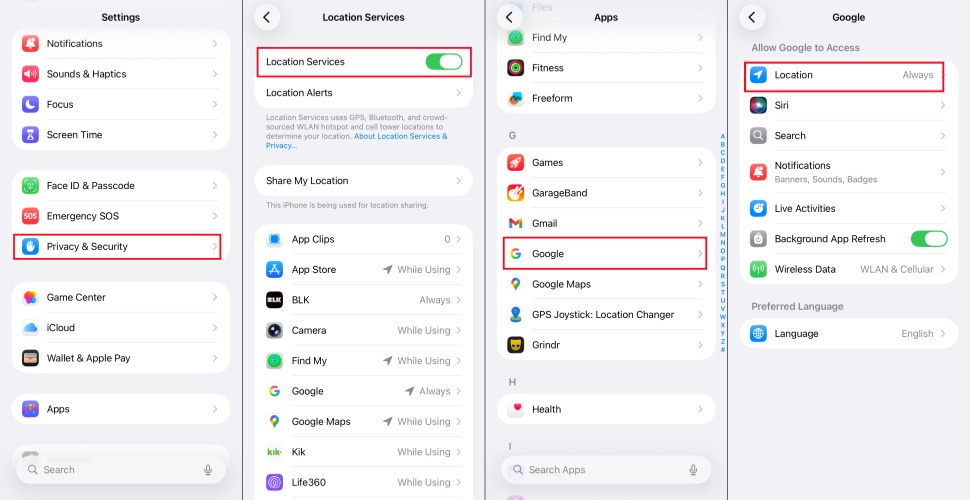
Step 1. Go to Settings > Privacy & Security.
Step 2. Turn on Location Services.
Step 3. Return to Apps and tap Goggle.
Step 4. Press Always in Location.
Part 2. How to Change Google Shopping Location on Phones
Enabling location permissions for Google allows Google Shopping to recommend shopping options near your real-time location. To view different local prices, access region-specific discounts, or find local retailers in the selected region while using Google Shopping, you may need to change your location on Google Shopping. These methods can help you change your location on your mobile device.
Method 1. Change Location on Google Shopping via Location Changer
Google Shopping results vary depending on your geographic location. If you want to view prices, product availability, or retailers in another country or region, manually changing Google's shopping location is often limited and doesn't always work. Here MagFone Location Changer is a great helper that allows you to simulate any GPS location worldwide with one click. When your device's location changes, Google Shopping updates automatically. Follow the steps below to set any virtual location and refresh your Google Shopping results accordingly.

MagFone Location Changer
Easily change your GPS location on Google Shopping to anywhere with one click, while not requiring root or jailbreaking!
Step 1 Connect Your Phone to the Computer and Run MagFone Software

Download and install MagFone Location Changer to your computer, and launch it. Link your phone to the computer through USB/Wi-Fi. After turning on Developer Mode on your device, On the main interface select a location simulation mode.
Step 2 Change Your Location on Google Shopping

Select the location you want to change on the world map, or input specific coordinates into the search bar. Click the Start Modifying button, and your location will update to the spot you chose in Google Shopping.
Method 2. Change Location on Google Shopping via Fake GPS Location
If you are an Android user, you can also choose to use Fake GPS Location that help you change location on Google Shopping. However, this method may not always successfully change your location and might not be very reliable. Follow these steps to change your Google Shopping location.
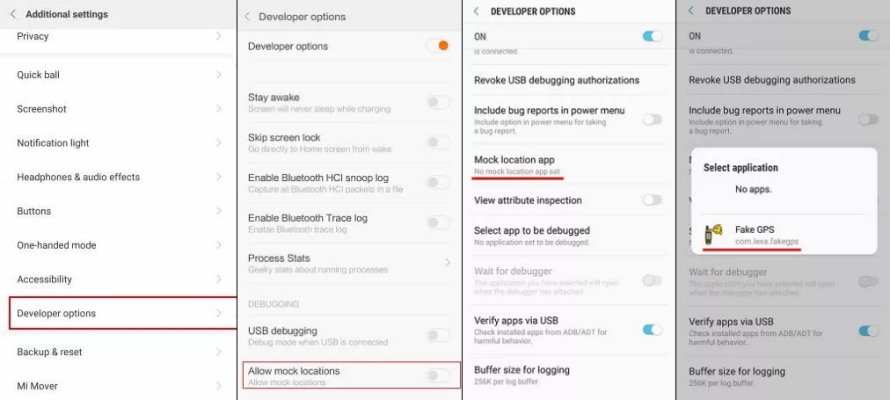
Step 1. Download and install Fake GPS Location on your phone.
Step 2. Go to Setting and turn on Developer Mode.
Step 3. Tap Select Mock Location App > Fake GPS Location.
Step 4. Launch the app, then enter the coordinate of the desired location or search using regional keywords.
Step 5. Tap Start to change your location on Google Shopping.
Method 3. Change Location on Google Shopping via VPN Apps
Unlike tools that alter GPS location, VPN apps are used to change the location of a virtual IP address. VPN influence Google's location data collection by changing the device's IP address. However, this also means that VPN cannot accurately change the location.
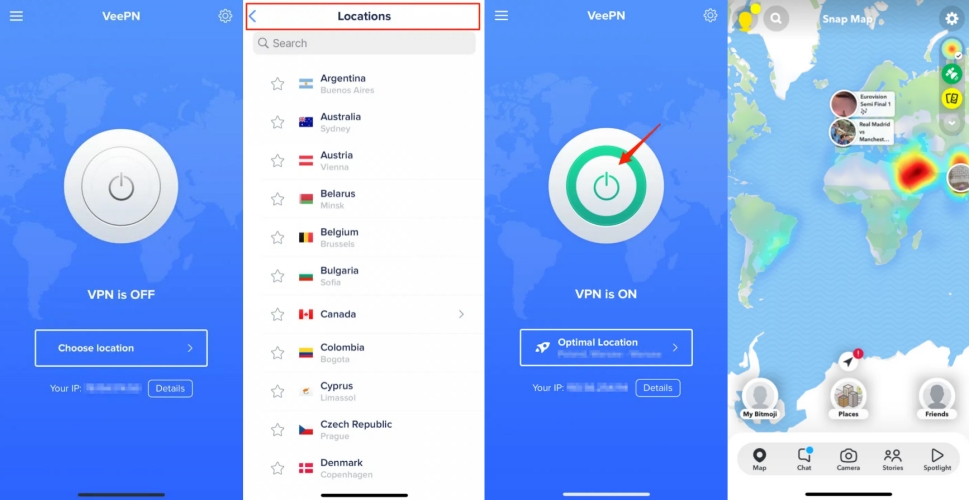
Step 1. On your device, select a VPN service to install and run.
Step 2. Authorize VPN with configuration permissions.
Step 3. Select an available server location in the VPN app.
Step 4. Tap the connect button, then your IP address will be changed.
Part 3. How to Change Location on Google Shopping Online
If you need to change your Google Shopping location online, there are two more ways to do so. These include using a proxy server and a Chrome extension for location changes.
Method 1. Change Location on Google Shopping via Proxy Servers
Hide me provides a web-based proxy service, widely recognized for its security and stability. Free trial access and paid subscription plans are offered. Hide me supports both Windows and MacOS platforms, allowing users to choose the appropriate version for their device.
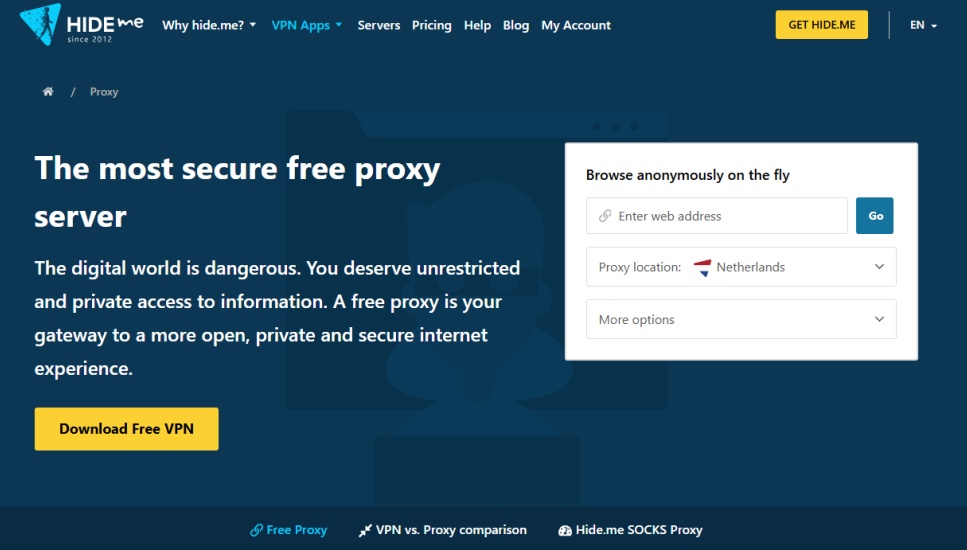
Step 1. Enter the URL of the website.
Step 2. Select a proxy location.
Step 3. After making more options, click Go.
Method 2. Change Location on Google Shopping via Chrome Extension
Sometimes users browse on Google Shopping on their computers, and Chrome extensions can easily help them change their location on Google Shopping. No software download is required, and simply install a reliable extension such as Change Geolocation (Location Guard). This will change user's location, and search results will automatically update to match fake locations.
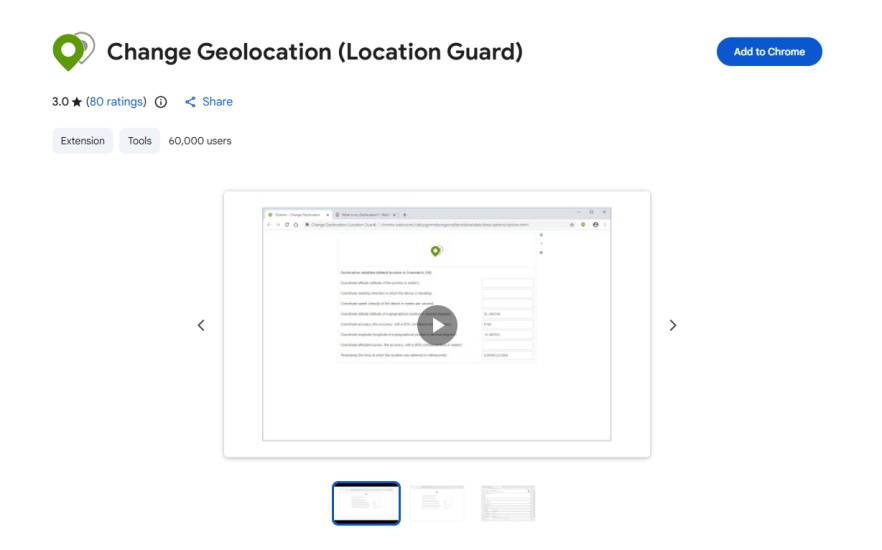
Step 1. Add the Google extension.
Step 2. Click on Extensions and open the one you just downloaded.
Step 3. Select a location or coordinates and click Open.
Part 4. Conclusion
Changing your location on Google Shopping allows you to experience different shopping scenarios, whether you're traveling or moving. The best way to change location on Google Shopping is with Magfone Location Changer, a powerful application that lets you easily change your location and meets your needs for location accuracy. Try changing your location on Google Shopping with MagFone Location Changer now.

Edgar Davis
Editor in chief





