








Steam is one of the most popular gaming platforms worldwide, offering thousands of games and exclusive deals. However, users often encounter limitations based on their location, such as unavailable games or location-based pricing for titles. Whether what you want to, you can learn exactly how to change your Steam region for the store, account, and downloads. Let's dive in with clear steps and key tips included.
- Part 1. Reasons to Change Steam Region
- Part 2. How to Change Steam Store/Account/Download Region
- Part 3. How to Change Location on Steam with or without VPN
- Part 4. Conclusion
Part 1. Reasons to Change Steam Region
Many users consider switching their Steam region for practical and financial reasons. Here are five main reasons why users change region on Steam.
- Access region-locked games unavailable in a country.
- Take advantage of lower game prices in certain regions.
- Match your account location after moving abroad.
- Improve download speeds with a closer server.
- Access local payment methods in a different country.
Changing your Steam region is not something to do casually. Steam has strict policies to prevent abuse, especially regarding pricing differences. You usually need a valid payment method from the target region, and frequent switching can trigger account restrictions. It's also important to note that using incorrect information could lead to limitations or even account suspension, so proceed carefully and responsibly.
Part 2. How to Change Steam Store/Account/Download Region
On Steam, your store region (also known as your account region) determines your currency, prices, and available content. This is different from your download region, which only affects download speeds and can be changed freely at any time. Here's how to change these regions step by step.
How to Change Steam Account Region (Store Region)
If you move to a new country, you can update your Steam store region after completing your first purchase using a local payment method there. If you can't change your location properly or want an easier solution, you can submit a location change request to Steam support.
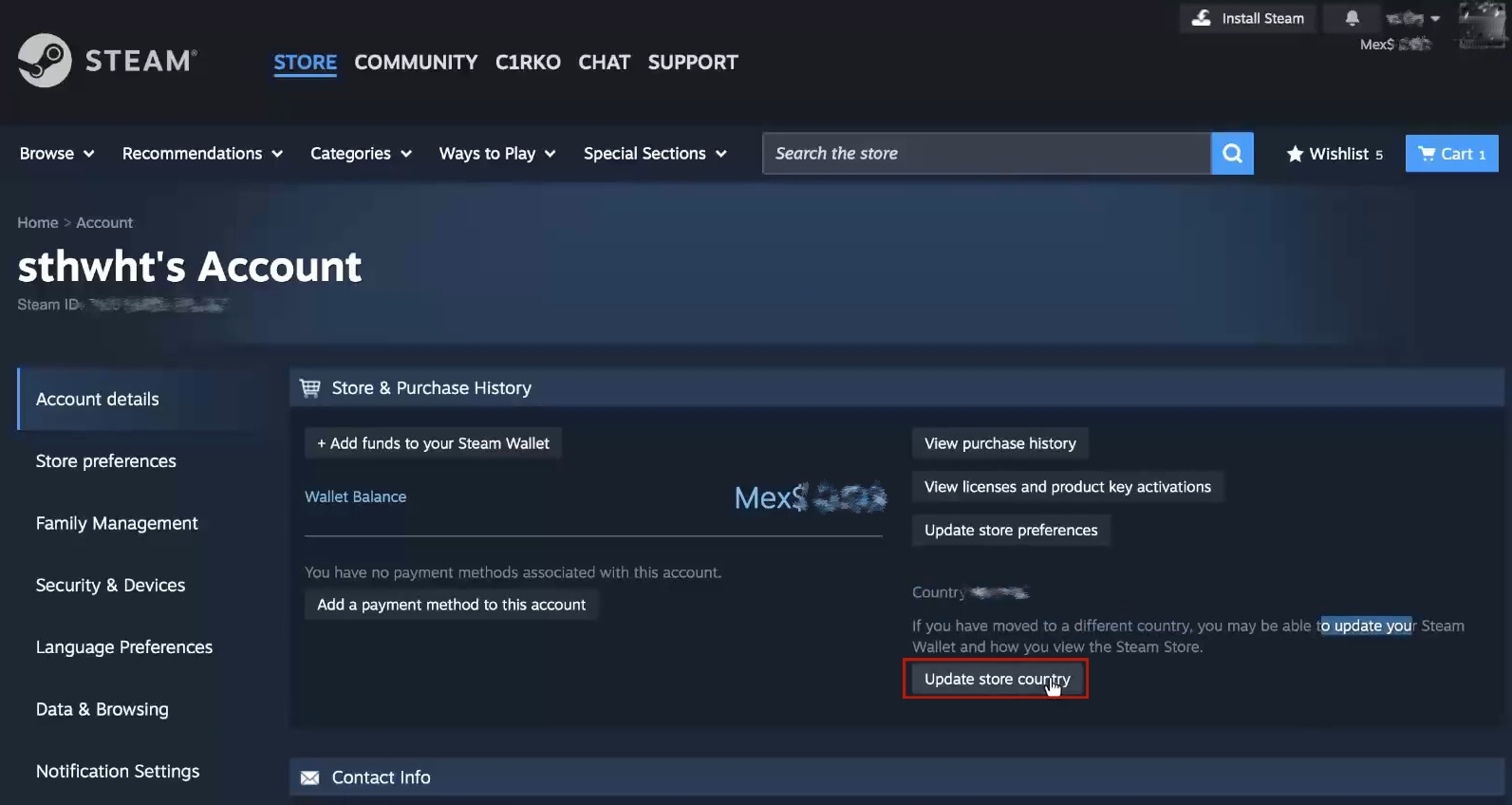
Step 1. Open Steam and click your profile, then Account Details.
Step 2. Click Update store country and tap contact Steam Support.
Step 3. Select the Contact Steam Support again and submit a request.
How to Change Steam Download Region
Your download region controls which servers you use and can be changed at any time. Here's how to.
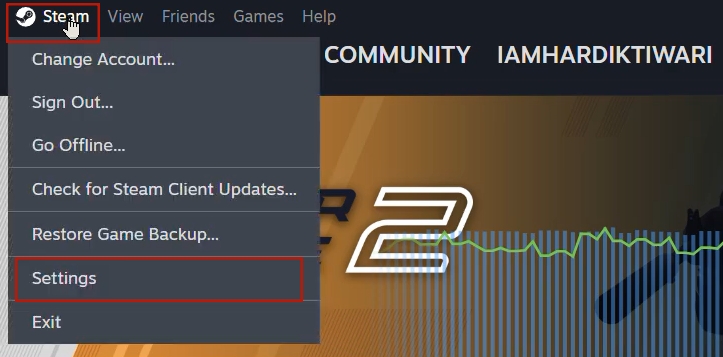
Step 1. Click the Steam icon and select Settings.
Step 2. Select Downloads from the list on the sidebar.
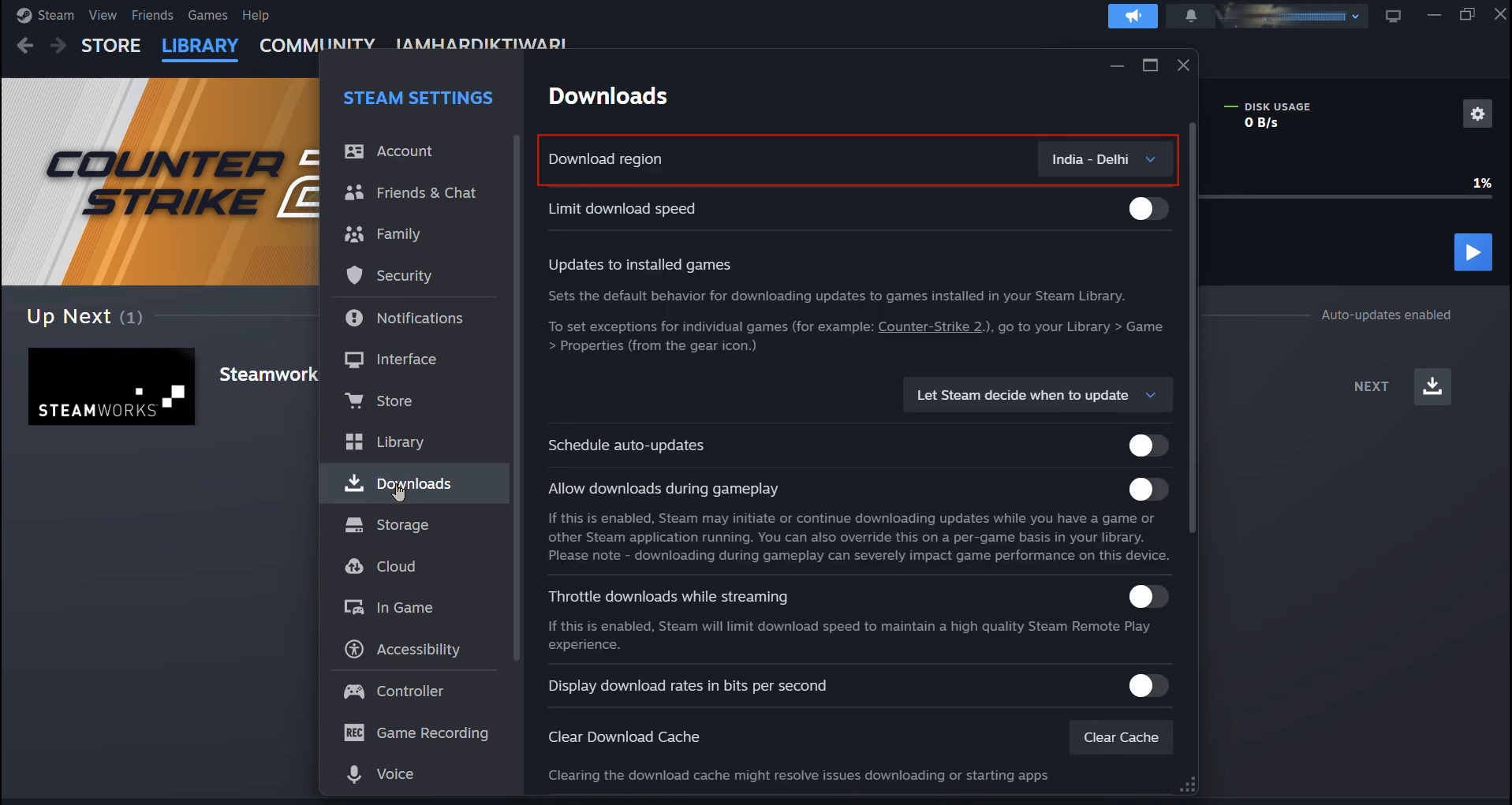
Step 3. Here you can switch your Download region.
Part 3. How to Change Location on Steam with or without VPN
Can't change location on Steam? This is a common issue, especially when users try to switch regions without meeting Steam's requirements. Fortunately, there are a couple of approaches you can take, depending on your needs and technical comfort level.
Method 1. Change Steam Region with VPN
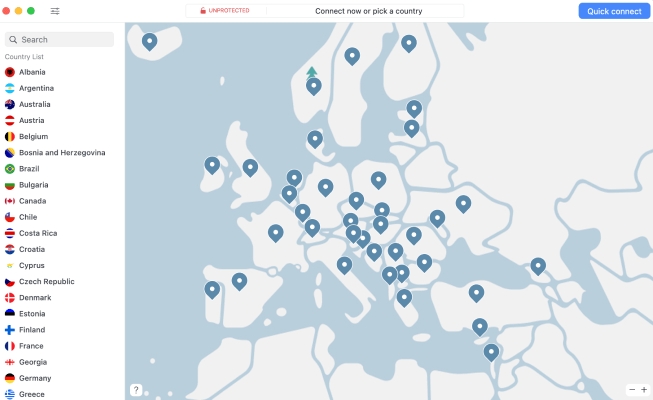
Using a VPN is one of the most commonly discussed methods for changing your Steam region. It allows you to appear as if you are browsing from another country, which can help access region-specific content. If needed, you can choose a suitable VPN from reviews. However, it's noted that free services may have limitations such as slower speeds or fewer server locations.
Method 2. Change Steam Region with MagFone Location Changer
If you prefer a more controlled and user-friendly solution, MagFone Location Changer provides an alternative way to simulate your location. This tool allows users to modify their GPS position on mobile devices, which can indirectly support region-based services. It is particularly useful for those who want to experiment with virtual locations without complex configurations, offering flexibility and ease of use.

MagFone Location Changer
Easily change your GPS location on iOS and Android devices to anywhere with one click, while not requiring root or jailbreaking!
Step 1 Launch the MagFone Program

Download and install MagFone Location Changer on your computer. Open the application and connect your mobile device using a USB cable. Once connected, select the location-changing mode from the interface and proceed to the next step.
Step 2 Set a Virtual Location for Steam

Navigate to the route planning feature within the software. Choose a location or enter a place name in the map search box to set a virtual location. After that, you can access more region-locked content on Steam.
Part 4. Conclusion
Changing your Steam region can open up new opportunities, from better pricing to accessing exclusive content. Whether you adjust your store region, modify download settings, or explore tools like VPNs and location changers, each method comes with its own considerations. Always follow Steam's policies and use legitimate payment methods to avoid risks. With the right approach, you can enhance your gaming experience while staying safe and compliant.

Edgar Davis
Editor in chief




