








In some situations, you might need to change location on iPad. For example, changing the location information on your iPhone to iPad, or you need to change the region information on your iPad to access specific apps and avoid being harassed by location-tracking apps. Often, people use VPN services to achieve this, but sometimes VPN services aren't the best option, and there are other ways to change your iPad's location. This guide will explore some simple and easy methods. Whatever your reason for needing to change your iPad's location information, you can refer to these simple methods.
- Part 1. How Do I Change My Location on My iPad?
- Part 2. How to Change Your Region on iPad
- Part 3. How to Change Location on iPad
- Part 4. FAQs about Changing Location on iPad
- Part 5. Conclusion
Part 1. How Do I Change My Location on My iPad?
There are several ways to change your iPad's location, but each method has its advantages and disadvantages. Some methods require technical skills, while others may be less reliable or less secure. This quick guide will present the information in diagrams, followed by detailed steps for each method in the following sections. Furthermore, we will highlight the best method for protecting your privacy and changing your iPad's GPS location securely and quickly.
| Quick Guide | Compatibility | Jailbreak | Operating Time | Ease of Use | Change GPS location |
|---|---|---|---|---|---|
| Magfone Location Changer | iOS & Android | No | 2~3 minutes | Easy | Yes |
| VPN Services | iOS | No | 2~3 minutes | Easy | No |
| Developer Mode | iOS | No | 10~20 minutes | Medium | No |
| Proxy Servers | iOS | No | 5~15 minutes | Medium | No |
Part 2. How to Change Your Region on iPad
If you want to change your region on your iPad for downloading apps or watching streaming contents not available in your country, you only need to change your Apple account's country and region in the Settings on your iPad. This method requires no technical knowledge or expertise. Again, note that this does not actually change your GPS location. Next, let's look at the specific steps and precautions.
What to Do before Changing Your Country or Region
- Spend the remaining balance in your Apple account.
- Cancel any active subscriptions like Apple Music and iCloud+.
- Wait for your memberships, orders, movie rentals, or season tickets to complete, and for pending store points refunds to arrive.
- Prepare a valid payment method and a new billing address for the new country or region.
- Re-download your apps, music, movies, TV shows, and books on your other devices. Some types of content may not be available in your new country or region.
How to Change Your Region on iPad in Settings
After meeting the above conditions, you can change your region on iPad by following these steps.
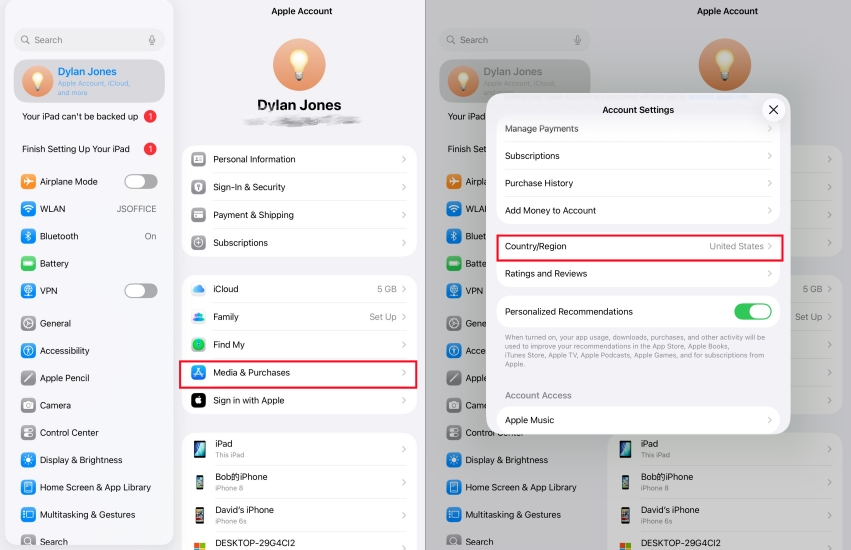
Step 1. Open Settings on your iPad, then tap your name and select Media & Purchases.
Step 2. From the pop-up menu, tap View Account. You may need to enter your Apple ID password to sign in.
Step 3. Tap Country/Region > Change Country or Region.
Step 4. Select your desired country or region from the list.
Step 5. Read the terms and conditions first, then tap Agree. If prompted later, tap again.
Step 6. Choose a payment method for your new country or region. Fill in the correct payment information, then tap Next. Your iPad region will be changed.
Part 3. How to Change Location on iPad
It's easy to change your region in the Settings menu on your iPad for watching region-locked streaming contents and accessing another country's App Store. But if you want to change location on your iPad for playing location-based games or needing access to services from home, using the Settings menu may not be useful. Not fret, there are some other methods available for you whether you want to change a GPS or IP location on your iPad.
Method 1. Spoof Location on iPad via Location Changer
One of the easiest ways to change your location on iPad is by using MagFone Location Changer, a professional GPS spoofing tool designed for iOS and Android devices. This location changing tool allows you to simulate any location worldwide without jailbreaking your device, making it ideal for apps like games, social platforms, or location-based services. To change your location on your iPad, you can use MagFone Location Changer with the following steps.

MagFone Location Changer
Easily change your GPS location on your iPad to anywhere with one click, while not requiring jailbreaking!
Step 1 Connect Your iPad and Trust the Computer

Connect your iPad to your computer using a USB cable, trust your computer, and then launch MagFone Location Changer. Turn on Developer Mode on your iPad, select a location simulation mode, and enter the Change Location feature on the MagFone software.
Step 2 Start to Change Location on Your iPad

Select a location on the map, or enter an address in the search bar. Then click the Start Modifying button to change your iPad's location to the location you've selected.
Method 2. Change Location on iPad Using VPN Services
A common way to change your iPad's location is by using a VPN. A VPN hides your real IP address by redirecting your network traffic to servers located in other countries, but it doesn't change the device's GPS location. This causes apps and websites to think you're browsing from a changed location. Here are the steps to change your location on your iPad using a VPN.
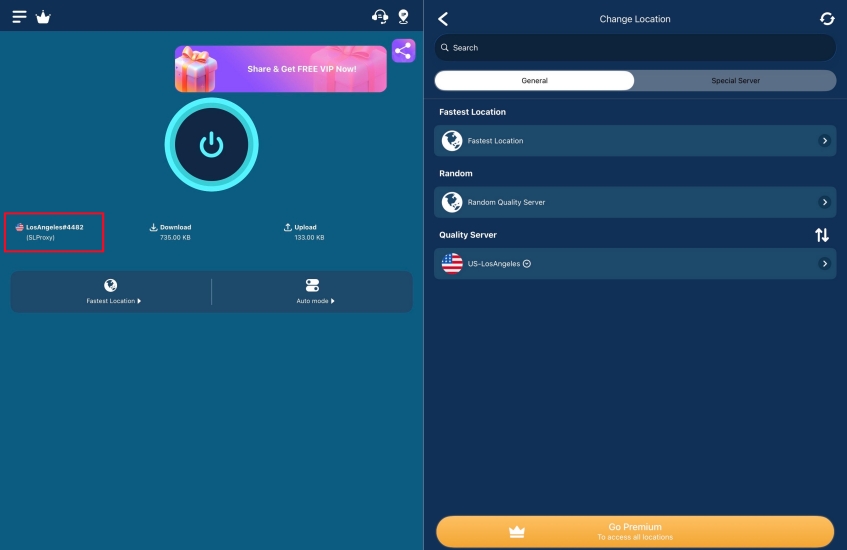
Step 1. On your iPad,select the VPN service to download and install in the App Store.
Step 2. Run the app on your iPad and allow the VPN to configure settings.
Step 3. In the VPN app, select an available server location.
Step 4. Tap the connect button,then your iPad's IP address will be changed.
Method 3. Change Location on iPad via Developer Mode
Sometimes, you can also change the location on your iPad using developer mode. After enabling developer mode, you can use third-party tools on your computer or Apple's official Xcode tools to modify the location. The specific steps are as follows:
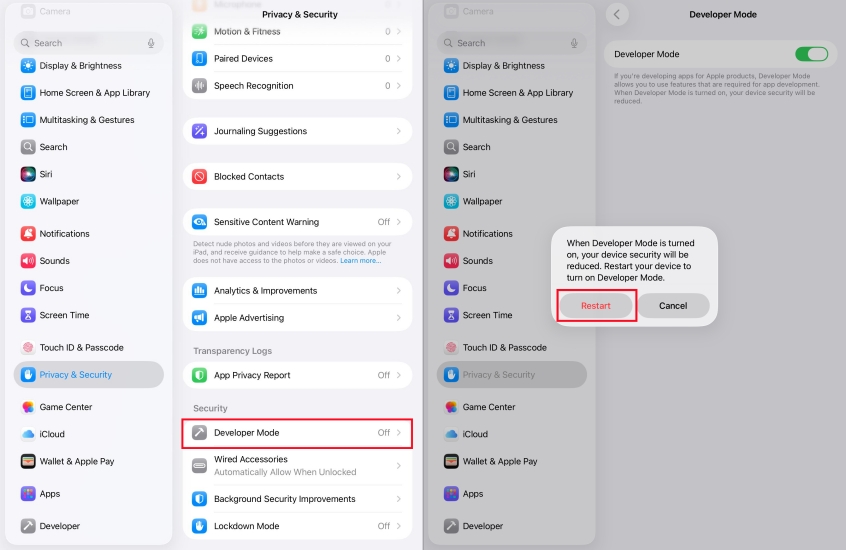
Step 1. On your iPad, tap Settings > Privacy & Security and tap Developer Mode.
Step 2. Turn on Developer Mode, then tap Restart.
Step 3. After restarting, unlock your iPad and turn it on.
Step 4. Enter your screen lock passcode to confirm Developer Mode is enabled.
Step 5. Connect your device to your Mac and open the Xcode application.
Step 6. Choose Product > Test Plan > Edit Test Plan.
Step 7. In the Test plan editor pane, choose Configuration.
Step 8. Under Localization, click Simulated Location and choose a location from the menu.
Method 4. Change Location on iPad via Proxy Servers
Using a proxy server to change your iPad's location can hide your location, but they are better suited for browser-based activities. However, be aware that it only changes the virtual location associated with your IP address, not the actual physical location determined by your device's GPS.
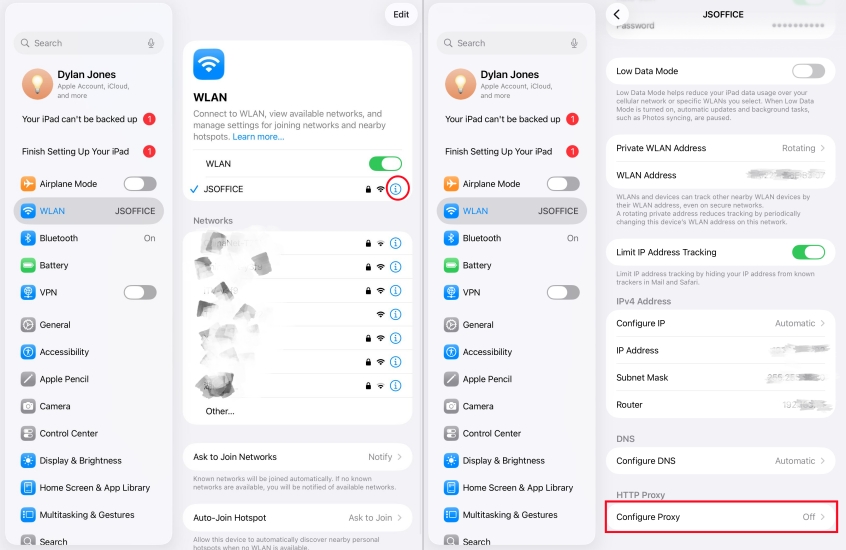
Step 1. Open Settings on your iPad and tap WLAN.
Step 2. Tap the information icon (i) next to your connected Wi-Fi network.
Step 3. Scroll down to the bottom and tap Configure Proxy, then select Manual.
Step 4. Enter the server address and port number provided by your proxy service.
Step 5. If authentication is required, enable it and enter your username and password.
Step 6. Tap Save to apply the changes.
Part 4. FAQs about Changing Location on iPad
How to change location on iPhone to iPad?
You can use Find My to set it as the device for sharing location information to change your device location, thus switching your location to iPad.
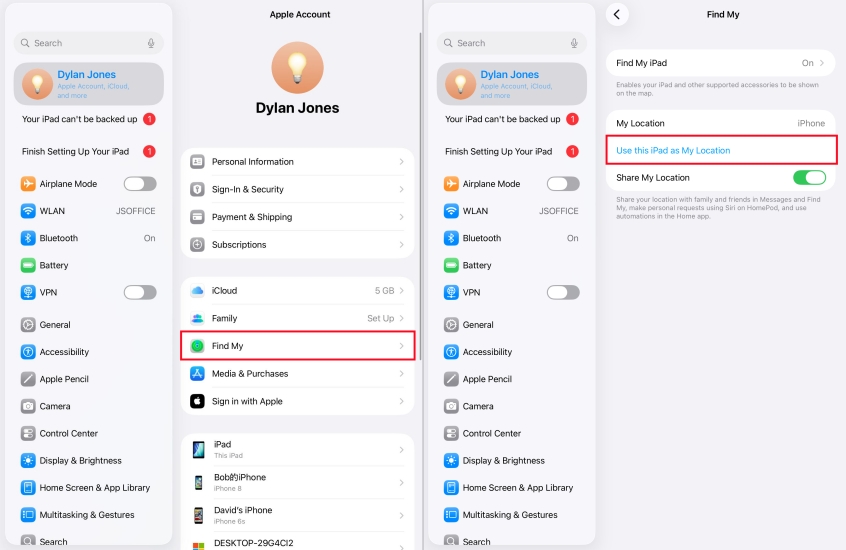
Step 1. Open Settings on your iPad
Step 2. Tap your Apple ID > Find My > Share My Location.
Step 3. Turn this feature on your iPad and turn it off on your iPhone.
How to change default weather location on iPad?
To change the weather location on your iPad, follow these steps
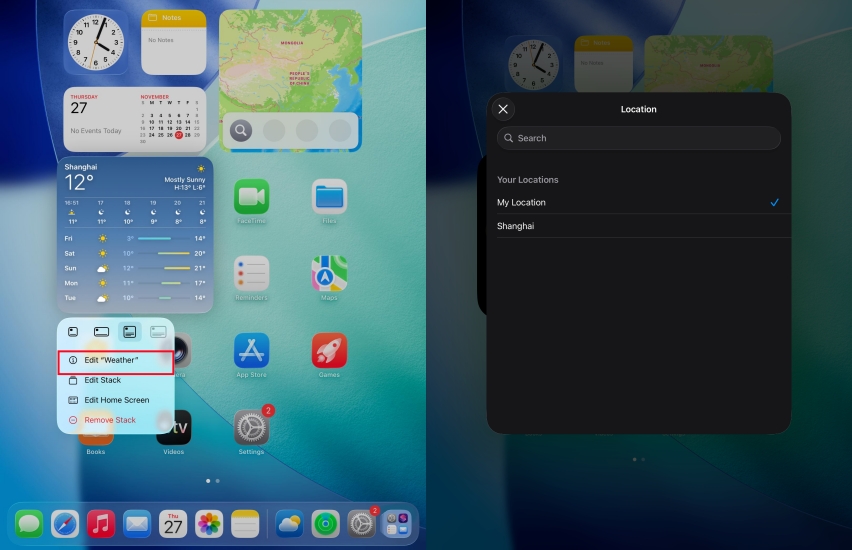
Step 1. Long-press the Weather widget until the list appears and tap Edit Weather.
Step 2. Tap My Location, then you manually search for a location.
How to change GPS location on iPad?
To change GPS location on your iPad, MagFone Location Changer is highly recommended to you. It lets you instantly change your iPad's GPS location in various apps, bypassing regional restrictions and accessing location-restricted services, including location-based games.
Part 5. Conclusion
You can change location on iPad in several ways, and just choose the option that best suits your needs. However, Magfone Location Changer is a very practical virtual location tool. It's easy to use and provides accurate location information for everyday needs. This is a tool worth trying for gamers who use local location services, social media users who need to protect their privacy, and users who need to temporarily spoof location on ipad.

Edgar Davis
Editor in chief




