








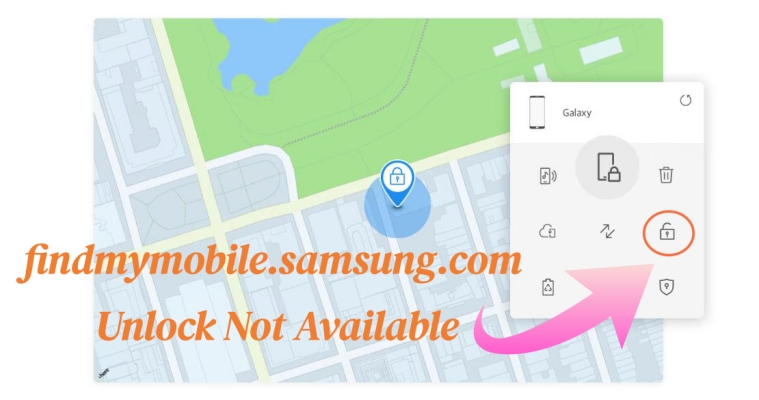
Getting locked out of your Samsung phone can be stressful. findmymobile.samsung.com is Samsung's official service that helps you not only regain access devices remotely, but also locate devices and manage data. But the findmymobile.samsung.com page was not found? In this guide, we cover everything about findmymobile.samsung.com, from requirements, step-by-step instructions, troubleshooting, to alternatives. Let's dive into the details now!
- Part 1. What Is findmymobile.samsung.com Unlock?
- Part 2. How to Make findmymobile.samsung.com Unlock Phone
- Part 3. Alternatives to findmymobile.samsung.com Unlock Phone
- Part 4. FAQs about findmymobile.samsung.com
- Part 5. Conclusion
Part 1. What Is findmymobile.samsung.com Unlock?
Find My Mobile is Samsung's official web service for managing mobile phones, tablets, and some wearable devices like smartwatches and Bluetooth headsets. Its features include:
- Remotely unlock your phone
- Locate your phone on a map
- Activate ringing sounds
- Back up or erase your phone
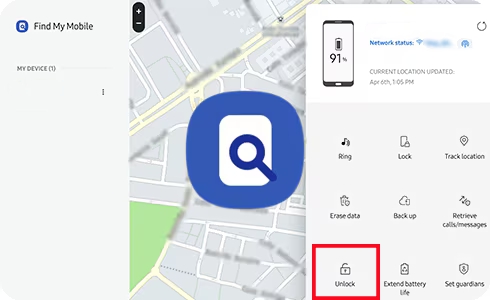
Using findmymobile.samsung.com Unlock, you can remotely unlock your Samsung phone that is compatible with the Find My Mobile network, only if your device is linked to your Samsung account and connected to the internet. However, the findmymobile.samsung.com page is not found now as it is updated to smartthingsfind.samsung.com with Samsung Remote Unlock removed.
Part 2. How to Make findmymobile.samsung.com Unlock Phone
Many Samsung users search for "findmymobile.samsung.com unlock phone" because they forgot their PIN, pattern, or password, or locked their device after too many incorrect attempts, thus want to unlock their device without losing data. As findmymobile.samsung.com page not found now, you can still remotely reset your locked Samsung phone at smartthingsfind.samsung.com for unlocking. Before using smartthingsfind.samsung.com to unlock your phone, make sure:
- Your Samsung account is signed in on the device
- Find My Mobile is enabled
- Your device is online via WiFi or mobile data
- You have Samsung account credentials
Step 1. Navigate to smartthingsfind.samsung.com in a browser on an internet-connected device.
Step 2. Enter your Samsung account and password to log into this website.
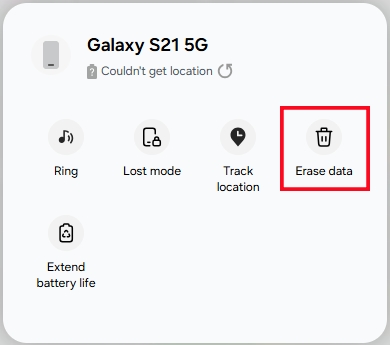
Step 3. In the device list, find your Samsung phone and click the device information.
Step 4. Click Erase data, then you'll be asked to enter the verification code.
Step 5. Click Verify > Erase data > Erase and enter your Samsung password.
Step 6. Click Next and wait for your device to be reset to factory settings remotely.
Part 3. Alternatives to findmymobile.samsung.com Unlock Phone
While smartthingsfind.samsung.com is the official Samsung website to reset a Samsung phone, it requires Find My Mobile and Samsung account access. When those options fail, there are several alternative methods you can use. The most common and reliable ones include unlocking through an Android unlocker, Recovery Mode, and Google Find Hub. Each method has different requirements, so choose the option that fits your situation, especially if your device is offline or you no longer have access to your Samsung account.
| Method | Best For | Data Loss | Requirements |
|---|---|---|---|
| MagFone Android Unlocker | Phone offline or no accounts available | ✔️ | No account needed |
| Recovery Mode | Phone offline or no accounts available | ✔️ | No account needed |
| Google Find Hub Site | Want a remote unlock from a computer | ✔️ | Google account and phone online |
| Google Find Hub App | Have another Android device | ✔️ | Google account and phone online |
Method 1. Unlock Samsung Phone with Android Unlocker
If smartthingsfind.samsung.com cannot help you unlock your Samsung phone whether the device is offline or you can't access your Samsung account, MagFone Android Unlocker offers a practical and accessible alternative. This tool is designed to remove various screen locks, including PIN, pattern, password, fingerprint, and face lock, without needing a Samsung account or an active network connection. Here's how to use MagFone Android Unlocker as a replacement for Samsung Find My Mobile.

MagFone Android Unlocker
Remove multiple kinds of screen locks on over 5000 Android devices and delete Google FRP lock without a password.
Step 1 Connect Samsung Phone and Run MagFone
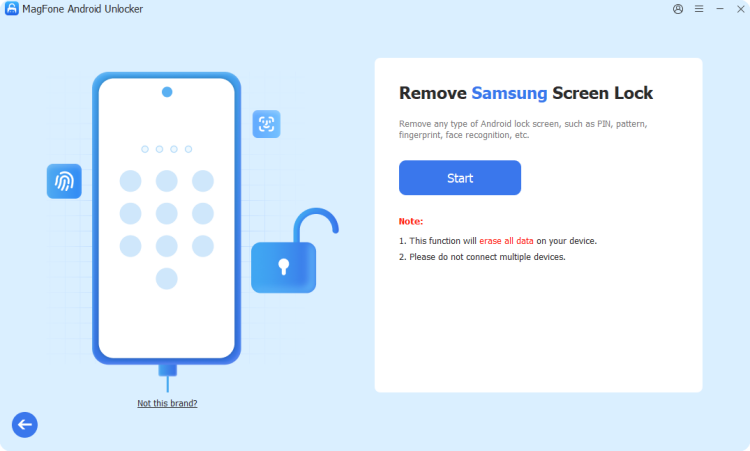
First, download and install MagFone Android Unlocker on your computer, then launch the program and choose Remove Screen Lock. Continue to connect your Samsung phone to the computer through a USB cable.
Step 2 Put Samsung Phone into Recovery Mode
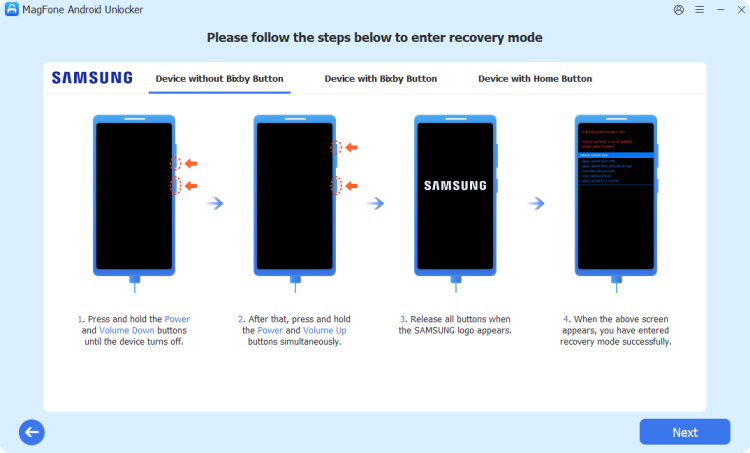
Then, wait for the program to detect your device. Follow the onscreen instructions to reboot your device into Recovery Mode. Depending on your device model, press and hold the corresponding buttons. Once in Recovery Mode, click Next > Confirm.
Step 3 Start to Unlock Samsung Phone without Password

Finally, start to unlock your device by following the onscreen instructions. After completing all steps, click the Next button on the program. In the whole process of unlocking your device, keep it connected to the computer.
Method 2. Unlock Samsung Phone in Recovery Mode
Recovery Mode is a built-in emergency system on all Samsung phones. It allows you to factory reset the device, which removes the lock screen. This method is useful when your phone is offline, not linked to Samsung Find My Mobile, or you forgot your screen password.
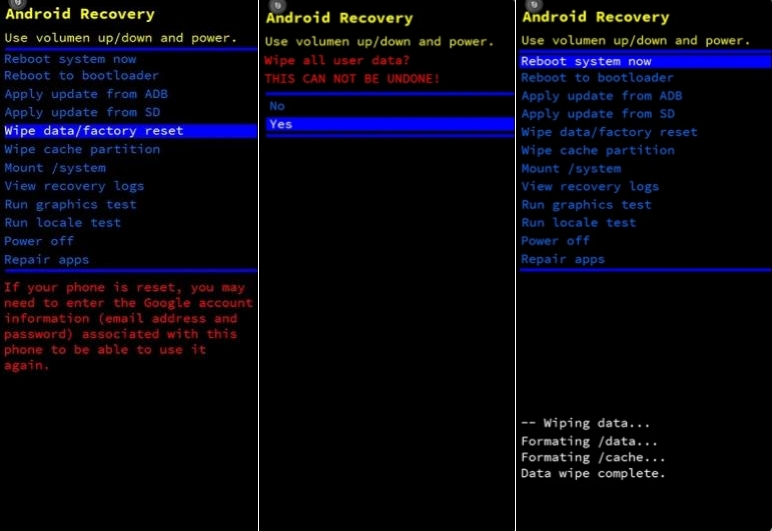
Step 1. After powering off your Samsung phone, hold Volume Up and Power.
Step 2. Release Volume Up and Power until the Recovery Mode screen shows.
Step 3. Use Volume Down and Power to choose Wipe data/factory reset.
Step 4. Continue to choose Factory reset data, then Reboot system now.
This completely removes the screen lock, allowing you to access the phone again. After rebooting, you must sign in with the Google account previously used on the phone.
Method 3. Unlock Samsung Phone on Google Find Hub Site
Google Find Hub, formerly known as Find My Device, allows you to remotely erase your phone when locked. If your Samsung phone is online and connected to your Google account, this method works for unlocking your device even if Samsung Find My Mobile is disabled.
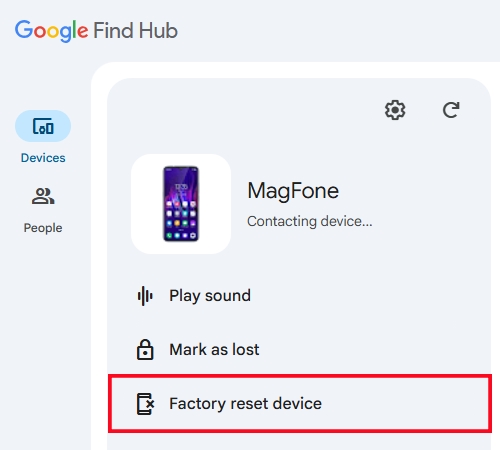
Step 1. Log into the Google Find Hub site with your Google account credentials.
Step 2. From the device list, select your Samsung phone and click Factory reset device.
Step 3. Click Next, then enter your Google password and click Reset to confirm.
Step 4. After reset, set up your device again and add your Google account.
This will erase the lock screen, allowing you to set up the device again. After the erase, your data is completely deleted, and you must sign in with your Google account to bypass FRP.
Method 4. Unlock Samsung Phone via Google Find Hub App
If you have another Android phone or tablet, you can use the Google Find Hub app to regain access to your Samsung phone. Just like the web version, this resets your phone and removes the screen lock, even when your Samsung account is inaccessible.
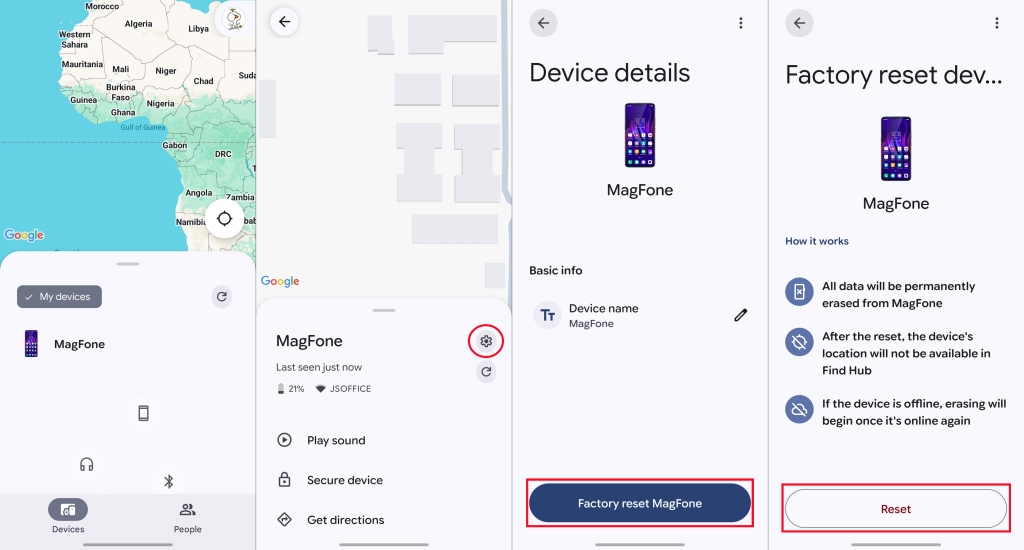
Step 1. Launch the Google Find Hub app on an Android device.
Step 2. Log into your Google account linked to your Samsung phone.
Step 3. Head to Devices, then find and tap your Samsung phone.
Step 4. Tap Settings > Factory reset device > Reset.
The unlocking process with the Google Find Hub app is easy to use if you don't have a computer. Once complete, you can set up your phone and re-link to your Google account for full access.
Part 4. FAQs about findmymobile.samsung.com
Can Find My Mobile unlock all Samsung phones?
No, updated firmware may not support remote unlock anymore. Now findmymobile.samsung.com is updated to smartthingsfind.samsung.com where you can only unlock your phone via reset.
What if my Samsung account is forgotten?
You'll need to recover your Samsung account before unlocking. Or you can try other methods, like using an Android unlocking tool or Recovery Mode to unlock your phone.
Will I lose my data using Find My Mobile to unlock?
Yes, Find My Mobile will erase your phone if you reset it to remove the screen lock. But after reset, you can restore your phone from cloud or local backup.
Part 5. Conclusion
As the findmymobile.samsung.com unlock feature is gone, users can only reset locked devices on the updated interface of smartthingsfind.samsung.com. If smartthingsfind.samsung.com cannot unlock your Samsung phone due to Find My Mobile being disabled, the device being offline, or issues with your Samsung account, MagFone Android Unlocker, Recovery Mode, and Google Find Hub offer reliable alternatives. Among them, MagFone Android Unlocker enables you to quickly and easily unlock your Samsung phone without any account needed.

Teresa Miller
Editor in chief




