








Have you ever noticed your iPhone messages turning green instead of blue and wondered why? This color difference isn't just aesthetic—it reveals important details about how your messages are sent. Whether it's a minor technical issue or a compatibility factor, understanding the reason behind green text bubbles can make a significant difference in your messaging experience. In this guide, we'll explore the meaning behind these colors, uncover the reasons for the green messages on iPhone, and provide effective solutions to fix them. By the end, you'll have seamless communication on your iPhone.
- Part 1. What Does Green Message Mean on iPhone?
- Part 2. Why Are My Messages Green on iPhone?
- Part 3. How to Turn Green Messages to Blue on iPhone
- Part 4. How to Fix Green Messages on iPhone
- Part 5. FAQs about Green Message on iPhone
- Part 6. Conclusion
Part 1. What Does Green Message Mean on iPhone?
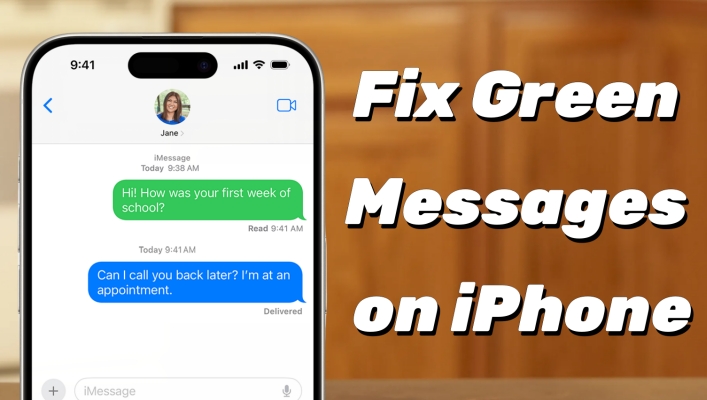
Text bubble colors are used to identify different messaging protocols, including iMessage, RCS, MMS, and SMS. Messages on the iPhone appear in two colors, each meaning something different. If you see a green message on your iPhone, it means that you are sending messages as SMS, MMS, or RCS, while blue messages are sent using your Apple ID or phone number via WiFi or cellular data.
Blus vs Green Text Messages on iPhone
You may be curious about the difference between the two indication styles. Here are the key differences between blue and green text messages on iPhone:
| Blue Messages | Green Messages | |
|---|---|---|
| Message Type | iMessage | SMS/MMS/RCS |
| Network | Wi-Fi or Mobile Data | Cellular |
| Send/Receive Status | Delivered and read statuses available | Delivery reports not always available |
| Device Compatibility | Works between Apple devices (iPhone, iPad, Mac) | Works across all mobile devices (including non-Apple) |
| Encryption | End-to-end encryption | No end-to-end encryption |
| Media Support | Supports high-quality media | Limited media support and compressed |
| Message Length | No strict character limit | Typically 160 characters per message |
| Cost | Free (uses internet connection) | May incur charges |
| Key Scenery | Appears when messaging other iMessage users | Appears when messaging non-iMessage users |
Part 2. Why Are My Messages Green on iPhone?
Seeing green text messages on your iPhone can happen for various reasons. It's not always an issue—it could simply mean the recipient is not using an Apple device. However, technical glitches such as network issues, incorrect iMessage settings, or software problems can force your iPhone to send SMS instead of iMessage. Here are the common factors:
- The recipient's device is not an Apple device.
- Either the sender or the receiver has turned off iMessage.
- The iMessage status on the sender or the receiver device is not available.
- The sender's iPhone is disconnected from Wi-Fi or the cellular network.
- Message settings need to be updated.
- There are temporary bugs or system glitches on the iPhone.
Part 3. How to Turn Green Messages to Blue on iPhone
We can have more fun with iMessage for communication. While we may encounter an issue where the messages sent are always green instead of blue. This is usually related to your Message settings. Let's adjust these settings to turn the green message to blue on the iPhone.
Method 1. Disable and Enable iMessage
To send blue messages on iPhone, the first setting you need to check is whether you have enabled the iMessage service. Only when the iMessage is turned on can you send blue messages on an iPhone.
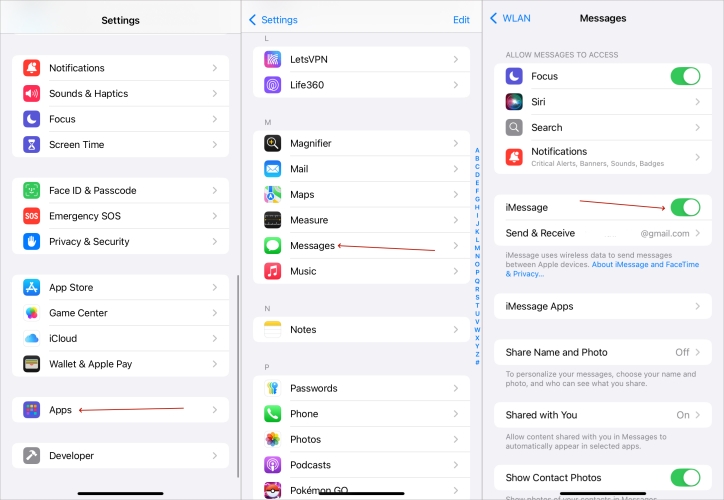
Step 1. Go to iPhone Settings > Apps > Messages.
Step 2. Try toggling off the iMessage and then enabling it again to refresh your iMessage status.
Method 2. Turn Off RCS Text Messages
iOS 18 and later systems support RCS messaging. If you have enabled RCS Messaging on your iPhone, the iMessage will also be sent as green RCS messages.
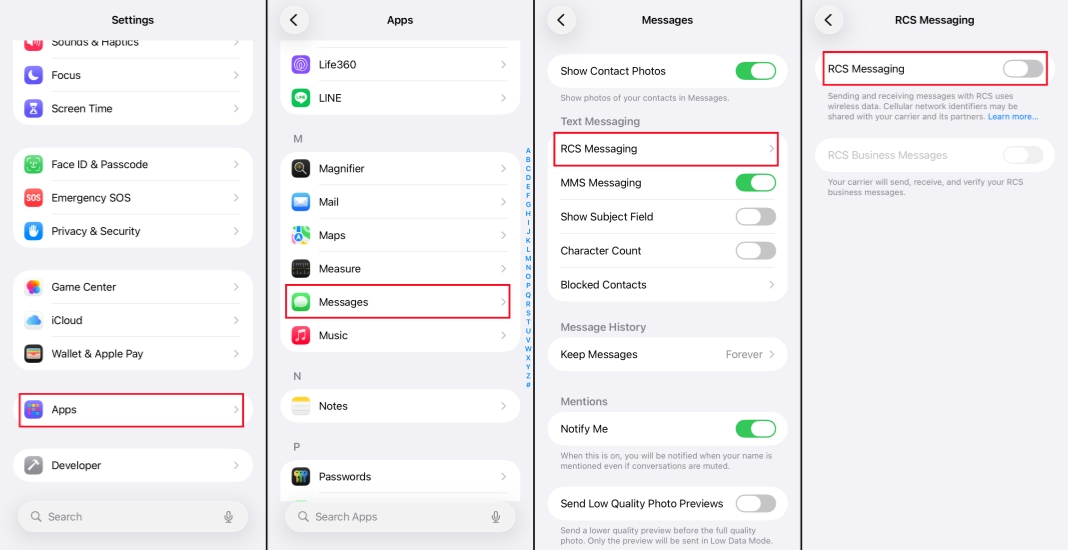
Step 1. Go to iPhone Settings > Apps > Messages.
Step 2. Find RCS Messages, then turn it off.
Method 3. Check Send & Receive Settings
When your iMessage send and receive settings are outdated or fail, you'll also send green messages instead of blue. You can check if you have set the correct iMessage send entry.
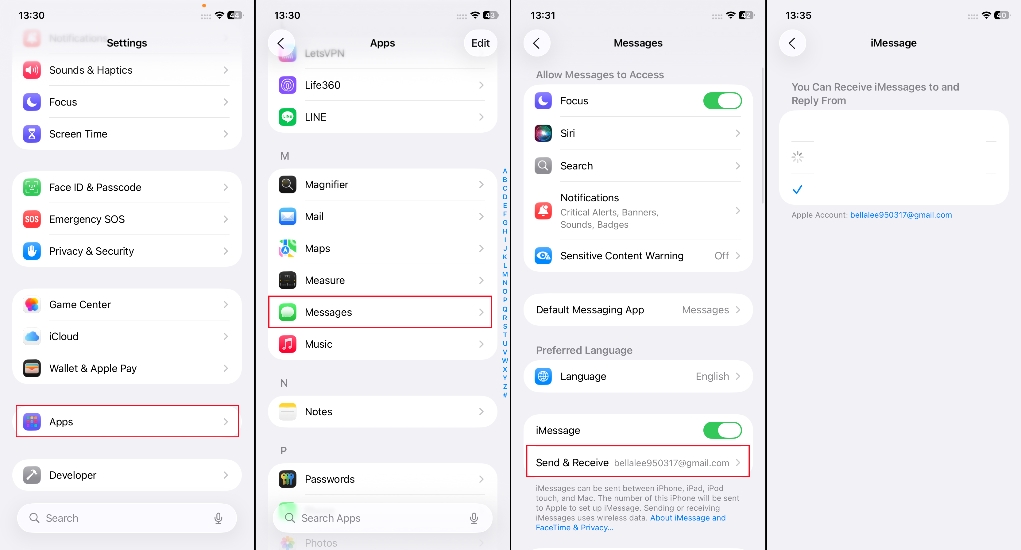
Step 1. Head for iPhone Settings > Apps> Messages.
Step 2. Tap Send & Receive to set the desired phone number or email account.
Method 4. Confirm Recipient's Compatibility
If the other party is not an iPhone, is turned off, has no signal, or does not have iMessage enabled, the message you send will naturally turn green. Confirming the status of the receiver can help determine the source of the problem.
Part 4. How to Fix Green Messages on iPhone
If your iPhone still sends green messages instead of blue messages after trying the method in Part 2, it may be caused by network or system bugs, account abnormalities, or system file corruption. This section will provide further troubleshooting steps to help you completely solve the green text message problem.
Method 1. Check Network Connection
iMessage relies on a stable internet connection, either Wi-Fi or mobile data. If your Wi-Fi or mobile data is not working properly, iMessage won't send, and the message may revert to SMS. Ensure your connection is active and stable.
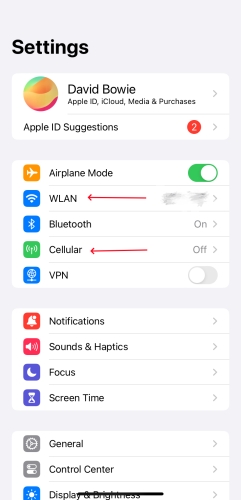
Step 1. Enter the Settings app.
Step 2. Pick the Wi-Fi option to check if you've linked to a Wi-Fi connection.
Step 3. You can also enter the Cellular option to turn the cellular data on.
Method 2. Sign Out and Sign Back into Apple ID
Normal use of iMessage relies on your Apple ID. If your iMessage is not working properly, it will cause the message to turn into a green text message. You can try signing out and signing back in to your Apple ID to reestablish the connection.
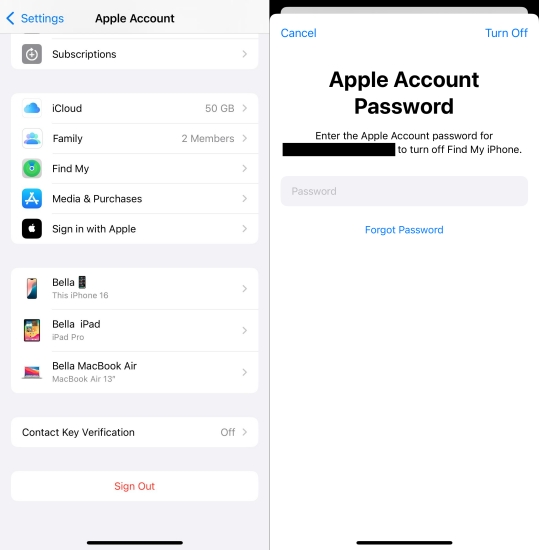
Step 1. Open iPhone Settings and tap your Apple ID.
Step 2. Scroll down to the bottom and tap Sign Out.
Step 3. Input your Apple ID password to sign out. Then sign back in to your account.
Method 3. Force Restart the iPhone
Force restarting your iPhone is a simple yet effective way to address many message-related issues. A force reboot can resolve minor software glitches or connectivity problems that might prevent iMessages from sending properly.
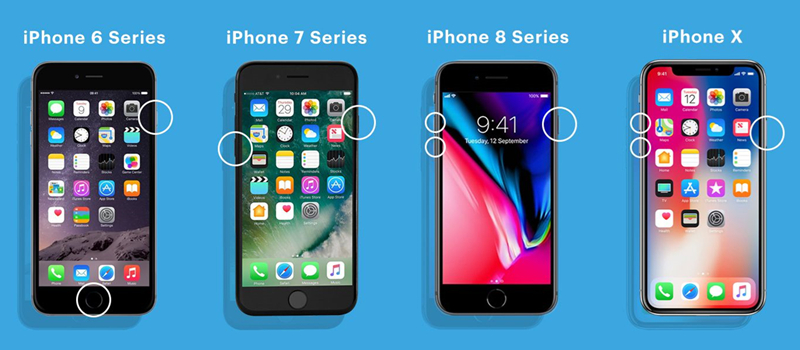
iPhone 8, iPhone SE (2nd), and models with Face ID: Quickly press the volume up button, then quickly press the volume down button. Keep holding the power button until the iPhone shows the Apple logo.
iPhone 7: Keep holding the volume down button and the power button until you see the Apple logo.
iPhone 6s and iPhone SE (1st): Keep holding the power button and the home button at the same time. Release until you see the Apple logo.
Method 4. Update the iOS System
Sometimes, a simple iOS update can resolve bugs or connectivity issues. Ensure your iPhone is running the latest version of iOS, as updates often include bug fixes and improvements for message sending.

Step 1. On your iPhone, switch to Settings and then enter General.
Step 2. Press Software Update to check if there's an available iOS update.
Step 3. If there is an available update, tap Download Now or Install Now to upgrade the iPhone system.
Method 5. Reset Network Settings
Resetting your network settings can help if there are issues with Wi-Fi or cellular data. This process clears out old configurations that might be causing connectivity problems with iMessage. Keep in mind that you'll need to reconnect to Wi-Fi networks and re-enter passwords after the reset.
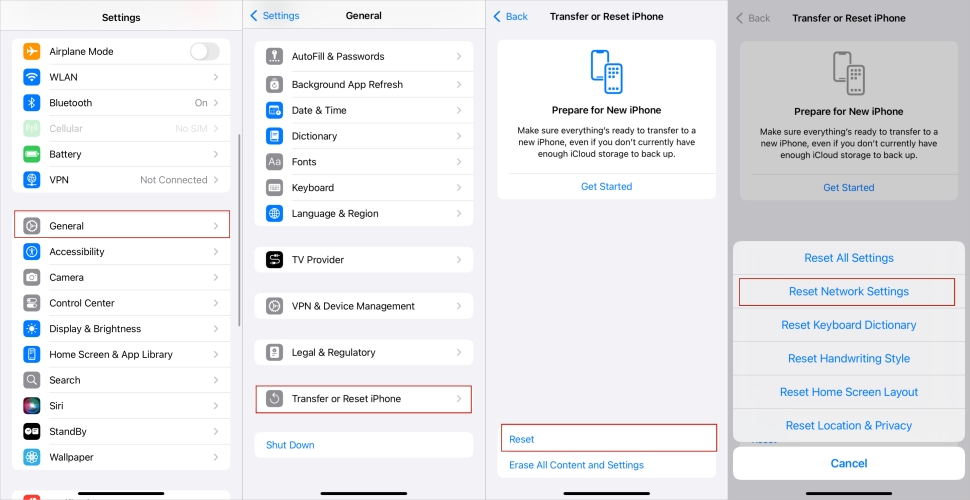
Step 1. Head to Settings.
Step 2. Hit on General, then Transfer or Reset iPhone. When you see the Reset option, tap on it.
Step 3. Then choose Reset Network Settings. Enter your screen passcode if prompted.
Method 6. Repair iPhone with MagFone
If your iPhone continues to send green messages despite troubleshooting, it may indicate underlying iOS system bugs. MagFone iOS System Recovery is a reliable tool that can fix these issues by scanning and repairing your device's system without data loss. This method is especially effective for users dealing with persistent software glitches that prevent iMessage from working correctly. With MagFone, you can restore iMessage quickly and efficiently, ensuring that green text messages are no longer an issue. Here's how to.

MagFone iOS System Recovery
Fix various iOS and iPadOS system issues, such as black screen, boot loop, frozen screen, or stuck on Apple logo, without data loss.
Step 1 Connect Your iPhone to MagFone

Prepare a USB cable used for linking your iPhone and a computer. Launch the MagFone iOS System Recovery tool on your computer. On the main screen, click the iOS System Repair option to begin the repair process.
Step 2 Choose the Standard Repair Mode
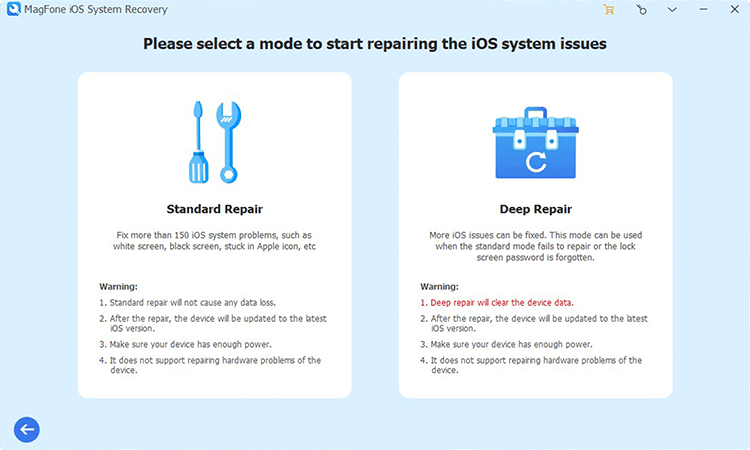
From the available repair modes, select Standard Repair. This option will fix the iMessage issue without erasing your data. The program will automatically detect your device and guide you through the steps to enter Recovery Mode on your iPhone.
Step 3 Pick and Download the Right Firmware

Verify that the device details on the screen match your iPhone model. If there's a discrepancy, choose the correct firmware version from the list. Select Download to fetch the necessary firmware for the repair process.
Step 4Start to Fix iPhone Green Messages
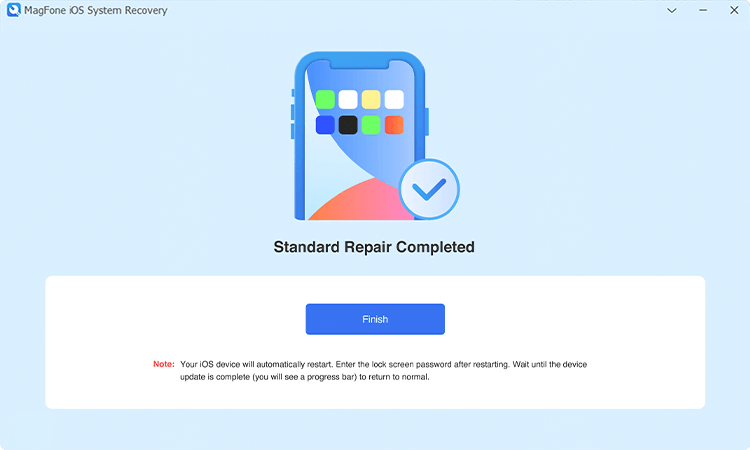
Once the firmware package is downloaded, click Start Standard Repair to begin the repair. Wait for the process to complete. Your iPhone will restart automatically, and iMessage should now work properly, resolving the issue of green messages.
Part 5. FAQs about Green Message on iPhone
-
What does it mean when iPhone message turn green?
The should-be blue messages turning green means that your iMessage failed to send and the message was sent via SMS, MMS, or RCS. You can follow the methods in this guide to troubleshoot.
-
Do iPhone messages turn green when blocked?
Not necessarily. Green text usually means the message was sent as an SMS. However, if your iMessages always turn green when messaging a specific contact, you might be blocked or they've disabled iMessage.
-
How to know if green text message was delivered on iPhone?
On iPhone, green text messages usually don't show Delivered or Read status. If there is no "Not delivered" prompt below the bubble, it generally means that the text message has been sent successfully and is likely to be delivered to the receiver. The system will only explicitly prompt when the delivery fails, so the absence of an error reminder is usually a sign of delivery.
Part 6. Conclusion
Green text messages on iPhones occur when iMessages are sent as SMS/MMS. This can happen due to factors like the recipient using a non-Apple device, network issues, or iMessage settings. Blue messages represent iMessages, while green ones indicate SMS. This guide covers various methods that can help you turn green messages to blue and available to address the green messages issue on your iPhone.

Teresa Miller
Editor in chief





