








I read a question recently about someone having trouble downloading pictures on iMessage. Instead of getting the image, it gives a 'tap to download' icon. The answer they were given is that it was a storage or network issue. Well, I just got a new iPhone, and I now have over 200GB free with a fast network. So why am I still having this issue?"
—— From the Apple Community
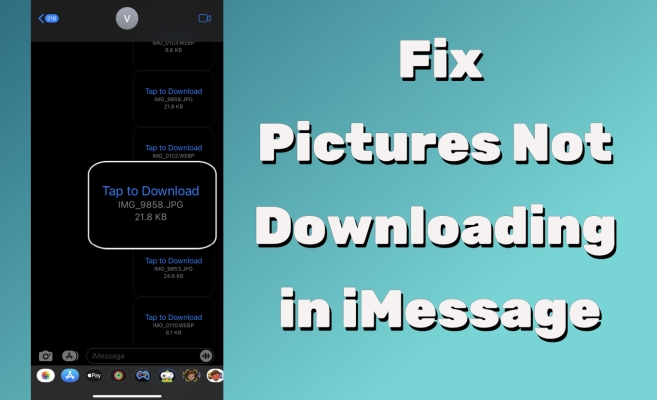
Many iPhone users have reported a frustrating issue: pictures not downloading in iMessage, especially after an iOS update. Instead of viewing a photo in iMessage, they only see iMessage keeps showing "Tap to Download" and stays stuck on "Downloading", or simply won't load. This issue can prevent you from viewing important images shared by friends, family, or coworkers. Fortunately, most cases are easy to fix once you identify the cause. In this guide, you'll learn quick fixes and effective solutions to resolve pictures not downloading in iMessage on your iPhone.
- Part 1. Why Are Pictures in iMessage Not Downloading?
- Part 2. Quick Fixes to Pictures Not Downloading in iMessage
- Part 3. Effective Ways to Fix Pictures in iMessage Not Downloading
- Part 4. Complaints about iMessage Photos Keep Re-downloading
- Part 5. Conclusion
Part 1. Why Are Pictures in iMessage Not Downloading?
iMessage failure to download pictures can be caused by various underlying factors. While the issue might seem random, it typically boils down to a few common causes that interfere with the app's ability to process media files. Here are the most likely reasons.
01Poor Internet Connection
iMessage requires a stable network to download images and attachments. If your internet is slow or unstable, the photo may not load or the download button might not respond. Common signs include:
- Images stuck on "Downloading…"
- Photos that never finish loading
- The Tap to Download button doing nothing
02Not Enough iPhone Storage
If your iPhone storage is almost full, it may not be able to download new media files. Photos sent through iMessage still require local storage to be saved temporarily.
03Outdated iOS or Software Bugs
Sometimes the issue appears after an iOS update or system bug. Older software versions may contain glitches that affect the Messages app to normally download photos.
04iCloud Sync Problems
If Messages in iCloud is enabled, attachments are synced across devices. If the sync process becomes interrupted or corrupted, photos may not download properly.
05iMessage or MMS Messaging Disabled
If iMessage or MMS messaging is turned off, your device might fail to receive or download pictures. Important settings to check include iMessage and MMS Messaging enabled.
Part 2. Quick Fixes to Pictures Not Downloading in iMessage
If your iMessage isn't downloading pictures, there are a few simple checks you can make to fix the issue quickly. These basic troubleshooting steps often resolve the problem without further complex steps. Let's go over the most common easy fixes to get your photos back in iMessage.
Method 1. Check Network Connection
A stable internet connection is vital for iMessage to function properly. If your network is weak or unstable, images in iMessage may fail to download. Verifying your WiFi or cellular data connectivity can often resolve the problem without more thinking.
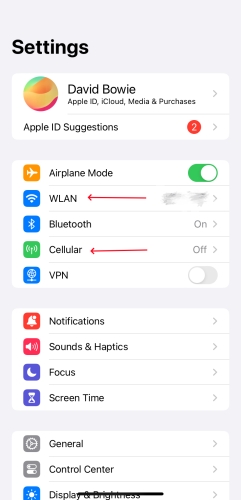
Step 1. Launch the Settings app.
Step 2. Choose WLAN or Cellular to check the network connection.
Method 2. Check Storage Space
Low storage can hinder iMessage from downloading images. When your iPhone runs out of space, it may struggle to process new media. Removing unused apps, photos, or files can help ensure your device has sufficient capacity to handle incoming media in iMessage.
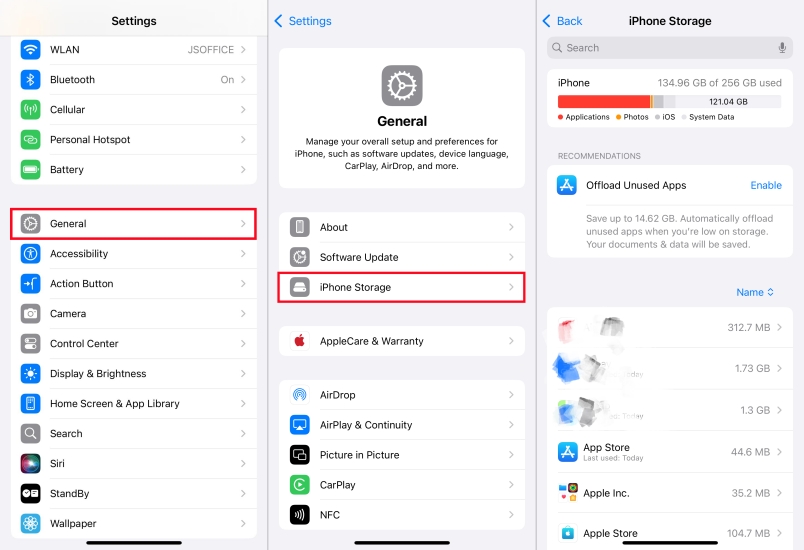
Step 1. Go to Settings > General > iPhone Storage.
Step 2. Clear some unused apps or delete unimportant content.
Method 3. Check Low Power Mode
Low Power Mode is designed to save battery life but can restrict certain functions. If this mode is enabled, it could prevent iMessage from downloading pictures. Disabling Low Power Mode ensures that all app features, including media downloads, operate smoothly.
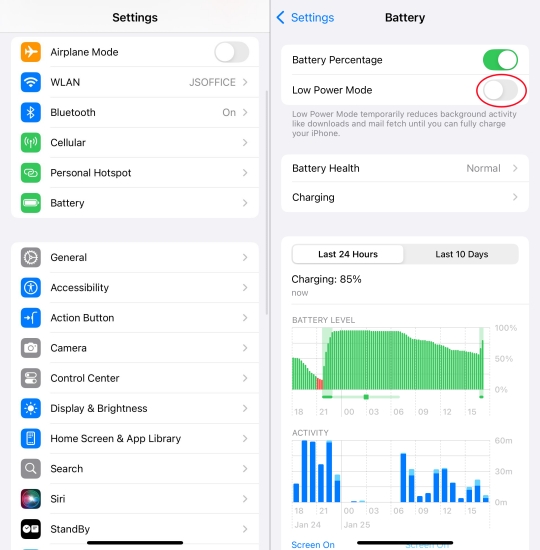
Step 1. Locate Settings and press Battery.
Step 2. Then switch off Low Power Mode.
Method 4. Check Apple Account Settings
iMessage uses your Apple Account to send and receive messages between iPhone, iPad, iPod touch, and Mac. If your Apple Account isn't configured properly, attachments, including photos and audios, might fail to download in iMessage.
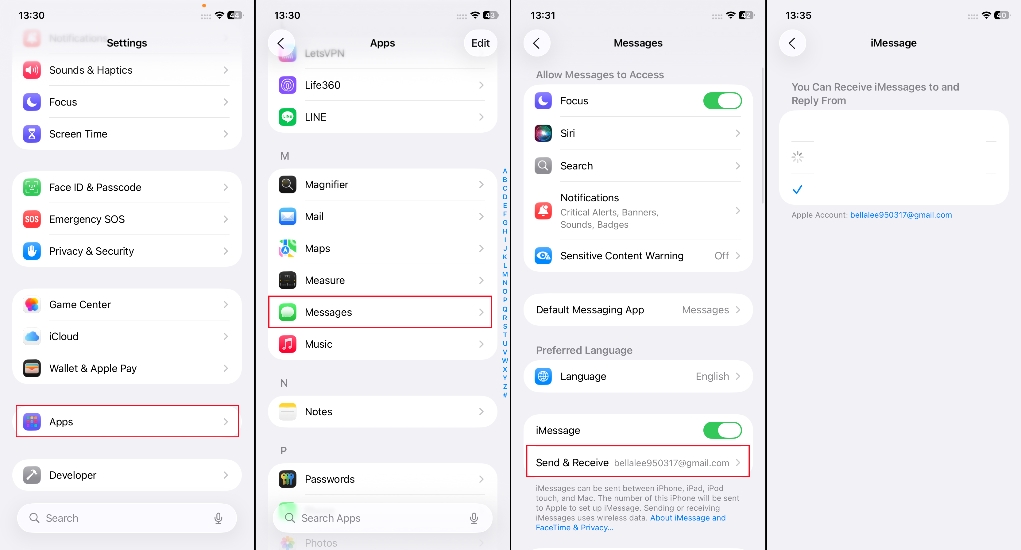
Step 1. Go to Settings > Messages and tap Send & Receive.
Step 2. Confirm your Apple Account and phone number are selected.
Part 3. Effective Ways to Fix Pictures in iMessage Not Downloading
If simple checks don't fix this issue, try a few more advanced solutions. These fixes require a bit more effort. But they are often necessary when dealing with this persistent picture download problem in iMessage. The following are advanced ways to fix the image won't download issue.
Method 1. Restart iMessage App
Sometimes, the iMessage app may encounter minor glitches, causing it unable to download pictures. Restarting the app can refresh its processes, resolving any temporary issues. This method is straightforward and often effective in fixing image download problems.
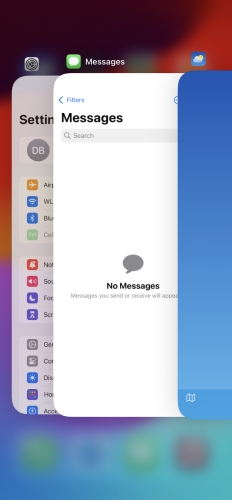
Step 1. Head to the background and find the iMessage page.
Step 2. Swipe it up and then back to the home screen to launch it again.
Method 2. Restart the iPhone
Rebooting your iPhone is a classic troubleshooting step for many software-related problems. It clears some simple glitches in the system, allowing apps like iMessage to function as intended. A restart can often resolve issues with iMessage media downloads, restoring normal performance.
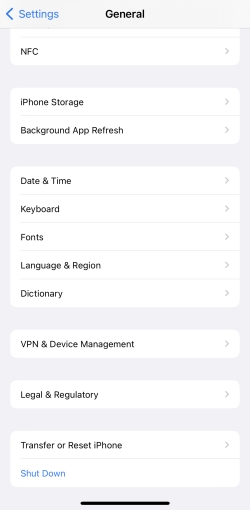
Step 1. Go to Settings > General and tap Show Down.
Step 2. Move the slider to power off your iPhone.
Step 3. Press the power button to restart your device.
Method 3. Enable MMS Messaging
MMS messaging allows iPhones to send and receive multimedia content. If it is disabled, the Message app may not download the pictures anymore. Verifying and enabling this feature in your settings ensures your device can handle image downloads easily.
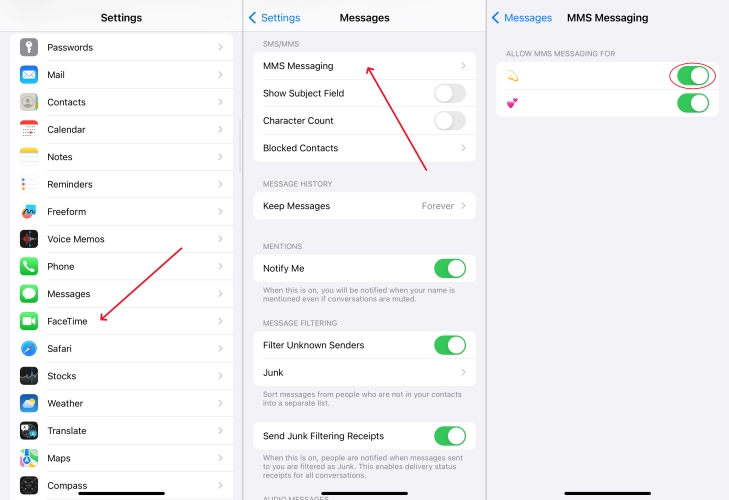
Step 1. Enter Settings > Apps > Messages.
Step 2. Scroll down to tap MMS Messaging.
Step 3. Enable MMS Messaging to receive and load photos.
Method 4. Disable and Enable iMessage
It's a good way to refresh your account's connection to Apple's servers by signing out and back into iMessage. This process can resolve issues like synchronization errors that prevent media downloads. It's a simple yet effective way to troubleshoot iMessage download issues.
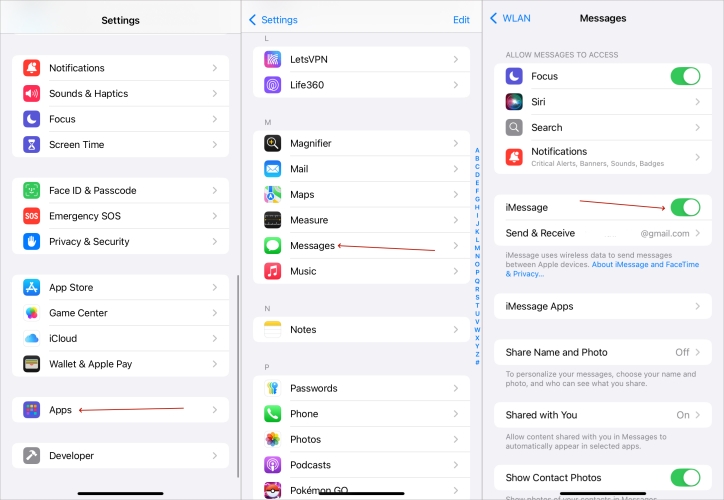
Step 1. Run Settings and tap Apps > Messages.
Step 2. Disable iMessage, then turn it on again.
Method 5. Toggle Messages in iCloud
If you use iCloud for Messages, ensuring that it's properly configured is essential. Not syncing with iCloud can lead to images not downloading. Reviewing and adjusting your iCloud settings can fix these synchronization problems and download iMessage pictures as normal.
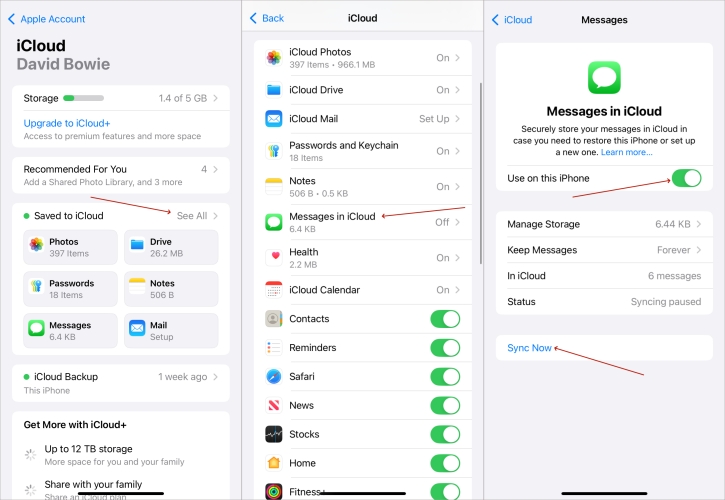
Step 1. Open Settings and scroll down to select iCloud.
Step 2. Tap Messages and turn it off.
Step 3. Wait a moment, then turn on Messages again.
Method 6. Update the iOS
Sometimes software bugs cause iMessage photos not to load correctly. Apple frequently releases updates that fix these issues. Ensure your iPhone is running the latest iOS software. If not, you can update your device to the latest iOS version for resolving the issue.

Step 1. Launch Settings and tap General > Software Update.
Step 2. Tap Update Now to install any available update.
Method 7. Reset Network Settings
iMessage needs a stable Wi-Fi connection to download photos and other attachments. Incorrect network configurations can block iMessage attachments from downloading. Try to reset network settings to refresh the network. And this will only remove saved WiFi passwords.
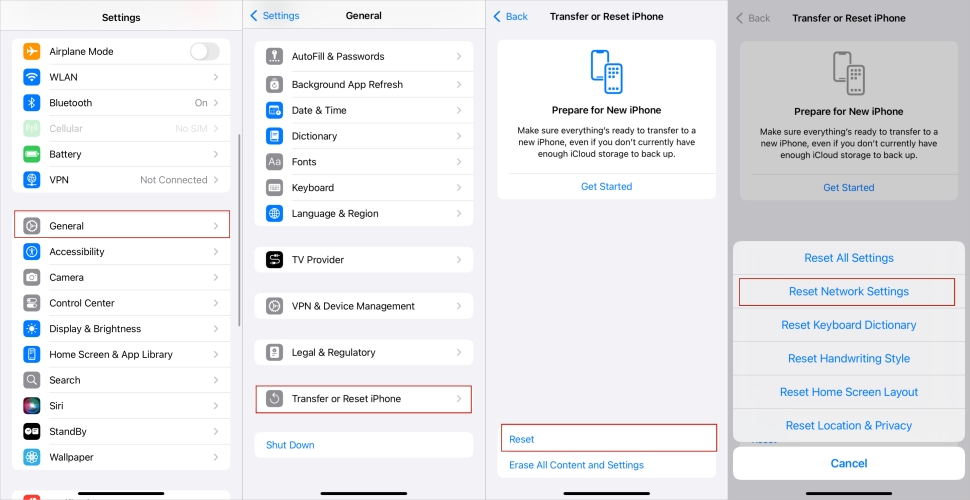
Step 1. In the Settings, tap General > Transfer or Reset iPhone.
Step 2. Tap Reset and choose Reset Network Setting.
Step 3. Enter the screen passcode and tap Reset to confirm.
Method 8. Reset All Settings
If the issue of the iPhone not downloading pictures in iMessage still persists, resetting all system settings can resolve deeper configuration problems. This reset will not delete any personal data on the device but will restore default system settings.

Step 1. Go to Settings > General and select Transfer or Reset iPhone.
Step 2. Tap Reset and choose Reset All Settings.
Step 3. Confirm with the screen passcode and tap Reset.
Method 9. Use a Third-Party Recovery Tool
Sometimes, the issue isn't a setting you can toggle, but a deeper glitch in the iOS architecture itself. If you have tried the above solutions but still see "Tap to Download" errors across all chats, the messaging framework might be corrupted. For persistent cases where the software refuses to pull data from the cloud, a repair tool like MagFone iOS System Recovery can be effective. This utility is designed to refresh the system files without wiping your personal data. In just a few simple steps, fix pictures in iMessage not downloading on your iPhone with MagFone.

MagFone iOS System Recovery
Fix various iOS and iPadOS system issues, such as black screen, boot loop, frozen screen, or stuck on Apple logo, without data loss.
Step 1 Run MagFone iOS System Recovery

First, link your iPhone to a computer through a USB cable and fire up the MagFone iOS System Recovery program on that computer. Next, pick the iOS System Repair tab from the main page to start the repair process.
Step 2 Choose the Standard Repair Mode
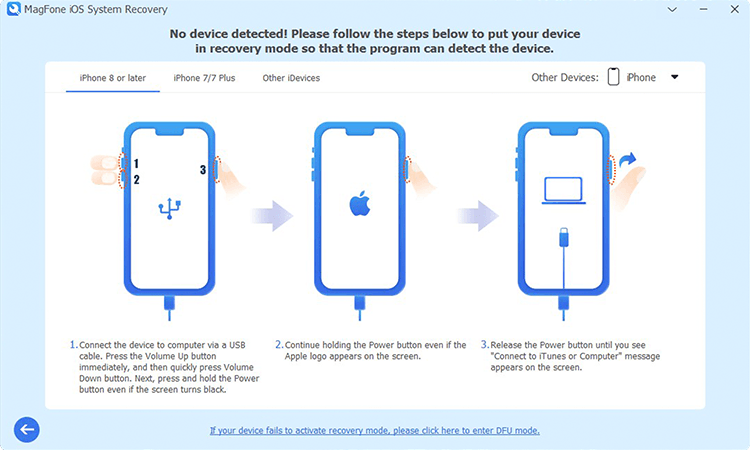
When you see the iOS System Repair modes, select Standard Repair to address the iMessage issue without losing data. The software will detect your device automatically and guide you to put the iPhone into Recovery Mode.
Step 3 Download the Right Firmware Package

Review the device information displayed on the screen and confirm that it matches your iPhone. Otherwise, select an appropriate firmware version and click Download to begin downloading the package.
Step 4 Finish iMessage Download Issues Fix

Once the firmware download is over, click Start Standard Repair to start the fix. Wait until the repair process finishes and the system notifies you with a Repair Completed message. Your iPhone will reboot, and iMessage will now function properly.
Part 4. Complaints about iMessage Photos Keep Re-downloading
Beyond the pictures not downloading in iMessage issue, there are many iMessage-related issues often caused by an iOS update, network change, or storage problem. Some threads from Reddit encapsulates a common frustration after iOS 26, but from a slightly different angle: persistent re-downloading photos in iMessage to view them. Like this user on Reddit, a common complaint highlights a persistent problem:
Is there a way to make it so that images that are sent via iMessage don't have to be re-downloaded? I just want the pictures to just stay there. Re-downloading them every time is a bit annoying!"
This isn't just an inconvenience; it is a clear sign that your iPhone is struggling to maintain its local cache of iMessage attachments. This issue almost always boils down to one primary culprit: insufficient local storage compounded by iCloud Photo settings. According to some sharing from Reddit users, the issue can be resolved with the following solutions.
01Prioritize Local Storage for Originals
If you want your iMessage photos to "just stay there" and not require constant re-downloading, you need to tell your iPhone to keep the original, full-resolution files on the device.
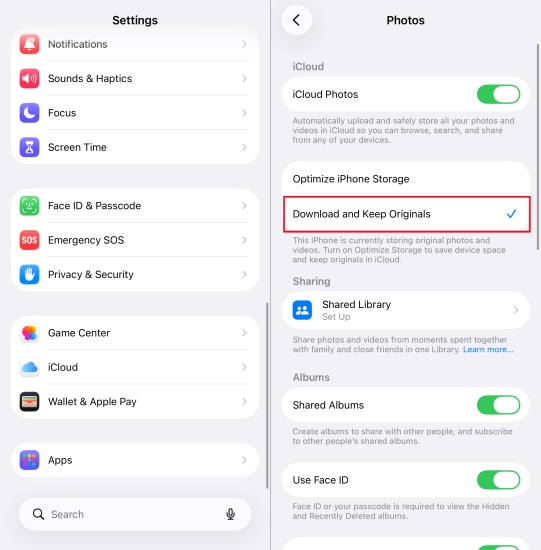
Step 1. Go to Settings > Photos.
Step 2. Under iCloud Photos, select Download and Keep Originals.
02Verify Message History Settings
To ensure your images remain viewable within your threads indefinitely, you must audit your Message History settings. These settings act as the "retention policy" for your device.
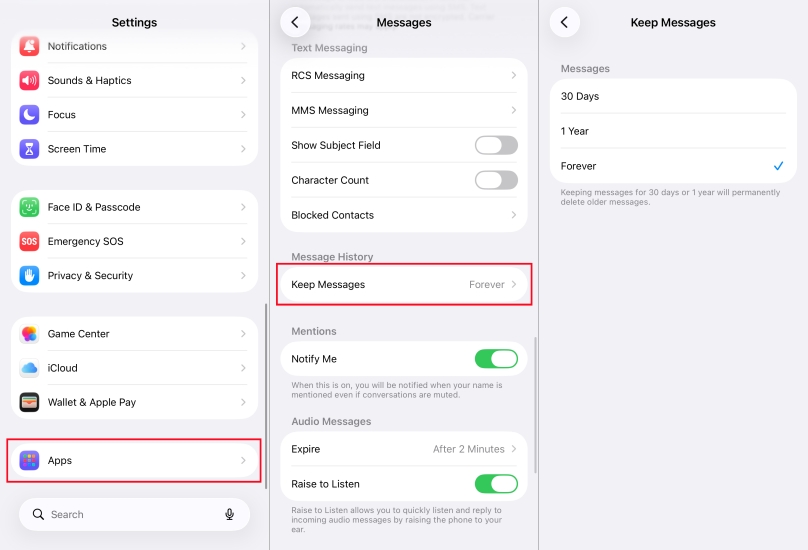
Step 1. Open Settings and scroll down to Apps.
Step 2. Tap Messages, then tap Keep Messages under Message History.
Step 3. Ensure this is set to Forever.
Part 5. Conclusion
iMessage not downloading pictures can be an annoying setback, but it's usually a solvable issue. From basic checks to advanced solutions, this guide provides a complete roadmap to resolving the issue. Don't let small tech hiccups ruin your experience—restore iMessage's full potential with these effective methods.

Dylan Jones
Editor in chief




