








Audio messages have become an integral part of modern communication, offering a quick and convenient way to convey thoughts, emotions, and information. Whether it's a funny anecdote, a heartfelt message, or a quick update, audio messages provide a personal touch that text alone often can't match. Sending audio messages can be an easy way on all Apple devices, including the iPhone.
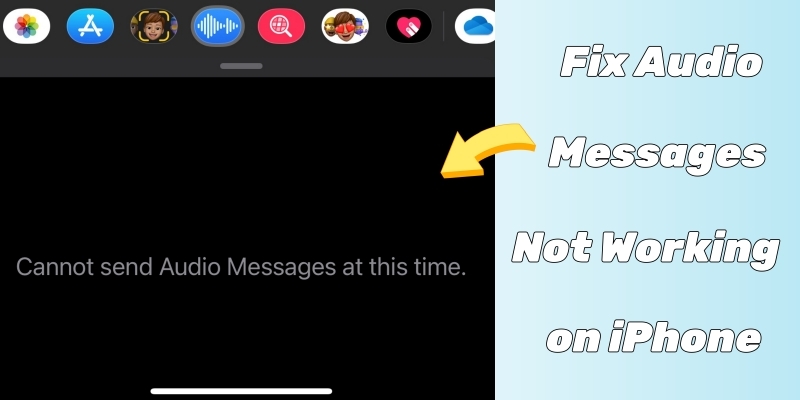
All iPhone users can use the Message app to record and send audio messages, along with transcripts of what's said in the message. However, encountering an error message like "iPhone cannot send Audio Messages at this time" can be frustrating and disruptive to one's workflow. This comprehensive guide aims to delve into the root causes of this issue and provide practical solutions to resolve it effectively.
- Part 1. Why Cannot Send Audio Messages at This Time on iPhone?
- Part 2. 30-Second Quick Check: Cannot Send Audio Messages at This Time
- Part 3. How to Fix iPhone Cannot Send Audio Messages at This Time
- Part 4. Ultimate Way to Fix Audio Messages Not Working on iPhone HOT
- Part 5. FAQs about Audio Messages on iPhone
- Part 6. Conclusion
Part 1. Why Cannot Send Audio Messages at This Time on iPhone?
While the iPhone's ecosystem is more advanced than ever, the "Cannot send audio messages at this time" error remains a classic point of frustration. This error typically isn't a hardware failure; it's a software "handshake" issue. Here are the most common reasons that contribute to the inability to send audio messages on the iPhone.
Poor Internet Connection. Audio messages require a stable internet connection. If your network is weak, the message may fail to send.
iMessages Is Disabled. Voice messages are sent through iMessage, not SMS. If iMessage is turned off, audio messaging will not work.
Temporary iOS Glitches. System bugs or minor software crashes can interrupt message sending functions.
Low Storage Space. If your iPhone is running out of storage, it may prevent audio files from being processed or sent.
Microphone or App Permission Issues. If the Messages app cannot access the microphone, recording or sending audio messages will fail.
Apple Server Issues. Sometimes the issue is not on your device. Apple's iMessage servers may be temporarily down.
Part 2. 30-Second Quick Check: Cannot Send Audio Messages at This Time
Resolving the issue of being unable to send audio messages at this time on the iPhone involves several troubleshooting steps. Before diving into advanced settings, make sure the basics like the network and SIM card aren't blocking your path first.
Solution 1. Check the SIM Card
Unlike making FaceTime calls, sending audio messages in the Message app on the iPhone requires an activated SIM card. Go to check whether the SIM card on your iPhone is activated or not, which will ensure you to send an audio message.
Solution 2. Check the Network
A weak connection often pauses outgoing media. Make sure that your iPhone is connected to a stable network, whether it's cellular data or WiFi. Switch from Wi-Fi to Data or vice versa to refresh the handshake with Apple's servers. Or connecting to a different network may help.
Solution 3. Check the Recipients
Make sure your recipients are using an Apple device as audio messages are an iMessage-exclusive feature. If your text bubbles are green, you are texting a non-Apple user or someone with iMessage turned off. You cannot send native Apple audio messages to Android devices.
Part 3. How to Fix iPhone Cannot Send Audio Messages at This Time
When the issue isn't caused by the basics, some advanced solutions can help you to fix the issue. Here you can fix the "Cannot send Audio Messages at this time" error on the iPhone from app-level conflicts and system-level glitches. Follow the solutions below to fix the issue now.
Phase 1. App-Level Conflicts (Block the Mic)
If you are in a blue-bubble thread and the servers are up, a specific setting is likely hijacking your microphone. To resolve the issue, you can reset some settings related to the microphone.
01Disable Sound Recognition
The Sound Recognition feature makes your iPhone constantly uses the microphone to listen for specific sounds like sirens or smoke alarms. Because the microphone is occupied, iMessage cannot take control of it to record your voice.
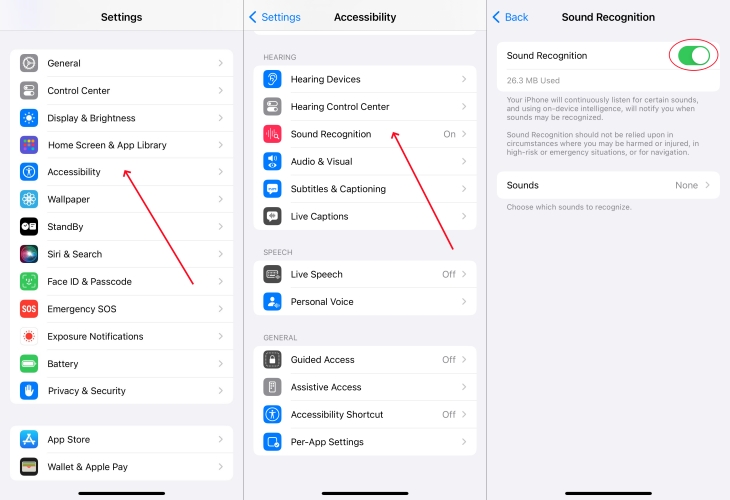
Step 1. Tap Settings > Accessibility > Sound & Name Recognition.
Step 2. Tap Sound Recognition, then toggle the switch to OFF.
02Enable Microphone Privacy Permissions
It is possible that a system update reset your privacy permissions, revoking the Messages app's ability to access your hardware. Make sure that you have enabled privacy permissions for the microphone to record the sound on your iPhone.
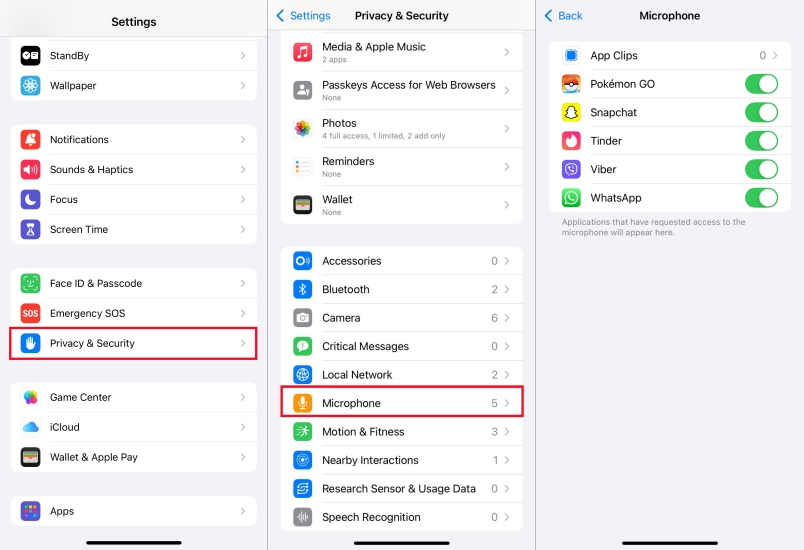
Step 1. Go to Settings > Privacy & Security > Microphone.
Step 2. Ensure the toggle next to Messages is green.
03Disable Screen Time Restrictions
If you have Communication Safety or specific app limits enabled under Screen Time, your phone may be restricting the recording or sending of multimedia content. This will disable features in iMessage, including sending audio messages.
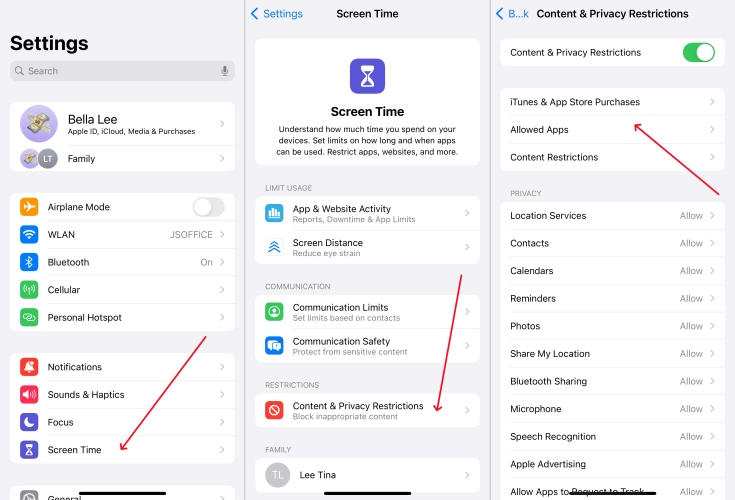
Step 1. Open the Settings app on your iPhone and tap Screen Time.
Step 2. Tap Content & Privacy Restrictions > Allowed Apps.
Step 3. Check whether the Messages app is allowed.
04Turn Off Raise to Listen
The Raise to Listen feature uses the proximity sensor to automatically record or play audio when the phone is held to your ear. If this sensor is glitching or blocked by a screen protector, it can prevent manual recording. Simply disable Raise to Listen and test your manual recording button.
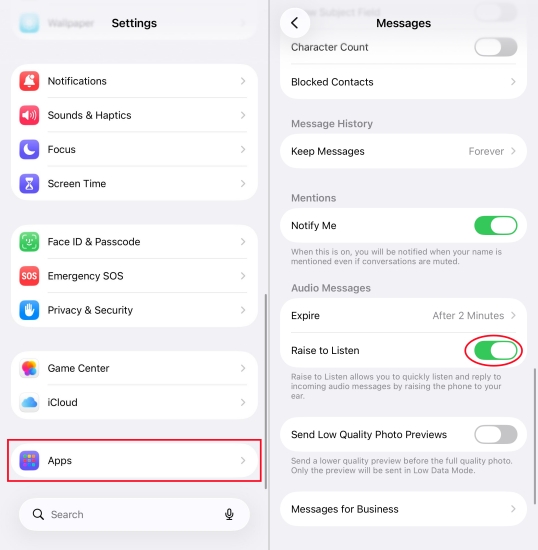
Step 1. Go to Settings > Apps > Messages.
Step 2. Scroll down to Raise to Listen and toggle it OFF.
Phase 2. System-Level Glitches (Block the Network)
Sometimes the "at this time" part of the error refers to a temporary sync failure between your phone number and your Apple ID. Following are the steps to resolve the network and sync errors.
01Restart Messages and iPhone
Sometimes, a simple restart can work wonders in resolving minor technical glitches. To fix the "at this time" issue, try to restart the Messages app or the iPhone. Later, check whether audio messages are sent normally from the iPhone to other devices.
Restart Messages
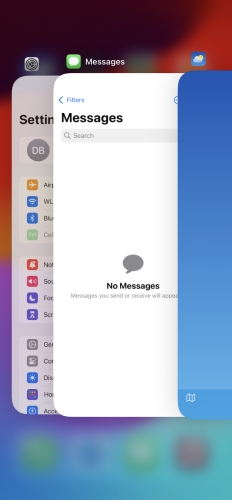
Step 1. Go to the Home Screen and swipe up from the bottom of the screen.
Step 2. Locate in the middle of the screen, then swipe right to find the Messages app.
Step 3. Swipe up on the Messages' preview to close the app.
Restart iPhone
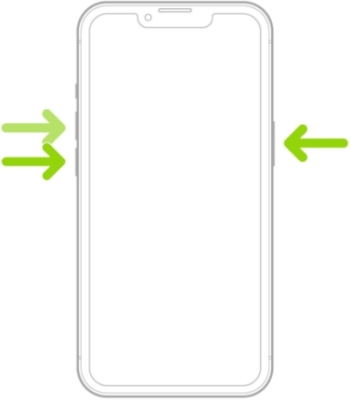
Step 1. Press and hold the side button until the slider appears.
Step 2. Slide the slider to power off your device.
Step 3. Wait a few seconds, then press and hold the power button to power on your device.
02Reset iMessage and FaceTime
Sometimes, your Apple ID loses its synchronization with the iMessage server, especially after a major iOS update or an eSIM change. In this case, go to disable and enable iMessage and FaceTime to fix the "at this time" issue.
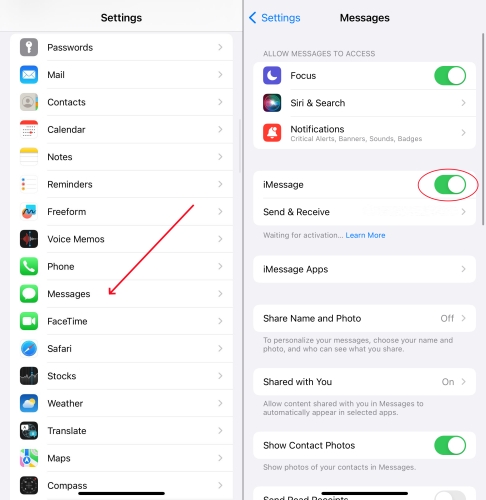
Step 1. Go to Settings and tap Apps > Messages.
Step 2. Tap the toggle switch next to iMessage to turn it off.
Step 3. Go to Settings > FaceTime and toggle it OFF.
Step 4. Restart your iPhone, then toggle both back ON in the Settings.
03Enable MMS in Messages
MMS Messaging is an important function in the Messages app. If you don't enable MMS Messaging in the Messages settings on your iPhone or recently switched to another SIM card, you may be unable to normally send audio messages on the device.
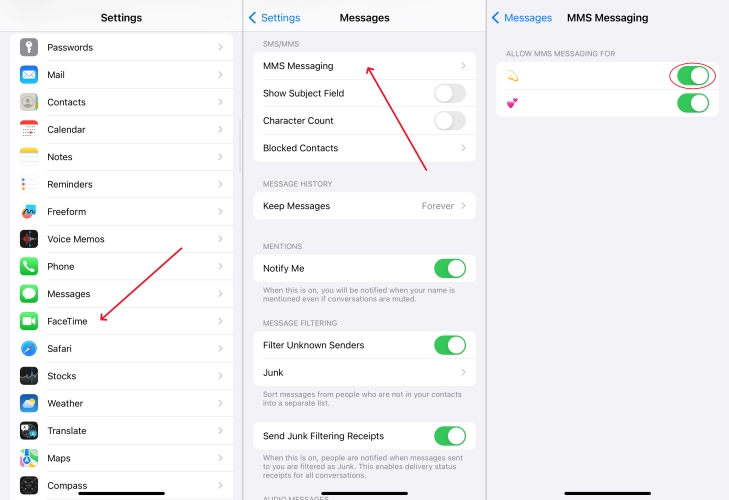
Step 1. In Settings on your iPhone, tap Apps > Messages > MMS Massaging.
Step 2. Tap the toggle switch next to the SIM card to turn it on.
04Free Up Storage Space
Additionally, freeing up storage space on the iPhone by deleting unnecessary files or apps can alleviate the problem. If you have less than 500MB of space left, your phone may refuse to record new audio files. To fix the issue, you can free up more storage space.
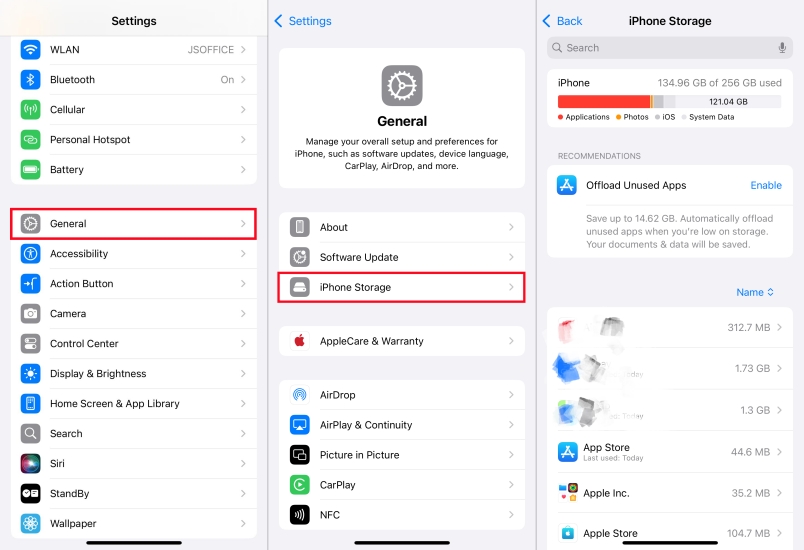
Step 1. On your iPhone, go to Settings > General > iPhone Storage.
Step 2. Make sure there is enough storage on the iPhone.
Step 3. Delete the unused app and files to free up storage space.
05Update Messages and iPhone
Bug fixes for iMessage are frequently included in Apple's "Point" updates. Updating the iOS can address bugs on the iPhone. Besides, an update of Messages can fix some mirror issues. Both updates can reset the internal conflict between the microphone and the messaging app.
Update Messages
Step 1. Launch the App Store on your iPhone, then tap your profile image.
Step 2. Scroll to find whether there is an update of iMessage.
Step 3. Tap Update next to iMessage to get it updated.
Update iPhone

Step 1. Locate Settings > General on your iPhone and tap Software Update.
Step 2. Check whether there is a software update option, then tap Download and Install.
Step 3. After downloading the update, enter the screen passcode and tap Install Now.
06Clear Cache Files in iMessage
Offloading the Messages app to clear the simulated cache files is another option to fix "Cannot send Audio Messages at this time" error on the iPhone. In this case, try toe offload the Messages app on the iPhone if you don't have some necessary data.
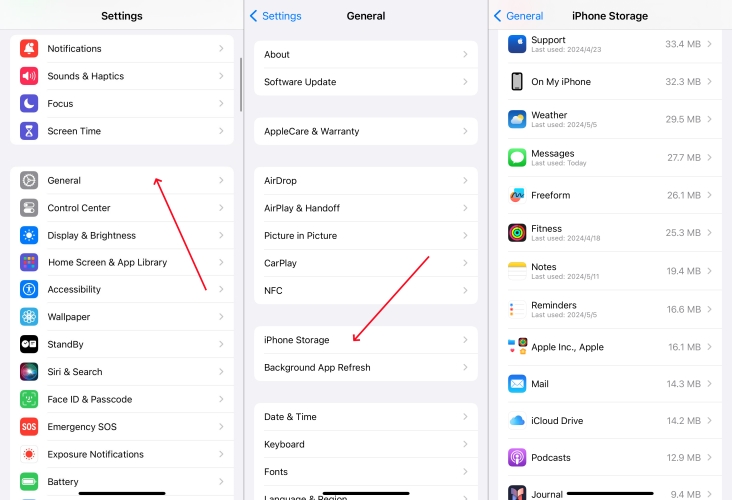
Step 1. Open the Settings app and choose General.
Step 2. Tap iPhone Storage, then find and tap the Messages app.
Step 3. Tap Offload App and go to reinstall it from the App Store.
07Reset All Settings on the iPhone
Resetting all settings on the iPhone can help in resolving misconfigured issues that may be affecting the ability to send audio messages instantly. It will erase basic settings on the device, but doesn't wipe the important data.

Step 1. Go to Settings > General > Transfer or Reset iPhone.
Step 2. Tap Reset at the bottom and select Reset All Settings.
Step 3. Enter the screen passcode, then tap Reset All Settings to confirm.
08Restore iPhone with iTunes
If none of the above solutions work, consider using iTunes on a Windows PC or Finder on a Mac to fix this error. But this will erase all the data and content on your iPhone. Before starting to use iTunes, make a backup of your iPhone, then follow the steps below to fix the issue with iTunes.
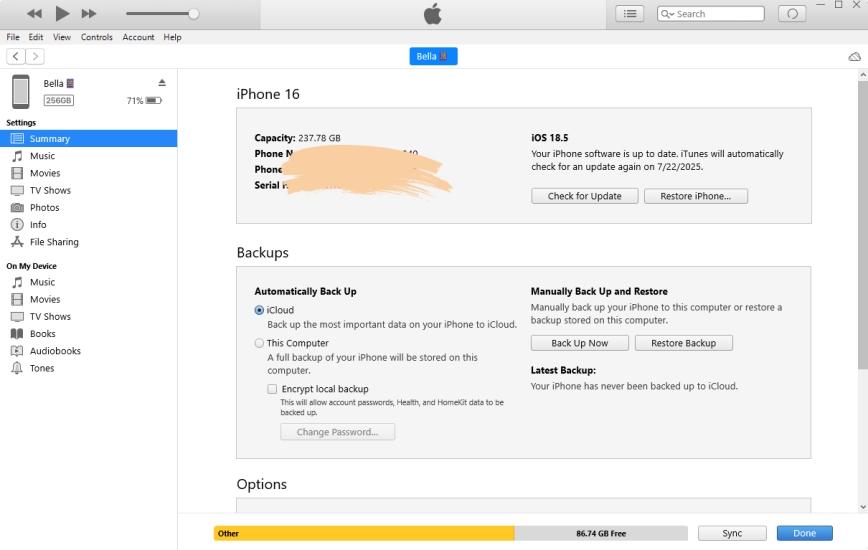
Step 1. Connect your iPhone to a computer via a USB cable, then open iTunes.
Step 2. Click the device button at the top left and switch to the Summary section.
Step 3. Click the Restore iPhone button and start restoring your device.
Part 4. Ultimate Way to Fix Audio Messages Not Working on iPhone
When trying to send an audio message in iMessages by pressing the Audio button, I see my iPhone says 'Cannot send Audio Messages at this time' instead of the microphone icon. This seems to be a recurring problem to many in the community. I tried all posted suggestions. All to no avail. Any pointers, suggestions?"
After performing the above troubleshooting steps, you would have resolved the issue. Unfortunately, some iPhone users reflected that they were unable to fix the issue by trying those suggestions posted in the community. In this case, using an iOS system repair tool like MagFone iOS System Recovery is an ideal option before trying more advanced solutions to fix 'Cannot send Audio Messages at this time on iPhone.'
MagFone iOS System Recovery is capable of fixing various iOS and iPadOS issues, including Audio Messages not working on iPhone. Adopting an advanced system repair technology, MagFone iOS System Recovery can help you fix the issue without data loss. Beyond that, MagFone software can offers you more functions. Now follow the steps below to fix the issue quickly and efficiently.

MagFone iOS System Recovery
Fix various iOS and iPadOS system issues, such as black screen, boot loop, frozen screen, or stuck on Apple logo, without data loss.
Step 1Connect iPhone to Computer and Run MagFone

First of all, connect your iPhone to your computer by using a USB cable, then open MagFone iOS System Recovery and select Repair iOS System on the interface.
Step 2Select Standard Repair Mode to Fix the Error
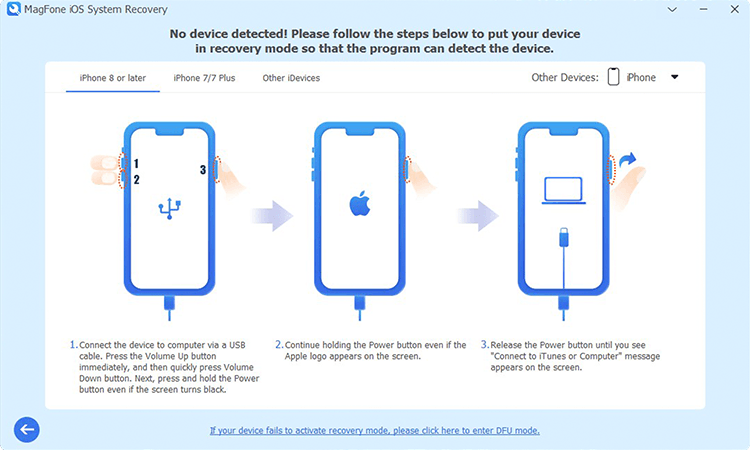
To avoid the data loss, select Standard Repair Mode. Then proceed to put your iPhone into recovery mode by following the onscreen instruction.
Step 3Download and Verify the Firmware Package

Check the device information shown on the screen and correct the wrong information. You can click the Download button to download the firmware package.
Step 4Start to Fix the Error without the Data Loss

After that, go to unzip the firmware package, then click the Start Standard Repair button to start fixing the error on the iPhone.
Part 5. FAQs about Audio Messages on iPhone
How to send an audio message on iPhone?
To send an audio message on your iPhone, you can follow the steps below.
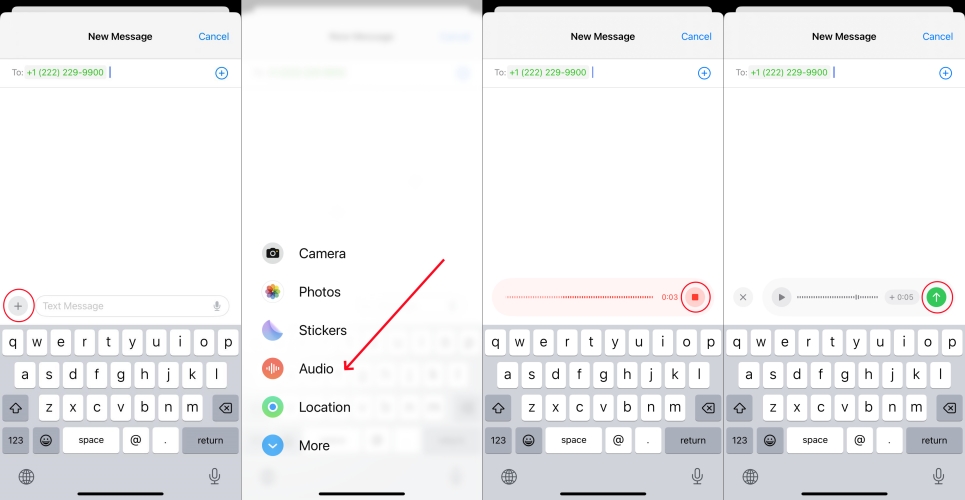
Step 1. Open the Messages app and start a new message.
Step 2. Tap +, select Audio, and start speaking.
Step 3. Tap the Stop button to end your recording, then tap the Send button.
How to save audio messages on iPhone?
If you want to save audio messages from others on your iPhone, do the following steps.
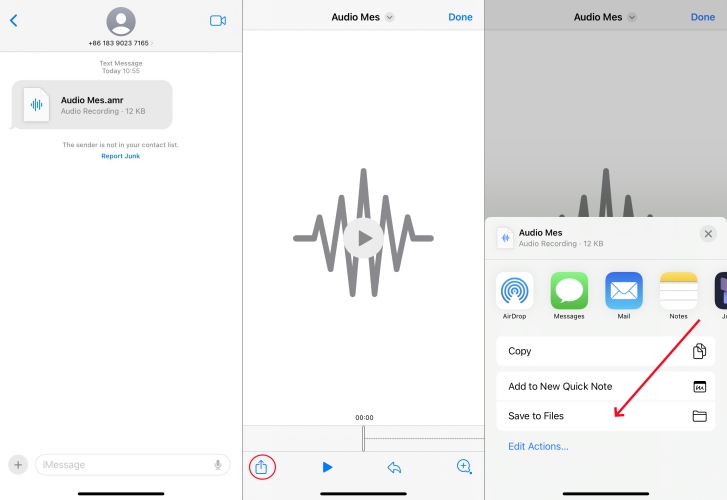
Step 1. In the Messages app on your iPhone, find audio messages you want to save.
Step 2. Tap Share > Save to Files to save audio messages in the Messages conversion.
Where do audio messages save on iPhone?
If your iPhone running iOS 12 and later, you can find all the saved audio messages in the Messages app. On an iPhone running an earlier version of iOS, audio messages are saved in the Voice Memos app.
How to send audio message from iPhone to Android?
Sending audio messages is only available between iPhone users. To send audio messages from iPhone to Android, you can directly use SMS texting or try these alternatives to iMessage like Telegram and WhatsApp.
How to retrieve expired audio messages on iPhone?
When you turn on iCloud Sync on your iPhone, all the saved audio messages will be backed up to iCloud. To retrieve expired audio messages on your iPhone, you can go to iCloud.com and restore them to your device.
Conclusion
Encountering errors like "Cannot send Audio Messages at this time on iPhone" can disrupt your communication flow. Whether it's addressing network issues, exploring alternative methods, or using a third-party tool like MagFone iOS System Recovery, there are various solutions available to tack this error. By following the tips outlined in this guide, you can hopefully fix the error and resume sending audio messages without any interruptions.

Teresa Miller
Editor in chief





