








Call forwarding allows you to route incoming calls to another number automatically. Whether it's a home phone or another mobile, call forwarding helps maintain a seamless connection. But what happens when the call forwarding feature stops working on your iPhone? No worry, this guide explores in details why your call forwarding is not working on your iPhone. Also, we'll guide you through the steps to fix call forwarding not working on iPhone.
- Part 1. Why Is Call Forwarding Not Working on My iPhone?
- Part 2. How to Set Up Call Forwarding on iPhone
- Part 3. How to Fix iPhone Call Forwarding Not Working
- Method 1. Disable and Enable Call Forwarding
- Method 2. Disable VPN Connection
- Method 3. Switch Network Connection
- Method 4. Disable Live Voicemail
- Method 5. Turn Off LTE
- Method 6. Remove and Reinsert SIM Card
- Method 7. Restart Your iPhone
- Method 8. Update iOS System and Carrier Settings
- Method 9. Reset Network Settings
- Method 10. Use MagFone iOS System RecoveryHOT
- Part 4. FAQs about iPhone Call Forwarding
- Part 5. Conclusion
Part 1. Why Is Call Forwarding Not Working on My iPhone?
The iPhone's call forwarding feature relies on the carrier's network, not just the iPhone settings. If your call forwarding keeps loading and not working, there could be several reasons. Identifying the underlying cause is essential for finding the right solution. Here are several common factors that cause the call forwarding not to work on your iPhone.
Network Connection Issues
A poor network connection can interfere with call forwarding. If your iPhone's network is weak or inconsistent, it may prevent the call forwarding feature from functioning correctly.
Carrier-Related Problems
Some carriers impose restrictions on call forwarding, especially when it involves international calls. Also, carriers can have compatibility issues with certain iPhone models.
Software Glitches or Updates
An outdated iOS version or software bugs can also affect call forwarding. After a major update, some users may find their call settings reset or malfunctioning.
Incorrect Call Forwarding Settings
Sometimes, call forwarding might be accidentally disabled or misconfigured, resulting in an inability to forward calls. The settings are correctly configured is key to maintaining this feature.
Part 2. How to Set Up Call Forwarding on iPhone
Now that you know the common reasons why iPhone call forwarding is not working, you need to make sure you have set up the call forwarding feature correctly. Below, we will introduce the two most commonly used methods that you can use according to your situation.
Method 1. Set Up Call Forwarding in Settings
Some carriers support you in setting up call forwarding in the iPhone Settings directly. You can follow the steps to set it:
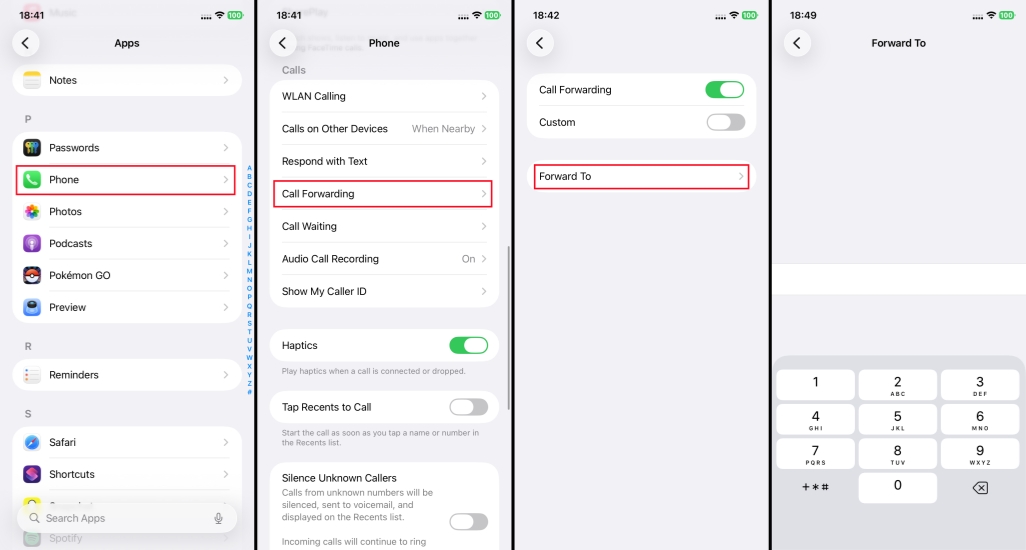
Step 1. Open iPhone Settings and scroll to the bottom.
Step 2. Tap Apps > Phone > Call Forwarding.
Step 3. Tap one phone number and turn on the Call Forwarding. Tap Forward to and enter a phone number you want to forward to. Tap the back icon to check you have set it successfully.
Method 2. Use Short Code
If the Call Forwarding is invisible in your iPhone Settings, you can set it up by using your carrier's short code. Just open the Phone app and input *Carrier's code plus the phone number you want to forward to.
Part 3. How to Fix iPhone Call Forwarding Not Working
Method 1. Disable and Enable Call Forwarding
Sometimes the settings don't work correctly, so you can turn off Call Forwarding, wait a few seconds, and then turn it back on and enter the number. This allows the system to resend activation instructions to the operator, which can resolve temporary lags or setting exceptions.
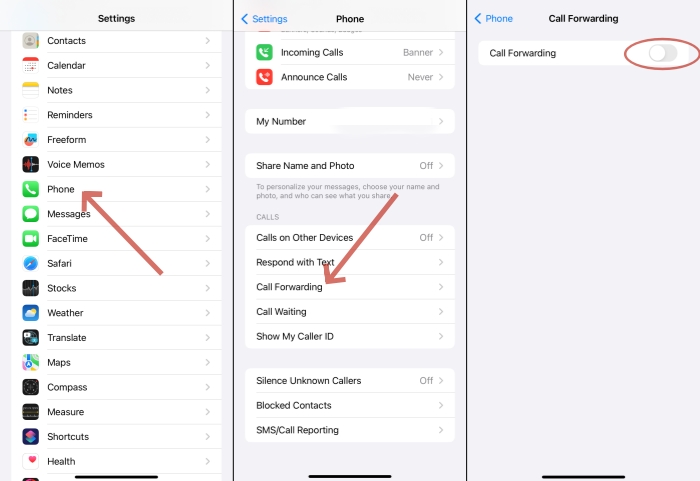
Step 1. Go to iPhone Settings > Apps > Phone.
Step 2. Find Call Forwarding and tap one phone number, and turn off the Call Forwarding.
Step 3. Keep off for a while, and then re-enable it and set the forward phone number.
Method 2. Disable VPN Connection
A VPN can alter your network routing and may interfere with the carrier connection, potentially causing call forwarding to fail. To ensure that call forwarding functions correctly, make sure to disable your VPN connection.
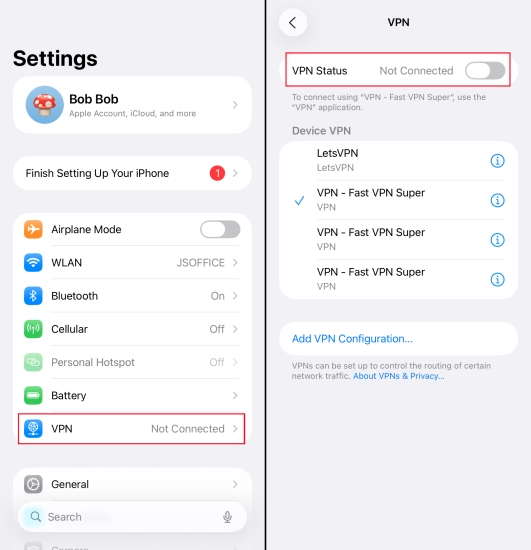
Step 1. Open Settings and tap VPN.
Step 2. Disconnect the VPN Status.
Method 3. Switch Network Connection
When you have set up the call forwarding on your iPhone, you need to stay in a cellular network connection area to make it work. It's suggested that you turn off the Wi-Fi and turn on Cellular.
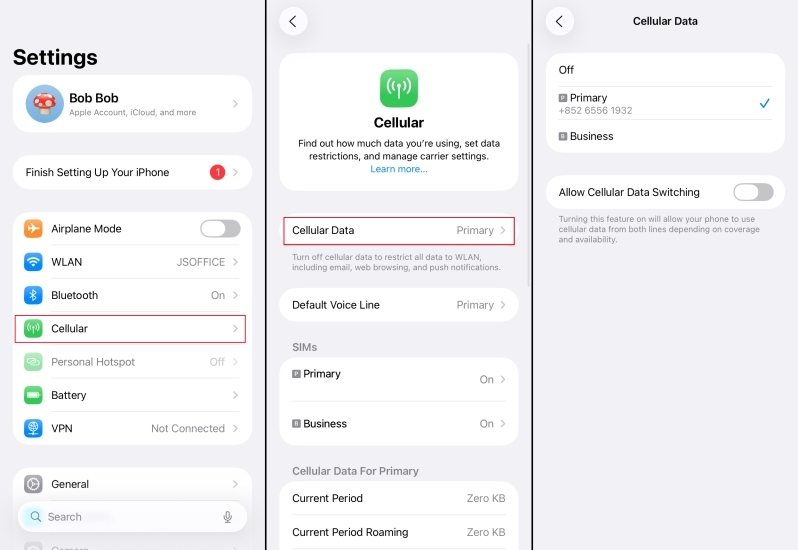
Step 1. Access iPhone Settings.
Step 2. Tap WLAN to disconnect the Wi-Fi connection.
Step 3. Back and tap Cellular > Cellular Data to enable mobile data use.
Method 4. Disable Live Voicemail
If you have enabled Live Voicemail for your Phone app, it may conflict with the Call Forwarding. The call may be forwarded to the Voicemail instead of the target forward number. You should disable Live Voicemail to avoid the conflicts.
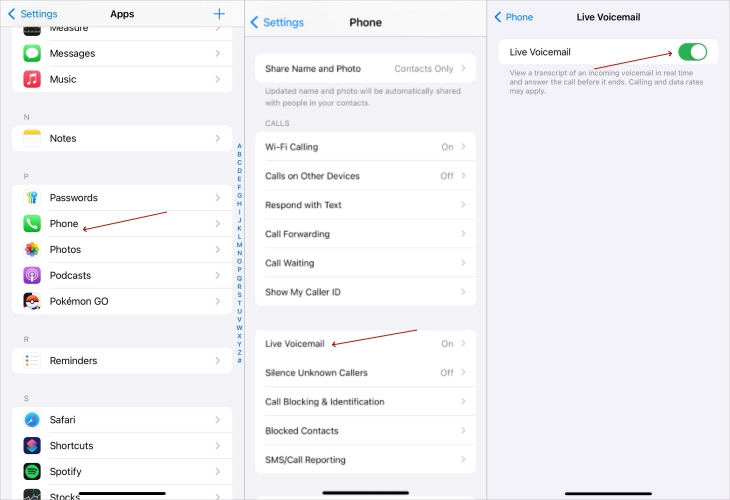
Step 1. Go to iPhone Settings > Apps > Phone.
Step 2. Find Live Voicemail and disable it.
Method 5. Turn Off LTE
LTE allows for faster data transfer, so users generally leave it on. But when LTE is in a bad state, call forwarding will be affected, causing it to malfunction. Temporarily turning LTE off can fix it.
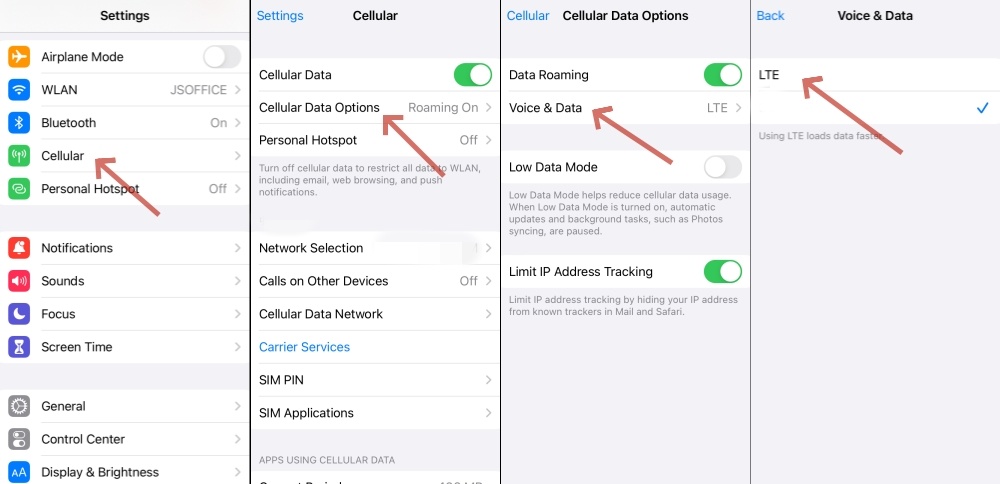
Step 1. Open Settings > Cellular > Cellular Data Options.
Step 2. Choose Voice & Data and turn LET off.
Method 6. Remove and Reinsert SIM Card
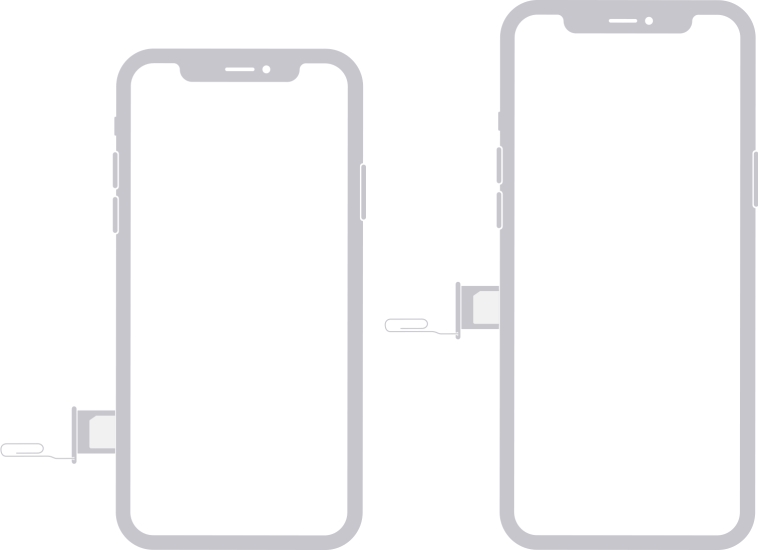
Abnormal contact between the SIM card and the device can also cause call forwarding to fail. You can turn off your iPhone, remove the SIM card, clean the SIM card with a paper towel, and plug it back into your iPhone.
Method 7. Restart Your iPhone
A quick restart can often resolve minor issues, including call forwarding malfunctions. You can restart your iPhone by following the steps below.
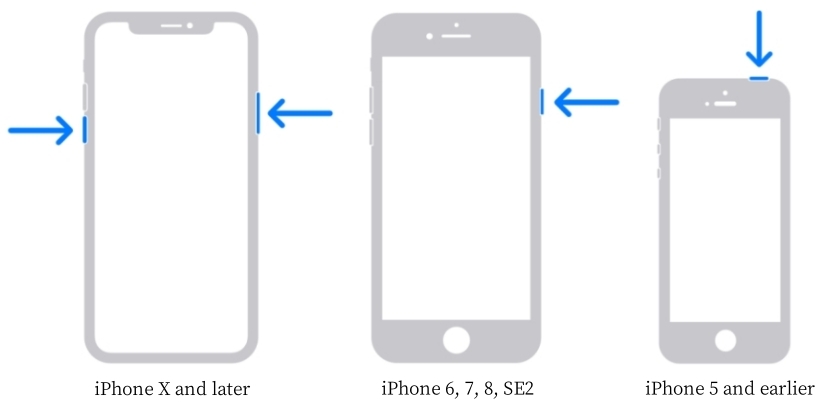
For iPhone X or later: Press and hold either volume button and the power button until the power-off slider appears. Drag the slider, then wait 30 seconds for your device to turn off. Press and hold the power button to turn your device back on.
For iPhone 6, 7, 8, or SE: Press and hold the power button until the power-off slider appears. Drag the slider, then wait 30 seconds for your device to turn off. Press and hold the power button to turn your device back on.
For iPhone 5 or earlier: Press and hold the power button until the power-off slider appears. Drag the slider, then wait 30 seconds for your device to turn off.
Method 8. Update iOS System and Carrier Settings
Keeping your iPhone system and carrier settings updated ensures the device has the latest bug fixes and feature enhancements. Updating the iOS and carrier settings can enhance the stability of functions, including call forwarding.
Update iOS System:

Step 1. On your iPhone, open the Settings app and tap General.
Step 2. Tap Software Update and check whether there is an update available.
Step 3. Tap Download and Install to download the update.
Update Carrier Settings:
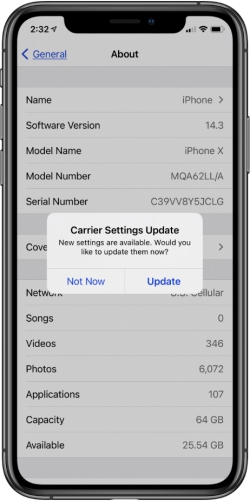
Step 1. Open iPhone Settings and tap General > About.
Step 2. If the carrier settings are available to be updated, there will be a pop-up message. Choose Update to update the carrier settings to ensure normal use of call forwarding.
Method 9. Reset Network Settings
If call forwarding isn't working, resetting your network settings could help. This action clears Wi-Fi, VPN, and cellular settings, but does not delete personal data. You just need to reconnect the network after a reset.
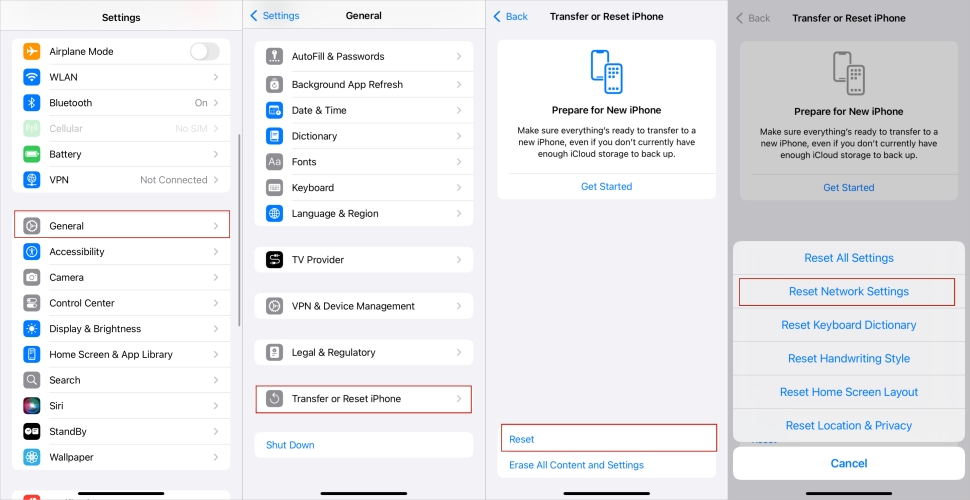
Step 1. Head to Settings and tap General.
Step 2. Scroll down to tap Transfer or Reset iPhone.
Step 3. Tap Reset > Reset Network Settings.
Step 4. Enter your passcode and tap Reset to confirm.Method 10. Use MagFone iOS System Recovery
One of the main reasons for call forwarding not working is the glitches in the system. However, many flaws in the system can't be fixed by restarting the iPhone or resetting the settings. Then you need a professional iOS system repairing tool to deal with these problems. Here we recommend MagFone iOS System Recovery. As a powerful system repairing software, it can fix abnormal system errors leading to iPhone making random calls and call failures on iPhone issues without losing data. You can follow the steps below to fix call forwarding not working on your iPhone.

MagFone iOS System Recovery
Fix various iOS and iPadOS system issues, such as black screen, boot loop, frozen screen, or stuck on Apple logo, without data loss.
Step 1Connect iPhone to PC and Run MagFone

After launching MagFone iOS System Recovery, you'll see several functions displayed on the main interface. Then select iOS System Repair and click the Start button. Proceed to connect your iPhone to the computer by using a USB cable.
Step 2Put the Device into Recovery/DFU Mode
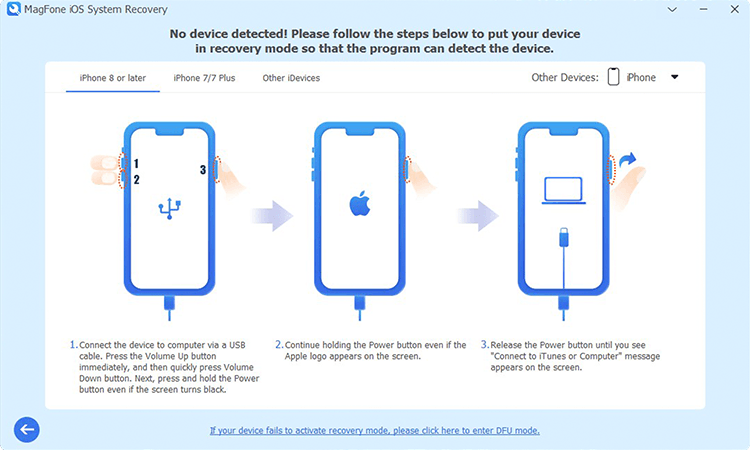
On the iOS System Repair page, click Start to select Standard Repair Mode. Then you need to put your device into recovery mode by following the onscreen instructions. If your device fails to enter the recovery mode, you can manually put it into DFU mode.
Step 3Download the Firmware Package for iPhone

When your device is in recovery mode, you'll see the device information shown on the screen. Check the device information and select the firmware package version to download. Then you can click the Download button to download the firmware package.
Step 4 Fix iPhone Call Forwarding Not Working

Once the firmware package is downloaded, you can click the Start Standard Repair button to fix the call forwarding not working on iPhone issue. In the whole process, keep your device connected to the computer until the task ends.
Part 4. FAQs about iPhone Call Forwarding
How to turn off call forwarding on iPhone?
If you want to turn off call forwarding on your iPhone, you can perform the following steps.
Step 1. Open Settings and scroll down to tap Apps > Phone > Call Forwarding.
Step 2. Tap the phone number and toggle off the switch next to Call Forwarding.
How to forward calls to another number on iPhone?
Trying to forward calls to another number on the iPhone is easy. You can follow the method in Part 2 to set the forward number.
How to call forward text messages on iPhone?
With the Text Messages Forwarding feature, the messages on the iPhone can be received by a Mac, iPad, or other Apple devices. To do this, you should make sure that these devices are signed in with the same Apple ID as the iPhone.
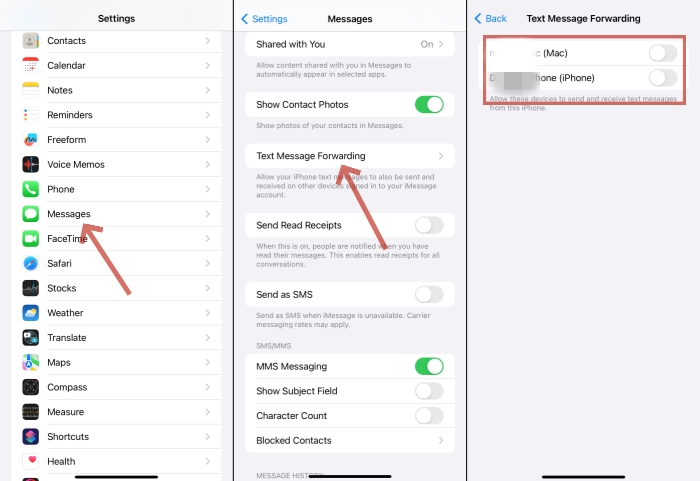
Step 1. Go to Settings on the iPhone and tap Apps > Messages.
Step 2. Choose Text Message Forwarding.
Step 3. Select the device to forward messages.
Conclusion
Ensuring your iPhone's call forwarding works properly can save you from missed calls and keep you connected. By following the top 10 methods in this guide, you should be able to fix call forwarding not working on your iPhone. Should the problem persist, reaching out to your carrier or Apple Support can provide further assistance.

Teresa Miller
Editor in chief





