








iPhone keeps restarting is undoubtedly a catastrophic iPhone malfunction for us currently. Because it keeps turning off and restarting, you don't know when it will stop and whether it'll keep restarting. And we urgently need to use our phones sometimes, in case they suddenly turn off during use, everything we have done before will be reset to zero. This is not conducive to our experience. So, what exactly is the reason for this phenomenon, and what measures can we take to fix the iPhone keeps restarting issue? Let's continue to explore more details.
- Part 1. Why Does My iPhone Keep Restarting?
- Part 2. How to Check if iPhone Keeps Restarting
- Part 3. How to Fix iPhone Randomly Restarts
- Part 4. How to Fix iPhone Restarting Constantly (All Cases)
- Part 5. FAQs about iPhone Keeps Restarting Itself
- Part 6. FConclusion
Part 1. Why Does My iPhone Keep Restarting?
Collecting issues reported by iPhone users, we found that iPhone rebooting rises particularly in the iPhone 16, 15, and 14 series. Most users are wondering why their iPhone keeps restarting on its own.
- iPhone restarts every few minutes
- iPhone restarting over and over
- iPhone restarts automatically
- iPhone keeps restarting every 5 minutes
- iPhone restarting/ rebooting on its own
- iPhone 16/15/14/13/12/11 keeps restarting
- iPhone keeps restarting while charging
We can roughly divide the reasons into external problems and internal problems. Some possible reasons are listed below for your reference.

Reason 1. Hardware Problems
The decreased battery capacity and lifespan of old batteries, or sensor errors that prevent sensing, can cause the iPhone to get stuck on the restart interface and become unusable.
Reason 2. Malware Attack
A third-party software that is not downloaded from the App Store may carry viruses that keep the iPhone restarting and shutting down.
Reason 3. System Bug
Although the chance is pretty low, previous versions of the system may have various unknown issues, which could also be one of the reasons for the iPhone randomly restarting.
Reason 4. Charge Cable and Port
Some users reported that the iPhone keeps restarting while charging. This is also related to a problematic charging cable and charger, in which case the iPhone can only be charged intermittently. Once the iPhone receives power and then it stops receiving power again, resulting in a continuous cycle of restarts.
There are generally two types of iPhone keeps restarting situations: random reboot and constant reboot. Knowing the factors that contribute to iPhone rebooting, you can first troubleshoot the hardware failure and then implement targeted methods to fix the issue.
Part 2. How to Check if iPhone Keeps Restarting
If your iPhone keeps turning off and restarting, you can first diagnose whether there is something wrong with your iPhone's hardware. If there exist failures with the iPhone battery or other hardware, it's suggested you contact Apple service for help.
Method 1. Check Battery Health
A low battery capacity is unable to support running your iPhone; you can go to Settings to check your iPhone battery health. If the battery health is under 60%, your iPhone may restart automatically.
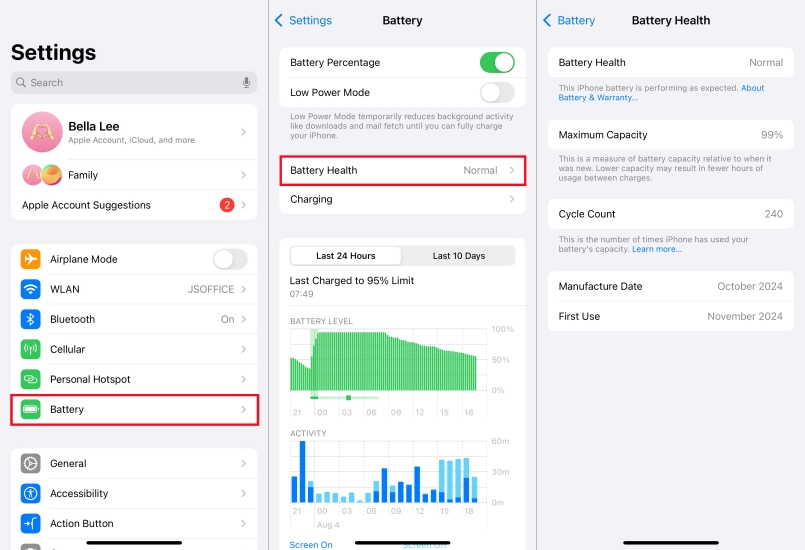
Step 1. Open Settings > Battery > Battery Health & Charging.
Step 2. You can see the maximum capacity of your iPhone battery on this page.
Method 2. Check for Panic Logs
iPhone Analytics Data acts as your device's activity journal, recording details such as app failures and overall system operations. From the Analytics Data file, we can get logs about app crashes, hardware diagnoses and iPhone restart logs.
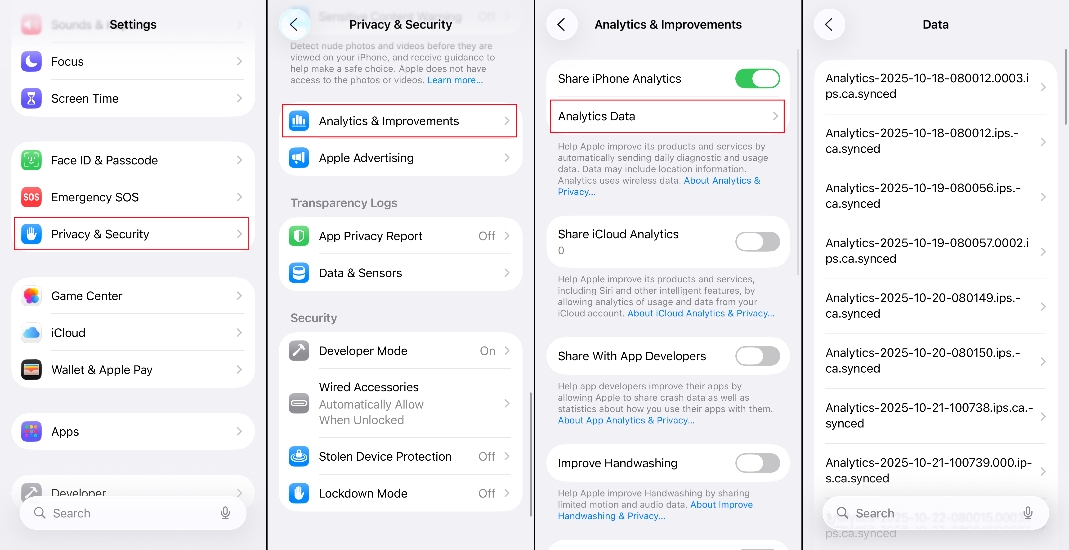
Step 1. Go to Settings > Privacy & Security.
Step 2. Scroll down to Analytics & Improvements and tap Analytics Data. If you haven't enabled Share iPhone Analytics before, you need to turn it on and wait for about 24 hours to check the Analytics Data.
Step 3. Your iPhone will generate an everyday log once you turn on Share Analytics Data. Here you can check the daily data named with the matched date.
Step 4. Browse if there is a log named "Panic-full…". If you see this log, there is a severe fault with your iPhone.
Part 3. How to Fix iPhone Randomly Restarts
When your iPhone keeps restarting randomly, you can't figure out the timing of your iPhone restarts. You can try the following methods to fix it.
Method 1. Remove Faulty Apps
From Part 2, we know that the analytics data will show app crashes. If there are faulty applications on your iPhone, it may be a factor leading to your iPhone's random rebooting. If you are not sure which virus software it is, you can follow the following steps to check.
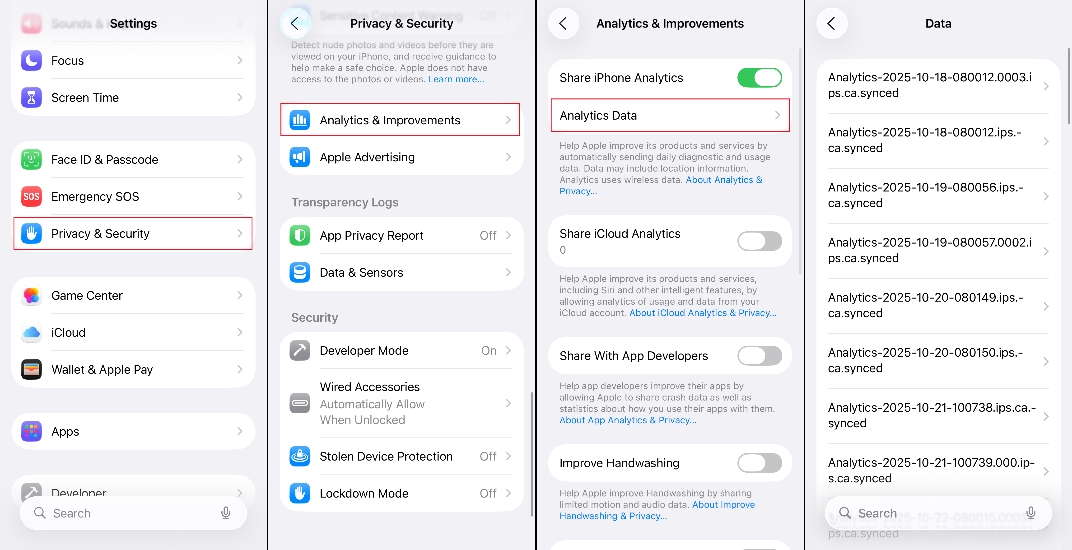
Step 1. Enter Settings.
Step 2. Choose Privacy>Analytics & Improvements.
Step 3. Touch on Analytics Data.
Step 4. Check for apps that show up multiple times in the crash reports. If you see the same apps appearing often, they're likely the culprits. Remove the faulty apps from your iPhone.
Method 2. Force Restart iPhone
The relatively simple and easy way is to manually restart your iPhone, which may easily change the current cycle of the iPhone constantly restarting. There are slight differences in the specific steps for restarting different models. You can restart based on the instructions given as follows.
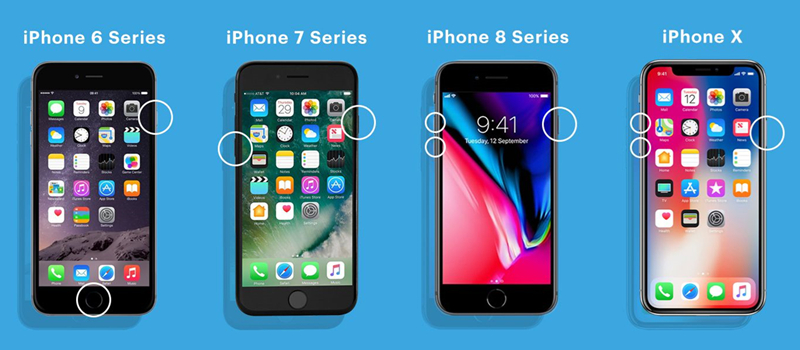
For iPhone 6 series or earlier devices: Keep pressing both the Home and Sleep button for about 10 seconds.
For iPhone 7 series: Press the Volume Down button and the Sleep button at the same time.
For iPhone 8 or later devices: Press and release the Volume Up button, and the same for the Volume Down button. Then continue to press the Side button until you see the Apple logo.
Method 3. Reinsert the SIM Card
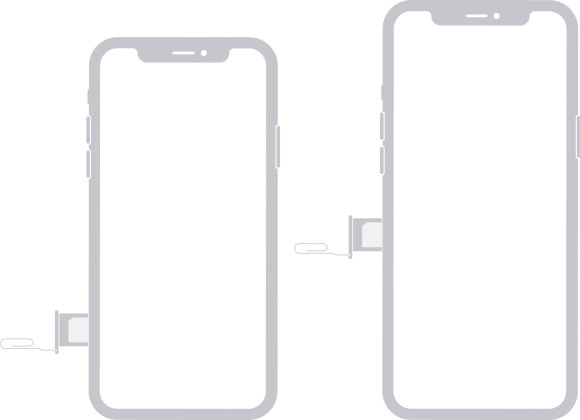
Loose or misplaced SIM cards may cause restart issues. The workaround is to use a paper pin to remove the SIM card, check it, and then place it correctly in the card slot.
Method 4. Free up iPhone Storage
Have you ever received a warning of insufficient storage but not taken it seriously? Storage overload may directly cause the iPhone to enter a state of continuous restarts. Here's a simple guide to clear your iPhone storage.
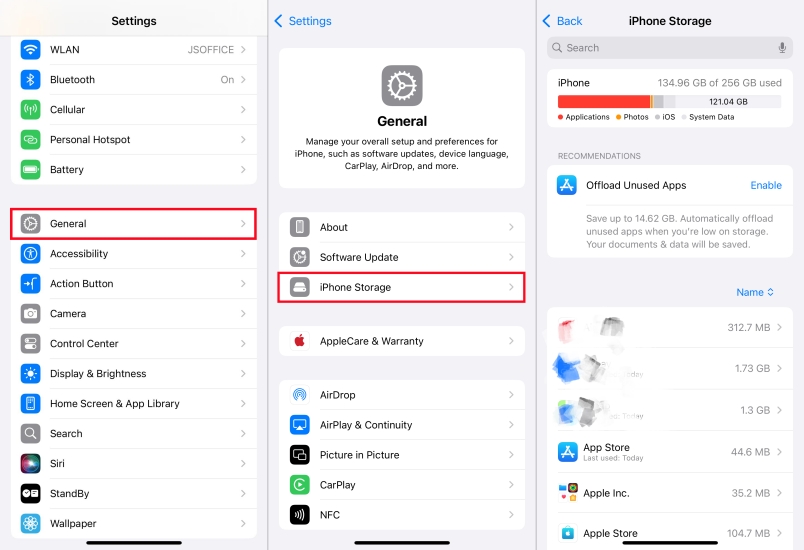
Step 1. Launch Settings.
Step 2. Scroll down and select General.
Step 3. Tap iPhone Storage and clear the storage in your way.
Method 5. Update iOS Version
Updating an iPhone to the latest version can often fix most system vulnerabilities. So you can consider updating the iPhone's system to the latest version while you can still have access to your iPhone to solve the problem. The steps are below.

Step 1. Get into Settings.
Step 2. Tap on Software Update.
Step 3. Choose Update Now.
Method 6. Reset All Settings
You may have accidentally encountered a problem due to a certain setting. Clearing all iPhone settings is the most well-advised option when it is unclear which exact setting is incorrect.

Step 1. Head to Settings.
Step 2. Go to General> Transfer or Reset iPhone.
Step 3. Select Reset at the bottom, then choose Reset All Settings.
Part 4. How to Fix iPhone Restarting Constantly (All Cases)
If your iPhone restarts constantly, it affects normal use badly. You may take the following effective methods to fix the deep bugs. The following methods will perform a deep repair on your iPhone, and you will get a fresh phone.
Method 1. Use MagFone iOS System Recovery (No Data Loss)
If you want a time-saving way to fix the iPhone keeps restarting, then the iOS repair tool MagFone iOS System Recovery is appropriate for you. It is well known for its function to repair plenty of iOS issues such as pink line on iPhone screen, iPhone stuck in boot loop and other systematic issues. What's more, MagFone can solve this problem without data loss at all when you choose the Standard Repair Mode. You can also use the Deep Repair Mode to further restore your iPhone, but you should know it'll cause data loss.

MagFone iOS System Recovery
Fix various iOS and iPadOS system issues, such as black screen, boot loop, frozen screen, or stuck on Apple logo, without data loss.
Step 1Connect Your iPhone to a Computer

Launch MagFone iOS System Recovery first, and you need to connect your phone to your computer via a USB cable. Next, select the iOS System Repair button.
Step 2Select Repair Mode
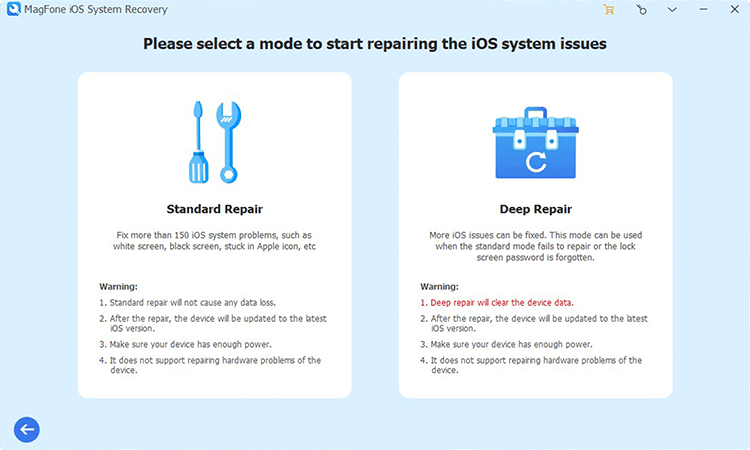
After clicking the Start button, you are required to choose a repair mode. You should select the Standard Repair mode to avert data loss. Then please follow the instructions on the screen to put your iPhone into DFU mode manually.
Step 3Download and Verify Firmware Package

Check the firmware package and iPhone information carefully and change it manually if it's not right. When it's completed, you need to download the firmware package.
Step 4Begin to Repair the Issue

Wait for the firmware package to unzip. Please don't move your iPhone during the whole process. When you see Done displayed on the screen, you've fixed your iPhone keeps restarting.
Method 2. Factory Reset iPhone (Data Loss)
This is a method that may result in data loss, so you can back up your data before proceeding. After a factory reset, your iPhone will undoubtedly be restored to its original state, which can help your iPhone function normally again.

Step 1. Run Settings.
Step 2. Press General>Transfer or Reset iPhone.
Step 3. Touch Erase All Content and Settings.
Step 4. Select Continue and Erase iPhone.
Method 3. Restore iPhone via iTunes (Data Loss)
iTunes is created by Apple to fix system issues on various Apple devices. After repairing with iTunes, all data on your iPhone will be erased.
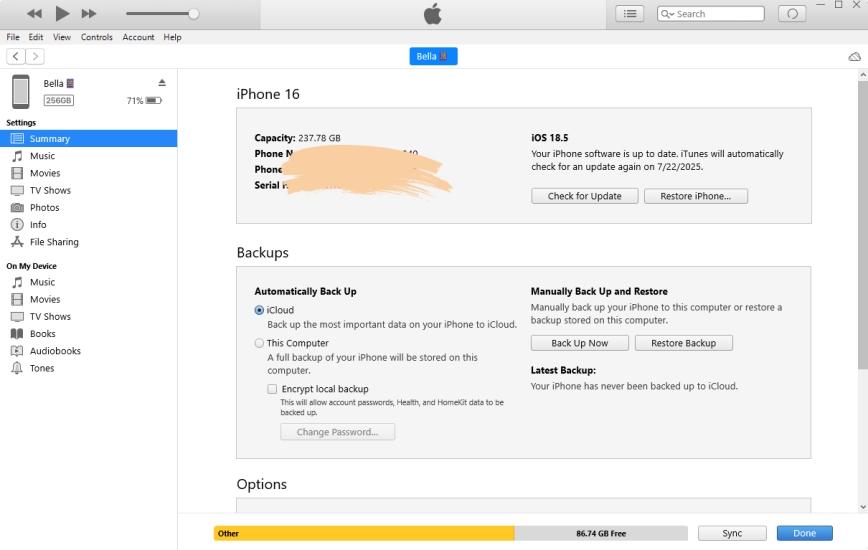
Step 1. Fire up the newest iTunes on your computer and connect your iPhone by a USB cable. Manually put your iPhone into recovery mode or use MagFone iOS System Recovery to do that for free.
Get an iPad, iPhone, or iPod touch into recovery mode with one click for free.
Step 2. After iTunes detects your iPhone, select Update in the pop-up notification.
Step 3. If the update fails, click Restore. Then follow the instructions on iTunes to complete the next steps. After everything is done, your iPhone will reboot.
Part 5. FAQs about iPhone Keeps Restarting Itself
What happens when your iPhone keeps restarting?
Your iPhone may turn on for three to five minutes then turn off and then turn on again to continue the same restart cycle. Or the iPhone just keeps restarting and won't allow you to access it anymore.
How to backup an iPhone that keeps restarting?
You can back up the data of your iPhone via iTunes. These are steps.
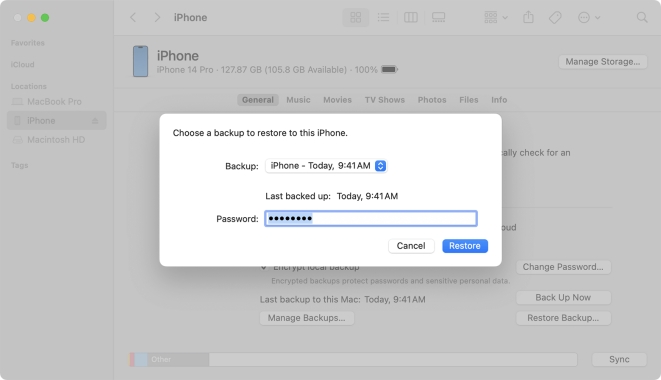
Step 1. Connect your iPhone to the computer and turn on Wi-Fi syncing.
Step 2. Click your Device in iTunes and click Summary in the left sidebar.
Step 3. Then click Back Up Now in Backups.
(If you want to encrypt your backups, choose Encrypt [device] backup. After inputting a password, click Set Password.)
Can water damage cause iPhone to keep restarting?
If there is water entering your iPhone via the charging port or other entries, your iPhone may be affected. And if your iPhone keeps restarting after water damage you should turn off your iPhone and drying it with a tissue first, then you should rest the device in silica gel or rice for 1-2 days. If that doesn't work, you should just take the iPhone to a repair store for diagnosis.
Part 6. Conclusion
In order to address iPhone random or constant restart issues, we have offered heaps of solutions in this article. You can choose to use iTunes or use a factory reset method to solve this problem. However, although these two methods are feasible, they may result in data loss. If you don't want to lose data and are struggling with no other solutions, MagFone iOS System Recovery is a highly efficient and professional system repair software that you can choose. With these tips mentioned above, we believe it's already a piece of cake for you to repair your iPhone keeps turning off and restarting.

Teresa Miller
Editor in chief




