








Force restart iPhone is familiar to Apple users. Once encountering simple system problems, like iPhone stuck on black screen or iPhone frozen on Apple logo, users often do a force restart to fix the device, and this is often effective. What should we do if there is a problem with force restart? Lots of Apple users said that they have already tried the commonly used force restart method. Unfortunately, they were unable to successfully restart the iPhone, and at times were unable to even turn it on. Don't panic. Our guide explores feasible solutions to fix iPhone force restart not working. Now let's dive into these methods together.
🚨 Quick Check: Are you holding the buttons long enough?
Most users fail because they release the buttons too early. For iPhone 8 and later, you must hold the Side button for at least 30 to 60 seconds until the Apple Logo appears. If it still won't work, proceed to the fixes introduced below.
- Part 1. Why Is Force Restart Not Working on iPhone?
- Part 2. How to Do a Force Restart on iPhone (All Models)
- Part 3. How to Fix iPhone Force Restart Not Working
- Method 1. Charge the iPhone
- Method 2. Check Button Issues
- Method 3. Update the iOS Version
- Method 4. Reset All Settings on the iPhone
- Method 5. Use an iOS Repairing Tool [No Data Loss]
- Method 6. Factory Reset the iPhone [Data Loss]
- Method 7. Restore iPhone with iTunes [Data Loss]
- Method 8. Contact Apple Support
- Part 4. FAQs about iPhone Force Restart
- Part 5. Conclusion
Part 1. Why Is Force Restart Not Working on iPhone?
Unable to force restart iPhone, but encountering system issues, which is very frustrating. So what exactly causes your iPhone unable to force restart? We listed several main reasons below.

Cause 1. Timing Issues
Research shows users often release the Side button after 10 seconds. In 2026, on newer models like iPhone 16 or 17, this can take up to 30 seconds until the Apple logo appears.
Cause 2. Power Deletion
A common reason for failure is a battery so depleted it can't even trigger the "low battery" icon. It mat require 30 - 60 minutes of charging before the hardware responds to a restart command.
Cause 3. Hardware Failure
If buttons are physically damaged or the logic board is failing, the hardware-level command won't trigger, let alone pressing volume and power buttons to force restart the iPhone.
Cause 4. Siri Trap
Many users accidentally trigger Siri or the SOS slider because their timing on the Volume buttons sequence is too slow. We need a "Pro-Tip" on the speed of the cadence.
Fix over 150 kinds of iOS and iPadOS issues, including iPhone force restart not working, without any data loss.
Part 2. How to Do a Force Restart on iPhone (All Models)
A force restart is a method of restarting an iPhone by using a specific combination of keys. It's a handy trick that forces the iPhone to shut down and restart, often resolving temporary glitches. When it comes to a force restart, both soft restart and factory reset cannot be ignored. Compared to soft restart and factory reset, force restart has some differences.
| Differences | Force Restart | Soft Restart | Factory Reset |
|---|---|---|---|
| Definition | A method to restart a device by using a specific combination of keys. | A method to restart a device through internal software. | A method to revert a device to its original state. |
| Usage Scenarios | iPhone stuck on applications; iPhone stuck on unresponsive screen; iPhone goes black. |
iPhone overheating; iPhone runs slowly or unstably. |
Need to sell the iPhone; Fix some serious problems. |
| Data Loss | ❎ | ❎ | ✅ |
| Need a Screen Passcode | ❎ | ❎ | ✅ |
After understanding what is happening under the hood, follow the steps below to force restart your iPhone. The hardware-level command varies by generation. Ensure you are following the exact cadence for your iPhone.
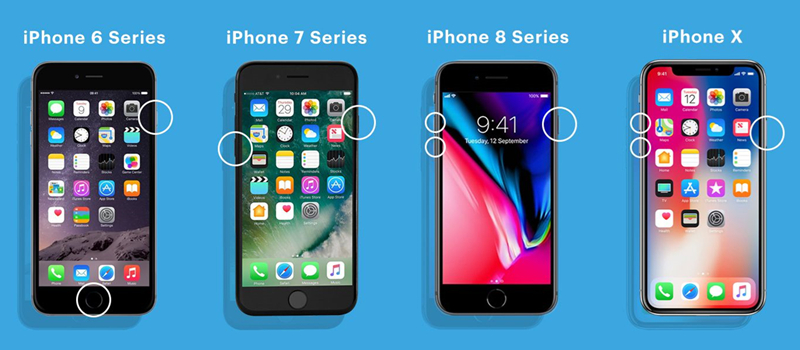
For iPhone 8, X, 11, 12, 13, 14, 15, 16, and iPhone 17
Step 1. Press and quickly release the Volume Up button.
Step 2. Press and quickly release the Volume Down button.
Step 3. Press and hold the Side button.
Continue holding even when the "Slide to Power Off" bar appears. Keep holding until the Apple Logo flashes on the screen. This can take up to 25–30 seconds.
For iPhone 7 and 7 Plus
Step 1. Press and hold both the Volume Down button and the Side button simultaneously.
Step 2. Keep holding until you see the Apple logo.
For iPhone 6s, SE (1st Gen), and Older
Step 1. Press and hold both the Home button and the Top button at the same time.
Step 2. Hold until the Apple logo appears.
Part 3. How to Fix iPhone Force Restart Not Working
The operation process of force restarting an iPhone is so easy. If the buttons are pressed correctly but the screen remains black, your iPhone is likely facing a deeper hurdle. In this case, try the following methods to reuse your iPhone.
Method 1. Charge the iPhone
To avoid the inability to restart the iPhone due to insufficient battery, you can first connect it to a charging cable and charger, or a wireless charger. Then check if the iPhone displays the charging interface. If it is, wait for the iPhone to have enough battery and force restart the device again.
Method 2. Check Button Issues
If your iPhone has enough power but still fails to restart, another possibility is that you accidentally activated Siri while pressing the side button. This conflicts with the restart operation and causes the iPhone to fail to restart. Here's a simple guide to disable the Siri activation button.
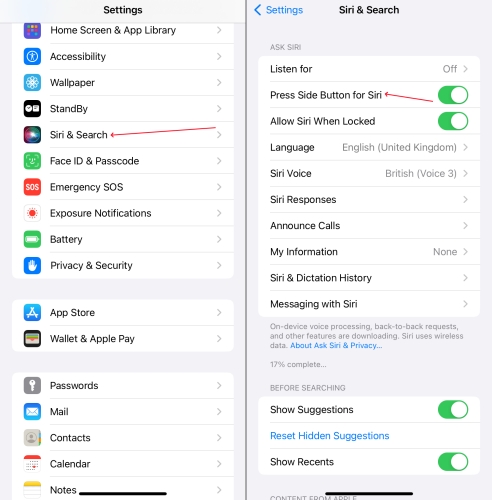
Step 1. Launch Settings on the iPhone.
Step 2. Scroll down and tap Siri > Talk to Siri on the screen.
Step 3. Toggle off Press Side Button for Siri.
Method 3. Update the iOS Version
Sometimes, an outdated iOS system version may be a reason for force restart iPhone not working. Hence, keeping the iPhone updated to the latest version is necessary. Here updating the iOS version can be a corresponding workaround for the iPhone. A step-by-step guide is below.

Step 1. Get into Settings.
Step 2. Pick General > Software Update.
Step 3. Select Update Now twice.
Method 4. Reset All Settings on the iPhone
Long-term use of iPhone, perhaps you are not quite sure what settings have been made before. And some settings may just hinder the iPhone from restarting. If you are not very clear about which specific one is wrong, erasing all settings and contents will be the safest and most efficient operation. You can follow these steps to do that.

Step 1. Access Settings and tap General > Transfer or Reset iPhone.
Step 2. Choose Reset at the bottom, then press Reset All Settings.
Step 3. Enter the device screen passcode and tap Reset to confirm.
Method 5. Use an iOS Repairing Tool [No Data Loss]
In some cases, if your iPhone cannot respond to button sequences, a professional system repair software serves as a specialized alternative, as it can restore the iPhone to its original state regardless of its condition. MagFone iOS System Recovery will be the best choice that can restore multiple system problems on all models of iPhone and iPad without data loss. Follow this simple guide to fix the iPhone can't restart through MagFone iOS System Recovery.

MagFone iOS System Recovery
Fix various iOS and iPadOS system issues, such as black screen, boot loop, frozen screen, or stuck on Apple logo, without data loss.
Step 1Run MagFone iOS System Recovery

To start with, you need to connect your iPhone to a reliable computer. Next, run MagFone iOS System Recovery on the computer and select iOS System Repair.
Step 2Put the iPhone into Recovery Mode Manually
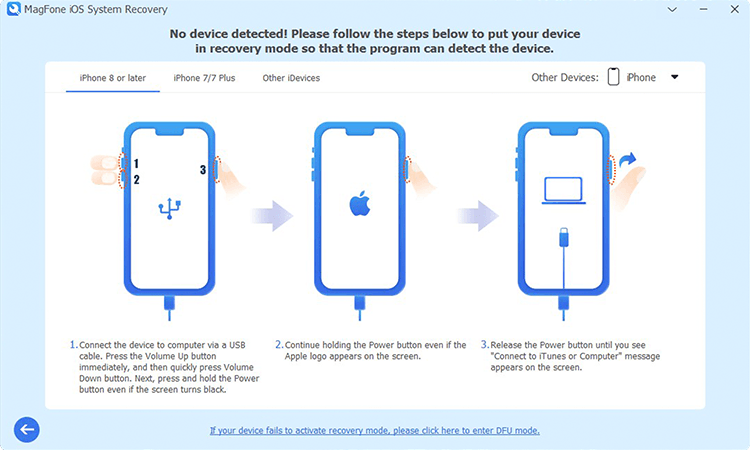
After selecting Stand Repair Mode, you should put your iPhone into recovery mode. If you don't know how to do that, just follow the onscreen instructions. By the way, you can directly use MagFone iOS System Recovery to enter your iPhone into recovery mode by just one click.
Step 3Download and Verify the Download Firmware

Continue to check the device information displayed on the computer. If it's incorrect, just select the proper firmware version and click the Download button to download the firmware package.
Step 4 Begin to Repair iPhone Won't Restart Issue

In this part, you're required to unzip and verify the firmware package by clicking the Repair button. Then you can continue to use MagFone software to resolve this issue.
Method 6. Factory Reset the iPhone [Data Loss]
Restoring the iPhone to factory settings will erase all the data and settings, and the device will return to its original state. After a reset, you can restart your iPhone normally. But it is worth nothing that everything needs to be reset again. Here's the instructions.

Step 1. Fire up Settings.
Step 2. Hit Transfer or Reset iPhone > Erase All Contents and Settings.
Step 3. Touch on Erase iPhone.
Method 7. Restore iPhone with iTunes [Data Loss]
In most cases, you can also use iTunes on a Windows PC or the Finder on a Mac to fix system issues with your iPhone. However, the operation process of this method is relatively complex, and even causes the data loss. If you want to fix the iPhone force reboot not working via iTunes or the Finder, just follow the steps below correctly.
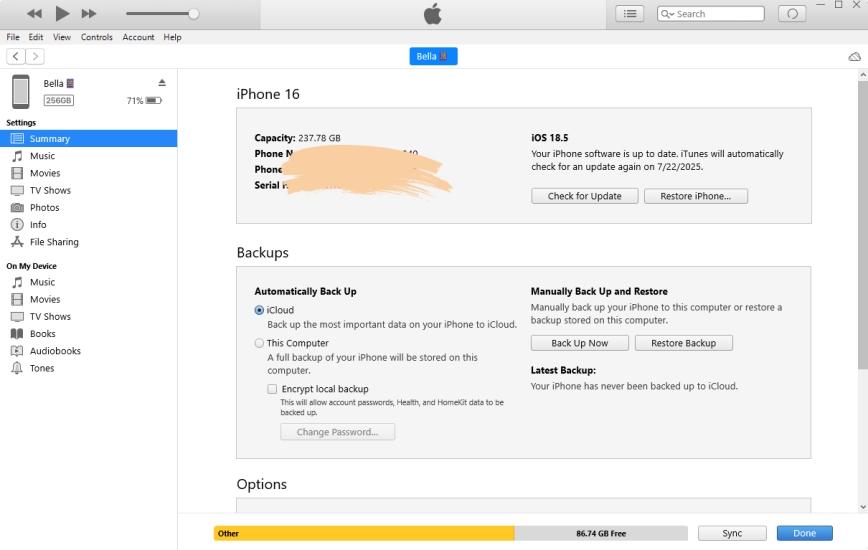
Step 1. Open iTunes or the Finder, then connect the iPhone to a computer via a USB cable.
Step 2. Then click the device icon on the left sidebar.
Step 3. Select Restore and proceed to follow the onscreen instructions.
Method 8. Contact Apple Support
As a last resort, contact Apple Support to resolve the issue. Provide Apple customer service with detailed information about your situation and you will then receive assistance in resolving the issue. The drawback of this method is that it requires you to wait for a long time. If you are in a hurry to use your phone, you can choose to use third-party tools to fix the problem quickly.
Part 4. FAQs about iPhone Force Restart
Does a force restart on iPhone delete everything?
No, it won't delete everything on your iPhone. If you have files that have not been saved, there is a high possibility of file loss, but most of the data will not be lost.
What does force restart do on iPhone?
A force restart can completely restart the iPhone and fix some issues. When your iPhone is frozen, apps aren't responding, or the screen is stuck, you can do a force restart to fix these issues.
Can you force restart a dead iPhone?
Yes, you can charge the iPhone first. If it just runs out of battery, you can force restart it after turning it on. Other than that, you can use iTunes or a third-party tool like MagFone iOS System Recovery to restore the iPhone and then try restarting it one more time.
How to force restart iPhone without touching screen?
To force restart an iPhone, you don't need to touch the screen. By pressing some hardware buttons, you can quickly force reboot your iPhone. If you don't how to do, refer to detailed steps in Part 2 to do a force restart on your iPhone.
Conclusion
When your iPhone is accessible but your iPhone reboot doesn't work, choose to update the device or reset the device to perform a preliminary repair on the device. But if your iPhone is no longer able to boot up and operate, except when the battery is depleted, it is recommend to use MagFone iOS System Recovery to fix the problem. This way, you can quickly solve the problem and use your iPhone again.

Teresa Miller
Editor in chief





