








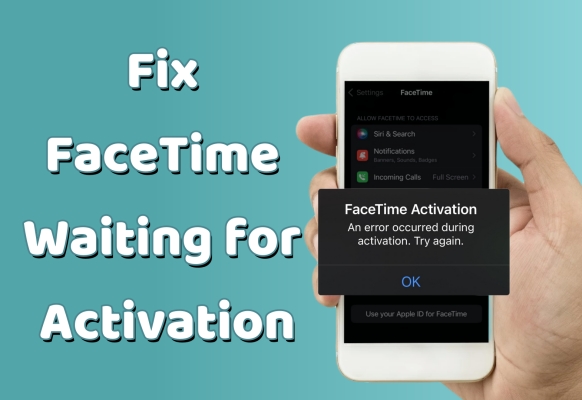
FaceTime is an essential communication tool for iPhone users, enabling easy video and audio calls with friends and family. But when activating the FaceTime feature, users may see the screen displaying various FaceTime activation error messages and lasting for a long time. FaceTime waiting for activation often occurs after a change of carrier, network, or an iOS update. To help you out of this trouble, we will dive into the causes of this issue and explore multiple methods to fix it, including preliminary checks and quick fixes. Let's get started!
- Part 1. Why Does My FaceTime Say Waiting for Activation?
- Part 2. How to Activate FaceTime When It Says Waiting for Activation
- Part 3. What to Do When FaceTime Activation Unsuccessful?
- Part 4. How to Fix FaceTime Waiting for Activation Error
- Part 5. FAQs about FaceTime Activation
- Part 6. Conclusion
Part 1. Why Does My FaceTime Say Waiting for Activation?
When you try to activate FaceTime and make a video call with your contacts on your iPhone, there may be various FaceTime activation errors getting in the way. In most cases, FaceTime keeps showing waiting for activation, and we are unable to access this app successfully. Let's take a deep look at the specific error types and causes.
What Does Waiting for Activation on FaceTime Mean?
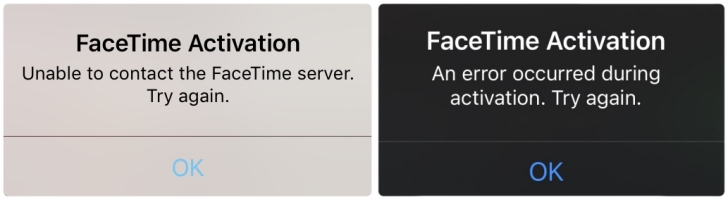
It means that FaceTime is unable to complete the activation process with Apple's servers. When you see the FaceTime Activation pop-up prompt on your iPhone, there are several different messages that will appear, but they all essentially point to the activation process not going well, and common messages include:
- Waiting for activation
- Activation unsuccessful
- An error occurred during activation. Try again.
- Could not sign in. Please check your network connection.
- Unable to contact the FaceTime server. Try again.
Why Does FaceTime Say Waiting for Activation?
FaceTime activation relies on multiple factors. If there is a problem in any one of them, the activation will fail. Here are the most common reasons:
Apple Server Issues: If FaceTime is unavailable on the Apple system status, or FaceTime is unable to connect to the server, the activation may fail.
Apple ID Mismatches: Apple ID abnormality, email or phone number not verified, will block activation requests.
Network or Date & Time Issues: Incorrect time settings or an abnormal network may prevent you from connecting to Apple activation servers.
System Update Issues: Outdated or corrupted system files can cause the activation interface to get stuck.
Part 2. How to Activate FaceTime When It Says Waiting for Activation
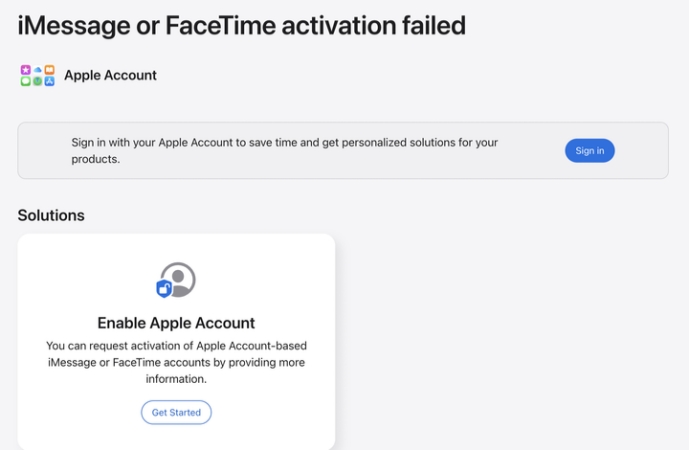
If your FaceTime has a loading screen saying "Waiting for activation", then you can first try activating your FaceTime account online. After you submit the activation request online, the Apple service will contact you.
Step 1. Go to the online activation website.
Step 2. Tap Get Started under the Solution stack.
Step 3. Sign in to your Apple ID account and wait for verification.
Step 4. Follow the onscreen instructions to forward, and you will be required to provide more details information about FaceTime activation alerts.
Part 3. What to Do When FaceTime Activation Unsuccessful?
If you don't want to wait for the official support, you can troubleshoot the FaceTime activation issue by yourself. There are several checks for the most common causes of this problem, such as network connection. Checking the items below may help you before exploring more advanced solutions.
Method 1. Check FaceTime Status
Sometimes, FaceTime may not be activated if it's not properly authorized on your device. This issue can arise after a system update or if FaceTime has been turned off and not correctly re-enabled. Ensuring FaceTime is authorized will help clear the activation error.
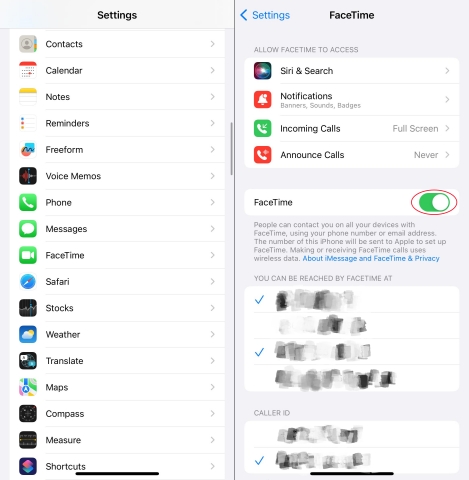
Step 1. Enter Settings and scroll down to the bottom to tap Apps.
Step 2. Find and select FaceTime, then enable the FaceTime switch.
Method 2. Check Network Connection
It's indispensable to connect to a stable and fast network connection for FaceTime activation. Whether you're using Wi-Fi or cellular data, any disruptions in your connection can lead to activation issues. Ensuring that your device has reliable access to the internet can resolve this issue quickly.
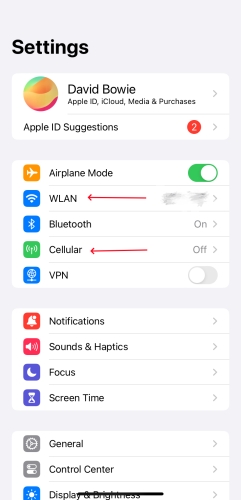
Step 1. Launch Settings and tap WLAN.
Step 2. Check if you've connected to a stable and reliable Wi-Fi network.
Step 3. For a cellular network, you can select Cellular, then turn on the Cellular Data option.
Method 3. Check Date & Time Zone
FaceTime relies on accurate time settings to connect to Apple's servers. If there's something wrong with the date or time zone on your device, it may interfere with the activation process. If you want to activate any service like FaceTime on your device, ensure your date and time settings are correct.
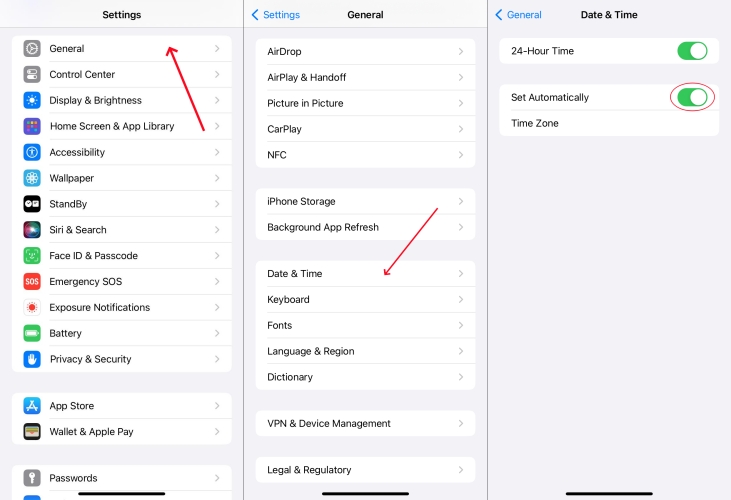
Step 1. Fire up the Settings app.
Step 2. Tap General, then press Date & Time.
Step 3. Next, switch on the Set Automatically option.
Method 4. Check the System Status
In some cases, Apple's servers may be down or experiencing issues that can affect FaceTime activation. Checking Apple's System Status page can help you identify whether the issue is on your end or due to an unavailable server on Apple's side. If it's a server issue, you'll need to wait for Apple to finish repairing.
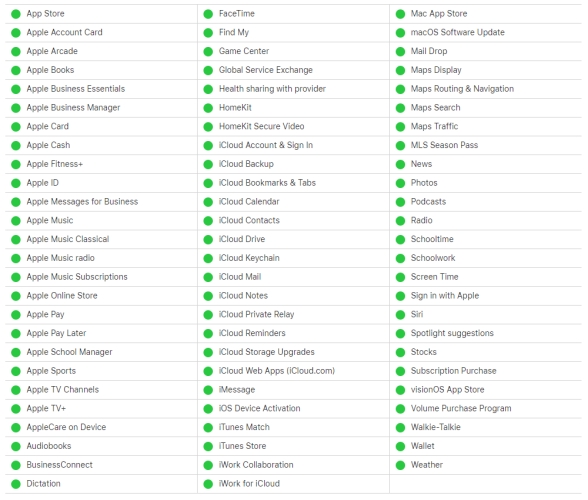
Step 1. Switch to the Apple System Status website online.
Step 2. Check if FaceTime shows a green dot indicating the service is up and running. If not, wait for Apple to fix it.
Part 4. How to Fix FaceTime Waiting for Activation Error
Waiting for the Apple contact for FaceTime activation may take some time. Apart from essentials, the FaceTime activation error can also be affected by your iPhone's bugs or system glitches. If it fails to fix the issue with the above checks, you can also try the following methods that can help you get rid of activation alerts and let you use FaceTime successfully.
Method 1. Restart FaceTime and iPhone
A refresh and restart of FaceTime and the device can eliminate the temporary conflicts and bugs during the activation process. If your FaceTime is stuck on the loading screen, try disabling FaceTime and enabling it after a device reboot.
Step 1. Access Settings > Apps > FaceTime and disable FaceTime.
Step 2. Restart your iPhone to refresh the ongoing process.
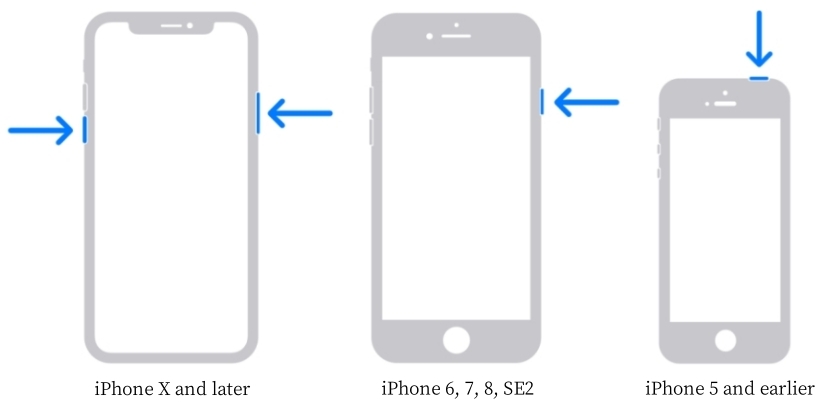
iPhone X and newer models:
Long-press the power button and the volume up button at the same time. Follow the onscreen instructions to shut off the iPhone. Then long-press the power button to restart.
Models before iPhone X:
Long-press the power button and the home button at the same time. Follow the screen instructions to quit the iPhone. Then long-press the power button to restart.
Step 3. After the reboot, repeat Step 1 to turn on FaceTime.
Method 2. Reset Network Settings
If your device is having trouble connecting to the internet or Apple's servers, resetting network settings can help. This will clear any problematic connections and refresh your Wi-Fi and cellular settings, often fixing the FaceTime activation issue.
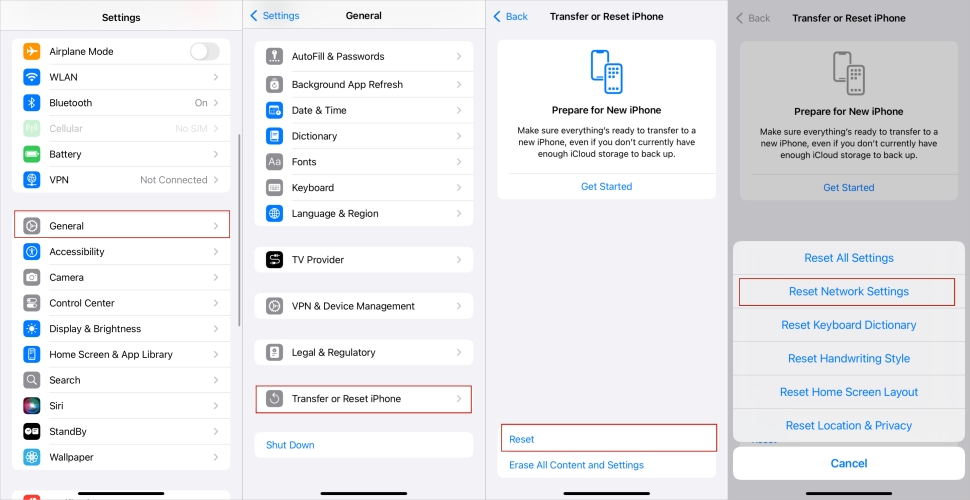
Step 1. Open Settings.
Step 2. Select General in it, and then touch on Reset.
Step 3. Select Reset Network Settings and input your passcode to confirm.
Method 3. Sign Out and Sign Back to Apple ID
Signing out and back into your Apple ID can resolve account-related activation issues with FaceTime. If your Apple ID isn't syncing properly with FaceTime, signing out and re-signing in can reconnect to the Apple server and smoothly activate FaceTime.
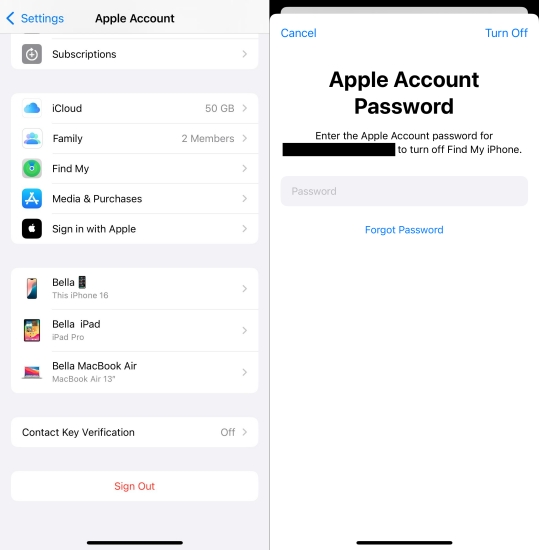
Step 1. Launch Settings.
Step 2. Tap your Apple ID at the top and scroll to the bottom to press Sign Out.
Step 3. After that, sign back in using your Apple ID password.
Method 4. Update to the Latest iOS System
One of the indispensable factors to activate FaceTime is the iOS system. If you haven't updated your iPhone's iOS recently, it might be time to do so. An updated version can fix known issues and improve FaceTime's activation performance.

Step 1. Run Settings.
Step 2. Hit on General and select Software Update.
Step 3. If there's an update is available, select the Download Now or Install Now option to update your iPhone system to the latest version.
Method 5. Factory Reset iPhone
It's a relatively drastic step to perform a factory reset on your device. A factory reset erases all content and settings on your iPhone, essentially returning it to its original state. This can also fix persistent activation issues caused by software glitches, but make sure to back up your data first.

Step 1. Enter Settings.
Step 2. In General, choose Reset at the bottom of the screen.
Step 3. On the bottom, choose Erase All Content and Settings twice to factory reset the device.
Method 6. Use MagFone iOS System Recovery
If you have tried the methods to eliminate iPhone bugs but your iPhone is still stuck on the FaceTime Activation screen, MagFone iOS System Recovery can be a lifesaver. This powerful tool offers a quick and efficient way to resolve system glitches that lead to FaceTime activation issues, as well as iMessage activation issues without affecting your data. It works by repairing underlying software issues that may be causing the activation problem and providing a fast solution to get FaceTime working again. Simply download MagFone and repair your iPhone's system issues for smoother FaceTime activation.

MagFone iOS System Recovery
Fix various iOS and iPadOS system issues, such as FaceTime waiting for activation or iMessage activation issue, without data loss.
Step 1 Run MagFone iOS System and Connect iPhone

Start by linking your iPhone to a computer with a USB cable. After running the MagFone program on the PC, you can continue to enter the iOS System Repair tab on the main interface.
Step 2 Select Standard Repair to Address the Issue
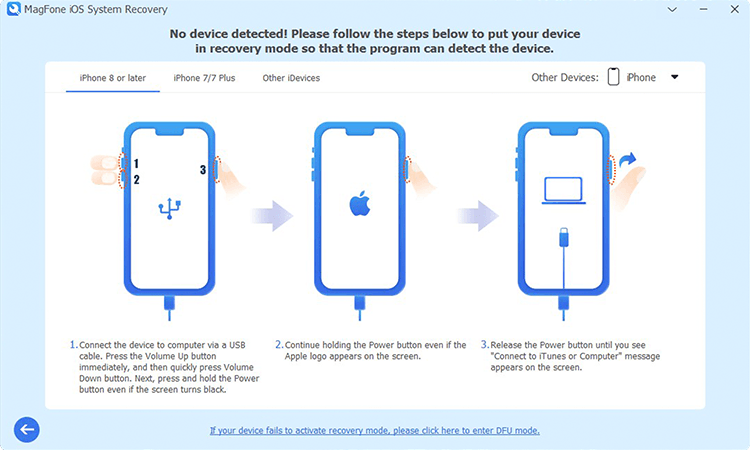
Once in the iOS System Repair section, choose Standard Repair. The software will automatically detect your iPhone, and you can proceed to put it into recovery mode.
Step 3 Download and Verify the Firmware Package

Your device information will appear on the screen. Confirm the information on the screen and select an appropriate firmware version for your device. After that, click Download to initiate the download process.
Step 4 Begin Repair for FaceTime Activation Errors

After that, click the Start Standard Repair button to resolve the issue. Wait a few moments until the Repair Completed prompt appears. When finished, click Finish, and then continue to activate FaceTime on your device.
Part 5. FAQs about FaceTime Is Waiting for Activation
-
How to activate FaceTime on my iPhone?
After signing into Apple ID on your device, go to Settings > Apps > FaceTime and toggle the switch to turn it on. Make sure you have a valid Apple ID, a stable internet connection, and the correct date and time settings. If FaceTime doesn't activate, try the troubleshooting methods in this guide.
-
How long does FaceTime activation take?
FaceTime activation usually takes a few minutes. However, it can sometimes take up to 24 hours, depending on network conditions and Apple's server load. If it's taking longer than expected, you can try the solutions presented in this article.
-
Why is FaceTime taking so long to activate?
When the FaceTime Activation takes a long time, it's an implicit notice that there is some error with either the basic settings or temporary bugs, or system glitches with your iPhone. You can stop the activation and follow the methods in this guide to troubleshoot.
Part 6. Conclusion
To sum up, the FaceTime activation issue is a frequent occurrence, but it's usually simple to resolve. Whether caused by network, system settings, or Apple ID issues, there are corresponding methods to fix it. Among them, MagFone iOS System Recovery provides a quick, dependable fix. By following the steps in this guide, you'll activate FaceTime quickly and enjoy video calls with friends and family.

Dylan Jones
Editor in chief





